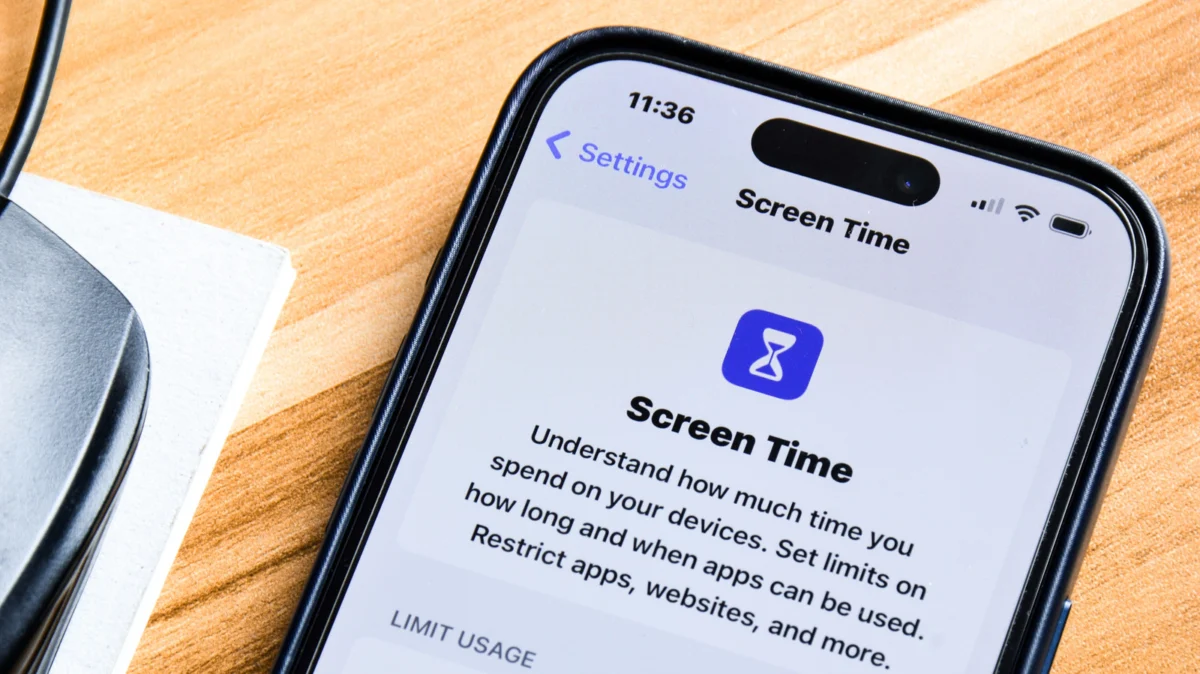
In an era defined by constant connectivity, the average smartphone user spends hours daily navigating a labyrinth of social media feeds, push notifications, and infinite scrolling loops. For many, the device that was designed to empower productivity has morphed into a source of digital distraction. Apple’s "Screen Time" suite, introduced as a cornerstone of its commitment to digital well-being, offers a powerful, built-in solution to this modern dilemma. Whether you are looking to cultivate better habits, reduce anxiety, or manage a child’s digital footprint, understanding the granular controls within Screen Time is the first step toward regaining control.
Main Facts: What is Screen Time?
At its core, Screen Time is an iOS utility that provides real-time insights into how you interact with your device. Far from being just a tracking tool, it functions as a comprehensive management console that allows users to set firm boundaries.
The feature categorizes activity into distinct buckets—such as Social, Entertainment, and Productivity—allowing users to see exactly where their hours are leaking. By leveraging "Downtime" and "App Limits," users can transition from passive consumption to intentional usage. The utility is not merely about restriction; it is about providing the data necessary to make informed decisions about your digital diet. When synced across an Apple ecosystem, these restrictions apply globally, ensuring that if you set a limit on your iPhone, your iPad and Mac adhere to the same boundaries, preventing the "device-hopping" that often undermines self-control.
Chronology: The Evolution of Digital Well-Being
The introduction of Screen Time in iOS 12 marked a significant philosophical shift for Apple. Historically, tech companies prioritized "time on device" as the primary metric of success. With the launch of this feature, Apple acknowledged that its users were struggling with the addictive nature of their products.
- 2018 (iOS 12): Apple launches Screen Time, providing the first native dashboard for usage analytics and basic app limiting features.
- 2019-2020 (iOS 13-14): Communication limits were introduced, allowing parents to control who their children could talk to and when, further expanding the parental control suite.
- 2021-2023 (iOS 15-17): Apple integrated "Screen Distance" and "Communication Safety" features, utilizing the TrueDepth camera system to promote eye health and providing AI-driven warnings against sensitive content, shifting the focus from simple usage to holistic safety.
Supporting Data: Understanding Your Usage Patterns
To effectively change your habits, you must first confront the data. By navigating to Settings > Screen Time, users are greeted with a visual breakdown of their digital life.
The "See All App & Website Activity" section is the diagnostic heart of the feature. Here, users can view:
- Pickups: The number of times you have unlocked your phone. This metric often shocks users, revealing that they unlock their device hundreds of times per day, often out of habit rather than necessity.
- First Use: Identifying which app you open immediately upon waking is a critical indicator of your default mental state.
- Notification Frequency: This is often the primary driver of excessive usage. If an app sends 50 notifications a day, it is effectively hijacking your attention.
By analyzing the "Week" vs. "Day" views, you can identify "doom-scrolling" patterns, such as spikes in social media usage late at night or during the work day, allowing you to tailor your restrictions specifically to those hours.
Setting Boundaries: The Mechanics of Restriction
Once the data has been reviewed, the real work of implementation begins. Effective usage of Screen Time requires a tiered approach:
The "Always Allowed" Foundation
Before locking yourself out, ensure your critical communication tools remain functional. By configuring the Always Allowed list, you ensure that even during a period of restriction, you can still access phone calls, messages, and essential utility apps (like Maps or Health).
Leveraging Downtime
Downtime is your "off-switch." When enabled, all apps—except those you’ve whitelisted—become inaccessible. By setting a schedule (e.g., from 10:00 PM to 7:00 AM), you can force your device into a "sleep mode," effectively creating a barrier against late-night social media usage.
Granular App Limits
Rather than a total blackout, use App Limits to curb specific vices. If you find yourself losing an hour to a specific game or news app, set a limit of 15 or 30 minutes. When the time expires, a persistent overlay appears, preventing further use. While you can "Ignore Limit," the extra friction required to click through the warning often serves as enough of a psychological "nudge" to stop the behavior.
Parental Oversight: Protecting the Next Generation
Screen Time is perhaps most powerful when used to manage a child’s device. Through Apple Family Sharing, parents can remotely govern their children’s digital experiences.
Communication and Content Controls
Beyond time limits, parents can employ Communication Limits, which restrict contact to approved individuals. Content & Privacy Restrictions provide the "heavy lifting" of parental control, allowing parents to:
- Disable the ability to install or delete apps.
- Block explicit content on websites or within the App Store.
- Prevent modifications to privacy settings, such as Location Services.
The "Ask to Buy" feature further integrates the parent into the digital life of the child, requiring approval for all app downloads. By locking these settings with a specific Screen Time passcode—distinct from the device’s main passcode—parents ensure that their restrictions cannot be easily bypassed by savvy children.
The Psychological Implications of Hard Limits
The final, and most controversial, aspect of Screen Time is the use of the "Passcode" to enforce discipline. As noted in various productivity circles, a limit without a consequence is merely a suggestion.

If you are serious about reducing your usage, consider the "Nuclear Option": have a trusted friend or partner set a Screen Time passcode that you do not know. If you are struggling with a specific addiction, having this barrier ensures that bypassing the limit requires a level of effort that creates a "cooling off" period. This intentional friction is often the difference between success and failure in digital detoxing.
Combined with Focus Modes, which suppress non-essential notifications during specific tasks, Screen Time transforms your device from a source of constant interruption into a focused, purposeful tool.
Conclusion: A Tool for Intentionality
Ultimately, Screen Time is not a panacea for digital addiction. It is a mirror. It forces you to look at how you spend your most valuable, non-renewable resource: time. By utilizing the analytics to understand your triggers, employing Downtime to create silence, and using strict limits to foster self-discipline, you can reclaim your attention.
The goal is not to eliminate technology, but to move from a state of reactive consumption to one of intentional usage. Whether you are a parent safeguarding a child or an individual striving for better focus, Screen Time provides the necessary architecture to build a healthier, more balanced relationship with the technology in your pocket. As you move forward, remember that the most effective setting is the one that best serves your mental health—not the one that keeps you on the screen the longest.