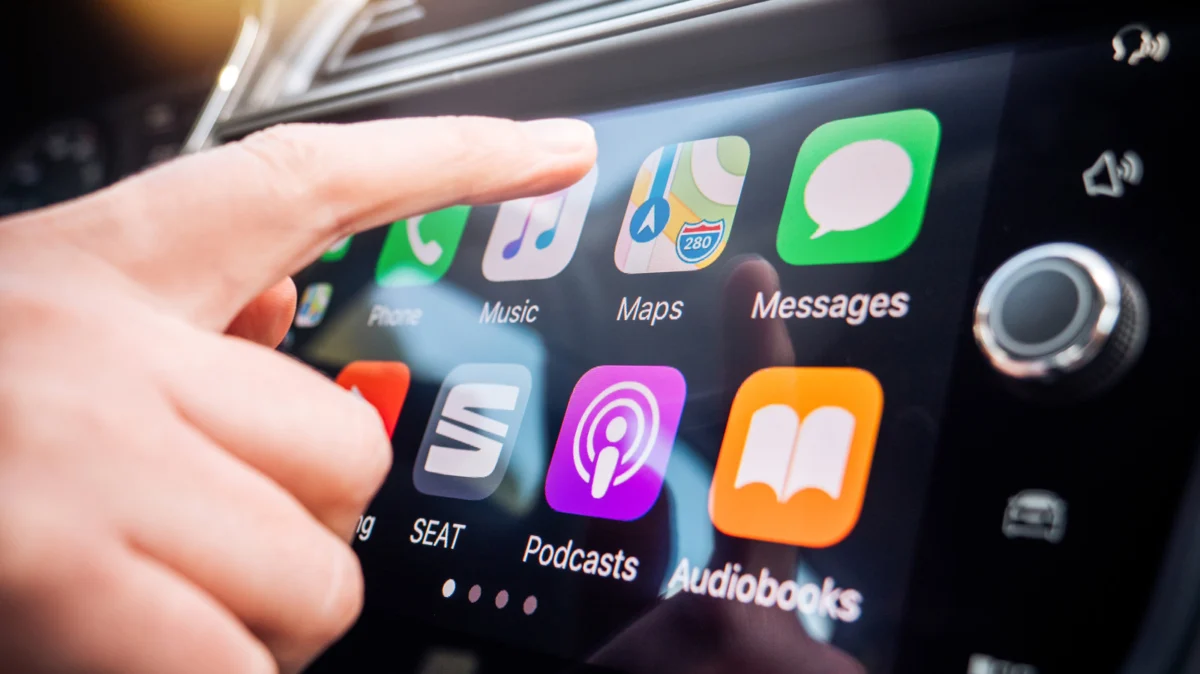
In the modern era of automotive connectivity, Apple CarPlay has revolutionized the way we interact with our vehicles. By bridging the gap between our digital lives and our daily commutes, it provides seamless access to navigation, communication, and entertainment. However, as the sophistication of these systems has grown, so too has the potential for distraction. For many drivers, the most frequent offender is not the interface itself, but rather the vocal, often intrusive presence of Siri.
While intended to act as a helpful co-pilot, an over-eager digital assistant can quickly transition from a productivity tool to a significant safety hazard. When Siri interrupts your favorite podcast to announce a mundane group chat notification or fails to register a command due to road noise, it breaks your concentration—a dangerous development when navigating heavy traffic. Fortunately, Apple provides a robust suite of granular controls to tame this digital assistant. This guide explores how you can regain control of your cabin environment, optimize your focus, and ensure that your technology serves your journey rather than complicating it.
The Core Conflict: Connectivity Versus Concentration
The fundamental promise of CarPlay is safety—the idea that you can interact with your device through voice commands rather than looking at a screen. However, this relies on a delicate balance. When the assistant’s voice volume is too loud, or when it triggers unwanted interruptions, the cognitive load on the driver increases. Research into driver distraction consistently shows that even brief interruptions can significantly reduce situational awareness.
"The goal of any in-car technology should be to reduce the cognitive burden on the driver," explains one automotive software analyst. "When a system forces a user to manage the system itself—rather than the road—it has failed its primary objective."
While you cannot completely disable Siri (as it is the backbone of the CarPlay interaction layer), you can aggressively manage its behavior. By shifting from a "default" configuration to a "curated" one, you can minimize the frequency and volume of interruptions, turning your car back into a sanctuary of focus.
The First Line of Defense: Optimizing ‘Driving Focus’
The most effective tool in your arsenal is the "Driving Focus" mode. Far more than a simple "Do Not Disturb" toggle, this feature is a sophisticated filter designed to curate your incoming data stream based on the context of your movement.
Setting Up Your Driving Shield
To begin the process of reclaiming your cabin, navigate to Settings > Focus on your iPhone. If you do not see "Driving" listed, tap the Plus (+) icon in the top-right corner to add it. Once inside, you have the ability to dictate exactly who can reach you while the vehicle is in motion.
For the safety-conscious driver, the "Allowed People" setting is critical. Instead of allowing all incoming messages and notifications, restrict this to a "VIP" list of essential contacts. By doing this, Siri will not interrupt your music or navigation for trivial social media pings or non-essential group chats.
Automating the Experience
One of the most powerful aspects of this feature is its ability to trigger automatically. Under the "While Driving" section, ensure that "Activate With CarPlay" is toggled to the "On" position. This ensures that the moment your phone connects to your vehicle—whether via a Lightning cable or a wireless handshake—your phone automatically enters a state of minimal distraction.
Furthermore, the "Auto-Reply" feature serves as a professional courtesy. It sends a pre-scripted message to those who attempt to contact you, notifying them that you are currently driving and will respond when it is safe to do so. This eliminates the "anxiety of responsiveness," where drivers feel compelled to reach for their phones to acknowledge a message.
Taming the Voice: Controlling Siri’s Verbosity
Even with your notifications restricted, Siri can still be intrusive. From reading incoming texts aloud to confirming every single action you take, the assistant’s "helpfulness" can often manifest as a relentless stream of chatter.
Disabling Announce Notifications
If you find yourself constantly interrupted by Siri reading messages, you can disable this behavior specifically for your vehicle. Navigate to Settings > Notifications > Announce Notifications. While you may want to keep this enabled for your AirPods, you can enter the CarPlay submenu to specifically toggle off "Announce Messages." This ensures that your drive remains quiet unless you specifically request information.
Streamlining Responses
By default, Siri often reads back your dictated messages before sending them. While this is intended to prevent typos, it adds unnecessary time to your task. By navigating to Settings > Notifications > Announce Notifications and enabling "Reply Without Confirmation," you can significantly speed up the process. Once you dictate a message, it is sent immediately. This reduces the time you spend focusing on the interface rather than the road.
Addressing ‘False Triggers’ and Interruption Sensitivity
If your Siri frequently stops mid-sentence because it misinterprets road noise or passenger chatter as a command, you need to adjust its sensitivity. Under Settings > Accessibility > Siri, you can toggle "Require ‘Siri’ for Interruptions." This forces the system to wait for a specific wake word before it stops its current output, preventing accidental interruptions caused by a loud radio or an active conversation.
Navigating the Navigation: Managing GPS Audio
Perhaps the most common source of frustration is the "navigation interruption." While GPS guidance is essential for reaching new destinations, the constant "turn-by-turn" chatter can become tedious on familiar routes.
Customizing GPS Audio
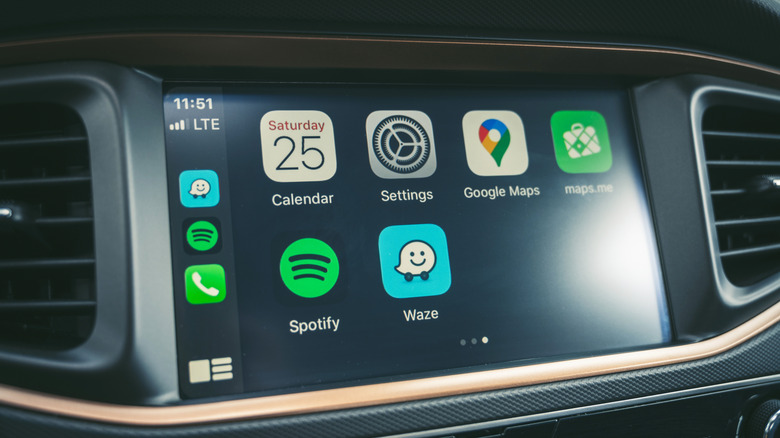
Modern navigation apps—including Apple Maps, Waze, and Google Maps—have become increasingly user-friendly regarding audio management.
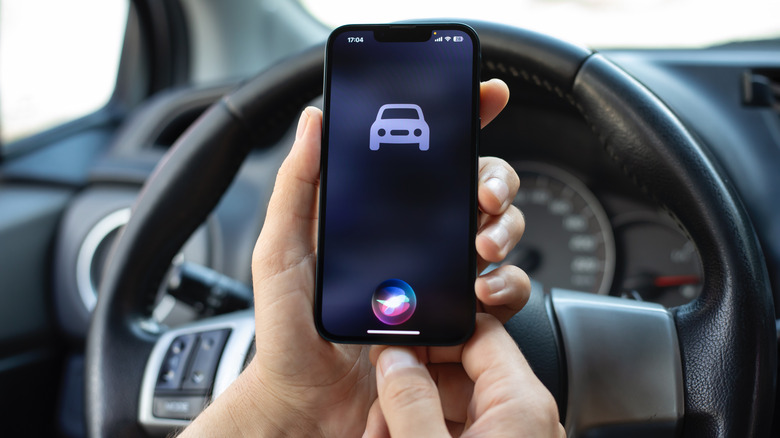
- Apple Maps & Waze: During an active navigation session, you will see a speaker icon on the CarPlay display. Tapping this allows you to toggle between "Full Guidance," "Alerts Only," or "Silent." Setting this to "Alerts Only" is often the best middle ground, as it keeps you informed of significant hazards or major route changes while sparing you the redundant "in 500 feet, turn right" instructions.
- Google Maps: If you prefer Google’s ecosystem, you can access more granular controls by opening the app on your phone, tapping your profile icon, and heading to Settings > Navigation. Here, you can enable "Play alerts even while muted," ensuring you never miss a critical road safety update, even when the primary voice guidance is turned off.
Softening the Voice
If you prefer to keep the audio guidance on but find the volume level jarring, you can adjust the "Guidance Volume" within your phone’s settings under Settings > Apps > Maps > Spoken Directions. Furthermore, consider disabling "Directions Pause Spoken Audio." This allows your music or podcasts to continue playing at a lower volume rather than cutting out entirely, which creates a more seamless and less jarring listening experience.
Implications for the Future: The AI Transition
As we look toward the future, the role of the digital assistant is undergoing a fundamental shift. Apple has publicly committed to a major "AI overhaul" for Siri, moving toward a system that is context-aware and, hopefully, more intuitive.
The implications for drivers are significant. An AI that understands the difference between a high-priority work call and a low-priority group chat update will naturally require less manual configuration from the user. However, until that technology matures and becomes standard, the responsibility for maintaining a distraction-free environment remains with the driver.
Conclusion: The Responsible Driver’s Toolkit
Technology should be an enabler of freedom, not a source of stress. By taking the time to manually configure your CarPlay settings, you are doing more than just silencing a phone—you are creating a safer, more predictable, and more enjoyable driving experience.
The steps outlined here—from activating the "Driving Focus" to muting non-essential navigation alerts—represent a commitment to safe driving habits. The goal is to reach your destination with your focus fully intact. As you integrate these changes, you will find that Siri is no longer a source of irritation, but a quiet, efficient tool that stays in the background until it is truly needed. Remember: your attention is the most valuable safety feature in your car. Manage it wisely.