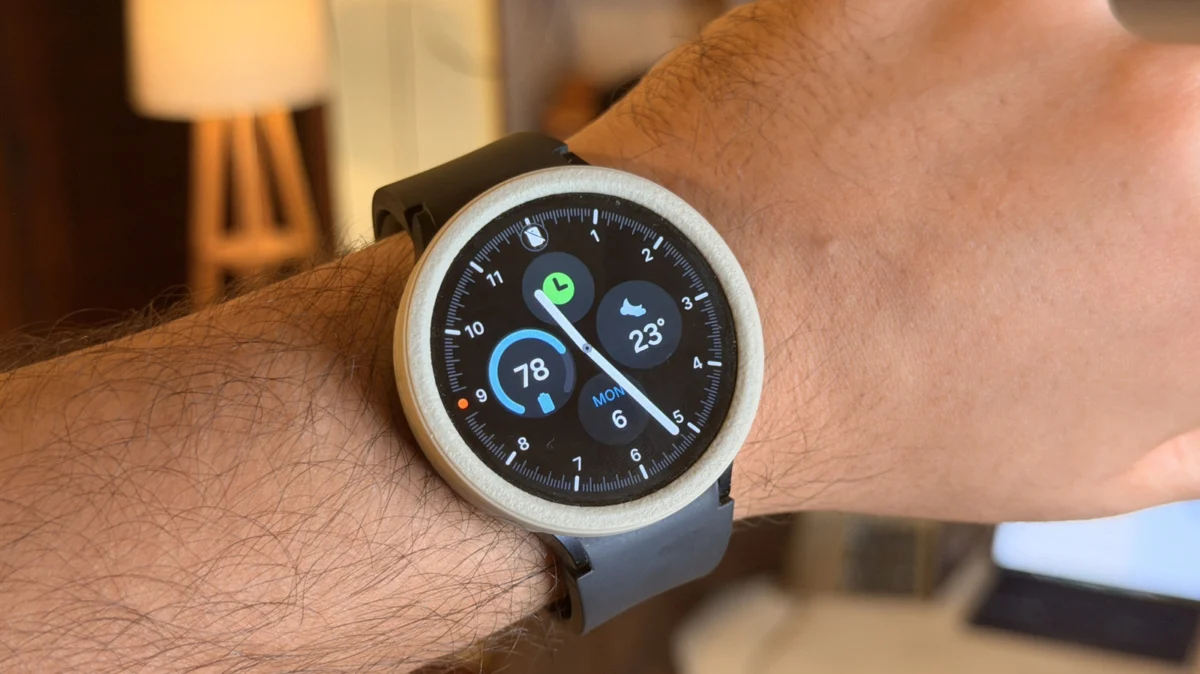
In the modern ecosystem of wearable technology, the Samsung Galaxy Watch stands as a titan of functionality. Whether you are sporting the latest Galaxy Watch 8 or a reliable model from the Watch 4 series, these devices serve as essential extensions of our digital lives. From tracking intricate sleep patterns to managing real-time notifications and fitness metrics, the Galaxy Watch is designed to keep pace with an active lifestyle.
However, there is a persistent challenge that unites users across the Android spectrum: the inevitable "battery anxiety" that accompanies high-performance smartwatches. While these devices are marvels of engineering, the reality of daily usage often means tethering the watch to a charger just as you prepare for bed—preventing the use of vital sleep-tracking features. For those seeking to squeeze every possible minute of endurance out of their device, here is an in-depth exploration of how to optimize your Samsung Galaxy Watch for maximum longevity.
The Reality of Wearable Power Consumption
To understand why battery life fluctuates, one must consider the hardware architecture of a smartwatch. Unlike a smartphone, which features a significantly larger battery, a smartwatch relies on a compact cell that must power a vibrant AMOLED display, a suite of health-tracking sensors, GPS, and constant wireless connectivity.
Chronology of Power Drain
The battery cycle of a typical Galaxy Watch usually follows a predictable pattern:
- Morning (07:00 – 09:00): High drain as the watch synchronizes overnight data and processes morning notifications.
- Mid-day (12:00 – 16:00): Moderate drain due to background health monitoring and occasional interactions.
- Evening (18:00 – 22:00): High drain if the watch is used for workout tracking or LTE-based communication without a phone nearby.
- Night (22:00 – 06:00): Minimal, but consistent drain if sleep tracking and SpO2 monitoring are active.
By adjusting specific software behaviors, users can fundamentally shift this timeline, extending the usable window by several hours or even a full day.
1. Mastering Display Settings: The Always-On Dilemma
The display is arguably the most significant contributor to battery depletion. The "Always-on Display" (AOD) feature, while aesthetically pleasing, forces the screen to remain active, consuming energy even when the watch is not in use.
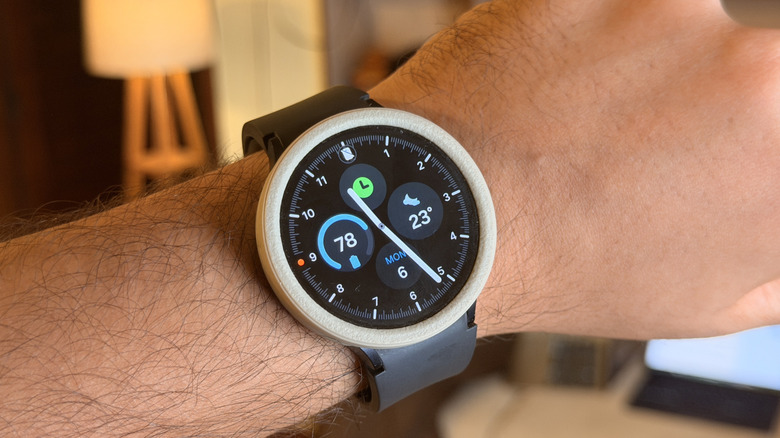
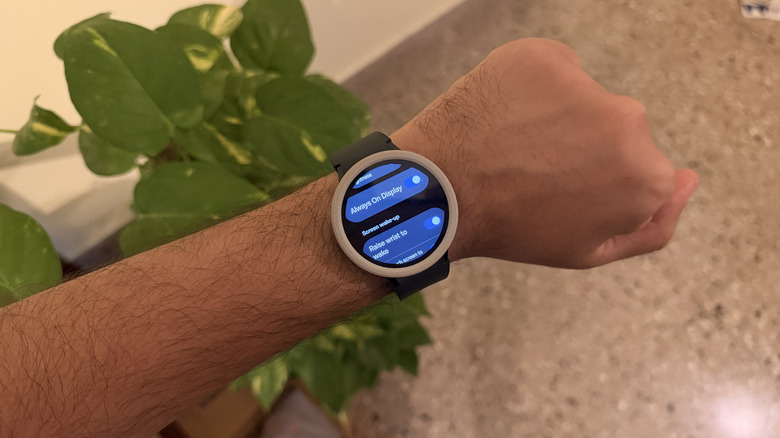
Disabling Always-on Display (AOD)
To maximize your watch’s stamina, navigate to Settings > Display > Always On Display and toggle it off. This simple change prevents the display from burning energy throughout the day.
Managing ‘Raise to Wake’
The accelerometer, which detects the motion of your wrist to wake the screen, is a double-edged sword. While convenient, it is frequently triggered by mundane movements, such as typing or adjusting your glasses. Disabling this feature within the same display menu requires a conscious tap to wake the screen, but it drastically reduces the number of "accidental" display activations, preserving significant power over a 24-hour cycle.
2. Optimizing AI and Connectivity: Turning Off ‘Hey Google’
The integration of Google Gemini (formerly Google Assistant) has revolutionized how we interact with our wrists. However, this convenience comes at a price. For the watch to listen for the "Hey Google" hotword, the microphone and processing unit must remain in a low-power "listening" state around the clock.
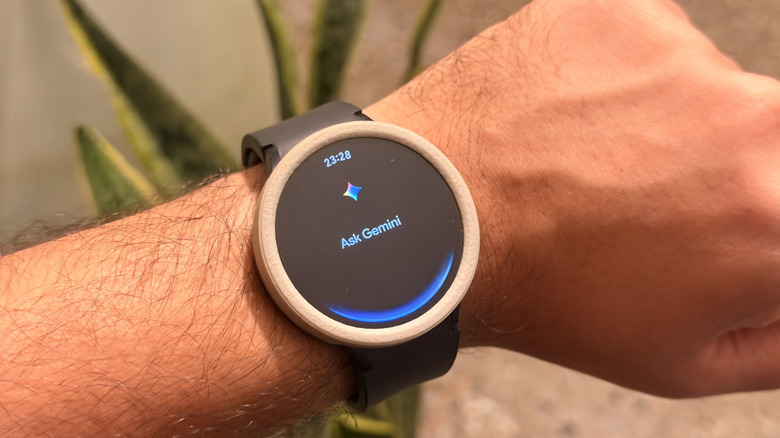
The Strategy for Efficiency
On days where longevity is the priority, you should disable "Hey Google" detection. Since this setting is often managed through the connected smartphone’s Wear OS app, ensure you disable the trigger phrase there. You do not lose the functionality of the AI entirely; you can simply remap a side button to launch Gemini with a long press. This manual initiation ensures the watch only consumes power for AI tasks when you actively request them.
3. Refining Health and Sensor Monitoring
The Samsung Health suite is the crown jewel of the Galaxy Watch experience. Yet, continuous heart rate and stress monitoring involve constant sensor operation.
Adjusting Measurement Frequency
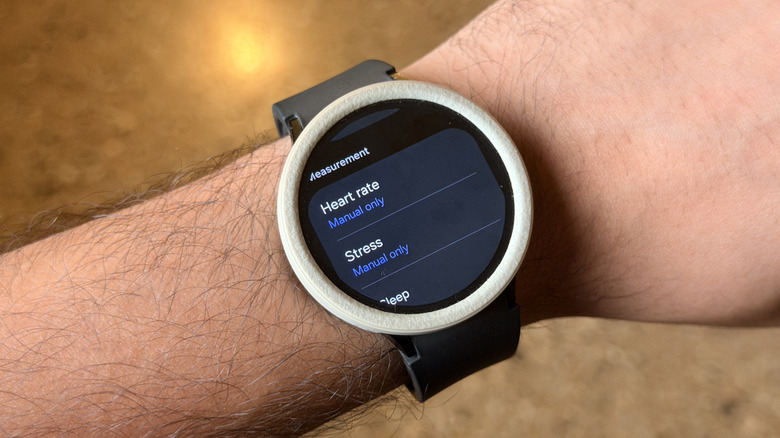
The Galaxy Watch typically offers three modes for heart rate monitoring: Continuous, Every 10 minutes, or Manual.
- Continuous: Provides the most data but drains the battery aggressively.
- 10-Minute Intervals: Strikes a balance between data density and power conservation.
- Manual: Recommended for those in a "battery-saving emergency."
By navigating to the Samsung Health app > Settings > Heart rate, you can switch to a less frequent monitoring schedule. While this may result in a less granular graph of your health metrics, it significantly reduces the workload on the watch’s biometric sensors.
4. The LTE Factor: Managing Independent Connectivity
The inclusion of LTE functionality allows the watch to function as a standalone device, free from the proximity of a smartphone. However, maintaining an active LTE connection is one of the most taxing operations a smartwatch can perform.
Mobile Network Management
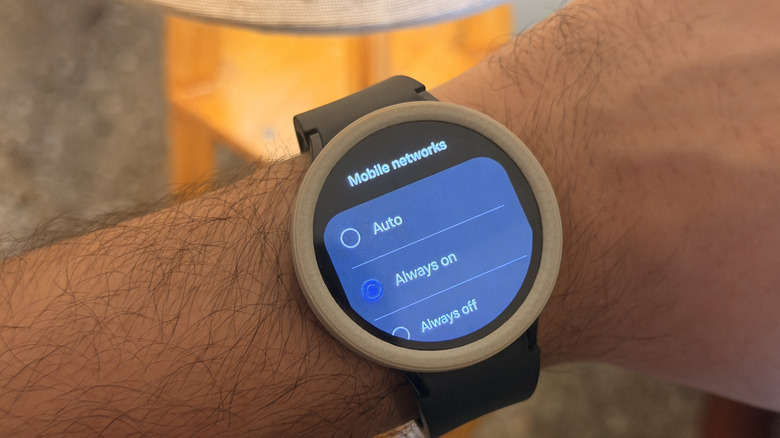
If you are usually within range of your phone, the watch does not need to maintain an active LTE link. Navigate to Settings > Connectivity > Mobile networks and set the connection to "Always off" or "Auto." Keeping the LTE radio off prevents the watch from constantly searching for cell towers, which is a notorious "battery killer" in areas with fluctuating signal strength.
5. Utilizing Power Saving Mode as a Tactical Tool
Samsung has engineered a robust "Power Saving" mode specifically for moments when the battery is critical. This is not just a simple dimming feature; it is a comprehensive system-level modification.
What Happens in Power Saving Mode?
When enabled via the Quick Settings panel, the watch:
- Limits CPU Performance: Reduces the clock speed of the processor to perform basic tasks more efficiently.
- Restricts Background Activity: Prevents apps from refreshing data in the background.
- Reduces Connectivity: Curbs Wi-Fi and LTE usage.
- Dims the Screen: Lower brightness and shorter screen timeout durations.
Use this mode not as a permanent state, but as a "safety net." If you find yourself with 15% battery remaining and several hours before you reach a charger, activating Power Saving mode can often double the remaining duration of your device.
Implications for the User
Adopting these habits does not mean you have to sacrifice the "smart" aspect of your watch. It is about intentional usage. The beauty of the Galaxy Watch lies in its versatility; you can have a high-performance, fully connected, always-on device for your workout, and a power-efficient, long-lasting companion for a long work day or a weekend getaway.
Summary Table for Quick Reference
| Feature | Action for Longevity | Impact on Battery |
|---|---|---|
| Always-on Display | Disable | High |
| Raise to Wake | Disable | Moderate |
| ‘Hey Google’ Detection | Disable | Moderate |
| Heart Rate Monitoring | Set to ‘Manual’ | High |
| LTE Connectivity | Set to ‘Off’ | Very High |
| Power Saving Mode | Enable (As needed) | Extreme |
By understanding these five pillars of battery management, you gain control over your hardware. The Samsung Galaxy Watch is a sophisticated tool, and like any tool, its effectiveness is dictated by how it is configured. Take charge of your settings, and you will find that the "average" battery life often touted in reviews can be significantly outperformed by a well-optimized device. Whether you are scaling a mountain or sitting through a long boardroom meeting, your watch will remain ready for the task, provided you give it the freedom to conserve its energy when it matters most.