 Lina Hope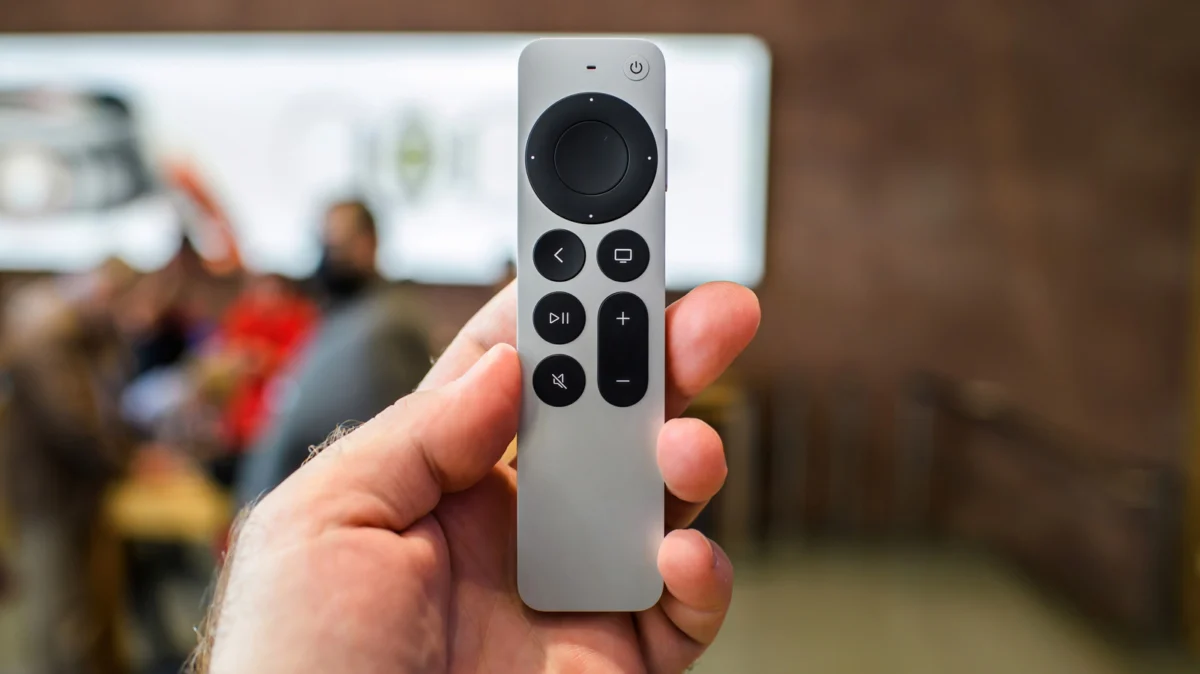
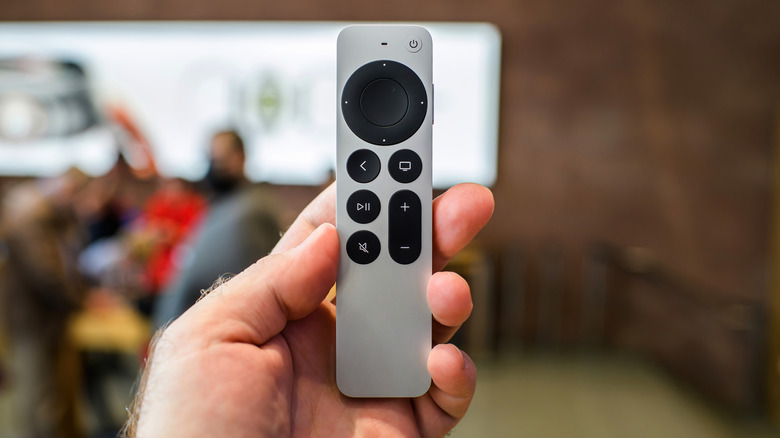
The Apple TV ecosystem is widely regarded as one of the most polished streaming experiences available today. At the center of this experience is the Siri Remote—a device celebrated for its minimalist design, intuitive touch-surface, and seamless integration with the Apple TV 4K. However, even the most refined technology is susceptible to the occasional glitch. Whether it is a sudden loss of responsiveness, intermittent signal drops, or a complete failure to pair, a malfunctioning remote can turn a relaxing movie night into a frustrating ordeal.
If you find yourself staring at your television screen, unable to navigate your favorite apps, you are not alone. In this guide, we will explore the essential steps to diagnose and repair your Apple TV remote, covering everything from simple battery checks to advanced system resets.
The Anatomy of Connectivity: Understanding the Problem
Before diving into technical resets, it is important to understand why these connection issues occur. The Siri Remote utilizes Bluetooth technology to communicate with the Apple TV. Unlike older infrared remotes that required a direct line of sight, Bluetooth allows for a more flexible range. However, this also introduces potential points of failure, such as signal interference from other wireless devices, outdated firmware, or simple hardware exhaustion.
Identifying the root cause is the first step toward a solution. Most remote issues fall into one of three categories:
- Power Depletion: The most common culprit.
- Software Synchronization: The "handshake" between the remote and the box has been interrupted.
- Signal Obstruction: Physical or electronic interference preventing the Bluetooth signal from reaching the receiver.
Chronology of Troubleshooting: Step-by-Step Recovery
When your remote stops responding, it is best to follow a systematic approach, moving from the least intrusive fixes to more permanent solutions.
Phase 1: The Basic "Quick Restart"
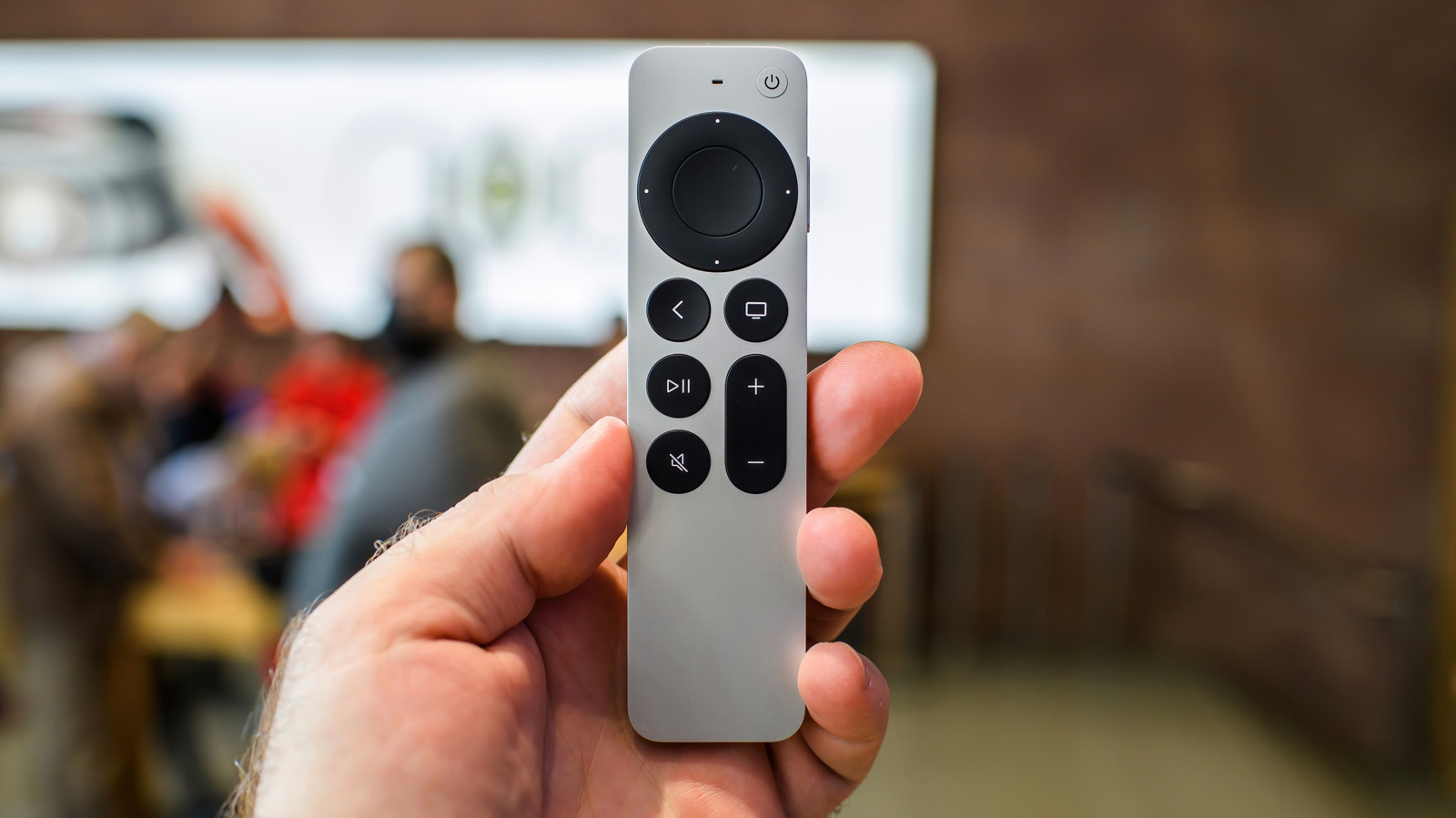
For many users, a simple soft reset of the remote is sufficient to clear minor firmware hitches.
- The Procedure: Press and hold the TV/Control Center button and the Volume Down button simultaneously for approximately five seconds.
- The Indicator: Watch the status light on your Apple TV box. It should flicker off and then back on.
- The Follow-up: Release the buttons and wait for about 10 seconds. Press any button on the remote. If a "Remote Connected" notification appears on your television, the issue is resolved.
Phase 2: Re-pairing the Siri Remote
If the quick restart fails, you may need to force a re-pairing. This process essentially tells the Apple TV to "forget" the old connection and establish a fresh one.
- Unplug: Disconnect the Apple TV from its power source. Wait at least six seconds before plugging it back in.
- The Combination: Once the device is powered on, point the remote at the Apple TV. Move it to within three inches of the device.
- The Command: Press and hold the Back (or Menu) button and the Volume Up button for five seconds.
- Finalization: You may see an on-screen prompt asking you to place the remote on top of the Apple TV. Follow these instructions carefully to complete the pairing handshake.
Phase 3: Legacy Remote Procedures
For those using older Apple TV models—specifically those with the silver aluminum or white plastic remotes—the process differs slightly:
- Resetting: Point the remote at the Apple TV and hold Menu and Home for six seconds. When you see the status light blink, hold Menu and Right for another six seconds to finalize the reset.
Supporting Data: When to Dig Deeper
If you have performed a reset and the remote remains unresponsive, you must look at environmental and software factors.
Checking Battery Health
Never assume a device is charged. You can check the battery status directly through the tvOS interface by navigating to Settings > Remotes and Devices > Remote > Battery Level. If you are using an older model with a removable battery, use a coin or paperclip to access the compartment and replace the cell. For the modern Siri Remote, ensure you have used a high-quality Lightning or USB-C cable (depending on your generation) for at least 30 minutes.
The Signal Strength Analysis
Introduced in tvOS 18.0, users now have access to a diagnostic tool that measures Bluetooth signal strength. If you navigate to Settings > Remotes and Devices > Remote, you can view the Bluetooth RSSI (Received Signal Strength Indicator).
- If the signal is weak: Your Apple TV might be tucked inside a metal cabinet or behind the TV screen, which acts as a physical barrier.
- The Fix: Reposition the Apple TV to ensure it has a clear, unobstructed path to the living area.
Official Responses and Manufacturer Recommendations
Apple’s official stance on remote connectivity emphasizes the importance of software updates. Often, what appears to be a hardware failure is actually a known bug that has already been patched in the latest version of tvOS. Always ensure your system is up to date by navigating to Settings > System > Software Updates.
If the software is current and the remote still fails, Apple support advises that the remote may have suffered internal hardware damage—such as a drop on a hard floor or liquid exposure. In these instances, the "Factory Reset" of the Apple TV itself is the final software-based step. Be warned: A factory reset wipes all apps, login credentials, and personalized settings. This is a nuclear option, reserved only for when you suspect the fault lies within the Apple TV box’s Bluetooth receiver module rather than the remote itself.
Implications of Persistent Failure
If you have exhausted all troubleshooting steps—including re-pairing, battery replacement, and factory resets—you are likely dealing with a hardware malfunction.
Leveraging Alternatives
You do not need to be stranded without a remote. Apple has built robust redundancy into its ecosystem:
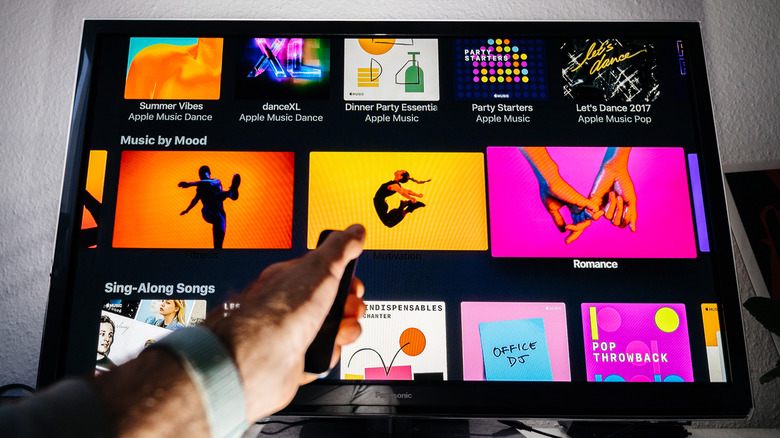
- The iPhone/iPad Remote: Your iOS device is a fully functional Apple TV remote. Simply pull down the Control Center on your iPhone and tap the remote icon. This allows you to navigate the Apple TV even if the physical remote is dead.
- HDMI-CEC: Most modern televisions allow you to use your standard TV remote to control the Apple TV via HDMI-CEC. Ensure this is enabled in your TV’s settings menu.
Warranty and Repair
Before purchasing a replacement, verify your warranty status. AppleCare+ for Apple TV often covers the remote, and even under standard one-year limited warranties, manufacturing defects are typically covered. If the device is out of warranty, you may consider upgrading to the latest Apple TV 4K, which features an updated, more durable Siri Remote with a USB-C charging port.
Final Thoughts
A non-responsive remote is a temporary inconvenience, not a permanent death sentence for your media player. By methodically following the steps outlined above—starting with a simple restart, moving to re-pairing, and finally checking environmental signals—most users can restore functionality within minutes. Should these steps prove insufficient, the seamless integration of the Apple TV with your other Apple devices ensures you can continue streaming while you arrange for a replacement or repair. Remember, technology is designed to serve you; when it falters, a systematic approach is your best tool for reclaiming control of your entertainment center.


 Sagoh
Sagoh
 Nana
Nana