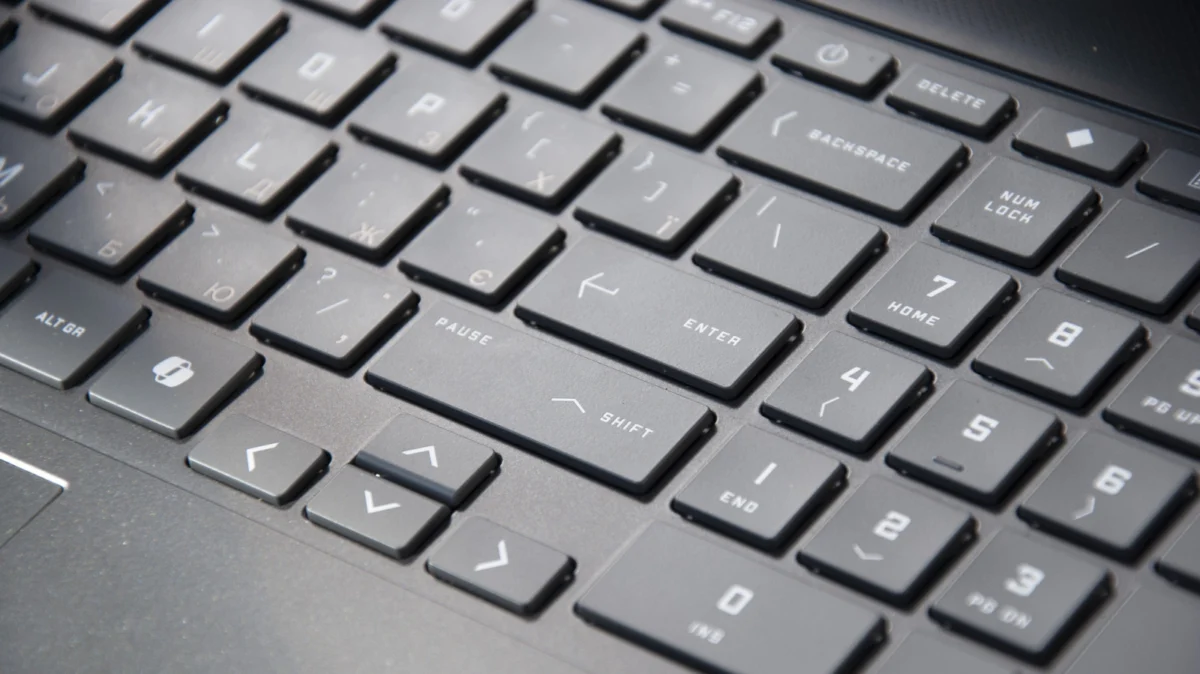
In the modern digital workspace, the keyboard is the primary interface between human intent and machine execution. Yet, for most users, the physical layout of the keyboard remains frozen in the era of the typewriter. While the QWERTY layout is optimized for historical mechanical constraints, the digital age offers us the power to redefine how we interact with our hardware. Many keys—such as the elusive Scroll Lock, the rarely touched F7, or the infamous Caps Lock—occupy prime real estate on your desk, often serving as sources of frustration rather than utility.
By remapping these "dusty" keys, you can transform your keyboard from a generic input device into a precision-engineered productivity tool tailored specifically to your workflow.
The Philosophy of Input Optimization
At its core, key remapping is an act of reclaiming efficiency. The standard keyboard layout was designed decades ago, and its persistence is a testament to muscle memory rather than optimal design. When you accidentally strike the Insert key while reaching for the Backspace, or hit Caps Lock instead of Shift, you aren’t just making a typo; you are breaking your cognitive flow.
Professional typists, software engineers, and creative power users have long utilized remapping to minimize finger travel distance. By assigning complex shortcuts—like opening Task Manager or triggering media controls—to keys that are otherwise dormant, you reduce the time spent navigating menus and searching for secondary functions.
Chronology: The Evolution of Keyboard Customization
The history of keyboard customization mirrors the history of computing itself. In the early days of DOS and mainframe computing, the keyboard was a rigid piece of hardware; the function of each key was hard-coded into the BIOS or the operating system.
- The Early Era (1980s–1990s): Customization was limited to specialized hardware, often requiring expensive, programmable keyboards used by mainframe operators or early gaming enthusiasts.
- The Registry Era (2000s): Power users began hacking the Windows Registry to swap keys. This was powerful but dangerous; a single mistake in the Windows Registry could lead to system instability or render a keyboard useless until a reboot or manual fix.
- The Software Utility Era (2010s): Tools like AutoHotKey emerged, allowing users to script complex macros and rebind keys. While powerful, these tools often had a steep learning curve that intimidated the average user.
- The Modern Integration Era (2020–Present): Microsoft’s introduction of PowerToys brought enterprise-grade customization to the mainstream. This marked a shift where remapping became a first-class feature of the operating system rather than a fringe "hack."
How to Remap: The PowerToys Advantage
For the vast majority of Windows users, Microsoft PowerToys is the gold standard for key remapping. It is lightweight, officially supported, and features a user-friendly interface that eliminates the risks associated with registry editing.
Setting Up Keyboard Manager
- Download: Obtain the latest version via the Microsoft Store or the official GitHub repository.
- Activate: Navigate to the Keyboard Manager tab in the sidebar and ensure the "Enable Keyboard Manager" toggle is set to the ‘On’ position.
- Remapping: Click "Remap a key." You will be presented with a simple "Select" and "To send" interface. By selecting a physical key under "Select" and assigning it a new function under "To send," you effectively hijack the signal sent to the OS.
Advanced Functionality
Beyond simple key-to-key swaps, PowerToys allows for:
- Macro Shortcuts: Assign a single key to perform a complex sequence, such as Ctrl + Shift + Esc to instantly launch the Task Manager.
- Disabling Keys: If you find yourself constantly hitting Insert or Caps Lock by mistake, you can simply set the "To send" value to "Disable," effectively turning the key into a dead zone.
- Text Expansion: While you can use the "Send Text" feature to have a key output a string of text, we recommend dedicated tools like Beeftext for complex snippet management. These tools allow for "trigger words" (e.g., typing ‘;em’ to automatically fill in your email address), which is far more efficient than burning a physical key for a single snippet.
Supporting Data: Why Remapping Matters
Research into repetitive strain injury (RSI) and ergonomic efficiency suggests that "over-reaching"—the act of moving the hand away from the home row to hit distant keys—is a primary contributor to hand fatigue.
- The Caps Lock Problem: The Caps Lock key is arguably the most wasted piece of real estate on a standard keyboard. It is located exactly where the Control key should be. For programmers and power users who rely heavily on shortcuts, swapping Caps Lock to Control (or Escape) saves thousands of small, repetitive movements per day.
- Workflow Efficiency: A study of high-volume data entry clerks showed that reducing finger travel by just 10% through custom key binding increased overall throughput by approximately 4-6% over a standard eight-hour shift. While these numbers seem small, they equate to several hours of reclaimed time per month.
Official Responses and Industry Trends
Microsoft’s development of PowerToys serves as an implicit acknowledgment that the "one-size-fits-all" keyboard layout is no longer sufficient. By integrating these tools directly into the OS ecosystem, Microsoft is empowering users to design their own hardware experiences.
Hardware manufacturers like Logitech and Razer have followed suit by providing robust proprietary software (such as G-Hub or Synapse) that allows for per-profile remapping. This is particularly prevalent in the gaming industry, where a user might need a completely different keyboard layout for Adobe Premiere than they do for Call of Duty. The industry trend is moving away from "fixed functionality" and toward "contextual input," where your keyboard layout changes dynamically based on the software you are currently using.
Implications: The Future of Interaction
As we move toward a future defined by AI-driven workflows and complex multitasking, the traditional keyboard is undergoing a quiet revolution. The implications of widespread key remapping are profound:
- Ergonomic Health: By placing commonly used keys within the natural reach of the fingers, users can significantly reduce the risk of strain-related injuries.
- Accessibility: For users with motor impairments, remapping keys can be a life-changing accessibility feature. It allows for a customized interface that accommodates specific range-of-motion requirements.
- Hardware Longevity: Instead of purchasing a new, expensive mechanical keyboard with extra "macro keys," users can extract more value from their current hardware. This reduces e-waste and promotes a "make do and mend" culture in the tech community.
A Word of Caution: The Registry vs. The Runtime
It is important to understand the distinction between software-level remapping and registry-level remapping.
- Runtime Utilities (PowerToys): These operate in the background. If you close the app, the keys return to normal. This is safer for the average user, as it provides a "fail-safe."
- Registry Utilities (SharpKeys): These tools rewrite the Windows keyboard map at the system level. The changes persist even after a reboot and across different user accounts. While this is more "permanent," it requires a higher degree of caution.
Best Practices for Implementation
- Start Small: Don’t remap your entire keyboard in one afternoon. You will lose your muscle memory and be unable to type. Start with one key—perhaps the Caps Lock—and give yourself a week to adapt.
- Document Your Changes: If you are using a non-standard layout, it can be confusing if someone else tries to use your computer. Keep a small cheat sheet or a sticker on the underside of your keyboard.
- Consistency is Key: If you use multiple machines, try to keep your remapping profiles consistent across all of them to prevent "input whiplash."
Conclusion
Your keyboard is not a static instrument; it is a programmable interface waiting for your instructions. By identifying the keys that do nothing for you and repurposing them to serve your unique needs, you can elevate your computing experience from passive typing to active, efficient command. Whether you are a creative professional, a data analyst, or simply someone looking to reduce the frustration of accidental typos, the tools to optimize your workspace are already at your fingertips. It is time to stop accepting the default and start engineering your own efficiency.