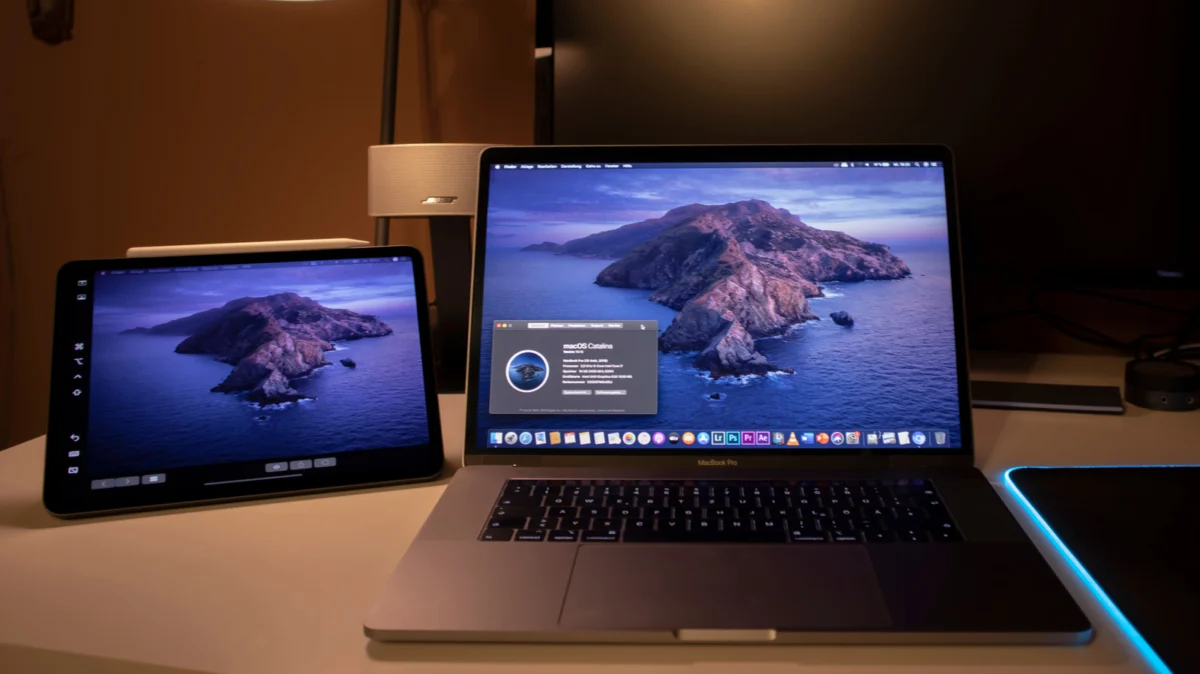
In the modern landscape of hybrid work, the "dual-monitor" setup has evolved from a luxury reserved for creative professionals to an essential requirement for anyone juggling spreadsheets, video calls, and creative workflows. While portable external displays have flooded the market, many professionals are discovering that the most capable secondary monitor they own is already sitting in their bag: the iPad.
Whether you are working from a cramped coffee shop table, a hotel room, or simply trying to optimize your home office desk space, turning an iPad into an external display is a masterclass in hardware efficiency. By leveraging existing technology, users can gain significant screen real estate without the need to purchase additional heavy peripherals.
The Core Functionality: Why Use an iPad as a Monitor?
The primary appeal of using an iPad as a secondary screen is portability combined with high-fidelity display quality. Apple’s Liquid Retina displays often surpass the pixel density and color accuracy of standard office monitors. Furthermore, for users in the creative industry, this setup offers an additional advantage: touch-input and Apple Pencil support. When connected correctly, your iPad ceases to be a passive screen and becomes a digitizing tablet, allowing for precise photo editing, illustration, and interface navigation that a traditional mouse simply cannot replicate.
Chronology of the Dual-Screen Revolution
The journey to seamless cross-device screen sharing has been a long one, marked by several key technological milestones:
- The Early Days (2010–2015): In the early years of the iPad, third-party developers recognized the desire for a "second screen." Apps like Duet Display and Air Display emerged, utilizing USB tethering or early Wi-Fi protocols to mirror or extend displays. These solutions were groundbreaking but often plagued by high latency and jittery performance.
- The Rise of Professionalization (2016–2018): As the iPad Pro launched, the demand for "pro-level" connectivity grew. Developers focused on optimizing low-latency video streaming, turning the tablet into a viable graphics tablet for professional illustrators.
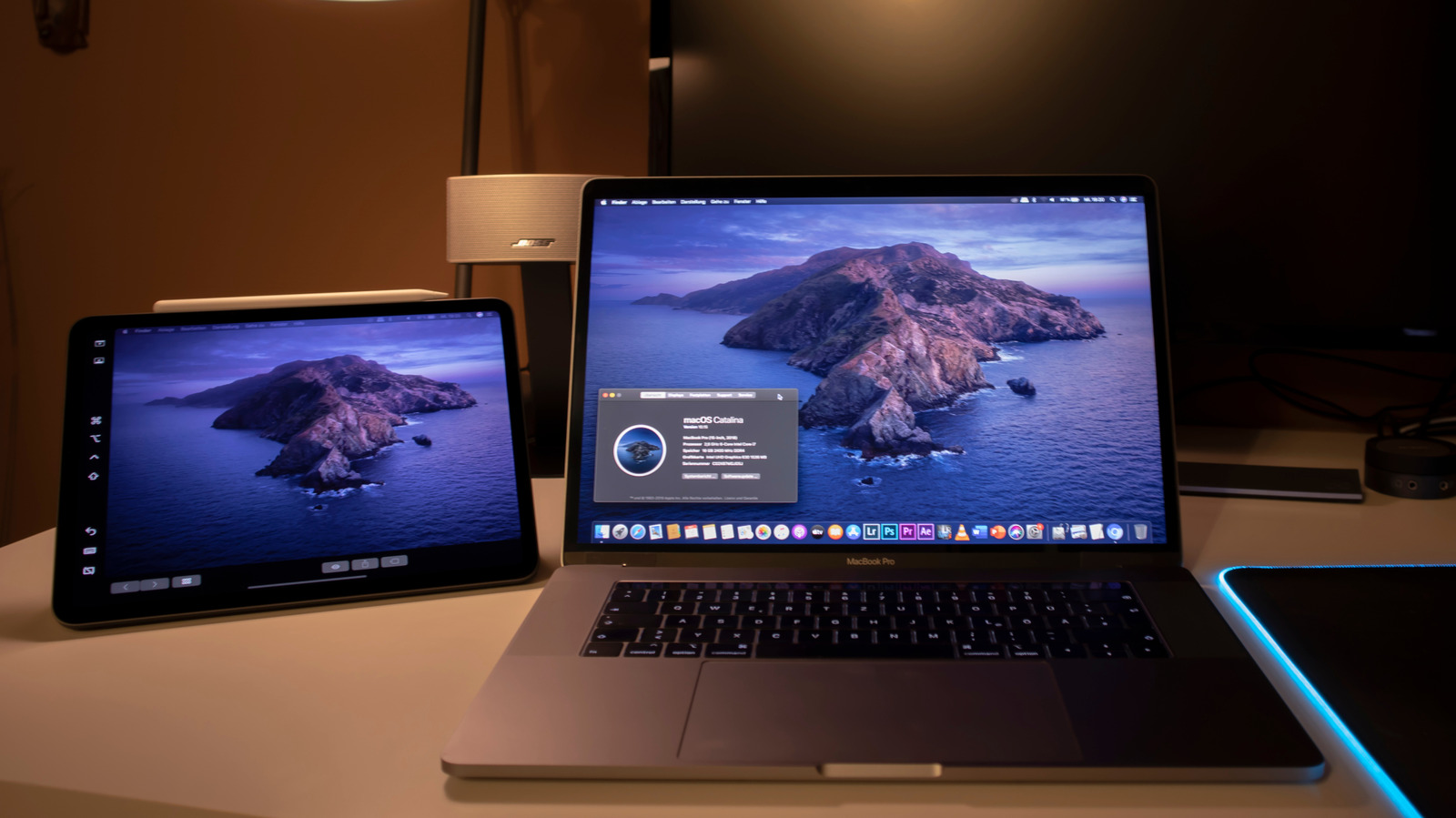
- The Apple Integration Era (2019–Present): With the release of macOS Catalina, Apple introduced "Sidecar." This was the definitive turning point. By baking display extension directly into the macOS kernel, Apple eliminated the need for third-party drivers, offering a stable, high-performance, and native experience that fundamentally changed how Mac users interact with their tablets.
Official Solutions: Mastering Sidecar and Universal Control
For Mac users, the native path is almost always the superior one. Sidecar is Apple’s built-in solution for extending a desktop to an iPad.
Prerequisites and Setup
To utilize Sidecar, both your Mac and iPad must be signed into the same iCloud account using the same Apple ID. Furthermore, both devices must have two-factor authentication enabled and be connected to the same Wi-Fi network (or physically tethered via a USB-C cable for the best performance).
Once connected, simply navigate to the Control Center on your Mac, select Screen Mirroring, and choose your iPad from the list. The system will automatically configure the resolution. Once active, you can head to System Settings > Displays to arrange the iPad relative to your Mac, ensuring the mouse moves naturally between the two screens.
Universal Control: The Next Level
While Sidecar turns the iPad into a screen, Universal Control turns the iPad into a companion device. This feature allows you to use your Mac’s keyboard and mouse/trackpad to control the iPad directly, moving your cursor across the boundary of the two screens as if they were a single workstation. You can drag and drop files from your Mac directly into an iPad app, creating a unified ecosystem that bridges the gap between iPadOS and macOS.
Third-Party Alternatives: Bridging the Windows Gap
Windows users are excluded from the native Sidecar experience, but the third-party ecosystem has stepped up to fill the void with feature-rich alternatives.
Duet Display
Duet Display remains the industry leader for cross-platform users. Unlike native solutions, Duet works across Windows and macOS, offering a high-performance bridge. It provides granular control over frame rates and resolution, which is vital for users with limited bandwidth or older hardware. The primary trade-off is its subscription-based pricing model, but for professionals who require rock-solid reliability across different operating systems, it remains the gold standard.
Luna Display: The Hardware-Assisted Approach
For users who prefer a hardware-based solution, the Luna Display by Astropad is a unique proposition. It consists of a specialized USB-C or Mini DisplayPort "dongle" that acts as a dedicated graphics card for the iPad connection.
- Reliability: Because the dongle handles the heavy lifting of video processing, it is significantly more stable than software-only solutions.
- Headless Mode: One of the most sought-after features of Luna Display is "headless mode." This allows users to connect to a headless Mac (such as a Mac mini or a Mac Studio without a monitor) using the iPad as the primary display, making it an essential tool for server management or portable creative workstations.
Supporting Data and Technical Considerations
To ensure a smooth experience, users must account for several technical variables.
- Network Latency: When using wireless modes, 5GHz Wi-Fi is mandatory. 2.4GHz bands are often too slow to handle the high-bitrate video stream required for a responsive display, leading to "ghosting" or lag.
- Cable Integrity: If you choose a wired connection (which is highly recommended for professional work), ensure you are using a high-quality, data-rated USB-C cable. Charging-only cables will not suffice.
- Heat Management: Pushing an iPad as a secondary monitor for extended periods can cause the device to heat up, which may trigger thermal throttling in the tablet. Using a dedicated iPad stand to improve airflow around the back of the device can significantly improve long-term stability.
Implications for Future Workflows
The ability to turn an iPad into a monitor has profound implications for the future of "lean" computing. As tablets become more powerful—with some now rivaling the M-series chips found in MacBook Airs—the line between "computer" and "tablet" continues to blur.
We are moving toward a future where the device in your hand is modular. You may start your day using the iPad as a standalone creative device, only to "dock" it into a larger system as a secondary screen when you return to your desk. This flexibility reduces the need for redundant hardware, lowers the carbon footprint of your home office, and streamlines your digital environment.
Conclusion: Which Solution is Right for You?
Choosing the right path depends on your hardware ecosystem:
- For the Apple Purist: Sidecar is unbeatable. It is free, native, and perfectly optimized for macOS.
- For the Windows/Mac Hybrid User: Duet Display provides the necessary cross-platform functionality, provided you are willing to pay a subscription fee.
- For the Pro-User/Remote Worker: The Luna Display dongle is the most robust, "set-it-and-forget-it" solution that removes the headaches of software instability and recurring costs.
Ultimately, your iPad is more than a device for media consumption. By integrating it into your primary workflow as a secondary monitor, you unlock a level of productivity that allows you to do more with less, proving that the best tools are often the ones you already have. With the right configuration, your iPad will quickly become the most indispensable piece of hardware on your desk.