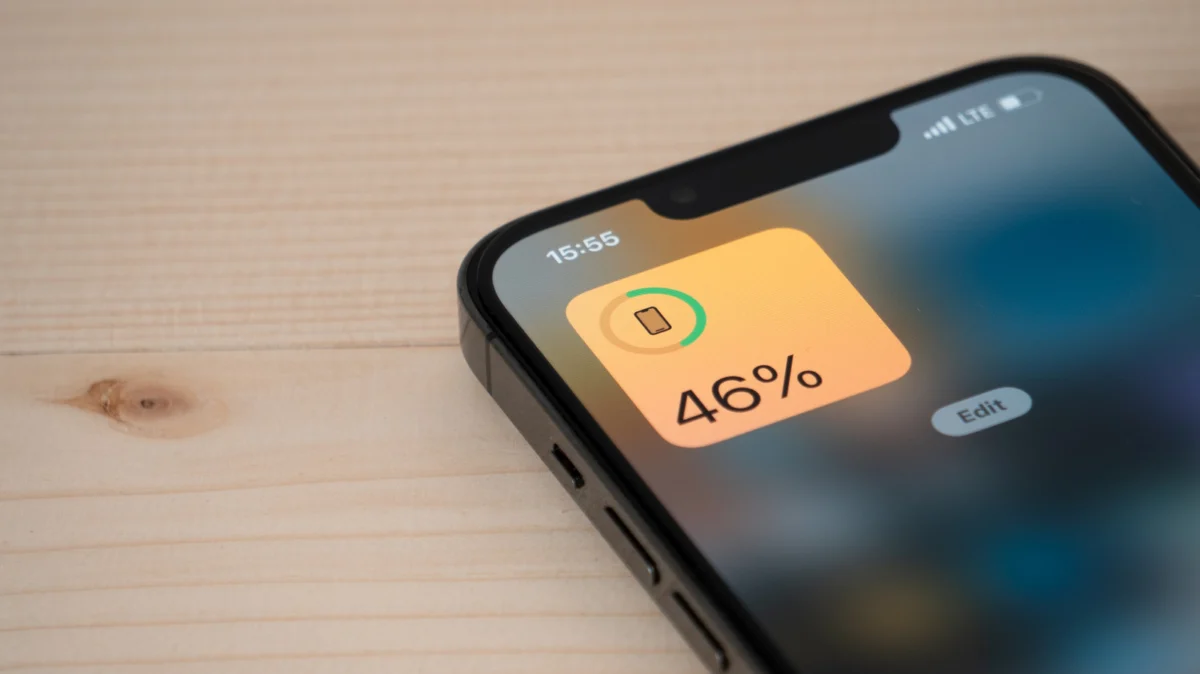
Modern smartphones have become extensions of our professional and personal lives, serving as our primary cameras, navigation systems, banking portals, and communication hubs. Apple consistently advertises the iPhone as a device designed to last a full day on a single charge. However, for many users, that "all-day" promise often falls short, leaving them tethered to wall outlets or portable power banks by mid-afternoon.
The reality is that battery longevity is not merely a function of hardware capacity; it is a complex interplay between software efficiency, user behavior, and background processes. If you find yourself consistently reaching for a charger before the sun goes down, you are likely suffering from "battery anxiety." Fortunately, iOS is equipped with sophisticated diagnostic tools that allow you to pinpoint exactly which processes are bleeding your power. Understanding these metrics is the first step toward reclaiming your device’s independence.
The Mechanics of Battery Usage: How to Identify the Culprits
The journey to better battery life begins in the Settings application. Since the introduction of iOS 8, Apple has provided users with a granular breakdown of energy consumption. Navigating to the Battery menu—identifiable by its iconic green battery symbol—reveals a wealth of data.
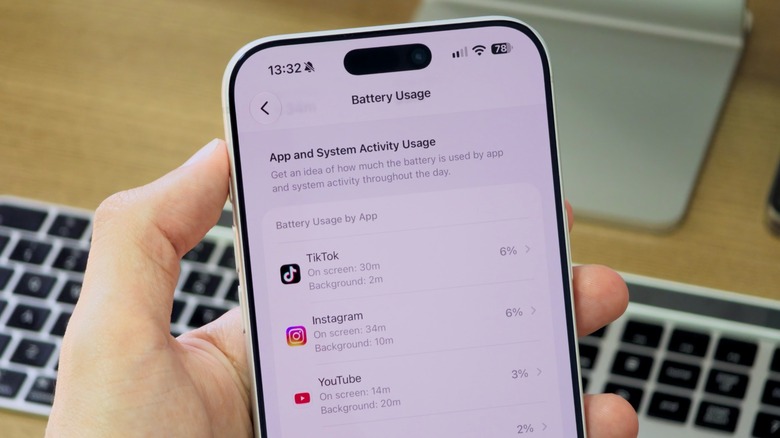
Upon entering this menu, you will be greeted by a visual representation of your battery levels over the last 24 hours or the last 10 days. Below this chart lies the "Battery Usage by App" list. This is your primary diagnostic dashboard. By tapping "View All Battery Usage," you can view a comprehensive breakdown of the power consumed by every application installed on your device.
The list is sorted by percentage of total battery consumed. It is important to contextualize this data: if an app you use for four hours a day appears at the top of the list, it is performing exactly as expected. However, if an app you rarely open is consuming a disproportionate amount of energy, you have identified a "rogue" application that is likely running processes in the background without your explicit consent.
Distinguishing Between "On Screen" and "Background" Activity
A critical distinction within the Battery menu is the separation between "On Screen" time and "Background" time.
- On Screen activity represents the time you spent actively interacting with an application.
- Background activity is the silent thief of battery life. This refers to the time an app spends refreshing data, syncing content, or polling for location updates while the phone is locked or while you are using a different application.
Apps like social media platforms, email clients, and navigation tools are frequent offenders in the "Background" category. For instance, a social media app may constantly poll for new notifications, while a weather app might update its location-based forecasts every few minutes, even if you haven’t opened the app since the morning.
The Chronology of Power Consumption: From Hardware to Optimization
The evolution of smartphone batteries has been a race between increasing power demands and chemical innovation. In the early days of mobile computing, simple tasks were the primary drivers of drain. Today, with the integration of high-refresh-rate displays, sophisticated machine learning algorithms, and persistent connectivity, the load on the Lithium-ion cells within your iPhone is significantly more complex.
Historically, Apple has responded to battery concerns by introducing "Battery Health" management tools. This allows users to track the maximum capacity of their battery relative to when it was new. As batteries age, their chemical capacity decreases, and their ability to deliver peak power diminishes. Recognizing this, Apple implemented features like "Optimized Battery Charging," which learns your daily charging routine to reduce the time the battery spends at 100% charge, thereby slowing the chemical degradation of the cell.
Strategic Adjustments: How to Mitigate Battery Drain
If you have identified that your battery life is being hampered by specific apps or settings, you don’t necessarily have to uninstall those applications. A few strategic tweaks to your system settings can yield significant improvements in daily endurance.
1. Mastering Background App Refresh
Background App Refresh is a double-edged sword. While it ensures that your apps are ready with the latest information the moment you open them, it is a persistent drain on CPU resources and data connectivity.
- The Fix: Navigate to Settings > General > Background App Refresh. You can choose to turn it off entirely, or more wisely, audit the list to ensure only essential apps (like messaging or work tools) are permitted to refresh in the background.
2. Optimizing Location Services
GPS is one of the most power-intensive hardware components in any smartphone. Many apps request "Always On" location access, even when they have no functional reason to track you when the app is closed.
- The Fix: Go to Settings > Privacy & Security > Location Services. Review every app on the list. Change permissions from "Always" to "While Using the App." This ensures the GPS chip is only active when you are actively engaging with the software.
3. Taming Push Notifications and Connectivity
Every time your phone wakes up to show a banner notification, it consumes power. Furthermore, keeping 5G, Wi-Fi, and Bluetooth active in areas with poor cellular signal causes the device to constantly search for a connection, which is a notorious battery killer.
- The Fix: Use "Low Data Mode" on Wi-Fi networks if you are on a metered connection, and consider toggling 5G to "Auto" or "LTE" in Settings > Cellular > Cellular Data Options if you find yourself in areas with inconsistent 5G coverage.
Official Guidance and Industry Best Practices
Apple’s official stance on battery health is clear: temperature and charging habits are the two most significant external factors affecting longevity. According to Apple’s support documentation, extreme temperatures (specifically above 95°F or 35°C) can permanently damage battery capacity. Keeping your device in a cool, ventilated environment while charging is paramount.
Furthermore, Apple emphasizes that if your "Maximum Capacity" (found in Settings > Battery > Battery Health & Charging) falls below 80%, the battery is considered degraded. At this stage, the system may throttle performance to prevent unexpected shutdowns. When the health drops this low, software optimizations will offer diminishing returns, and an official battery replacement via an Apple Authorized Service Provider is the most effective solution.
Implications for the User Experience
Managing your iPhone’s battery is ultimately about finding a balance between convenience and endurance. While it is tempting to aggressively restrict every app and feature, doing so can render your smartphone "dumb." The goal is not to turn your iPhone into a paperweight, but to be an informed user.
By regularly auditing your battery statistics, you can identify patterns—such as a specific game that consumes 20% of your power in just 30 minutes, or a social app that runs in the background for hours—and adjust your habits accordingly. Perhaps that game is only for long flights, or perhaps that app doesn’t need constant access to your location.
In the broader context, as AI and background processing become more integrated into the iOS ecosystem, the burden on the battery will only increase. Understanding these controls now will not only help you get through your current day but will also equip you with the knowledge to manage the increasingly powerful devices of the future.
The iPhone is designed to be a tool that empowers you, not one that dictates your schedule based on the nearest wall outlet. By taking control of the settings and understanding the metrics, you ensure that your device remains a reliable partner throughout the demands of your day.