There are few things more frustrating in the modern digital age than the sudden, unceremonious closing of an application. Whether you are in the middle of a high-stakes mobile game, finalizing a work document, or simply doomscrolling through your favorite social media feed, an app crash disrupts the seamless flow of our digital lives. With over 3.5 million apps available on the Google Play Store, Android’s open ecosystem is a marvel of utility and convenience. However, this diversity comes with a trade-off: varying levels of software optimization and occasional compatibility conflicts.
If you find yourself frequently force-closed, do not panic. Most crashes are not indicative of a failing handset, but rather a temporary software disagreement between your OS and the app in question. Below is a deep dive into why these crashes happen, the chronological steps to fix them, and the implications for your digital security.
The Anatomy of an Android Crash: Why Do They Happen?
To understand the solution, one must first understand the root cause. Generally, application crashes stem from one of three areas: Software Bugs, Resource Exhaustion, or Data Corruption.
- Software Bugs: Developers often push updates to introduce new features. Occasionally, these updates contain code that interacts poorly with specific hardware configurations or Android versions.
- Resource Exhaustion: If an app demands more RAM (Random Access Memory) than your phone can provide, the Android OS will terminate the process to keep the system stable.
- Data Corruption: Over time, an app accumulates temporary files, known as a "cache." If these files become corrupted, the app may fail to read them correctly, leading to an immediate crash upon launch.
Step-by-Step Chronology: Troubleshooting the Persistent Crash
When an app begins to behave erratically, it is vital to follow a systematic approach. Moving from the simplest solutions to more technical interventions ensures you do not waste time on unnecessary troubleshooting.
Phase 1: The Basic Hygiene Check
The first step is always the most overlooked: check for updates.
- Navigate to the Play Store: Tap your profile icon in the top-right corner.
- Manage Apps & Device: Select this, then look for the "Updates available" section.
- Update: If your troublesome app is listed, update it immediately. Developers are often aware of crash-inducing bugs and release "hotfixes" within hours.
Phase 2: Cache Management
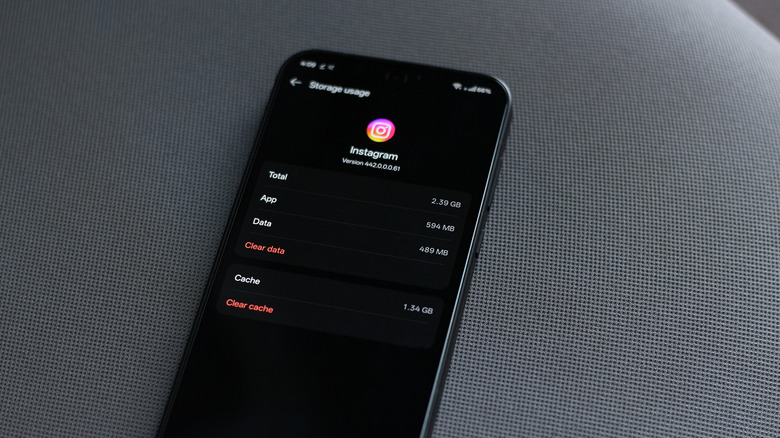
If the app is up to date, the culprit is likely a corrupted local file. Android’s granular management system allows you to clear the cache without losing your personal data.
- Access App Info: Long-press the app icon and tap the "i" symbol, or navigate to Settings > Apps.
- Storage & Cache: Tap this, then select Clear Cache.
- Force Stop: After clearing the cache, tap Force Stop to ensure the app restarts cleanly. Launch it again to see if the issue persists.
Phase 3: The "Clear Data" and Reinstall Strategy
If clearing the cache fails, you may need to reset the app entirely. Warning: This will log you out and delete locally saved preferences.
- Clear Data: Within the same App Info menu, you can select Clear Data.
- The Nuclear Option: If that fails, uninstall the app entirely. Reinstalling from the Play Store ensures that you have a fresh, uncorrupted installation. If the app supports cloud sync (check your account settings before deleting!), your data will be waiting for you upon login.
Phase 4: System-Level Maintenance
Sometimes, the app is fine, but the underlying Operating System is lagging.
- Restart the Hardware: A simple reboot clears the system RAM and kills "zombie" processes that might be hogging resources.
- Check OS Updates: Go to Settings > System > Software Update. A pending system patch might contain the security or performance updates required for the app to function correctly.
Advanced Intervention: The Sideloading Workaround
For power users, Android offers a unique capability: the ability to "sideload" applications via APK files. If a recent app update is objectively broken, you may choose to revert to a previous, stable version.
The Security Implications
Google has recently tightened security around sideloading, recognizing it as a potential vector for malware. To install an older version, you must enable Developer Mode:
- Navigate to Settings > About Phone.
- Tap Build Number seven times until you see the confirmation message.
- Restart your device.
- Navigate to Settings > Security to grant permission for "Install from Unknown Sources."
Pro Tip: Use trusted repositories like APKMirror. Never download APK files from dubious third-party sites, as they can be injected with malicious code. Once you install the older version, remember that this is a temporary fix. Once the developer releases a stable update on the Play Store, you should uninstall the sideloaded version and return to the official channel to ensure you receive future security patches.
Supporting Data and User Experience
Recent industry analysis indicates that user frustration with app stability is a primary driver for churn. According to mobile performance metrics, 70% of users will abandon an app after two crashes within a single session. This high sensitivity to performance has forced developers to prioritize "stability sprints"—periods of development dedicated exclusively to fixing crashes rather than adding features.
Furthermore, Google’s integration of the "Android Vitals" dashboard allows developers to monitor crash rates in real-time. If you see a high number of crashes in a popular app, it is statistically likely that a patch is already in development.
Official Responses and Industry Standards
Major tech firms, including Google and Samsung, advise users to prioritize cloud backups. The shift toward cloud-based app data storage has made the "Clear Data" troubleshooting step much less painful for users. By utilizing services like Google One or app-specific account logins, you ensure that your progress, game saves, and settings are preserved regardless of the state of your local installation.
In instances where an app remains persistently broken, the developers often release a statement via their official support channels or social media. Before embarking on complex troubleshooting, check the app’s official Twitter or Reddit community; if the crash is widespread, the company will typically acknowledge the issue and advise users to wait for a patch.
Implications: The Web-First Alternative
If you have tried all the steps above—clearing the cache, reinstalling, and even checking for system updates—and the app still fails, consider the "Web-First" approach.
Most modern applications are simply wrappers for web-based services. If the mobile app is crashing, the browser version is almost certainly stable. By using the mobile version of the website via Chrome or Firefox:
- Performance: You avoid the overhead of a buggy app interface.
- Battery Life: You avoid background processes that might be draining your power.
- Convenience: You can "Add to Home Screen" from your browser settings, effectively creating a "Web App" that functions identically to the real thing without the risk of sudden crashes.
Final Thoughts
While an Android app crash is a minor digital annoyance, it is rarely a catastrophe. By following the hierarchy of troubleshooting—from simple cache clearing to more complex sideloading or web-based alternatives—you can regain control of your device. Always remember that the strength of Android lies in its flexibility; if one path is blocked, there is almost always a workaround that keeps you connected to the services you need.