Whether your iPhone has become sluggish, an app is persistently crashing, or you are preparing to hand your device over to a new owner, knowing how to reset your hardware is an essential skill for every Apple user. While modern iOS is remarkably stable, the complexity of today’s mobile operating systems means that even the most robust devices can occasionally encounter software conflicts, memory leaks, or corrupted cache files.
When your iPhone begins to act up, you do not necessarily need to rush to the nearest Genius Bar or start shopping for a replacement. Before seeking professional repairs, you can perform several tiers of troubleshooting at home. Understanding the nuances of these procedures—ranging from simple restarts to complete factory erasures—can save you time, money, and data.
The Taxonomy of the Reset: Clearing the Confusion
The terminology surrounding iPhone resets is notoriously inconsistent. If you poll a dozen tech enthusiasts, you will likely receive a dozen different definitions of what constitutes a "soft" or "hard" reset. For some, a soft reset is merely a power cycle, while others insist it involves a settings purge. Similarly, some label a forced restart as a "hard reset," while others reserve that term for a complete factory wipe.
To provide clarity for this guide, we have categorized these actions into three distinct tiers based on their impact:
- Force Restart: The electronic equivalent of an emergency power cycle, used when the device is frozen or unresponsive.
- Settings Reset (Soft Reset): A targeted purge that reverts system configurations to factory defaults without touching your personal media or documents.
- Factory Reset (Hard Reset): A total erasure of all data, returning the device to its "out-of-the-box" state.
1. Force Restart: The Emergency Refresh
A force restart is your first line of defense when the interface becomes unresponsive or the phone stops reacting to touch inputs. Unlike a standard shutdown, which allows the OS to close processes gracefully, a force restart cuts the power cycle abruptly, clearing the volatile memory (RAM) and terminating any "zombie" processes that may be causing a system hang.
Why Force Restart?
This method is primarily for situations where the device is "bricked"—the screen is black or frozen on a logo, and the standard "Slide to Power Off" slider will not appear. It is harmless to your data and does not delete your files; it is simply a hard-reboot of the hardware.
The Chronology of Execution
For modern iPhones (iPhone 8 and later), the process requires a specific sequence of button presses:
- Volume Up: Quickly press and release the Volume Up button.
- Volume Down: Quickly press and release the Volume Down button.
- The Side Button: Press and hold the Side button (the power button) until the screen turns black and the Apple logo reappears. Once the logo appears, release the button.
If your device is older (iPhone 7 or earlier), the process differs, usually involving holding the Volume Down and Sleep/Wake buttons simultaneously until the Apple logo appears.
2. Resetting All Settings: The "Soft" Reset
If your phone is technically functional but exhibiting persistent glitches—such as inconsistent Wi-Fi connectivity, notification failures, or display anomalies—a "Reset All Settings" operation is often the most effective remedy.
What is actually being cleared?
When you perform this action, the device keeps your photos, videos, and app data intact. However, it clears all system-level configurations. This includes:
- Network Settings: Saved Wi-Fi passwords, VPN configurations, and paired Bluetooth devices.
- Privacy & Location: All permissions granted to apps for location, camera, or microphone access will revert to default, prompting you to re-approve them.
- Customization: Your wallpaper, keyboard dictionary (the words it has learned), Home Screen layout, and display settings (like True Tone or Night Shift) will be reset to factory standards.
- Apple Pay: Your stored cards in the Wallet app will be removed for security purposes.
The Execution Process
- Navigate to Settings > General.
- Scroll to the bottom and tap Transfer or Reset iPhone.
- Select Reset.
- Choose Reset All Settings. You will be prompted to enter your device passcode, and the phone will restart once the process is complete.
3. The Factory Reset: The "Hard" Reset
A factory reset is the "nuclear option." It is the most comprehensive form of troubleshooting and is intended for two specific scenarios: fixing a software issue that survives all other troubleshooting attempts, or preparing the device for sale or transfer.
The Critical Pre-Requisite: Backup
Before performing a factory reset, it is imperative to back up your data. Once a hard reset is triggered, the encryption keys for your data are destroyed, rendering the information permanently unrecoverable.
- iCloud Backup: Ensure you have enough storage to capture your photos and settings.
- Local Backup: Connect your iPhone to a Mac or PC and use Finder or iTunes to create a full encrypted backup.
The Execution Process
- Go to Settings > General.
- Tap Transfer or Reset iPhone.
- Select Erase All Content and Settings.
- The system will guide you through the process, which includes signing out of your Apple ID to disable "Find My." This is a security feature designed to prevent stolen phones from being reused.
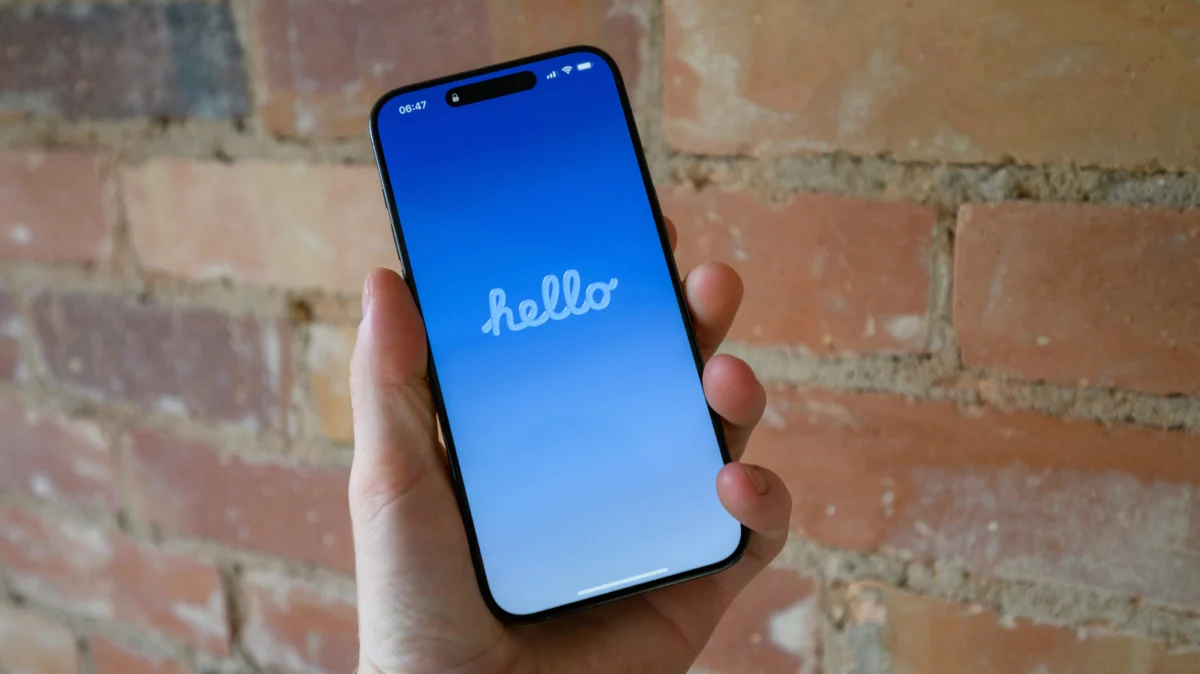
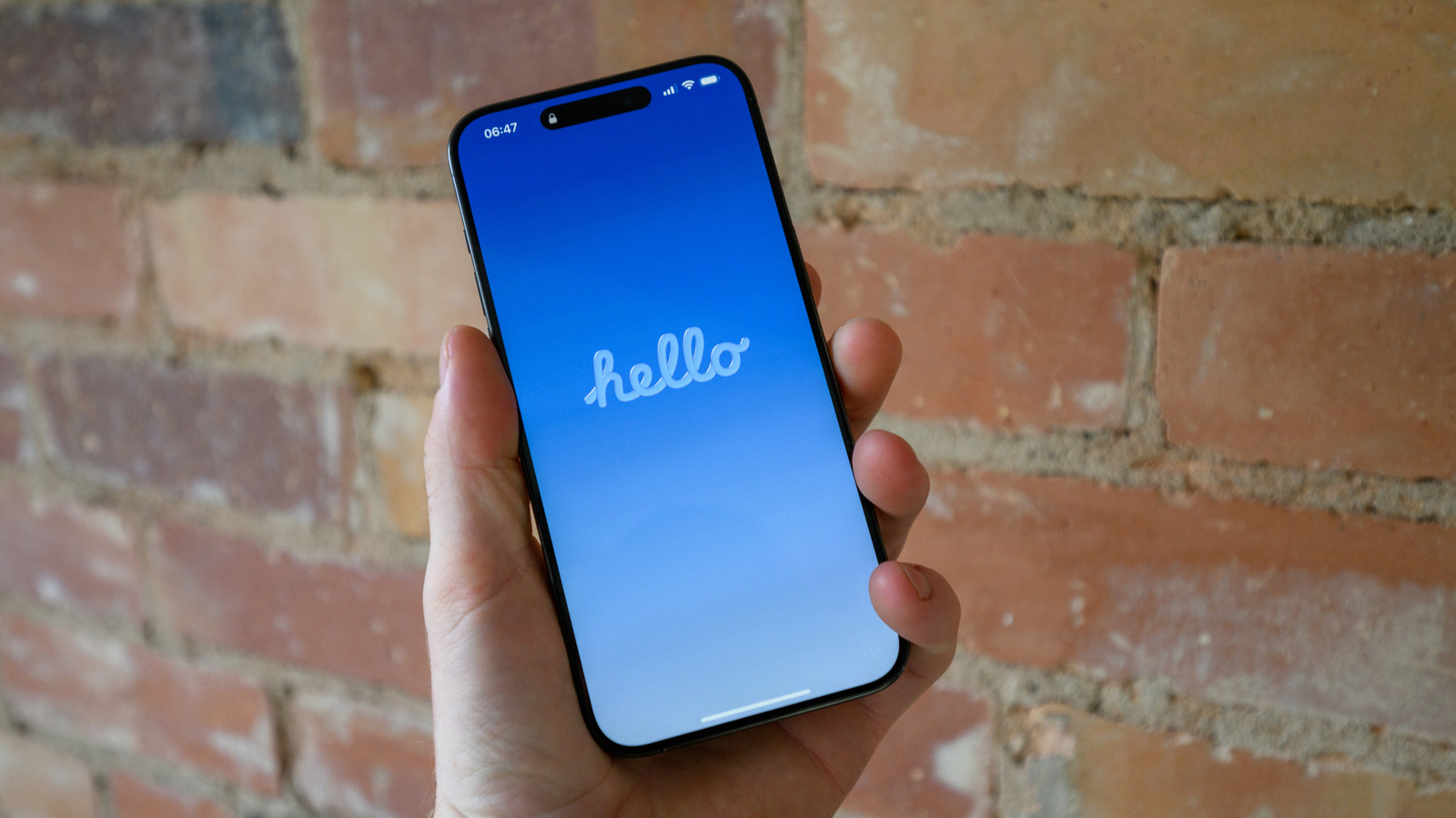
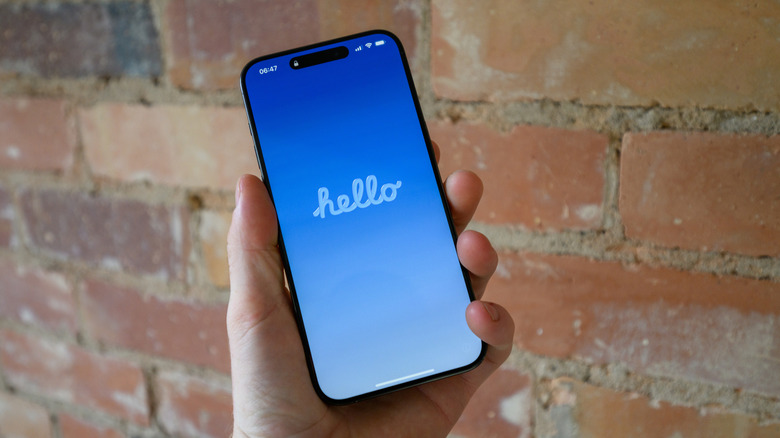
- Enter your Apple ID password and device passcode to initiate the wipe. The device will take several minutes to delete all data and return to the "Hello" welcome screen.
Implications and Professional Advice
The tech community often debates the necessity of these resets. According to many industry experts, excessive resetting is not recommended. iOS is designed to manage its own cache and system files, and frequent resets—especially factory resets—can put unnecessary strain on the NAND flash storage.
Furthermore, if you find that you are factory resetting your phone more than once every few years, it may be an indication of a hardware issue, such as a degrading battery or a failing logic board, rather than a software conflict.
When to Seek Professional Help
If you have performed a factory reset and restored your device as a "new iPhone" (without restoring your backup) and the issue persists, the problem is likely hardware-related. At this point, the implications are clear: the device requires a physical inspection.
Apple’s official stance emphasizes that users should always keep their iOS updated to the latest version. Often, what appears to be a "bug" needing a reset is simply a known issue that has already been patched in a recent iOS update. Before diving into the reset process, always check Settings > General > Software Update.
Summary Table for Troubleshooting
| Method | Data Loss? | Best Used For |
|---|---|---|
| Force Restart | None | Device is frozen or unresponsive. |
| Reset Settings | Configuration only | Connectivity issues, UI glitches. |
| Factory Reset | Total | Selling phone or deep-rooted software corruption. |
By approaching your iPhone issues methodically—moving from the simplest power cycle to the most thorough factory wipe—you can maintain the longevity of your device and ensure it performs at its peak. Remember: the most important step in any reset process is always the backup. Without it, you are not troubleshooting; you are merely risking your digital life.