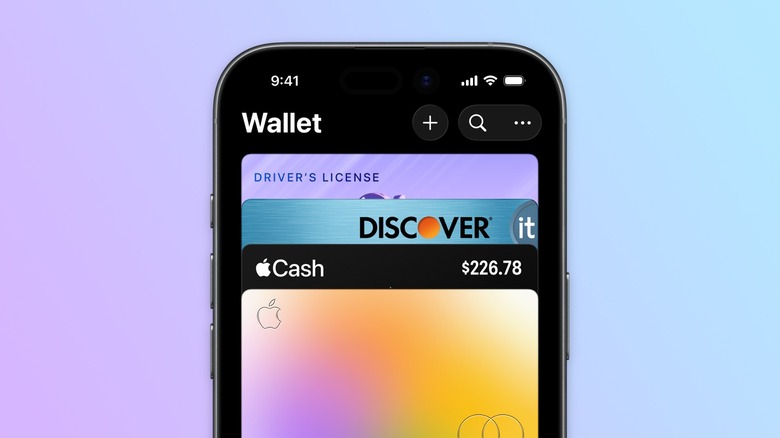
Apple Wallet has fundamentally transformed the modern consumer experience, evolving from a simple digital repository for boarding passes into a sophisticated financial hub. By consolidating credit cards, debit cards, transit passes, concert tickets, and even government-issued identification into a single, encrypted interface, Apple has significantly reduced the physical clutter of our daily lives. However, when this seamless ecosystem encounters a technical hiccup, the inconvenience is magnified. Whether it is a declined payment at a crowded checkout or a transit pass that refuses to scan, understanding how to troubleshoot these issues is an essential skill for the modern iPhone user.
Main Facts: Why Apple Wallet Fails
At its core, Apple Wallet relies on a complex interplay between hardware (the Secure Element chip in your iPhone), software (the iOS operating system), and external financial infrastructure (your bank’s servers and the merchant’s point-of-sale terminal). When a transaction fails, it is rarely due to a single "broken" component.
Most commonly, issues arise from three categories:
- Synchronization Lags: Digital tokens associated with credit cards occasionally fall out of sync with the issuing bank’s servers, especially after a card is reissued or expires.
- Configuration Errors: Mismatched region settings or disabled security features, such as Face ID or Touch ID, can trigger automated safety blocks that prevent transactions.
- Infrastructure Outages: Despite Apple’s robust server architecture, regional or global outages can temporarily disable Wallet services, leaving users unable to authenticate payments.
Chronology of Troubleshooting: A Step-by-Step Approach
When you find yourself staring at an "Access Denied" or "Service Unavailable" prompt, follow this chronological sequence to systematically isolate the problem.
Phase 1: The "Soft Reset" of Your Digital Wallet
Before diving into complex settings, address the most common culprit: a stale card token. If your card has recently been replaced or expired, the Wallet app may still be attempting to communicate with an obsolete set of credentials.
- Remove and Re-add: Navigate to your Wallet app, select the malfunctioning card, tap the "More" (three-dot) icon, and select "Card Details." From here, scroll to the bottom and select "Remove Card." Once removed, tap the "+" icon to re-add the card.
- Verification: Be prepared for your bank to require a secondary verification step, such as an SMS code, an email confirmation, or a verification prompt within your bank’s dedicated mobile application.
Phase 2: System-Level Integrity Checks
If re-adding the card fails, the issue likely resides within the device’s configuration.
- Software Updates: iOS updates frequently include patches for the "Secure Element," the hardware responsible for contactless transactions. Navigate to Settings > General > Software Update to ensure your device is running the latest version of iOS.
- Region Verification: Apple Pay and Apple Cash are heavily regulated and region-specific. If you have recently traveled or moved, your phone’s region settings may be in conflict with your current location. Check Settings > General > Language & Region to ensure your region is set accurately.
- Security Authentication: Apple Wallet will not function if the device’s biometric security is compromised or disabled. Verify that Face ID & Passcode (or Touch ID) is enabled and that the Contactless & Payments toggle is set to the "On" position.
Phase 3: Advanced Diagnostic Measures
If the device appears healthy but services remain unresponsive, you must look toward your account and third-party compatibility.
- Two-Factor Authentication (2FA): Apple mandates 2FA for any account utilizing Apple Pay. If you have recently disabled this or are signed into an Apple Account that lacks this layer of security, the Wallet app will restrict functionality.
- Third-Party Compatibility: Not all tickets or passes are natively supported by Apple’s format. If a barcode or QR code does not automatically trigger an "Add to Apple Wallet" button, you may need a third-party bridge, such as IntoWallet. Note, however, that Apple is aggressively closing this gap with newer OS iterations, which now allow for more native generation of passes from existing data.
Supporting Data and Security Protocols
The security architecture of Apple Wallet is designed to ensure that your actual card numbers are never stored on your device or Apple’s servers. Instead, a unique Device Account Number is assigned, encrypted, and stored in the Secure Element.
According to financial security analysts, the primary cause of "declined" transactions is not a system failure, but a security trigger from the card issuer. When a transaction occurs in a new location or at an unusual time, the bank’s fraud detection algorithms may temporarily freeze the token. This is why, if troubleshooting within the phone fails, a quick call to your bank’s customer support line often reveals that the bank simply needs a verbal authorization to unblock the digital token associated with your device.
Official Responses and System Status
Apple maintains a real-time System Status dashboard that provides transparency regarding their digital services. In the event of a global outage affecting iCloud or Wallet, this page will reflect the service disruption.
When Apple acknowledges an issue, the official advice remains consistent:
- Check the Status Page: Verify if the issue is widespread.
- Wait for Resolution: If the fault is on Apple’s server side, user-end adjustments will be ineffective.
- Carry Physical Backups: Despite the shift toward a "phone-only" wallet, industry standards still strongly recommend carrying at least one physical payment method and valid identification when traveling, as digital systems remain reliant on internet connectivity and server-side authentication.
Implications for the Future of Payments
The reliance on digital wallets has profound implications for consumer behavior and infrastructure. As we move toward a world where the physical wallet is an artifact, the "troubleshooting" process becomes an essential life skill.
However, this transition also highlights a vulnerability: our dependence on a proprietary ecosystem. When Apple Wallet experiences downtime, the impact is immediate and disruptive. The shift necessitates that users become more tech-literate regarding their own security settings and account configurations.
Ultimately, while the convenience of Apple Wallet is undeniable, it is not infallible. By mastering the basic troubleshooting steps—clearing tokens, updating software, and verifying security permissions—users can mitigate most issues. Yet, the most important lesson remains the necessity of redundancy; until digital infrastructure is 100% reliable, the physical card remains a vital safety net in an increasingly digital world.