
 Asep Darmawan
The modern smartphone is a marvel of engineering, packing more computing power into a chassis the size of a notepad than the supercomputers of the late 20th century. However, as Google’s Pixel 10 Pro pushes the boundaries of AI processing, high-resolution gaming, and seamless background connectivity, a familiar issue has resurfaced: thermal management.
It is a common frustration among flagship users: you are mid-emulation of a retro classic, navigating a long route via Android Auto, or simply streaming high-definition video, and you notice the device becoming uncomfortably warm. While thermal throttling is a standard safety protocol for modern mobile hardware, persistent overheating is more than just a tactile annoyance—it is a silent killer of lithium-ion battery health.
The Reality of Thermal Degradation
At the heart of the Pixel 10 Pro lies a sophisticated battery chemistry designed to provide high energy density. However, lithium-ion batteries are notoriously sensitive to temperature fluctuations. When a phone operates at high temperatures for extended periods, the internal chemical reactions accelerate, leading to faster degradation of the electrolyte and the cathode structure.
Over months and years, this manifests as reduced peak capacity, meaning your phone will hold less of a charge than it did on day one. By proactively managing the thermal profile of your device, you are not just improving comfort; you are actively extending the functional lifespan of your hardware.
Chronology of Thermal Management: How We Got Here
Thermal management in smartphones has evolved significantly over the last decade. In the early days of mobile computing, devices rarely pushed enough power to generate significant heat. Today, the demand for "always-on" AI, real-time image processing, and 5G connectivity puts a massive load on the SoC (System on a Chip).
- Phase 1: Passive Cooling: Early designs relied solely on the device’s chassis to dissipate heat.
- Phase 2: Software Throttling: Manufacturers began introducing aggressive software limitations that would slow down the processor when internal sensors detected a temperature spike.
- Phase 3: Adaptive AI Integration: Modern flagships like the Pixel 10 Pro now utilize machine learning to predict power demand and adjust charging and processing patterns in real-time.
Despite these advancements, the physics of heat generation remain constant. When the processor works hard, energy is converted into heat. Understanding how to interact with these AI-driven systems is the key to keeping your Pixel 10 Pro "frosty."

Adaptive Charging: The AI-Driven Guardian
One of the most effective, yet often overlooked, features in the Pixel 10 Pro’s arsenal is Adaptive Charging. This feature leverages Google’s machine learning capabilities to analyze your daily habits.
If you typically plug your phone in at 11:00 PM and wake up at 7:00 AM, the device recognizes this pattern. Instead of rushing to hit 100% capacity within an hour—a process that creates significant heat—it charges to 80% and pauses. It then waits until closer to your wake-up time to complete the final 20% trickle charge.
Why This Matters
Lithium-ion batteries are most stressed when they sit at 100% charge while the temperature is elevated. By keeping the battery at a lower voltage for the majority of the night, you drastically reduce the chemical stress on the cell.
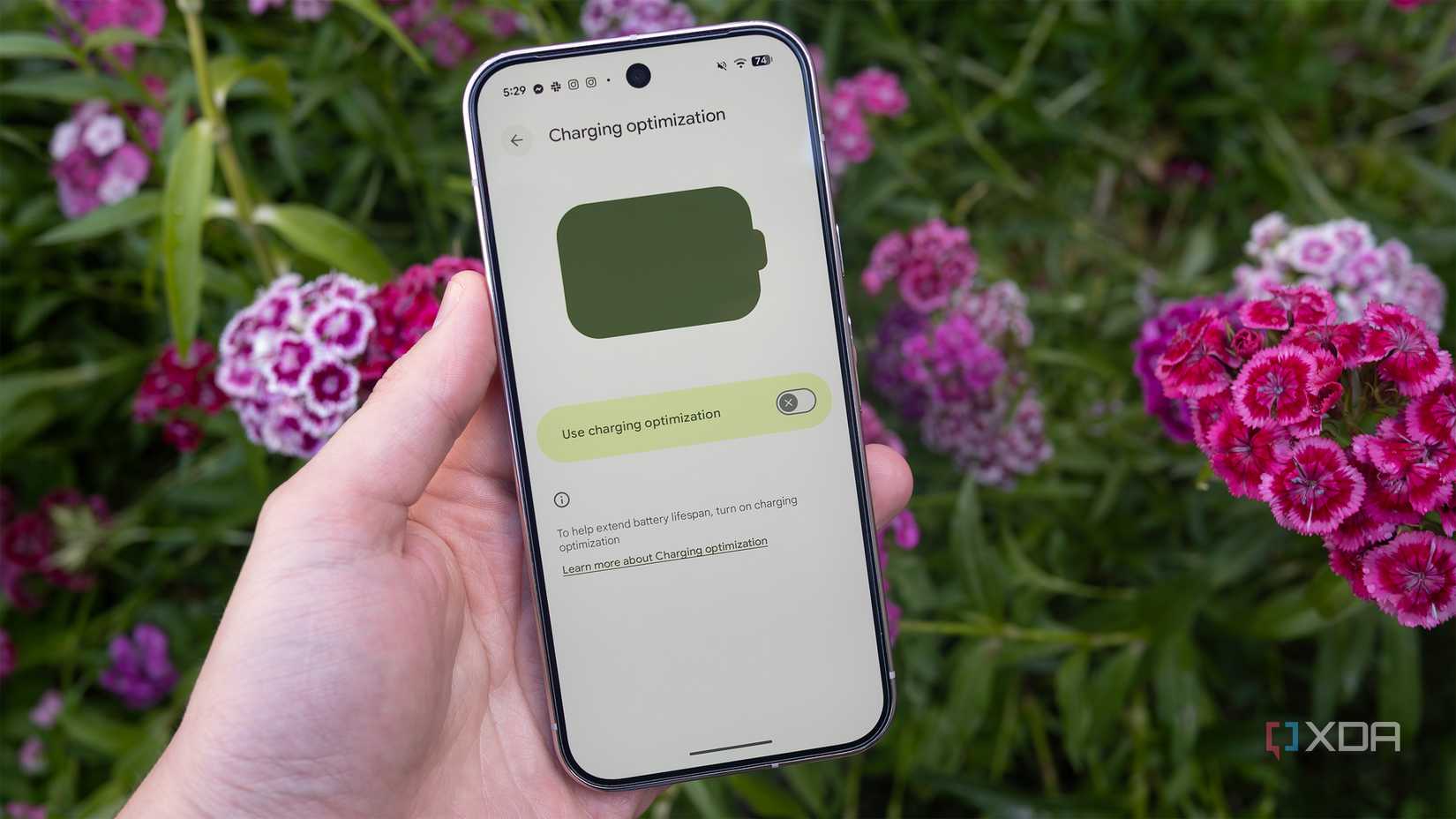
How to enable it:
- Navigate to Settings.
- Select Battery.
- Tap Battery Health.
- Choose Charging Optimization.
- Toggle Adaptive Charging to the ‘On’ position.
Adaptive Battery: Balancing Performance and Heat
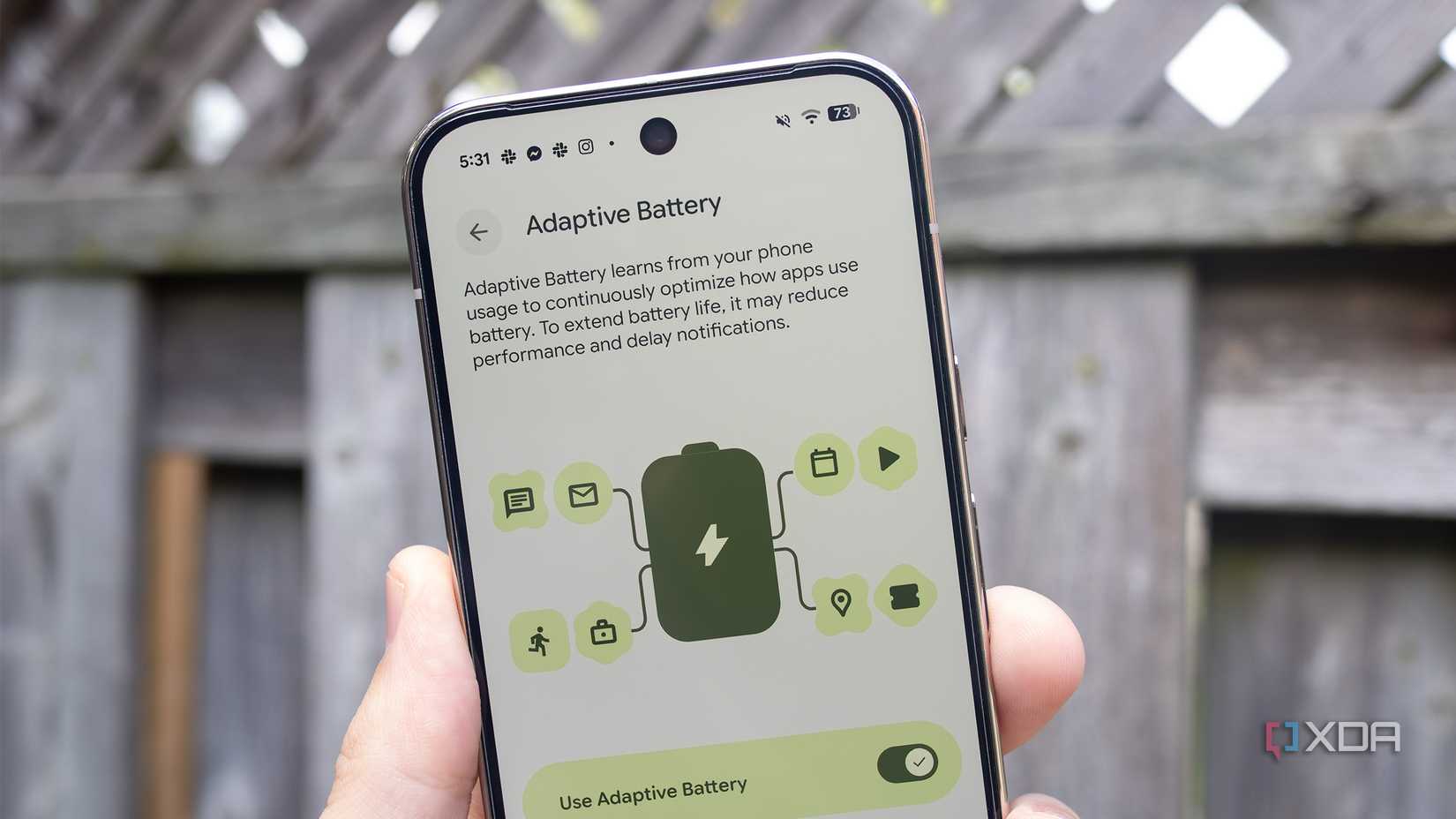
While Adaptive Charging focuses on the power input, Adaptive Battery manages the output. This feature monitors which apps are consuming the most power and limits the resources allocated to less frequently used background processes.
By capping the background activity of "hungry" apps, the phone prevents the processor from running at peak clock speeds unnecessarily. This prevents "thermal runaway," where an app consumes too much power, generates heat, which in turn forces the processor to work harder to overcome the heat-induced lag, creating a vicious cycle.
Potential Drawbacks
It is important to note that Adaptive Battery is not perfect. In rare instances, particularly with resource-heavy applications, the AI might over-aggressively throttle performance. Users may occasionally notice minor UI lag or a slight delay in app wake times. However, for the average user, the trade-off—a cooler phone and a healthier battery—is almost always worth the minor compromise in raw performance.
How to manage it:
- Go to Settings > Battery > Battery Saver > Adaptive Battery.
- Ensure it is toggled On.
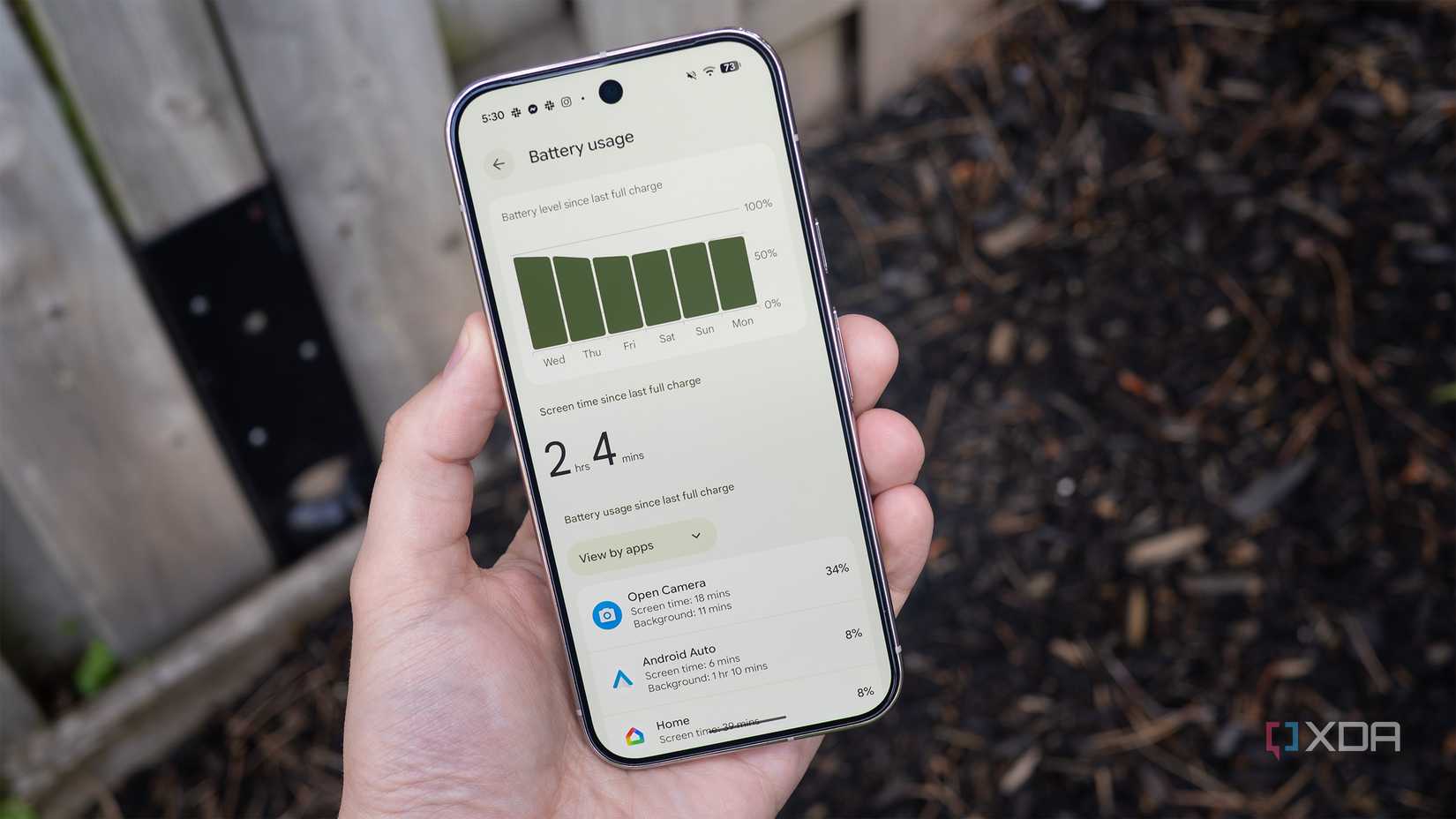
- Periodically check the Battery Usage chart in the Battery menu to identify "rogue" apps that are consuming more energy than they should.
Supporting Data: Identifying the Culprits
Not all apps are created equal. Some applications, particularly those involving real-time GPS tracking, heavy media rendering, or unoptimized background syncing, are notorious for generating excess heat.
In recent field tests, apps like navigation suites and high-end camera software consistently appeared at the top of the heat-generation list. If you notice your Pixel 10 Pro getting hot while stationary, perform a quick audit:
- Open Battery Usage: This provides a granular breakdown of which apps are draining your power.
- Assess Background Usage: If an app is consuming a disproportionate amount of energy, consider navigating to the specific app’s settings and restricting its background activity.
- The "Last Resort" Tactic: For apps that are essential but problematic, you can manually disable "Allow Background Usage." Be warned: this may prevent apps like social media or email clients from sending real-time notifications. Use this only for apps where you do not need instant updates.
Official Stance and Industry Perspective
Google, like other major smartphone manufacturers, maintains that modern batteries are designed to handle typical thermal cycles. However, their documentation often emphasizes that extreme temperatures (both hot and cold) are the primary factors in premature battery degradation.
Industry analysts suggest that as AI processing becomes more localized on our devices, the "thermal budget" of a phone will become a primary differentiator in future flagship reviews. Companies are currently investing heavily in vapor chamber cooling and graphite thermal pads to mitigate these issues, but software remains the first line of defense for the consumer.
Implications for the Long-Term User
If you plan to keep your Pixel 10 Pro for three or more years, the cumulative effect of these small changes is significant. A battery that is well-managed will typically retain 85-90% of its original capacity after two years, compared to 75-80% for a device that is consistently subjected to heat-stress cycles.
While it is true that even with every setting optimized, your phone will inevitably get hot under heavy workloads—such as rendering a 4K video or gaming in direct sunlight—these strategies provide a cushion. They allow the device to recover more quickly from high-stress scenarios and ensure that your hardware isn’t being pushed to its thermal limits during routine, low-intensity tasks.
Ultimately, keeping your Pixel cool is about respecting the chemistry of the device. By utilizing the built-in AI tools provided by Google and maintaining an awareness of app energy consumption, you can ensure that your flagship device remains a high-performance tool for years to come rather than a temporary gadget destined for the recycling bin.


 Neng Nana
 Iffa Jayyana