In the modern digital landscape, the storage capacity of our PCs often feels like a finite resource that shrinks the moment we buy a new machine. Between high-definition media, sprawling software suites, and the silent accumulation of system-level "junk," it is all too common to encounter the dreaded "Low Disk Space" notification. While it may be tempting to delete files at random to regain breathing room, a methodical, informed approach is essential to avoid accidental data loss and ensure your system continues to run at peak efficiency.
This guide provides a deep dive into the architecture of Windows storage management, offering actionable strategies to identify, categorize, and eliminate unnecessary files while optimizing your system for the long term.
The Anatomy of Disk Bloat: Why Storage Vanishes
Before diving into technical solutions, it is vital to understand what exactly consumes your drive. On a typical Windows installation, storage is consumed by three primary categories:
- User Content: This includes your personal photos, videos, documents, and creative projects. These are often the easiest to identify but the hardest to part with.
- Installed Applications: Modern software, particularly AAA video games and professional creative suites (like Adobe Creative Cloud), can easily occupy hundreds of gigabytes.
- System Data & Temporary Files: This encompasses Windows updates, cache files, hibernation data, and system restore points. This category is often the most mysterious to users but frequently offers the most "low-hanging fruit" for cleanup.
Phase I: Leveraging Windows Native Storage Tools
The most efficient starting point for any cleanup initiative is the built-in Windows Storage Settings menu. This tool provides a high-level overview of your disk usage, categorized by file type.
Navigating to Storage Settings
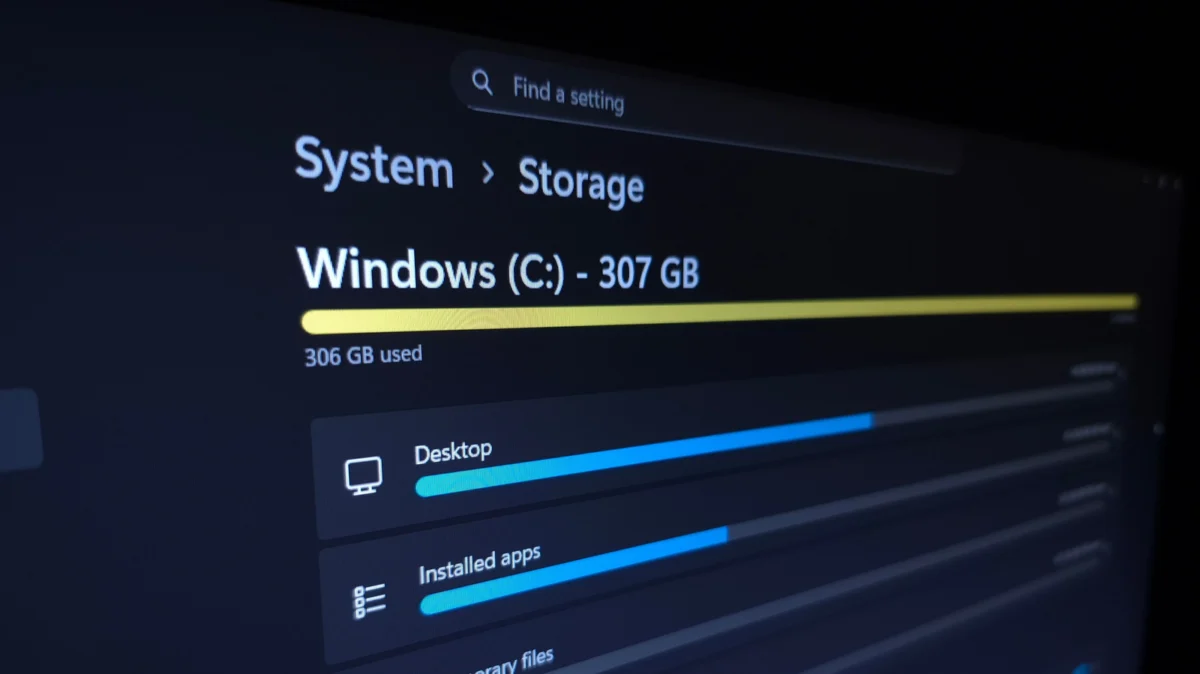
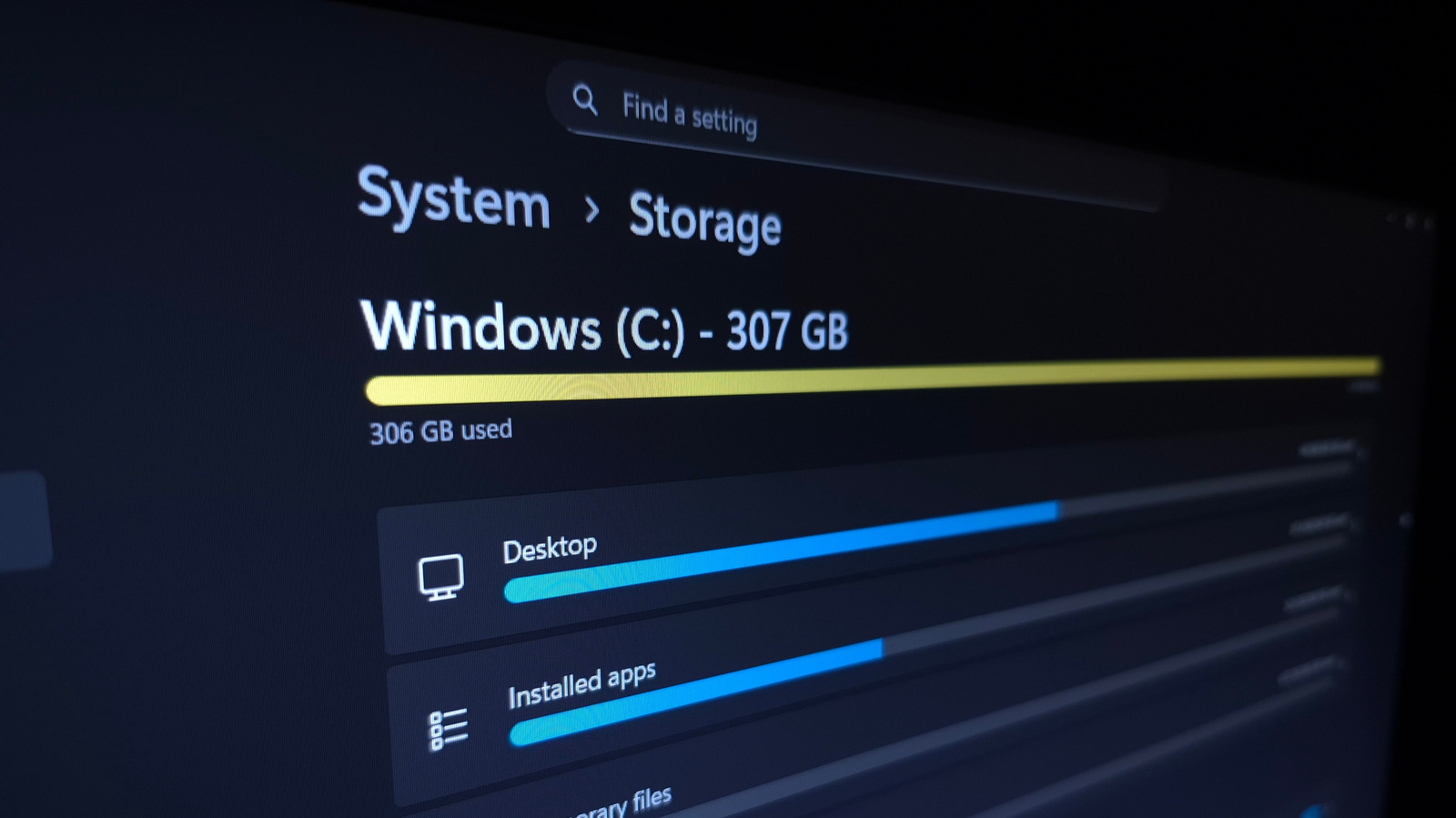
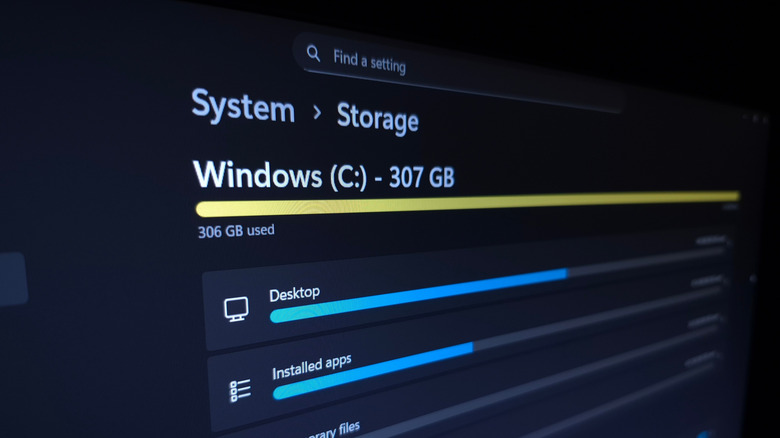
To begin, press Win + I to open the Settings application and navigate to System > Storage. Here, Windows presents a bar graph visualization of your primary drive’s health. By selecting specific categories, you can drill down into the data.
Targeting "Installed Apps"
Often, the largest contributor to disk saturation is the applications themselves. By navigating to Settings > Apps > Installed Apps, you can sort your software by size. This reveals which programs are monopolizing your drive. If you find applications that you haven’t used in months, uninstalling them is the first logical step. For users with secondary drives, some applications—particularly games via the Microsoft Store or Xbox app—allow you to move the installation to a different volume, providing an instant solution without losing the software.
The Cleanup of Temporary Files
The "Temporary Files" section is a goldmine for quick storage recovery. Windows allows you to select items like thumbnails, temporary internet files, and diagnostic data. Clicking Cleanup System Files expands this to include remnants of previous Windows updates—files that can sometimes occupy several gigabytes.
A Word of Caution: Always exercise prudence with the "Downloads" folder and the "Recycle Bin." While they are prime candidates for cleaning, they often contain files you may need later. Before emptying the Recycle Bin, perform a quick audit to ensure no critical documents were accidentally deleted.
Phase II: Advanced System Optimization
If basic cleanup isn’t enough, you may need to adjust how Windows manages its own overhead. These steps involve modifying system settings that, while safe, require a deliberate approach.
Disabling Hibernation to Reclaim Space
Windows creates a file called hiberfil.sys to allow your computer to enter a low-power state while saving your open work to the disk. If you primarily use "Sleep" or simply shut down your PC, this file—which is often as large as your total RAM—is wasted space.
To disable it:
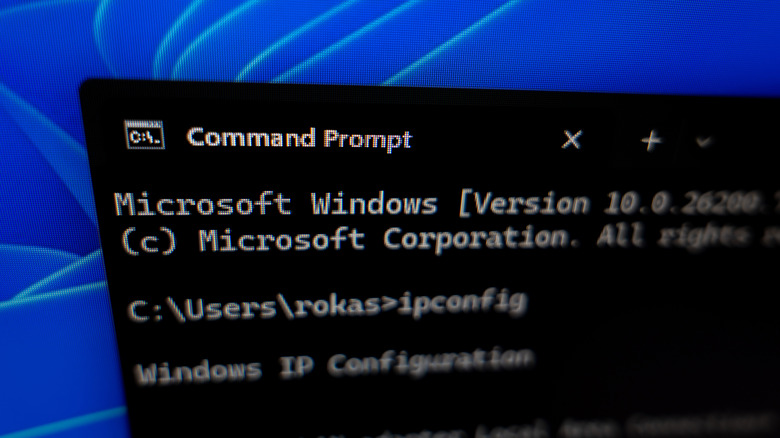
- Type "cmd" in the Start menu.
- Right-click the Command Prompt and select Run as Administrator.
- Type
powercfg /hibernate offand press Enter.
This immediately recovers space equal to the size of your system’s memory.
Managing System Restore Points
System Restore is a powerful safety net, but it creates "snapshots" of your system that take up significant space. If your drive is chronically full, you can throttle this behavior. Navigate to Control Panel > System > System Protection. By selecting your drive and clicking Configure, you can move the "Max Usage" slider to a lower percentage. While this reduces the number of restore points available, it forces the system to be more judicious with its disk usage.
Phase III: Deep-Dive Analysis with Third-Party Tools
Windows native tools are excellent for broad categories, but they struggle to visualize the location of massive, forgotten files. For a granular view, third-party software is essential.
Utilizing TreeSize Free
TreeSize Free is widely considered the industry standard for disk visualization. By running it as an administrator, you can scan your entire C: drive. The software displays folders in a tree structure, ranked by size.
When analyzing your drive:
- Focus on the "Users" folder: This is where your profile data lives. Look for large media files buried in subfolders.
- Investigate "AppData": This folder often houses hidden cache files from browsers and streaming apps. Clearing this cache can yield significant gains without breaking your applications.
- Avoid the "Windows" folder: Unless you are an advanced user, avoid deleting files within the core Windows system directory to prevent system instability.
Hunting for Duplicates
Over time, we inadvertently save multiple copies of the same file in different directories. Tools like dupeGuru are invaluable for finding these redundancies. By scanning your drive for files with identical checksums, dupeGuru can identify "space wasters" that standard cleaners simply overlook.
Phase IV: Strategic Offloading and Future-Proofing
Once you have cleared the immediate clutter, your focus should shift to maintenance and offloading.
The Cloud-First Approach
For files you need to keep but don’t access daily, the cloud is your best ally. Utilizing OneDrive’s "Files On-Demand" feature allows you to keep a file index on your PC while keeping the actual data in the cloud. You can download the file with a simple double-click when needed, effectively turning your hard drive into a portal for an infinite amount of storage.
Investing in Hardware
If your storage needs consistently outpace your cleaning habits, hardware expansion is the only permanent solution.
- External SSDs: These are perfect for expanding your capacity without opening your computer case. They provide high-speed data access, making them suitable for running games or storing active projects.
- External HDDs: While slower, they offer significantly more storage for a lower price. These are ideal for long-term backups of media libraries and documents.
Automation via Storage Sense
To ensure you never have to go through this process manually again, enable Storage Sense in the Windows Storage settings. This utility automates the removal of temporary files, cleans the Recycle Bin on a schedule, and manages your cloud-synced files. By setting this to run when disk space is low, you essentially set your system to "self-clean."
Conclusion
Managing PC storage is not a one-time event; it is a digital hygiene practice. By combining the methodical use of Windows’ built-in tools with advanced visualization software and a strategic approach to cloud storage, you can keep your machine running smoothly. Remember: the goal is not to have a completely empty drive, but rather a system where every gigabyte is accounted for and utilized effectively. By following these steps, you reclaim control over your digital environment, ensuring your PC remains a productive tool rather than a cluttered storage unit.