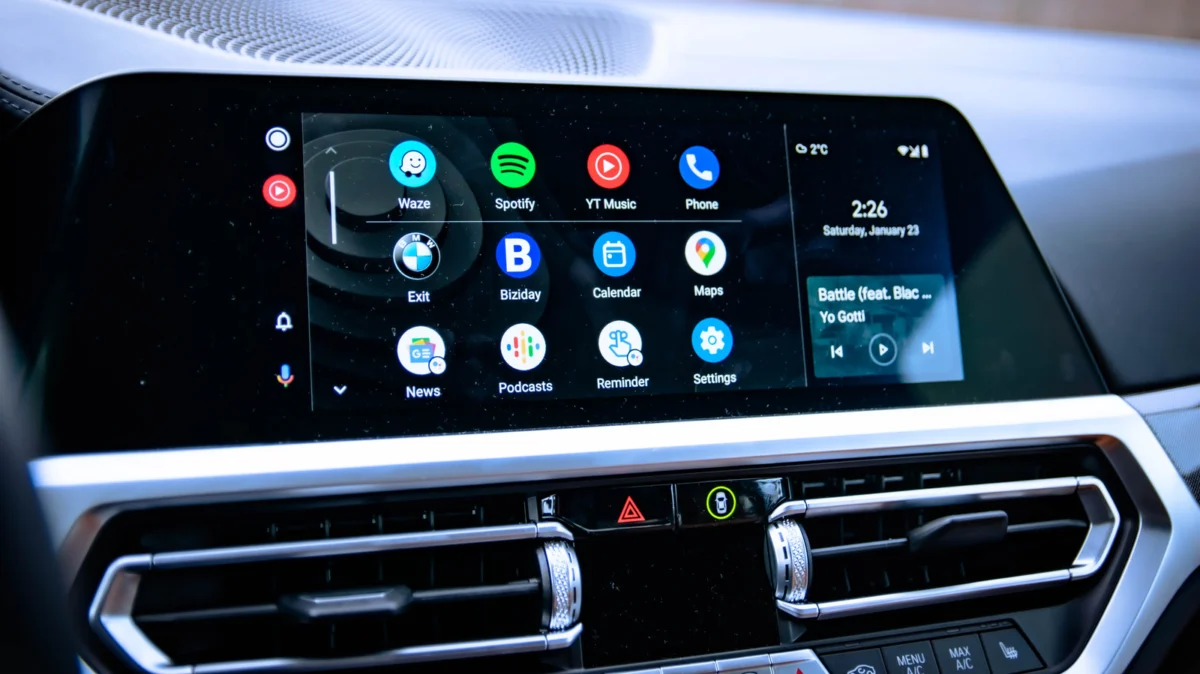
For millions of drivers, Android Auto has become an indispensable companion. By mirroring the familiar interface of an Android smartphone onto a vehicle’s infotainment display, it provides a safer, more intuitive way to manage navigation, music streaming, and hands-free communication while on the road. However, when the seamless connection fails, it can turn a modern driving experience into a source of immense frustration.
If your Android Auto connection has suddenly gone dark, you are not alone. Most connectivity issues are not the result of permanent hardware failure but are instead minor software conflicts or physical connection degradation. Below, we provide a definitive, step-by-step guide to diagnosing and resolving the most common Android Auto malfunctions.
The Anatomy of the Problem: Main Facts
Android Auto functions by establishing a bridge between your phone’s operating system and the vehicle’s head unit. This bridge relies on a combination of hardware (cables or wireless antennas) and software protocols (Bluetooth, Wi-Fi, and Google Play Services).
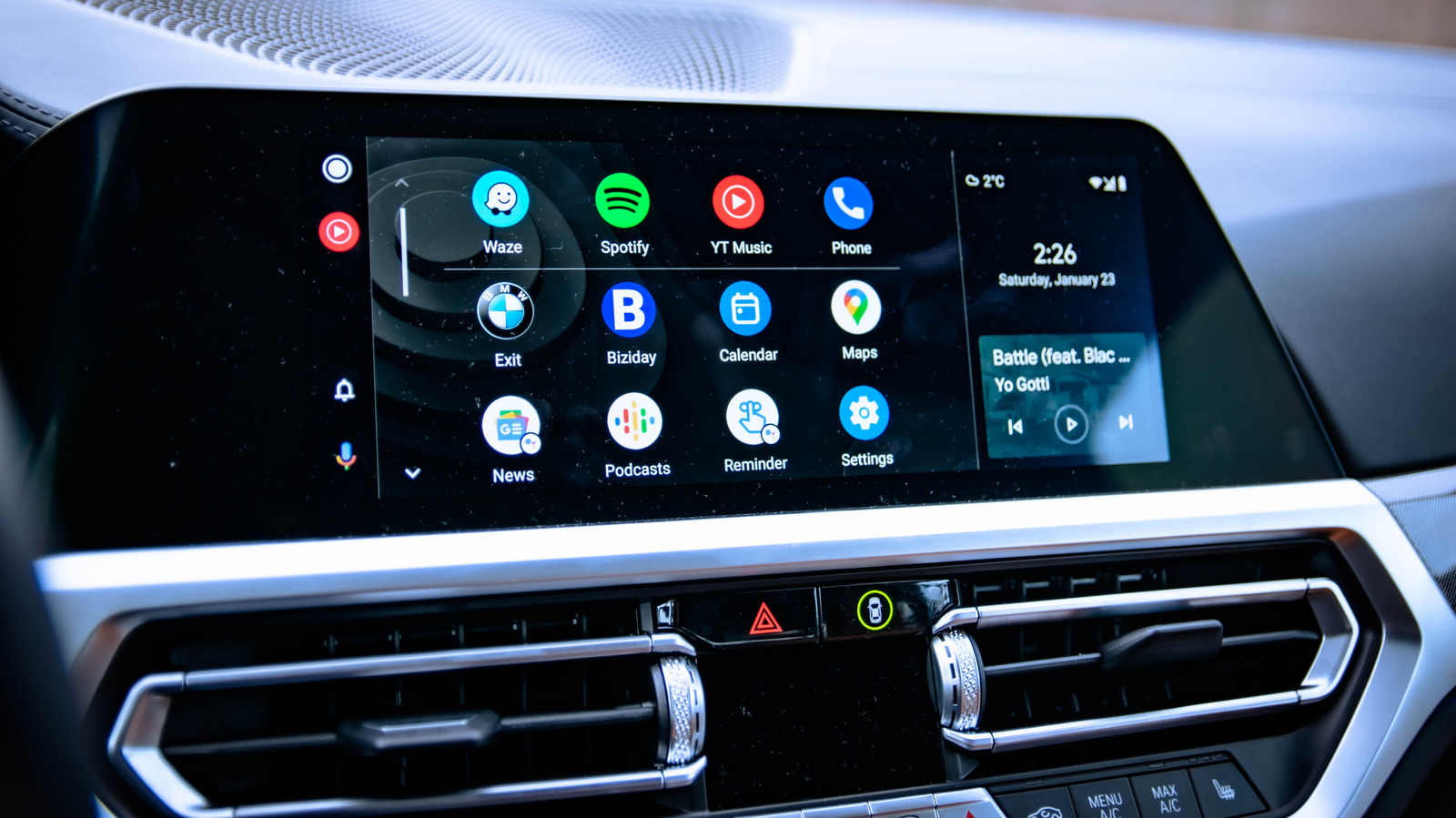
When this bridge collapses, it is almost always due to one of three categories of failure:
- Physical Layer: A faulty cable or a loose USB port.
- Configuration Layer: Incorrect settings within the phone or the car’s infotainment menu.
- Software Layer: Corrupted cache files, outdated system software, or conflicting background applications.
Understanding where the breakdown occurs is the first step toward a quick resolution.
Troubleshooting Chronology: A Step-by-Step Recovery Plan
To systematically address the issue, follow these steps in order. This sequence moves from the simplest physical checks to more complex software interventions.
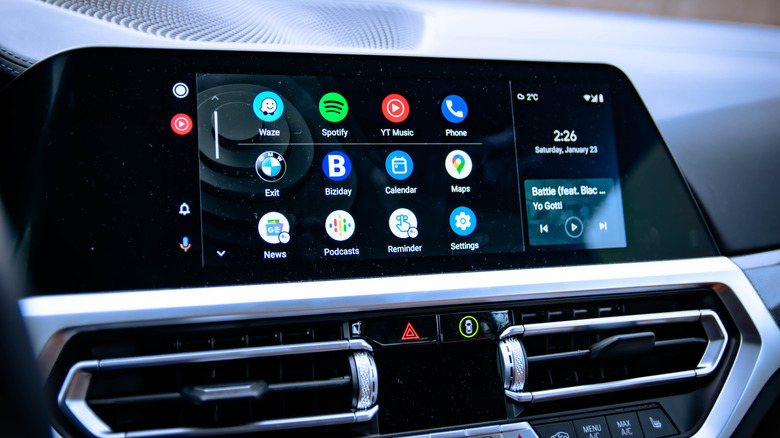
Phase 1: Physical Integrity and Initial Handshake
Before diving into settings, ensure the "plumbing" of the connection is sound.
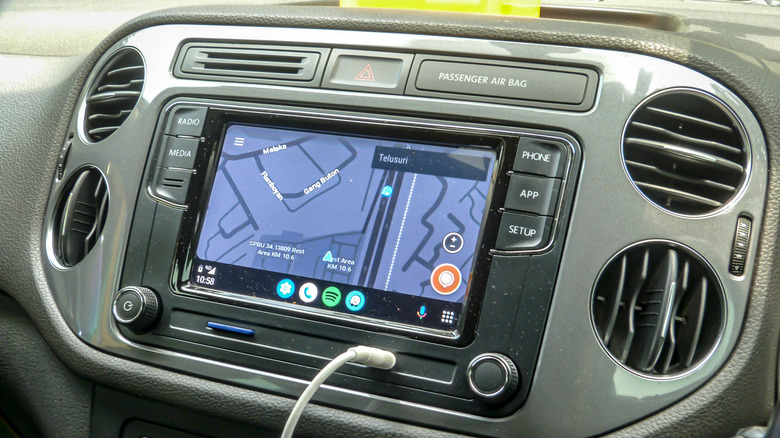
- Inspect the Cable: For wired users, the USB cable is the most common point of failure. Over time, internal wires fray from bending. Ensure you are using a high-quality, data-capable cable (not just a charging cable) that is under six feet in length. Avoid cable extenders, as they often introduce signal interference.
- Port Reliability: If the cable is functional, check the USB port on your vehicle. Debris, lint, or dust inside the port can prevent a solid connection. Use a non-conductive tool, like a wooden toothpick, to gently clear the port.
- For Wireless Users: If you are connected via Wi-Fi and Bluetooth, ensure both are toggled on. If the system is stuck in a "Connecting" loop, force a disconnection by toggling your phone’s Bluetooth off and on, or by removing the car from your phone’s "Saved Devices" list.
Phase 2: The "Three R’s" – Restart, Remove, and Reconnect
If physical connections are verified, perform a clean reset of the software handshake.
- Restart the Phone: A simple reboot clears the RAM and stops rogue background processes that might be holding the Android Auto connection hostage.
- Delete and Re-pair: Go to Settings > Connected Devices > Android Auto. Select your car and tap "Forget." Simultaneously, delete your phone from the car’s infotainment menu. This forces the system to perform a fresh "handshake," which often resolves authentication errors.
- Re-establish the Link: Connect your phone again from scratch. Ensure your car’s head unit is set to "Pairing Mode" or is actively searching for new devices.
Phase 3: Clearing the Cache and Deep Reset
If the connection persists in failing, the Android Auto application’s internal cache may be corrupted.
- Navigate to Settings > Apps > Android Auto.
- Select Storage & Cache.
- Tap Clear Cache. If the problem remains, perform a Clear Data operation. Note that this will reset your Android Auto preferences to factory defaults, requiring you to re-configure your settings once the connection is restored.
Supporting Data and Technical Context
Why does Android Auto fail so easily? The architecture of the system requires a constant, high-bandwidth data stream. According to Google’s developer documentation, the system uses a proprietary protocol that multiplexes audio, visual data, and touch-input feedback.
- VPN Conflicts: A common but overlooked culprit is the use of a Virtual Private Network (VPN). VPNs often encrypt traffic in a way that interferes with the local IP-based communication used by wireless Android Auto. If you use a VPN, you must utilize "Split Tunneling" to allow the Android Auto app to bypass the encrypted tunnel.
- Battery Optimization: Modern Android phones are aggressive about "Battery Optimization." If Android Auto is restricted by the battery manager, the OS may kill the connection to save power. Ensure that Android Auto is set to "Unrestricted" in your battery settings.
Official Perspectives and Industry Standards
Google’s support forums consistently highlight that keeping your system updated is the primary defense against recurring bugs. "Google Play Services" acts as the backbone for the Android Auto framework. If this service is outdated, the communication between your vehicle and your device may become unstable.
Furthermore, automotive manufacturers (OEMs) often release firmware updates for their infotainment systems. If you have tried all the above steps and the problem persists across multiple phones, the issue may lie with the car’s head unit software. Check your vehicle manufacturer’s website or consult your local dealer to see if an infotainment firmware update is available for your specific make and model.
Implications: The Future of In-Car Connectivity
The push toward wireless connectivity, while convenient, has introduced new layers of complexity. As vehicles move toward Android Automotive (an OS built directly into the car, rather than just mirrored), the reliance on external hardware will decrease.
However, until the market fully transitions to built-in systems, users must remain vigilant about:
- Compatibility: Always verify that your vehicle supports your specific Android version.
- Permission Management: Android Auto requires deep system permissions (contacts, SMS, location, microphone). If these are revoked or updated incorrectly during an OS patch, the app will lose its ability to function safely.
- Third-Party Hardware: The market for wireless adapters (dongles) is growing. While these are excellent workarounds for older cars, they are often sensitive to heat and firmware versions. Always ensure your adapter is running the latest manufacturer firmware.
Final Diagnostic Checklist
If you reach the end of this guide and the system remains unresponsive, ask yourself these three final questions:
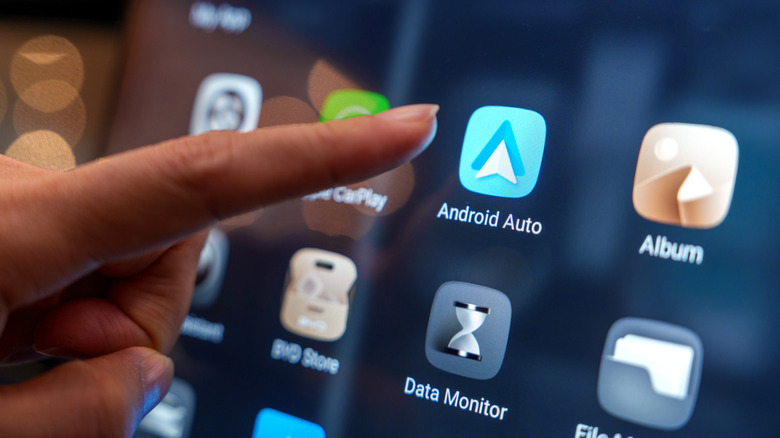
- Have I tested another phone? If a friend’s phone connects to your car, the issue is your phone’s configuration. If their phone also fails, the issue is likely the car’s infotainment system.
- Is the car compatible? Verify your vehicle’s compatibility via Android.com/auto/compatibility.
- Is the phone in a specialized mode? Disable "Power Saving" or "Do Not Disturb" modes, as these can inadvertently block the projection of the interface to the dashboard.
By methodically following these steps, you can move past the temporary frustration of a disconnected screen and return to a safe, connected, and enjoyable driving experience. Should these measures fail, it is advisable to contact your car dealership’s service department, as a hardware fault in the infotainment module—while rare—is a possibility that cannot be fixed by software alone.