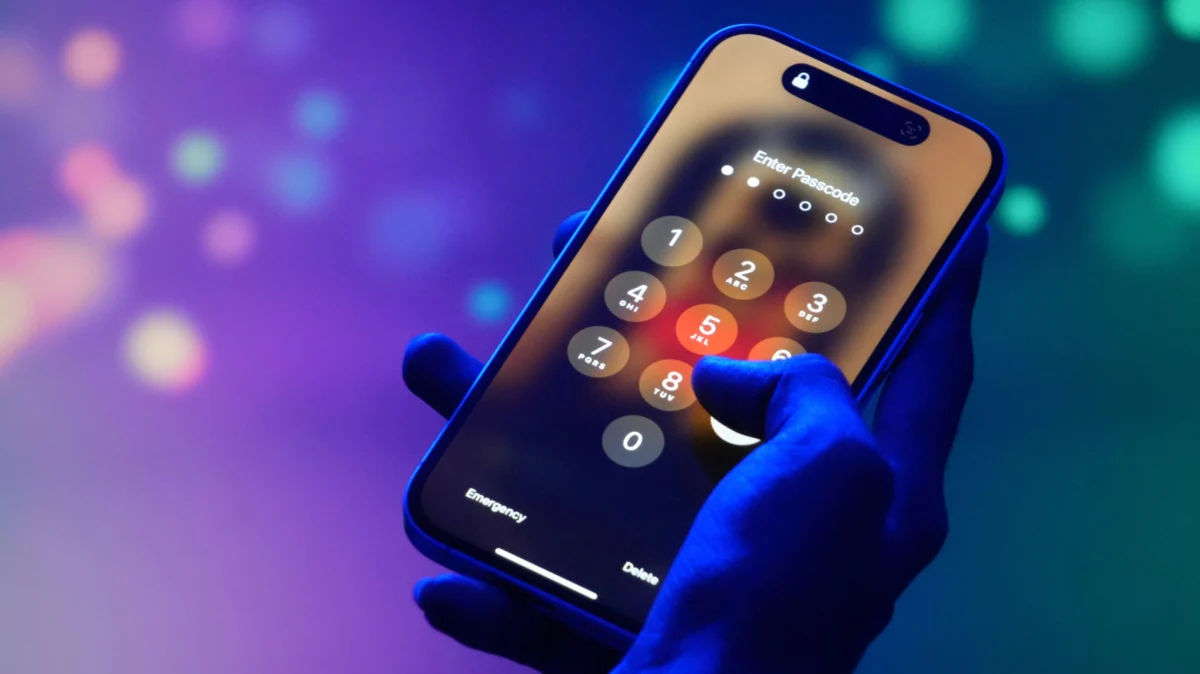
There is arguably no moment of digital panic quite like glancing down at your iPhone only to find it unresponsive, displaying the chilling "iPhone Unavailable" or "Security Lockout" message. For most users, this screen is the final stop after a series of failed passcode attempts. While this feature serves as a critical pillar of Apple’s security architecture—protecting your personal data from prying eyes and unauthorized access—it presents a significant hurdle for the legitimate owner who has simply forgotten their code or experienced a series of "pocket entries."
Recovering access to a locked device is a process that requires patience, the right tools, and, in many cases, your Apple Account credentials. Below, we break down the reality of this security measure, the steps required to regain control of your device, and the broader implications of Apple’s stringent privacy protocols.
The Mechanics of Security: Why Your iPhone Locks Down
The "iPhone Unavailable" message is not a glitch; it is a calculated response. Modern iPhones are designed with an "incremental lockout" system. After five consecutive incorrect passcode attempts, the device will pause, requiring the user to wait one minute before trying again. As the number of failed attempts climbs, these wait times increase significantly.
Eventually, after too many failed entries, the device enters a permanent state of lockout to prevent brute-force attacks—where software is used to guess every possible passcode combination. This is a vital safeguard against theft, ensuring that if your phone is stolen, the data stored within remains encrypted and inaccessible. However, this feature does not distinguish between a malicious actor and a user who has simply suffered a lapse in memory or a toddler who has played with the device unattended.
Chronology of Recovery: A Step-by-Step Approach
The path to recovery depends heavily on your current operating system version, your recent activity, and the hardware you have at your disposal.
1. The 72-Hour Grace Period (iOS 17 and Later)
If you recently changed your passcode and are currently running iOS 17 or later, Apple has introduced a merciful "fail-safe." If you find yourself locked out, you can use your previous passcode to reset the device within a 72-hour window.
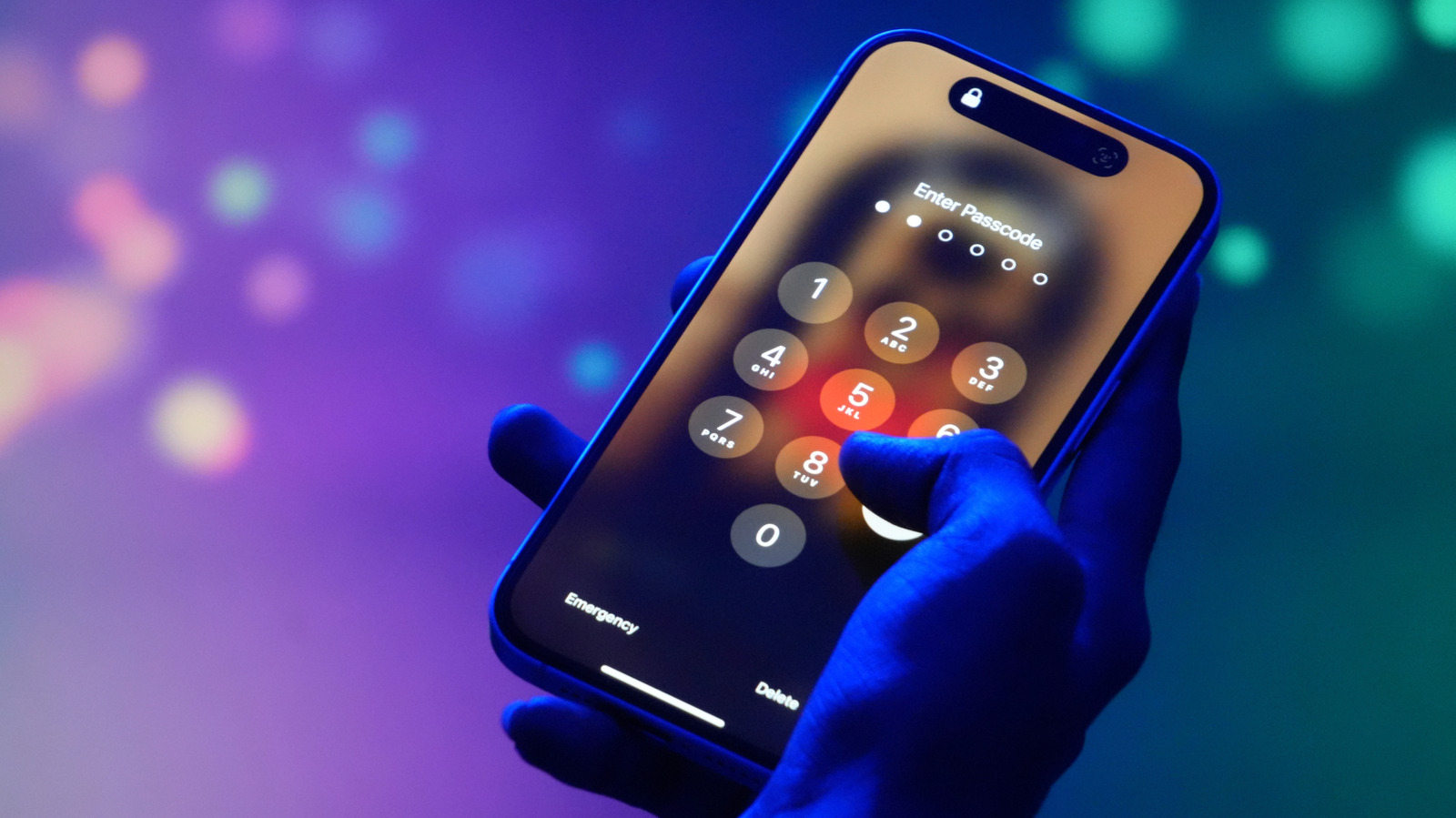
- The Procedure: When the "iPhone Unavailable" screen appears, tap "Forgot Passcode?" at the bottom. Select "Enter Previous Passcode" and input the old credentials. You will then be prompted to create a new, secure passcode.
2. Resetting Without a Computer (iOS 15.2 and Later)
If you do not have immediate access to a PC or Mac, you can reset your device directly from the lock screen, provided you meet specific prerequisites:
- Requirements: Your device must be running iOS 15.2 or later, have "Find My" enabled, and possess an active internet connection (Wi-Fi or Cellular).
- The Procedure: Keep entering the wrong passcode until the "Erase iPhone" button appears at the bottom of the screen. Tap it, confirm your selection, and enter your Apple Account password to sign out of your device. Once the process completes, your iPhone will be wiped, and you can restore your data from an iCloud backup.
- Carrier Note: If you utilize an eSIM, Apple strongly advises contacting your carrier before proceeding. In many cases, they can provide a QR code to re-provision your digital SIM card after the wipe, preventing connectivity issues.
3. The "Heavy Lifting": Using a Computer (PC or Mac)
For older devices or scenarios where the above methods fail, a hard reset via a computer is the industry standard.
- For Windows Users: You must install the "Apple Devices" app from the Microsoft Store. Ensure your device is connected via a lightning or USB-C cable.
- For Mac Users: Use Finder.
- Entering Recovery Mode: The process requires a specific button sequence. For most modern iPhones (iPhone 8 and later), you must quickly press and release the Volume Up button, then the Volume Down button, and finally hold the Side button until the "Recovery Mode" screen (an icon showing a cable and a laptop) appears.
- Restoration: Once in Recovery Mode, your computer will detect the iPhone. Choose the "Restore" option. This will download the latest firmware and wipe the phone entirely. Note that you must have a pre-existing iCloud or computer backup to recover your photos, messages, and app data.
Supporting Data and Technical Nuances
It is important to understand that Apple’s security architecture is hardware-bound. When you erase your iPhone, you are not just deleting photos; you are instructing the Secure Enclave—a dedicated coprocessor inside the iPhone—to discard the master encryption keys. This renders all existing data on the flash storage cryptographically inaccessible.
This is why, despite the "Restore" process, you can never regain your data without a backup. The "iPhone Unavailable" message is, in effect, the precursor to a factory reset. Data security experts often praise this implementation because it ensures that even if an iPhone is physically disassembled, the data remains scrambled and useless to an unauthorized party.
Official Responses and Best Practices
Apple’s official stance has always prioritized user privacy over convenience. In documentation regarding the "iPhone Unavailable" state, the company emphasizes that there is no "backdoor" or secret master code to bypass the lock screen. This policy, while occasionally frustrating for legitimate users, is what keeps the platform resistant to the forensic tools often used by law enforcement or hackers to bypass security.
Apple’s recommended preventative measures include:
- Use iCloud Backup: Regularly enable iCloud backups. If you encounter a lockout, your data is never truly lost, only temporarily unreachable.
- Keep Software Updated: Running the latest version of iOS ensures you have access to the newest recovery tools, such as the 72-hour passcode reset window.
- Manage Your Apple Account: Keep your Apple Account password in a secure, non-digital location (like a physical notebook or a password manager) to ensure you can always verify your identity during a reset.
The Broader Implications of Device Security
The existence of the "iPhone Unavailable" lockout screen highlights the inherent trade-off in modern mobile computing: the tension between absolute security and user accessibility.
As smartphones become our primary identity tokens—holding our bank cards, medical records, and digital keys—the stakes for device security have never been higher. When a user is locked out of their phone, they are effectively locked out of their digital life. The reliance on Apple Account credentials as the "master key" for these resets underscores how centralized our digital identities have become.
While the "iPhone Unavailable" message is a nuisance, it is a testament to the fact that your phone is doing exactly what it was designed to do: protecting you. However, as the ecosystem evolves, users must be increasingly diligent. The era of "forgetting your passcode" has become a high-consequence event, necessitating a disciplined approach to backups and account management.
If you find yourself staring at that black screen, remember: stay calm, ensure you have your Apple Account credentials ready, and follow the steps provided by Apple’s official support channels. While the process may take time—especially if you have a large library of data to restore—your digital life remains intact, waiting for you to simply unlock the door once more.