In an era of hyper-connectivity, the "dead zone"—that frustrating corner of your home where Wi-Fi signals go to die—has become a modern domestic nuisance. As we rely increasingly on smart home devices, streaming services, and remote work, the demand for robust, wall-to-wall internet coverage has never been higher. While the tech industry is quick to steer consumers toward expensive mesh systems, high-end routers, or dedicated signal repeaters, there exists a functional, eco-friendly, and entirely free alternative: the smartphone gathering dust in your junk drawer.
Repurposing an old Android phone as a Wi-Fi extender is a masterclass in practical upcycling. By leveraging the built-in hotspot capabilities inherent in the Android operating system, users can transform obsolete hardware into a functional signal relay, effectively extending their network’s reach without spending a single cent.
The Core Concept: How It Works
At its most fundamental level, an Android device acting as an extender operates as a bridge. Under normal circumstances, a mobile hotspot uses your cellular data (LTE/5G) to create a local Wi-Fi network. However, most modern Android iterations allow the device to remain connected to an existing Wi-Fi network while simultaneously broadcasting its own hotspot signal.
When configured correctly, the phone acts as a secondary access point. It captures the primary signal from your router—provided it is placed within range of a stable connection—and re-broadcasts that signal to devices that are physically too far from the main router to maintain a connection. This is not a magic solution that increases your internet speed; it is, rather, a relay station designed to bridge the gap between a weak signal area and your primary network source.
Chronology: The Evolution of Mobile Hotspotting
To understand why this is possible today, one must look at the evolution of mobile networking.
- Early 2010s: Mobile hotspots were restricted primarily to cellular data tethering. The hardware limitations of the time meant that phones could not handle the dual-duty of maintaining a Wi-Fi client connection and acting as an Access Point (AP) simultaneously.
- Mid-2010s: As smartphone processors became more efficient, manufacturers began introducing "Wi-Fi Sharing" or "Wi-Fi Bridge" features. This was initially a niche enthusiast feature often found in custom ROMs or specific manufacturer skins like Samsung’s One UI or Huawei’s EMUI.
- Present Day: Modern Android versions (Android 10 and above) have largely standardized the ability to maintain a Wi-Fi connection while hosting a hotspot, though the accessibility of this feature varies depending on the manufacturer’s specific UI implementation.
Step-by-Step Configuration: A Practical Guide
Before you begin, ensure your "retired" Android device is updated to the latest available software version and that you have a consistent power source, as acting as a relay station is battery-intensive.
1. Preparation
Locate your device, ensure it is charged, and connect it to your primary home Wi-Fi network. Ensure that all background syncs and unnecessary apps are disabled to prioritize network throughput for the hotspot function.
2. Enabling the Hotspot
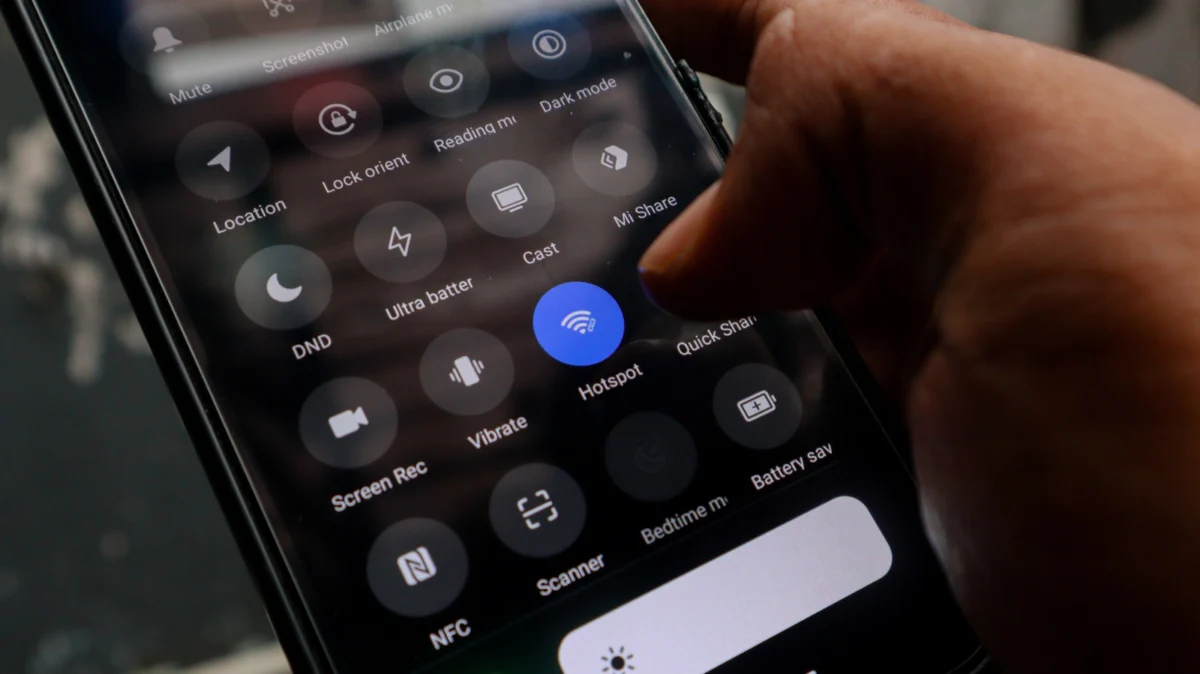
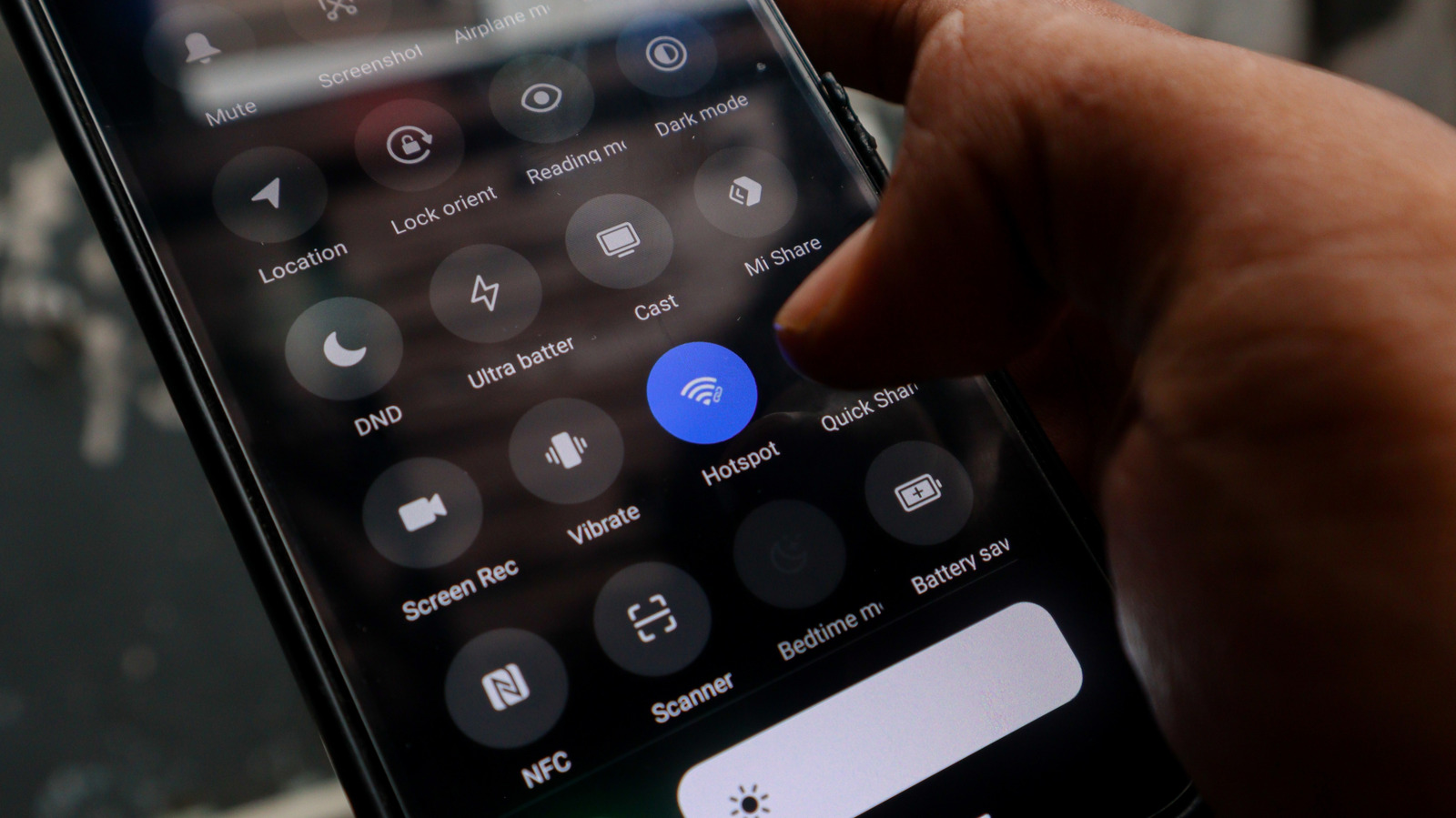
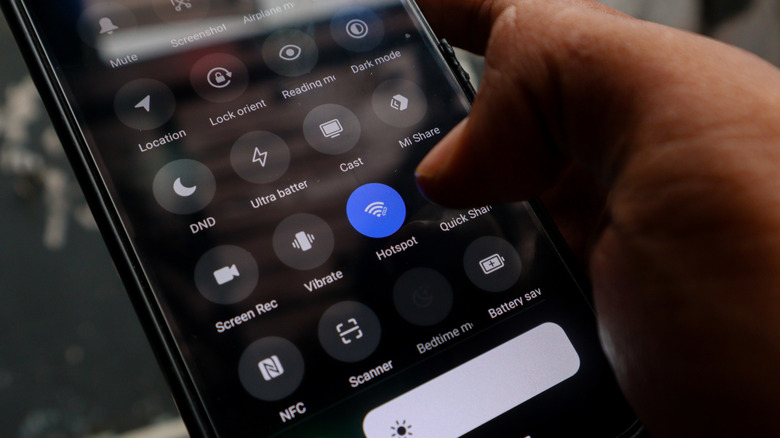
Navigate to Settings > Network & Internet > Hotspot & Tethering. Select Wi-Fi Hotspot. In many newer versions of Android, you will see an option labeled "Wi-Fi Sharing" or "Extend Wi-Fi." Toggle this on.
3. Securing the Connection
Never leave your hotspot unsecured. Set a strong WPA2 or WPA3 password to ensure that your extended network does not become a gateway for unauthorized users to access your primary home internet.
4. Optimal Placement
This is the most critical step. The phone must be placed in a "Goldilocks zone"—close enough to the main router to receive a strong, stable signal, but far enough into the dead zone to provide coverage where you need it most. If you place the phone in the middle of a dead zone, it will simply relay a weak signal, resulting in a frustratingly slow connection.
Supporting Data: Performance Expectations vs. Reality
When considering this method, it is vital to manage expectations. Independent testing indicates that while a dedicated mesh system utilizes a "backhaul" channel—a dedicated frequency for nodes to communicate with the main router—a repurposed smartphone does not.
- Latency: Because the signal must pass through the phone’s network interface controller (NIC) twice (once to receive, once to broadcast), you will experience an increase in ping (latency). This makes the setup adequate for browsing or streaming, but potentially frustrating for real-time online gaming.
- Throughput: You will likely see a reduction in maximum download speeds. If your base speed is 200 Mbps, expect the relayed signal to drop to 50–80 Mbps, depending on the age of the phone’s Wi-Fi radio.
- Capacity: Smartphones are designed to handle a limited number of simultaneous connections. While a dedicated mesh node can manage dozens of IoT devices, a smartphone will likely struggle if you attempt to connect more than three or four devices at once.
Implications for Smart Home Ecosystems
The most significant limitation of the "Android Extender" method lies in the nature of networking. A smartphone hotspot creates a separate SSID (network name). This means your devices will not "seamlessly roam" as they would with a professional-grade mesh system.
If you move from the living room (covered by your router) to the bedroom (covered by your phone), your laptop or phone will not automatically switch to the stronger signal unless you manually change it or the device is configured to prioritize the stronger SSID. Furthermore, many smart home devices (like smart bulbs or localized hubs) struggle with networks that are bridged in this manner, often failing to communicate with the main router across the phone’s firewall.
Professional Perspectives: The Verdict
Network engineers generally categorize this as a "triage" solution. "It is a brilliant way to keep e-waste out of landfills," says hardware consultant Mark Aris, "but it is a stop-gap, not a structural fix."
From a security standpoint, experts warn that old devices may no longer receive critical security patches. If you use an ancient Android device as a permanent fixture in your network, ensure it is restricted to as few permissions as possible and that it is not being used to access sensitive financial or personal data.
Conclusion: When to Use This Hack
Is this for everyone? No. If you have a large home with multiple users and high-bandwidth requirements, investing in a proper Wi-Fi 6 or 6E mesh system is the only way to ensure consistent performance.
However, for the user with a single office in the corner of the house, a garage that needs intermittent connectivity, or a temporary need for a signal boost, the Android-as-extender method is a triumph of utility. It saves you the $50 to $200 cost of a dedicated repeater, minimizes electronic waste, and provides a fascinating insight into the hidden capabilities of the hardware we carry in our pockets every day. By treating this as a practical, temporary workaround rather than a permanent network architecture, you can conquer your home’s dead zones with nothing more than a spare phone and a power cable.