

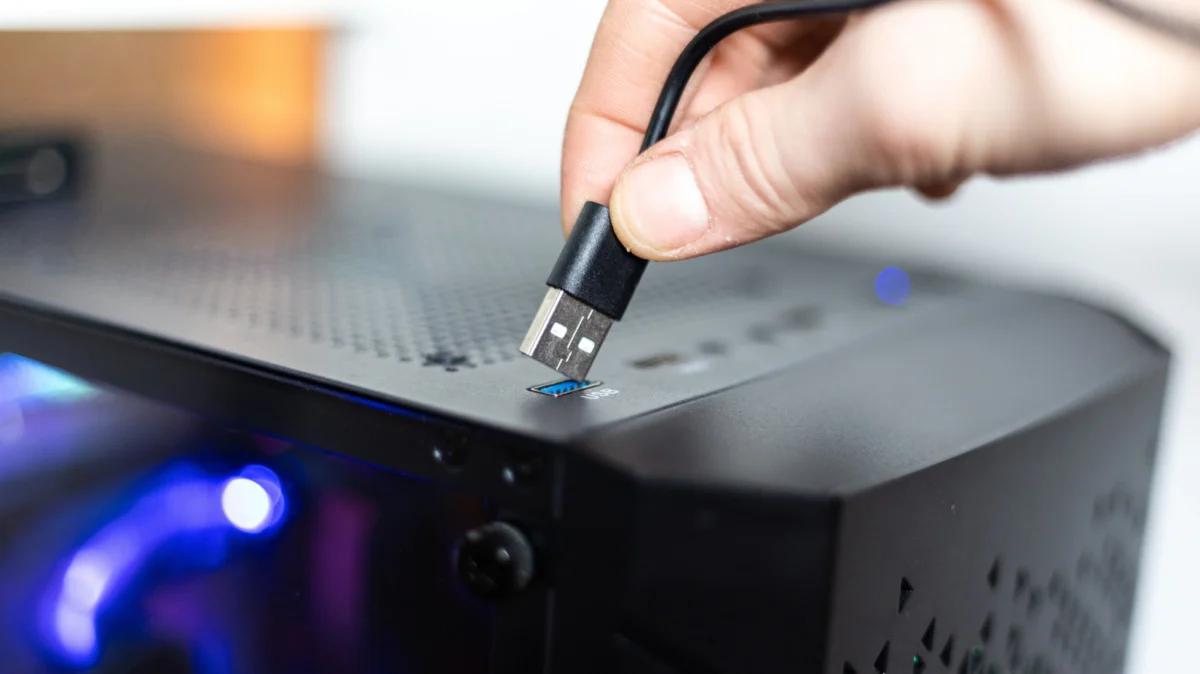
In the modern digital landscape, the convenience of connectivity is often taken for granted. We expect our devices to be charged, our peripherals to be ready, and our workflows to be uninterrupted. Central to this seamless experience is a feature frequently overlooked by the average consumer: the "Always On" USB port. While it may appear to be a standard input/output interface, the Always On port is a distinct piece of power-management engineering that allows a computer to act as a secondary power source, even when the primary system is hibernating or fully shut down.
Main Facts: What is an Always On USB Port?
At its core, an Always On USB port is an interface that maintains a continuous electrical current regardless of the power state of the host computer. Unlike standard USB ports—which typically rely on the host system’s operating state to deliver voltage—an Always On port is hardwired to a standby power rail.
The Mechanism of Standby Power
The technology relies on what engineers call "standby voltage" (often referred to as 5Vsb). When you press the power button on a desktop computer or open the lid of a laptop, the system does not magically wake from nothingness. There is always a trickle of electricity flowing to the motherboard, keeping the power-on circuit, the Real-Time Clock (RTC), and the wake-on-LAN functionality ready to respond. Always On USB ports "piggyback" on this standby voltage. As long as the device is connected to an AC power source—or, in the case of laptops, has sufficient battery reserves—the port remains energized.
Common Use Cases
The utility of these ports extends far beyond simple smartphone charging. Common applications include:
- Peripheral Maintenance: Keeping wireless mouse dongles, mechanical keyboard backlighting, or external cooling pads active.
- Emergency Charging: Providing a lifeline for Bluetooth earbuds, smartwatches, or tablets when traditional wall adapters are unavailable.
- Smart Home Integration: Powering small, low-wattage USB-based smart home bridges or ambient desk lighting that remains active even when the PC is off.
Chronology: The Evolution of Port Management
To understand why we have Always On ports today, we must look at the evolution of computer power management.
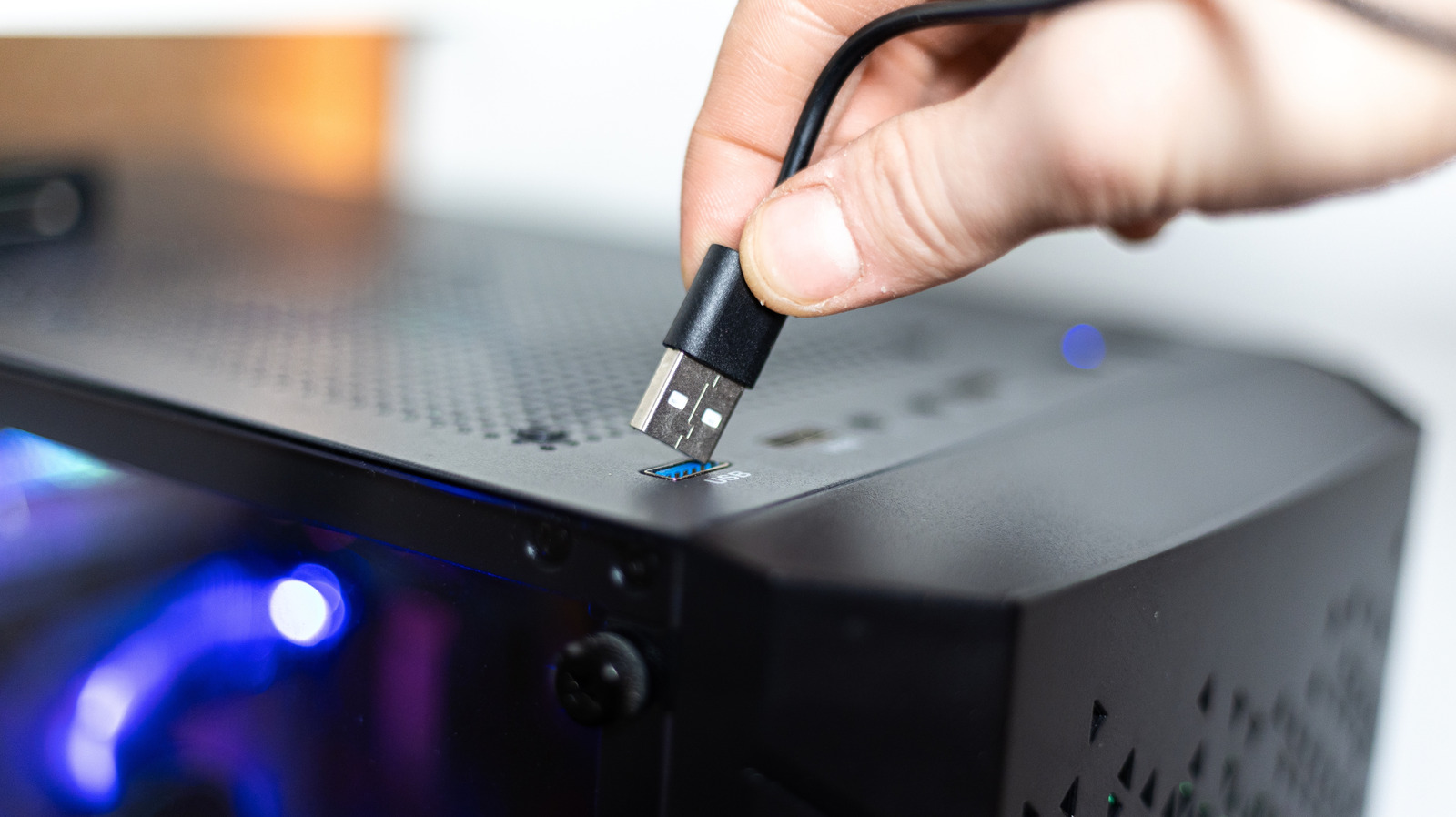
The Era of "Cold" Shutdowns
In the early days of personal computing (the 1980s and 90s), a computer was either "on" or "off." There was no middle ground. Once the physical switch was flipped, the power supply unit (PSU) was completely disconnected from the motherboard. During this era, USB did not exist, and peripheral power was handled by dedicated, bulky PS/2 or serial ports.
The Introduction of ACPI
The game changed with the introduction of the Advanced Configuration and Power Interface (ACPI) standard. ACPI allowed for different power states (S0 through S5). S0 is the working state, while S5 is the traditional "soft off." As laptops became ubiquitous in the early 2000s, users demanded more utility. Manufacturers began experimenting with "power-sharing" features.
The Rise of the Always On Standard
By the late 2000s and early 2010s, as mobile devices like the iPod and early smartphones became common, the demand for charging ports increased. Laptop manufacturers, particularly those focusing on business-grade hardware (such as Lenovo’s ThinkPad line), began designating specific ports for "Sleep and Charge" functionality. Today, this feature is standard on most high-end motherboards and professional-grade laptops, having transitioned from a luxury "value-add" to a standard expectation for mobile professionals.
Supporting Data and Identification Methods
Distinguishing an Always On port from a standard port can be frustrating, as there is no universal regulatory standard for how they must be marked.
Visual Cues
While not a definitive rule, manufacturers often use color coding to indicate specific port capabilities:
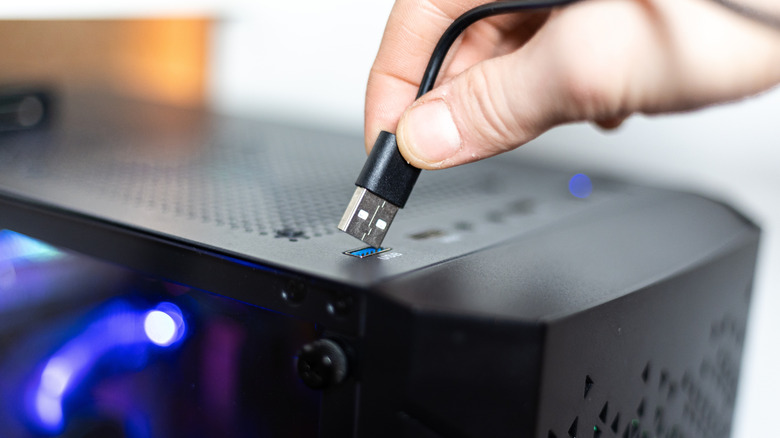
- Yellow/Orange: Frequently used by major manufacturers to denote "Always On" or "Charge-only" ports.
- Red: Sometimes indicates high-amperage output, which is often, but not always, tied to Always On functionality.
- Blue/Teal: Usually indicates USB 3.0/3.1 data speeds, but provides no information regarding power delivery.
Important Note: Users should not rely solely on color. As mentioned in recent industry observations, brands like Razer and UGREEN often utilize proprietary color schemes (green and purple, respectively) for branding purposes, which may or may not correlate with power delivery capabilities.
The "Empirical Test"
The most reliable method to verify a port is the practical test:
- Shutdown: Fully shut down your laptop or desktop.
- Connection: Plug in a device that provides clear feedback (such as a phone that makes a sound when charging or a mouse with an LED).
- Observation: If the device indicates it is receiving power, the port is an Always On port.
Software Verification (Windows)
For those who prefer a technical approach, the Windows Device Manager offers granular control:
- Navigate to Device Manager.
- Expand Universal Serial Bus controllers.
- Right-click on a specific USB Root Hub and select Properties.
- Navigate to the Power Management tab.
- The checkbox labeled "Allow the computer to turn off this device to save power" is the key. If this is disabled or unavailable, the port is configured to maintain a steady state.
Official Manufacturer Perspectives
Leading hardware manufacturers treat Always On ports as a feature of convenience rather than a necessity. In technical white papers from companies like ASUS, Dell, and Lenovo, these ports are often marketed under proprietary names like "USB Charge+" or "Sleep & Charge."
Official documentation usually emphasizes that these ports are intended for charging peripherals—not for jump-starting massive external storage arrays or high-draw devices. Manufacturers often include safety circuitry in these ports to prevent them from drawing too much power and potentially damaging the motherboard’s power delivery system. If a user tries to draw too much amperage from an Always On port, the system’s protection circuit will typically trip, cutting power to the port to protect the motherboard.

Implications: Battery Health and Power Efficiency
While the Always On port is undeniably convenient, it is not without its trade-offs.
The Battery Drain Dilemma
For laptop users, the most significant implication is battery drain. If you leave a power-hungry device (like a large tablet or a fast-charging smartphone) plugged into an Always On port while your laptop is in your bag, the laptop will continue to discharge its battery to power the peripheral. This can lead to the "dead laptop" phenomenon, where a user opens their bag expecting a charged machine only to find it completely drained because it spent the night charging their phone.
BIOS/UEFI Controls
Most modern BIOS/UEFI settings allow users to toggle the Always On functionality. If you find yourself in a situation where you rarely need the feature and are concerned about phantom battery drain, entering the BIOS (usually by pressing F2, F12, or Delete during startup) often provides a menu under "Power Management" or "Advanced Settings" to disable Always On charging entirely.
Sustainability and Efficiency
From a sustainability standpoint, Always On ports represent a minor but persistent "vampire power" draw. While negligible for a single user, the cumulative effect of millions of devices maintaining standby power rails across the globe is a factor in total energy consumption. However, the convenience of avoiding an extra wall charger—reducing e-waste and the need for additional power bricks—is generally considered a net positive by environmental standards.
Conclusion
The Always On USB port is a testament to how far consumer computing has evolved toward user-centric design. By leveraging the standby voltage already present in modern power supplies, manufacturers have turned the computer into a mobile charging hub. While the lack of a standardized visual marking system remains a minor annoyance, the ability to quickly verify these ports through simple testing or software management ensures that users can leverage this technology to keep their ecosystem of devices charged and ready for action. Whether you are a business traveler in need of a quick phone boost or a desktop power user looking to keep your desk accessories organized, understanding the nuance of your ports is a small but powerful piece of digital literacy.












No comments yet. Be the first to join the conversation!