
 Nana Wu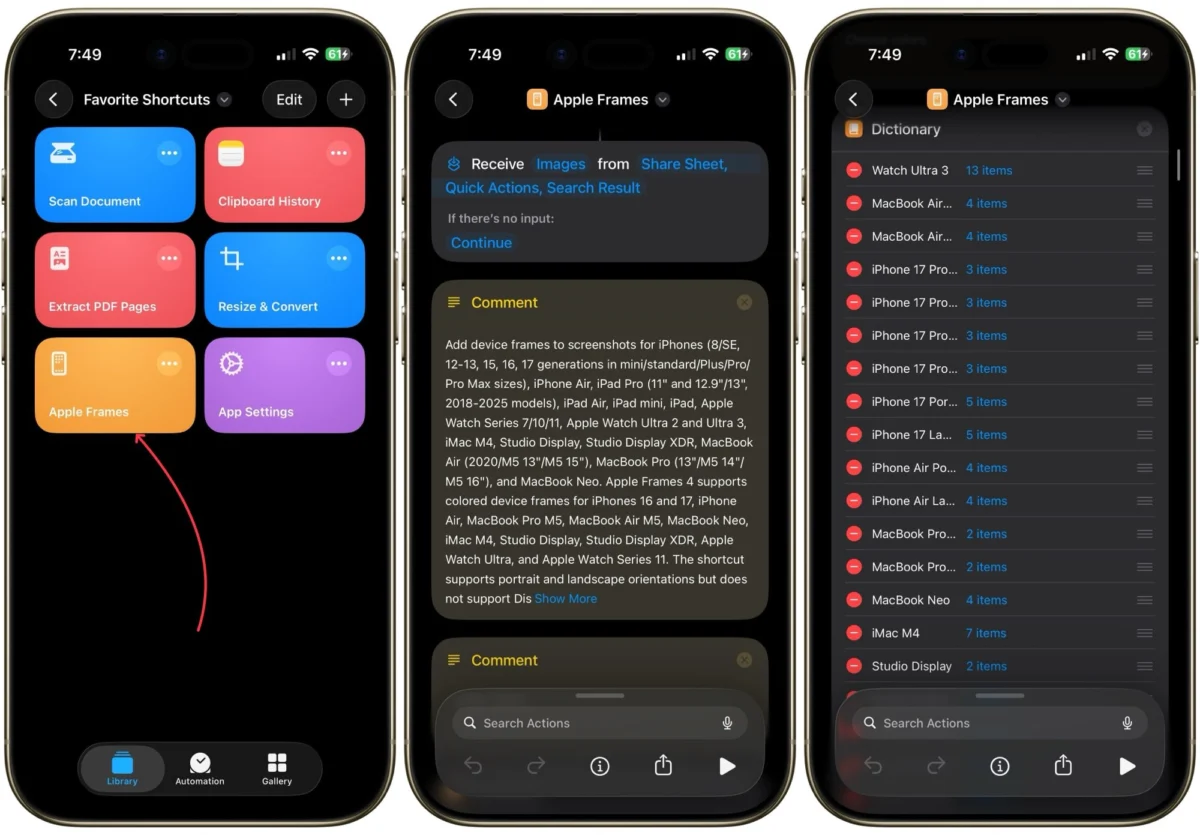
For many, the iPhone is a device of simplicity—a “just works” experience that prioritizes ease of use over deep technical customization. However, beneath the polished surface of iOS lies a hidden powerhouse: the Shortcuts app. Much like Minecraft, the entry barrier is low, but the ceiling for creativity is essentially limitless. Whether you are looking to automate mundane tasks or bridge the gaps in Apple’s native software, Shortcuts offers a toolkit that can transform your smartphone from a passive tool into a proactive personal assistant.
While the sheer variety of available actions can feel overwhelming, you don’t need to be a developer to reap the benefits. By leveraging the community-driven ecosystem of shared workflows, you can import, customize, and deploy powerful automations in seconds. This guide explores seven essential shortcuts—curated for daily efficiency—that will redefine how you interact with your device.
The Evolution of Automation: From Workflow to Shortcuts
To understand the significance of the Shortcuts app, one must look back at its origins. Originally released as an independent app called "Workflow," it was acquired by Apple in 2017. Recognizing the potential to empower power users, Apple integrated the technology directly into iOS. Over the years, the app has evolved from a niche tool for tech enthusiasts into a core component of the Apple experience, deeply integrated with Siri, the Home Screen, and the Action Button on newer iPhone models.

The current iteration of Shortcuts allows for complex conditional logic, API interactions, and seamless handoffs between apps. Despite these advancements, a significant portion of the user base remains unaware of its existence, or worse, views it as "too complicated." This perception is a hurdle, but the reality is that the most useful shortcuts often act as simple "macro" buttons—single taps that replace five or six manual steps.
1. Streamlining App Permissions: The "Deep Dive" Shortcut
One of the most persistent frustrations in iOS is the labyrinthine nature of the Settings app. If you need to revoke a specific app’s access to your location or change its notification settings, the process is tedious: navigate to Settings, find the "Apps" menu, scroll through an exhaustive list, and finally tap the target application.
The "App Settings" shortcut solves this by leveraging the "Get Current App" action. When triggered—ideally from the Control Center or a dedicated Home Screen widget—the shortcut identifies the active application and uses a URL scheme to jump directly to its specific permission page.

Why it matters: It saves precious seconds and removes the "cognitive load" of navigating through sub-menus. For users who frequently manage privacy settings or troubleshoot app behaviors, this is not just a luxury; it is an essential efficiency tool.
2. Professional Aesthetics: Apple Frames 4
Visual communication is a cornerstone of modern digital life. Whether you are a content creator, a developer showcasing an app, or simply someone who likes to share clean, professional-looking screenshots, Apple’s default screenshot tool often feels lackluster. It captures the raw UI, but it lacks context.
Apple Frames 4, created by Federico Viticci of MacStories, is the gold standard for this task. This sophisticated shortcut automatically detects the device model used to capture a screenshot and wraps it in a high-fidelity device frame.

- Key Capabilities:
- Proportional Scaling: Ensures that the device frame remains aesthetically pleasing regardless of screen size.
- Multi-Input: You can select a batch of screenshots and have them combined into a single, cohesive image layout.
- Customization: Supports various frame colors and orientations, allowing for a branded or consistent look across your social media presence or professional documents.
3. The Pocket Scanner: Digitizing on the Fly
While the Notes and Files apps have built-in document scanning features, the multi-step process of opening an app and finding the "scan" button can be a friction point when you are in a rush.
The "Scan Document" shortcut creates a direct bridge to the iOS scanning engine. By placing this on your Home Screen, you reduce the time from "phone in pocket" to "document scanned and saved" to a matter of seconds. It is a perfect example of how Shortcuts can be used to bypass the standard navigational flow of an operating system to serve a singular, high-utility purpose.
4. Image Management: Resize & Convert
The iOS Photos app is excellent for viewing, but it is notoriously restrictive when it comes to file management. If you need to convert a high-resolution HEIC file to a web-friendly JPEG, or resize a massive photo for an email attachment, the iPhone traditionally forces you to rely on third-party apps—many of which are filled with advertisements or gated behind subscription paywalls.

The "Resize & Convert" shortcut provides a native, privacy-focused alternative. By utilizing the built-in image processing capabilities of iOS, you can define your target dimensions and file format instantly. This is a vital utility for anyone who manages a blog, handles professional correspondence, or simply wants to optimize their cloud storage space.
5. Precise Document Control: Extract PDF Pages
Dealing with large PDF files—such as contracts, academic papers, or manuals—is often a headache on a mobile device. If you only need pages three and four of a 50-page document, most users find themselves struggling with screenshots or bloated PDF-editing suites.
The "Extract PDF" shortcut enables surgical precision. It allows you to select a file, choose specific pages, and generate a new, lean document containing only the information you require. This removes the need for expensive subscription software and keeps your sensitive data on-device rather than uploading it to an unknown third-party web server.

6. The "Missing" Feature: Clipboard History
Perhaps the most glaring omission in the iPhone’s feature set is a native clipboard manager. On a Mac, or in many Android environments, you can access a history of recently copied text. On an iPhone, however, the clipboard is ephemeral—copying a new item deletes the previous one forever.
The "Clipboard History" shortcut acts as a clever workaround. By using the "Back Tap" accessibility feature (a physical gesture of tapping the back of the phone), you can trigger a script that appends your current clipboard contents to a specific note.
- Implementation Tip: After installing, ensure you navigate to the "three-dot" menu within the shortcut to link it to your preferred "Clipboard" note. Once set up, you have a searchable, permanent history of every important link, address, or snippet of text you have copied throughout the day.
7. Intelligent Automation: Wi-Fi/Mobile Data Toggle
True automation is the "holy grail" of the Shortcuts app. While the previous examples require a manual tap, this shortcut operates in the background. By utilizing the "Automations" tab, you can set your iPhone to detect when it joins a known Wi-Fi network.

The Workflow:
- Trigger: When "Connects to Wi-Fi."
- Action: Turn off Mobile Data.
- Companion Automation: Create a reverse trigger for when you "Disconnect from Wi-Fi" to toggle Mobile Data back on.
Supporting Data: Beyond the convenience, this is a battery-saving measure. Constantly searching for a cellular signal while connected to a strong Wi-Fi network causes unnecessary radio drain. By intelligently managing your connection state, you preserve battery health and ensure you aren’t using cellular data when it isn’t necessary.
Implications and Future Outlook
The shift toward a more automated mobile experience represents a broader trend in consumer technology: the democratization of "power user" capabilities. Apple has carefully balanced the need for security with the demand for customization. By keeping the Shortcuts app within a "sandbox," Apple ensures that these automations cannot compromise the system, yet it gives users the agency to build workflows that mirror their specific professional and personal needs.

For the average user, the implications are profound. You no longer have to adapt your life to the limitations of the software; instead, the software adapts to your workflow. As AI-integrated features (such as those hinted at in future iOS iterations) continue to expand, the foundation laid by the Shortcuts app will likely serve as the "API" for how users interact with their own personal data.
Conclusion: Start Small, Build Big
If you feel intimidated by the prospect of building your own automations, do not feel pressured to start from scratch. The beauty of the Shortcuts community lies in the willingness of others to share their work. Download a pre-made shortcut, examine how it is built, and tweak it to fit your lifestyle.
The goal isn’t to turn your iPhone into a complex computer terminal; it is to remove the friction from your daily life. Once you start saving time with these tools—whether it’s scanning a receipt in two seconds or finally having a clipboard history—you will find it difficult to go back to using your phone the "standard" way. Your device is a tool of immense power; it is time you started using it to its full potential.


 Nana
Nana
 Basiran