 Rifan Muazin
For millions of readers, the Amazon Kindle has become the gold standard for digital literature. Its e-ink display, lightweight design, and massive ecosystem of titles have made it an indispensable tool for bibliophiles worldwide. However, the user experience is often marred by a persistent annoyance: the lack of true customization for the device’s "sleep screen." Whether it is the rotating advertisements on entry-level models or the static, pre-loaded Amazon graphics on others, the lockscreen often feels like a missed opportunity for personal expression.
While Amazon has traditionally kept its software environment walled off to ensure a seamless, uniform experience, savvy users have discovered ways to reclaim their devices. This guide explores how to break free from the default settings and tailor your Kindle’s aesthetic to your personal taste.
The Core Conflict: Why Customization is Restricted
At the heart of the Kindle experience is a balance between hardware affordability and ecosystem integration. Amazon subsidizes the cost of its entry-level Kindle models by offering "Special Offers"—ad-supported versions of the device that retail for $20 less than their ad-free counterparts. These advertisements, which appear on the lockscreen and the home screen, are a primary revenue driver for the company.
Because these ads are the fundamental trade-off for the discounted hardware, Amazon does not natively allow users to disable them or replace them with custom imagery. To move toward a more personalized interface, the first hurdle most users face is removing these "Special Offers."
Chronology of the Kindle Interface Evolution
To understand why customizing a Kindle is a multi-step process, one must look at how the device’s software has evolved over the last decade:
- Early Kindle Era (2007–2010): Customization was virtually non-existent. Users were limited to a set of static, black-and-white portraits of authors like Mark Twain and Emily Dickinson.
- The "Special Offers" Introduction (2011): Amazon launched the Kindle with Special Offers, introducing the rotating lockscreen ads that continue to populate the screens of millions of devices today.
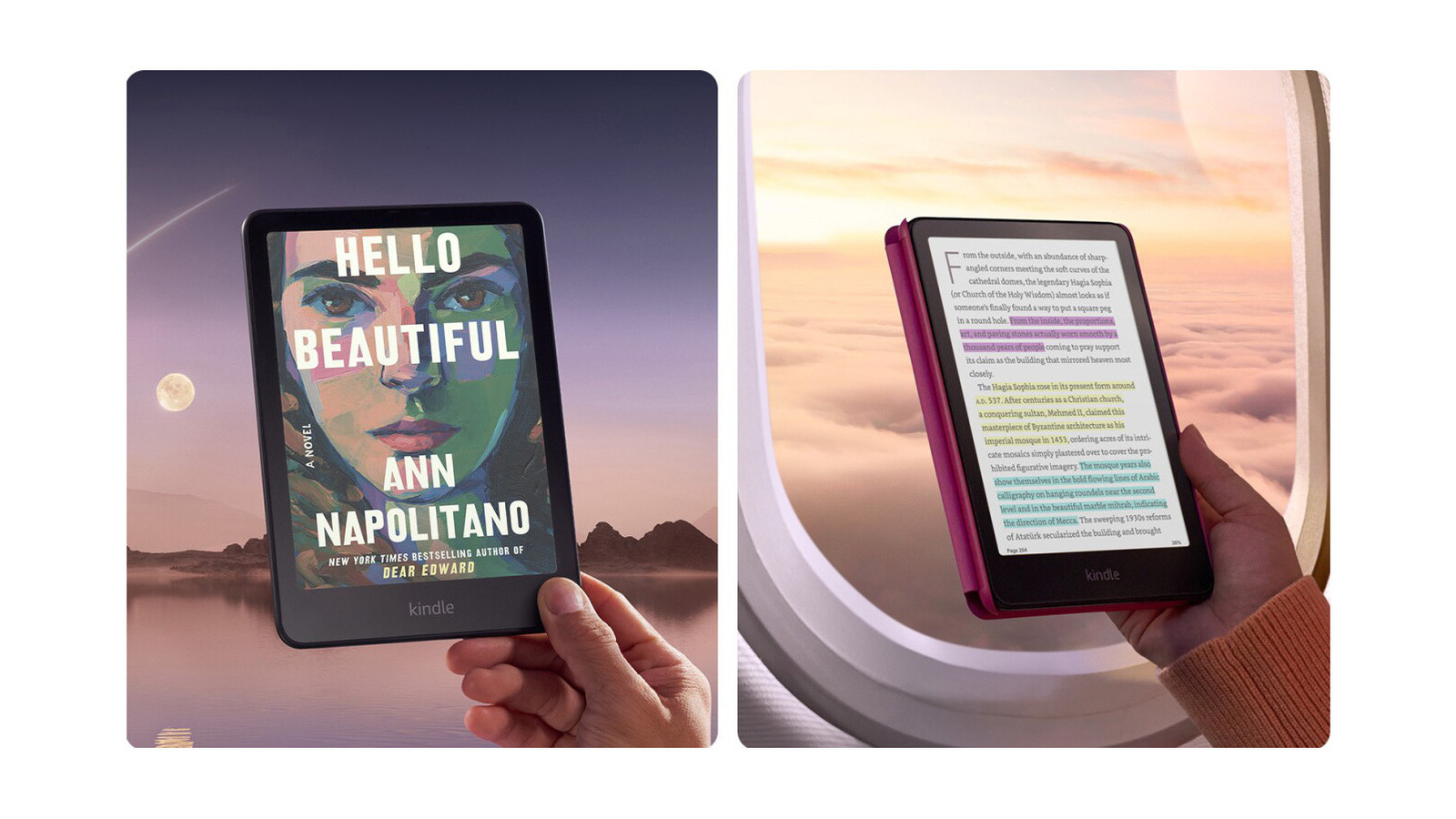
- Firmware Updates and "Display Cover" Integration (2021): After years of user requests, Amazon finally introduced a native feature allowing users to display the cover of their current book on the lockscreen, provided the device was free of lockscreen advertisements. This was a significant shift, acknowledging that users wanted a more cohesive visual experience.
- The Present Day: While still a closed ecosystem, the Kindle software now provides a legitimate pathway for "pseudo-customization" by leveraging the "Display Cover" feature to showcase personal imagery, albeit with specific workarounds.
Step 1: Removing "Special Offers"
Before you can dream of custom art or book covers, your device must be free of promotional content. If your device displays ads, the option to customize your lockscreen will remain grayed out or entirely absent in the settings menu.
The Official Amazon Procedure
- Log into your Amazon Account: Access your account via a web browser on your desktop or mobile device.
- Navigate to "Manage Your Content and Devices": This hub is where all your digital settings reside.
- Locate your Device: Select the "Devices" tab and click on the specific Kindle you wish to modify.
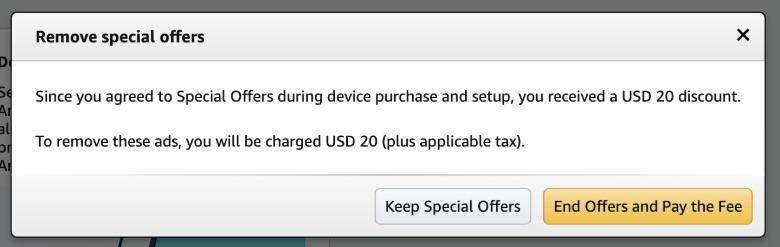
- Find the "Special Offers" section: Under the device details, you will see a section labeled "Special Offers." Click the "Remove offers" button.
- Payment: Amazon will process a one-time payment of $20 to your default payment method to permanently disable the ads.
Important Caveat for International Users: This process is geographically sensitive. Amazon requires that your account be linked to a valid U.S. billing address and payment method to process the removal of ads on U.S.-version Kindles. Users outside the U.S. often find that their local Amazon site does not offer the same "one-click" removal option. In these instances, contacting Amazon’s customer support via chat and politely requesting the removal of Special Offers can sometimes yield success, though it is at the discretion of the representative.
Step 2: Enabling "Display Cover"
If you own a newer Kindle—specifically the Kindle (8th Gen or newer), Kindle Paperwhite (7th Gen or newer), Kindle Oasis, or the Kindle Scribe—you have a native option to turn your lockscreen into a digital book jacket.
To activate this:
- Open Settings on your Kindle.
- Select Device Options.
- Locate the toggle for Display Cover.
- Switch it to On.
Once enabled, whenever your device goes to sleep, the Kindle will pull the high-resolution cover art from the book you are currently reading and render it in crisp e-ink. This feature effectively turns your ereader into a digital coffee table book, reflecting your current literary journey rather than an Amazon advertisement.
Step 3: The Workaround for Custom Imagery
Amazon does not provide a native "Upload Custom Screensaver" button. However, users who are determined to display their own photography, family portraits, or artistic creations have developed a workaround that exploits the "Display Cover" feature.
The "Custom Cover" Technique
Since the Kindle is programmed to display the cover of the file you are currently reading, you can "trick" the device into displaying an image of your choice by embedding that image into a book file.
- Prepare your Image: Use a photo editing tool to resize your image to the dimensions of your Kindle’s display (e.g., 1264 x 1680 pixels for the Paperwhite).
- Use Calibre: Calibre is the industry-standard, free, open-source e-book management software. Import an e-book into Calibre.
- Edit Metadata: Right-click the book and select "Edit metadata." Replace the existing book cover with your custom image.
- Convert/Update: Ensure the cover is saved to the file. Transfer this file to your Kindle via USB.
- The Display Trick: Whenever you want to see your custom image on the lockscreen, open that specific "book" file on your Kindle. Put the device to sleep. Because the Kindle identifies that file as your "current read," it will display your custom image as the screensaver.
Note: This is a manual process. You must be actively "reading" the file containing your custom image for it to appear on the lockscreen.
Supporting Data: Compatibility List
It is essential to verify your hardware capabilities before attempting these steps. The "Display Cover" feature is hardware-dependent due to the way the Kindle handles file processing and sleep states.
| Model Series | Compatibility |
|---|---|
| Kindle (8th Gen+) | Yes |
| Kindle Paperwhite (7th Gen+) | Yes |
| Kindle Oasis (All models) | Yes |
| Kindle Scribe | Yes |
| Kindle (7th Gen or older) | No |
| Kindle DX / Keyboard | No |
Official Responses and Implications
Amazon has maintained a consistent stance regarding the closed nature of the Kindle software. While the company has loosened restrictions slightly by adding the "Display Cover" feature, they have stopped short of allowing third-party screensavers.
From an institutional perspective, Amazon’s refusal to allow custom screensavers centers on two pillars: Brand consistency and Battery optimization. The company ensures that every Kindle looks and feels like a "Kindle" from the moment it is unboxed. Furthermore, by controlling the software that renders the lockscreen, Amazon can optimize for power consumption, ensuring that the e-ink display remains in a low-power state during sleep mode.
However, the community response has been one of persistent innovation. The rise of "Jailbreaking" communities on forums like MobileRead suggests that a significant segment of the user base views their Kindle as a personal computing device, not just a consumption portal. While jailbreaking can void warranties and potentially destabilize firmware, it remains the only true path for users who want complete control over their device’s operating system, including custom sleep-screen themes.
Final Considerations
Personalizing your Kindle is a journey of compromise. If you value a clean, simple, and supported experience, the official "Display Cover" method is the best path forward. If you are an enthusiast willing to spend time with software like Calibre, the "Custom Cover" technique allows for a degree of individual expression that Amazon’s engineers never officially intended.
Ultimately, whether you are displaying the cover of a classic novel or a custom piece of digital art, the ability to customize your lockscreen transforms a mass-produced piece of hardware into something that feels uniquely yours. As e-ink technology continues to advance, one can only hope that Amazon will eventually provide a more direct, user-friendly interface for personalizing the idle state of these ubiquitous devices.


 Laily UPN
 Azzam Bilal Chamdy