For millions of drivers worldwide, Apple CarPlay has transitioned from a luxury "nice-to-have" feature to an essential component of the daily commute. By bridging the gap between the chaotic, often clunky native interfaces provided by automotive manufacturers and the refined, intuitive ecosystem of the iPhone, Apple has effectively turned the dashboard into an extension of the user’s digital life. With the arrival of iOS 26, CarPlay has seen its most significant evolution to date, introducing productivity-focused widgets, deeper integration with Live Activities, and granular control over the user interface.
This comprehensive guide explores how to harness the full potential of your in-car experience, from basic personalization to the advanced features introduced in the latest software updates.

The Core Philosophy: Why CarPlay Remains King
The dominance of CarPlay is not merely a matter of brand loyalty; it is a result of functional superiority. Most automotive manufacturers struggle with software development, resulting in proprietary infotainment systems that are slow, unintuitive, and difficult to navigate. In contrast, CarPlay offers a seamless, familiar interface that mirrors the iPhone’s design language.
The primary benefits include:
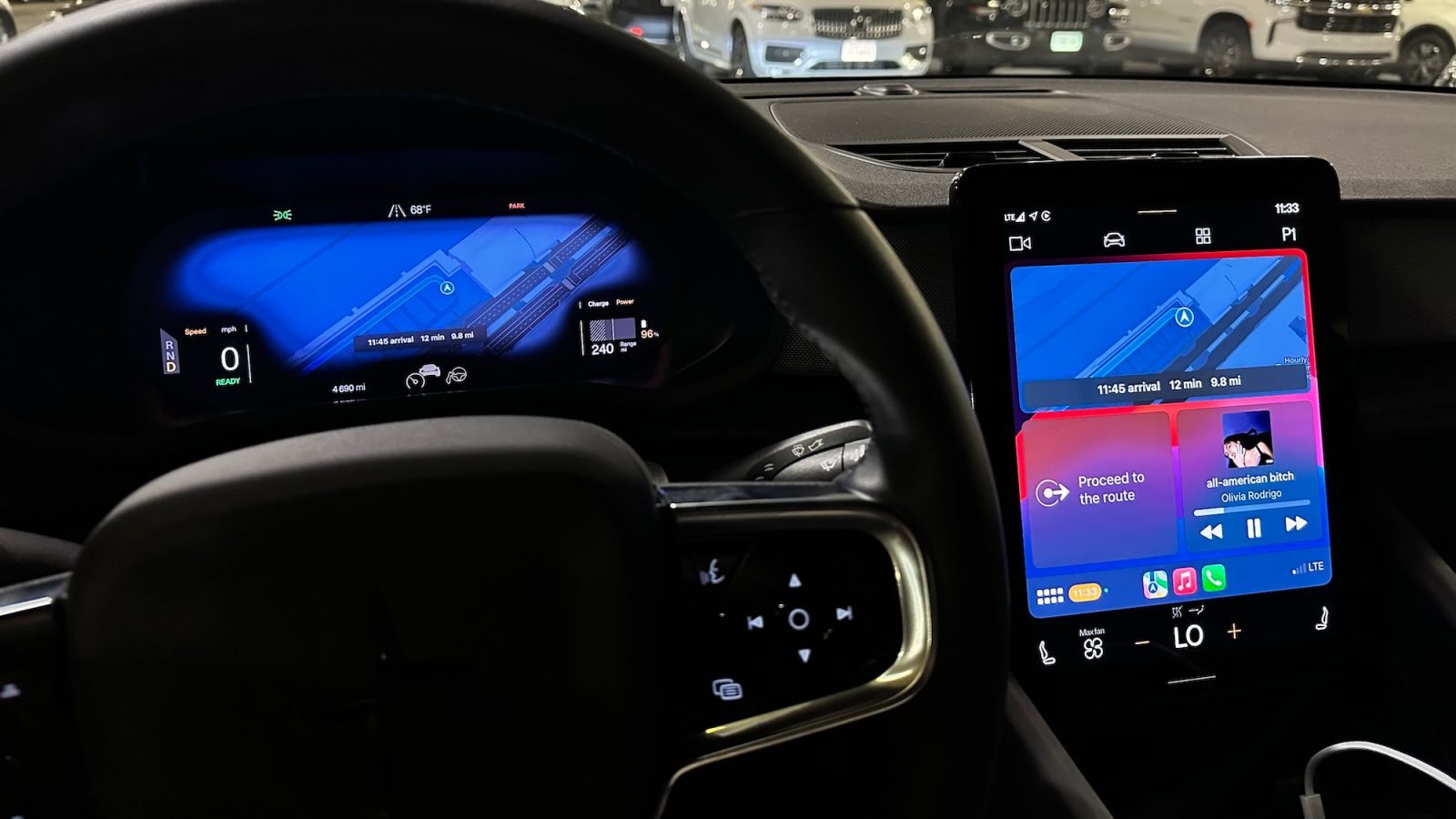
- Safety Through Familiarity: By using the same interaction patterns found on an iPhone, cognitive load is reduced, keeping the driver’s eyes on the road.
- Siri Integration: Advanced voice command capabilities allow for hands-free navigation, messaging, and media control.
- App Consistency: Whether using Spotify, Apple Music, or Google Maps, the interface remains consistent, preventing the need to "re-learn" how to operate your car’s screen.
Chronology: The Evolution of the In-Car Experience
CarPlay has come a long way since its 2014 debut. Originally a simple projection of phone apps, it has evolved into a sophisticated platform.
- 2014–2018: The "Projection Era," focusing on basic app mirroring for music and maps.
- 2019–2022: The "Dashboard Era," which introduced a split-screen view, allowing for navigation and media controls to coexist on one display.
- 2023–2024: The "Deep Integration Era," marked by the expansion of wireless connectivity and smarter notification management via Driving Focus.
- 2025 (iOS 26): The "Widget and Activity Era," representing the most substantial update to date, allowing users to move beyond simple icons and utilize dynamic, real-time data directly on the dashboard.
Customization: Making the Dashboard Yours
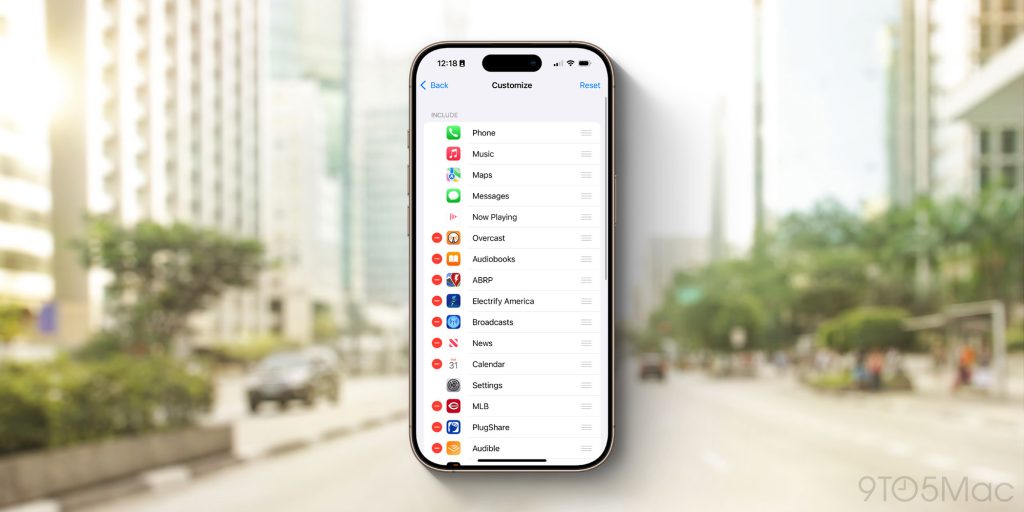
A cluttered dashboard is a distraction. The first step in mastering CarPlay is curating the home screen to prioritize your most essential applications.
Managing Your Home Screen
Many users find that their car’s display becomes crowded with unnecessary apps. To clean up your interface:
- Navigate to Settings on your iPhone.
- Select General, then CarPlay.
- Tap on your vehicle from the list.
- Select Customize.
In this menu, you can tap the red "minus" icon to remove apps you don’t use while driving. You can also reorder the remaining apps by dragging the three-line handles on the right, ensuring your preferred navigation or audio app is always in the most accessible position.
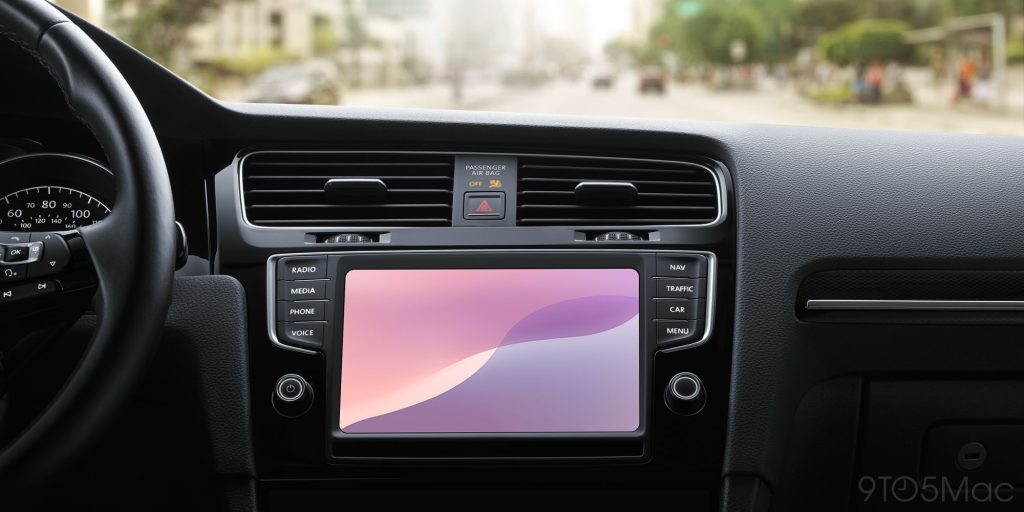
The New Frontier: iOS 26 Widgets and Live Activities
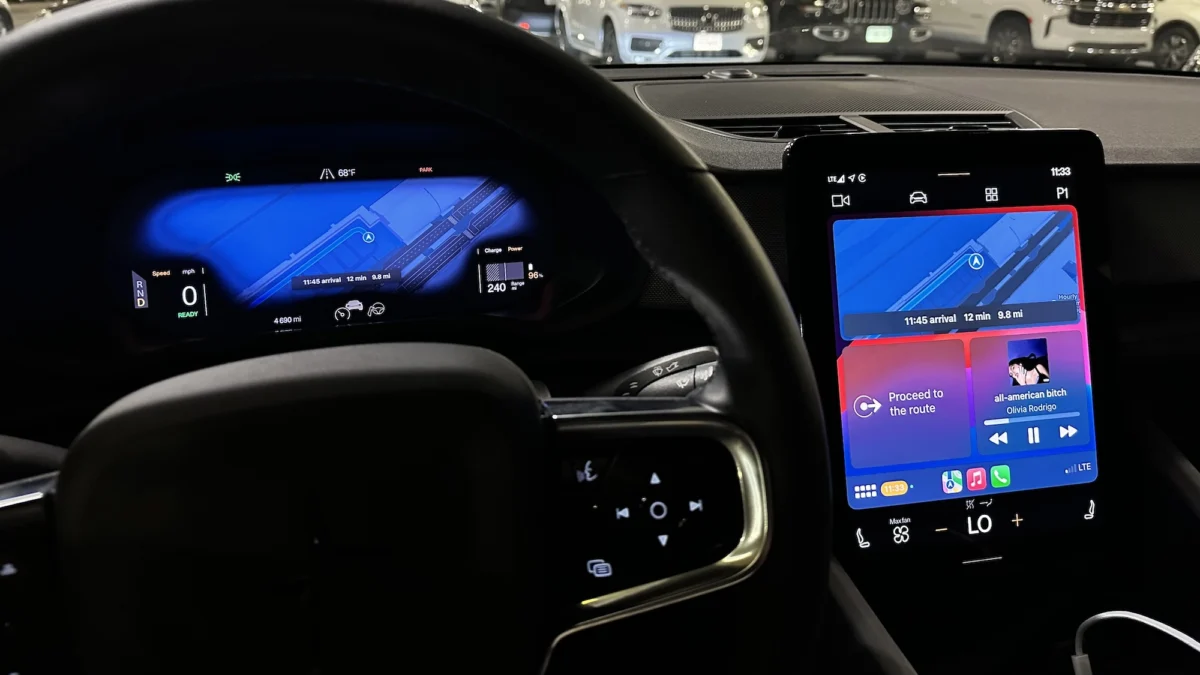
The release of iOS 26 has fundamentally changed the utility of the dashboard. For the first time, users can implement widgets directly into their CarPlay environment.
Leveraging Widget Stacks
Depending on your vehicle’s screen resolution and aspect ratio, you can now add "stacks" of widgets. This allows you to view at-a-glance information like weather, calendar appointments, or smart home status without leaving the primary navigation screen.
- Smart Rotate: Enable this feature to allow the system to intelligently surface the most relevant widget based on the time of day or your location.
- Widget Suggestions: This feature uses machine learning to propose widgets you might find useful, such as a commute-time traffic update during your morning drive.
The Power of Live Activities
Live Activities, a feature that previously existed only on the iPhone lock screen, now mirrors onto the CarPlay interface. This is a game-changer for tracking real-time events, such as a food delivery status, sports scores, or ride-sharing progress. By default, these appear in the corner of your screen, providing necessary updates without requiring a manual interaction. If you prefer a distraction-free experience, you can disable this in the CarPlay settings menu.
Connectivity: Wired vs. Wireless
The debate between wired and wireless connectivity remains a significant point of discussion among enthusiasts.
The Wired Advantage
Wired CarPlay, while tethered, remains the gold standard for performance. It offers a faster, more reliable connection, higher audio fidelity, and zero latency when switching between tracks or triggering Siri.
The Wireless Alternative
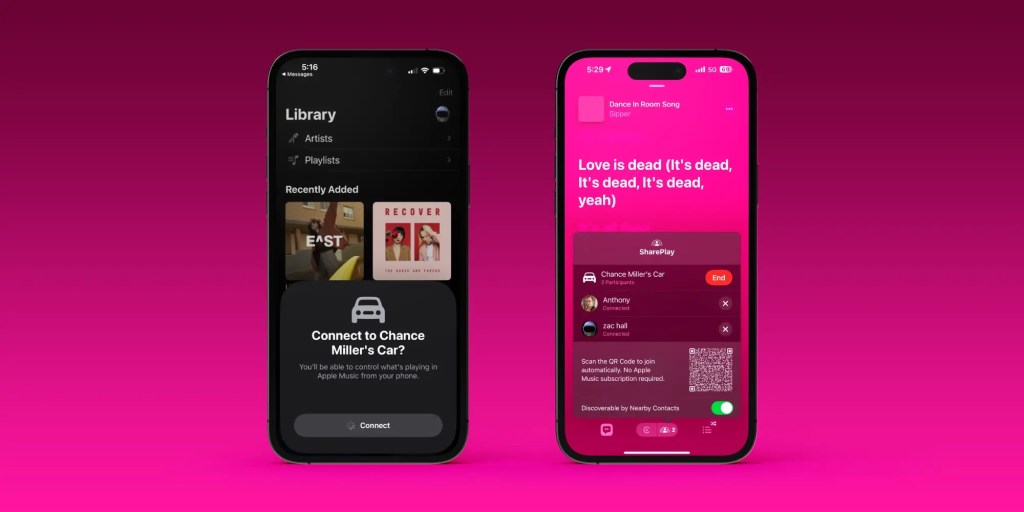
Wireless CarPlay offers convenience but can suffer from occasional latency. For those whose vehicles did not ship with wireless capabilities, third-party solutions have become remarkably effective. The CarlinKit 5.0 adapter is widely regarded as a top-tier choice for converting a standard wired setup into a wireless one for under $60, providing a seamless "plug-and-play" experience that persists across ignition cycles.

Safety First: Driving Focus and Announce Messages
Apple’s integration of safety features is what separates CarPlay from a standard smartphone mount.
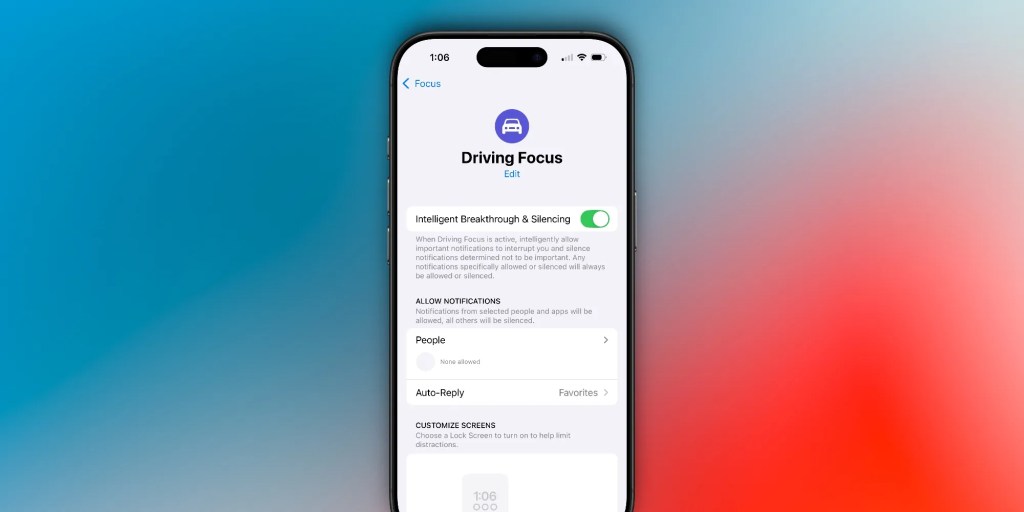
Driving Focus Mode
This feature is essential for maintaining focus. When enabled, it automatically silences incoming notifications and alerts. You can configure "Auto-Reply" so that contacts attempting to reach you are notified that you are currently driving and will respond once you reach your destination.

Announce Messages
Using Siri, CarPlay can read incoming iMessages, WhatsApp messages, and notifications from other supported platforms. This allows you to stay informed without ever needing to touch your device. Once a message is read, you can immediately dictate a response, ensuring your hands remain on the wheel and your eyes on the road.
Interface Refresh: Dark Mode and Icon Tinting
The aesthetic of your CarPlay system can be adjusted to match your preference or ambient lighting conditions.

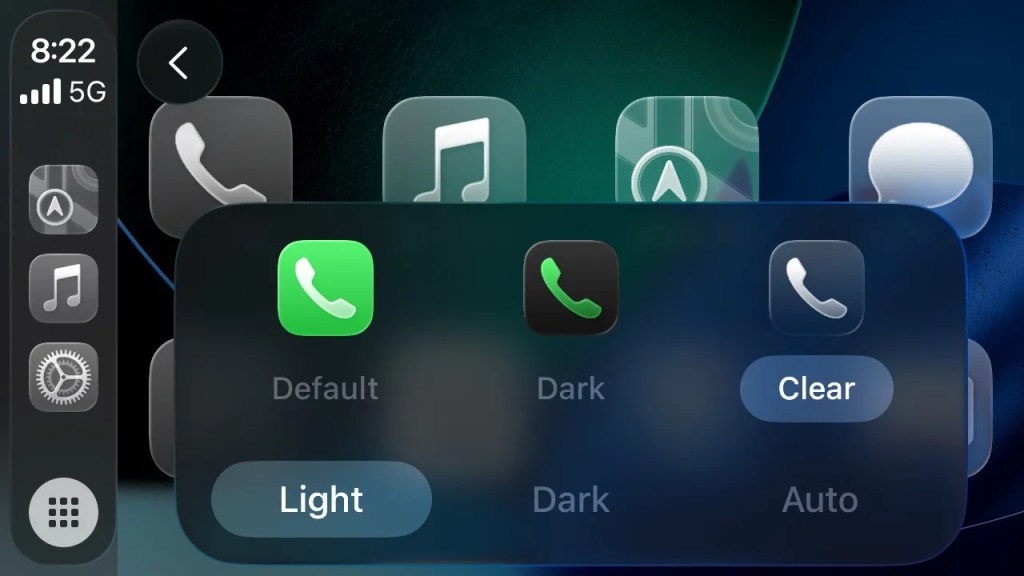
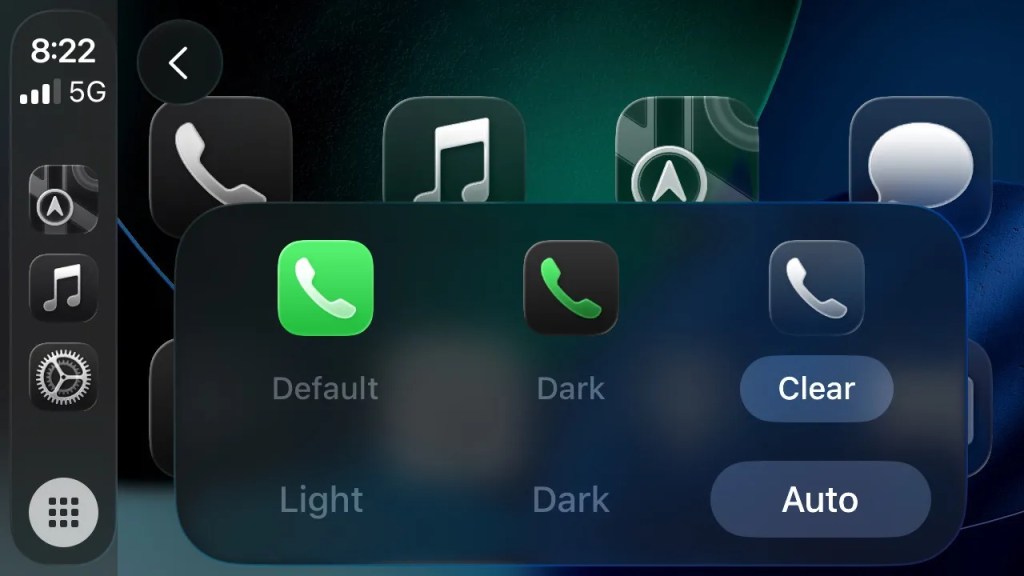
- Dark Mode vs. Light Mode: You can toggle between "Always Dark," "Always Light," or "Automatic." The automatic setting is highly recommended, as it adjusts the interface based on your vehicle’s headlight status or the time of day.
- Icon Tinting: New with recent updates, users can adjust the tinting of their interface. Whether you prefer a muted, "Clear" look or a more vibrant "Default" style, these settings can be tweaked in the CarPlay Settings app to ensure the screen doesn’t cause glare during night driving.
Implications of the Modern CarPlay Experience
The rapid evolution of CarPlay suggests a broader trend: the car is becoming a high-performance computing environment. By offloading the complexity of the infotainment system to the user’s iPhone, Apple has created a platform that improves over time. A car purchased five years ago can feel brand new today simply by updating the iOS version on the connected phone.
However, this reliance on the smartphone also brings risks. As features like Pinned Messages (which allow you to keep top conversations at the top of your interface) become more prevalent, developers must balance utility with safety. Apple has responded to user feedback by allowing the disabling of Pinned Messages in iOS 26.2, proving that the company is listening to the "too much information" complaints of power users.
Conclusion
Apple CarPlay has evolved into a robust ecosystem that prioritizes safety, convenience, and user-centric design. By taking the time to customize your app layout, experimenting with the new iOS 26 widgets, and utilizing the safety-focused Driving Focus modes, you can transform your vehicle into a more efficient and pleasant space.
As the technology continues to mature, we can expect even deeper integration with vehicle sensors, battery management for EVs, and more sophisticated AI-driven features. For now, the best way to enjoy the ride is to ensure your settings are optimized for your personal driving style.
Quick-Start Checklist for New Users
- Prioritize Apps: Move your most-used apps to the top row in the Settings app.
- Enable Driving Focus: Set it to turn on automatically upon connection to your car’s Bluetooth.
- Optimize Audio: Check your EQ settings within your preferred music app to ensure your car’s sound system is calibrated correctly.
- Invest in Accessories: If you don’t have wireless CarPlay, consider a reliable adapter. A high-quality MFi-certified Lightning or USB-C cable is also a must for wired setups to avoid data transfer drops.
What is your experience with the new iOS 26 features? Are the new widgets helping you, or are they a distraction? Join the conversation in the comments below.