Apple’s "Find My" service has evolved from a simple geolocation tool into a sophisticated, multi-layered security ecosystem. While it is ostensibly designed to help users locate misplaced iPhones, iPads, or Macs, it functions as the primary digital fortress for your hardware. However, there are specific, narrow circumstances where turning it off is not just recommended—it is a functional necessity. Understanding when to disable this feature, and more importantly, how to do it safely, is a critical skill for any Apple user in an era of increasing device theft and sophisticated phishing scams.
Main Facts: The Security Architecture of ‘Find My’
At its core, "Find My" is a crowdsourced network. It utilizes the combined Bluetooth signals of millions of Apple devices worldwide to triangulate the position of a missing item, even when that item is offline or powered down. This "offline finding" capability is a technological marvel, allowing for the recovery of devices that have been discarded or stolen and subsequently powered off.
When "Find My" is active, it enforces a feature known as Activation Lock. This is the single most effective anti-theft mechanism on the modern smartphone market. Activation Lock links your device to your unique Apple Account. Even if a thief manages to force a factory reset on your device, the phone remains "locked" to your credentials. Without your Apple ID and password, the device is essentially a high-end paperweight, incapable of being set up or resold by unauthorized parties.
Because of this robust security, Apple mandates that the service be disabled only in specific scenarios, such as preparing a device for sale, gifting it to a family member, or sending it to an authorized service provider for technical repairs.
Chronology: When to Disable and How to Navigate Security Hurdles
The process of disabling "Find My" has become more complex in recent years, largely due to the introduction of Stolen Device Protection. Introduced in later iterations of iOS, this feature adds a layer of biometric verification for sensitive actions.
1. The Factory Reset Route (For Sales and Transfers)
If you are preparing to relinquish ownership of your device, you do not need to hunt through menus to find the toggle. The most efficient method is a full factory reset.
- The Path: Navigate to Settings > General > Transfer or Reset iPhone > Erase all Content and Settings.
- The Logic: During this process, the system will prompt you for your Apple Account password. Once verified, the device automatically triggers the removal of the device from your Apple account and deactivates "Find My." This effectively lifts the Activation Lock, allowing the next owner to register the device as their own.
2. Manual Deactivation (For Technical Repairs)
If you are sending your device for a screen replacement or battery service but intend to keep the device, you should not perform a factory reset. Instead, manual deactivation is required.
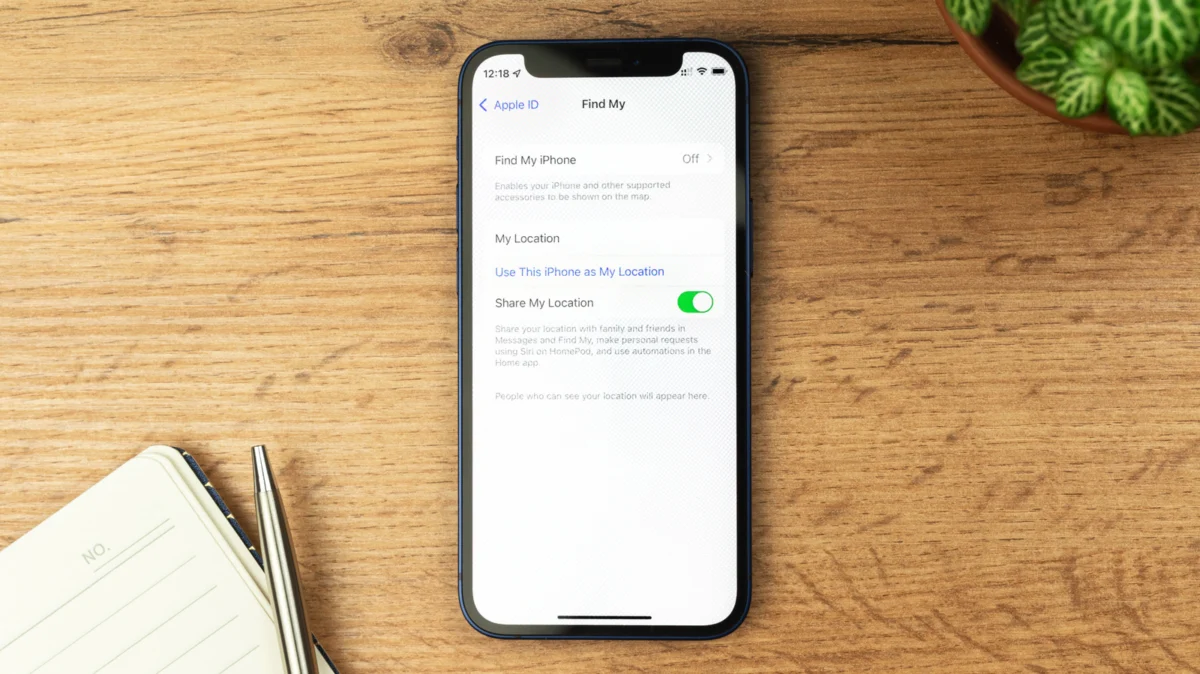
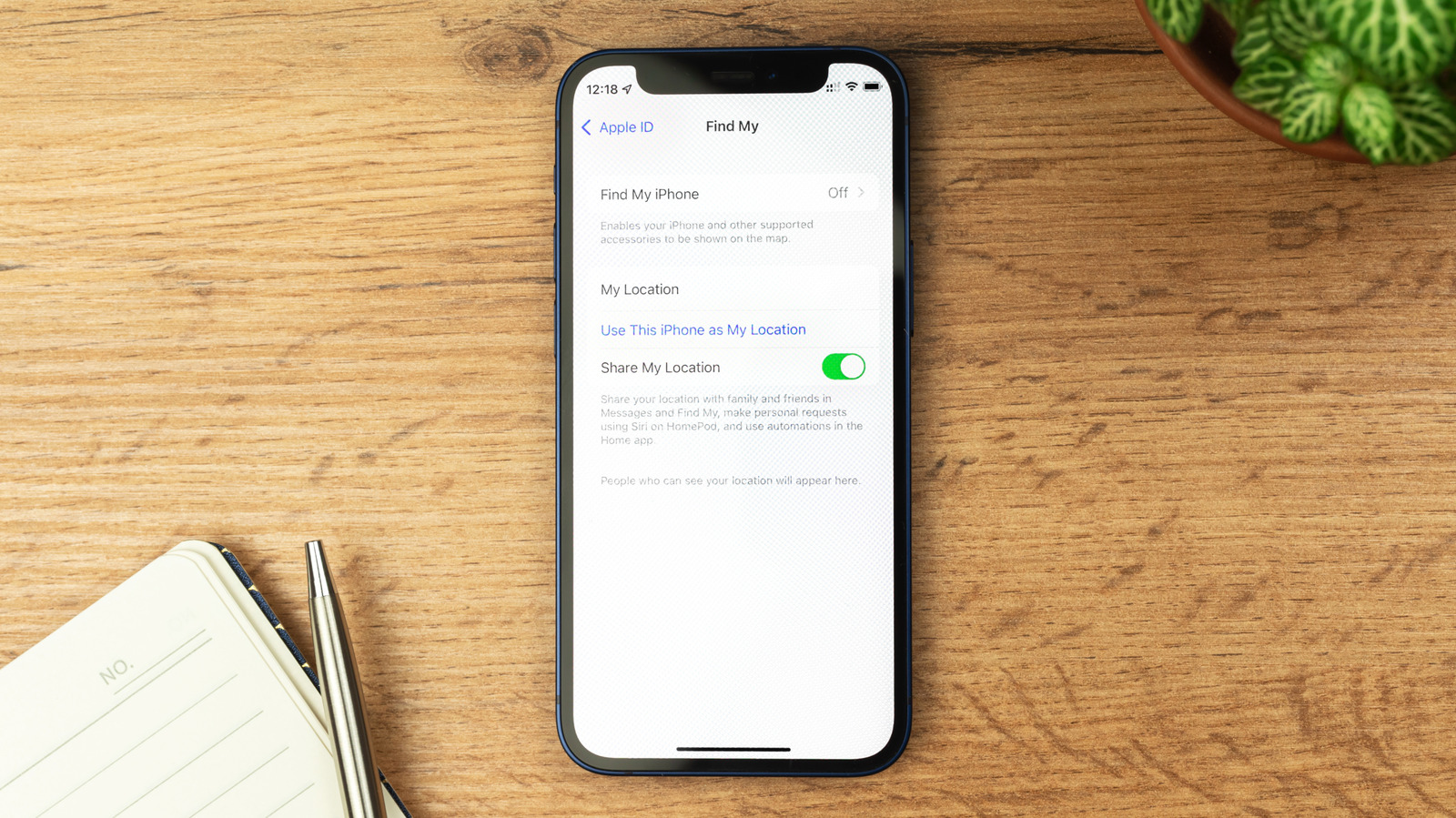
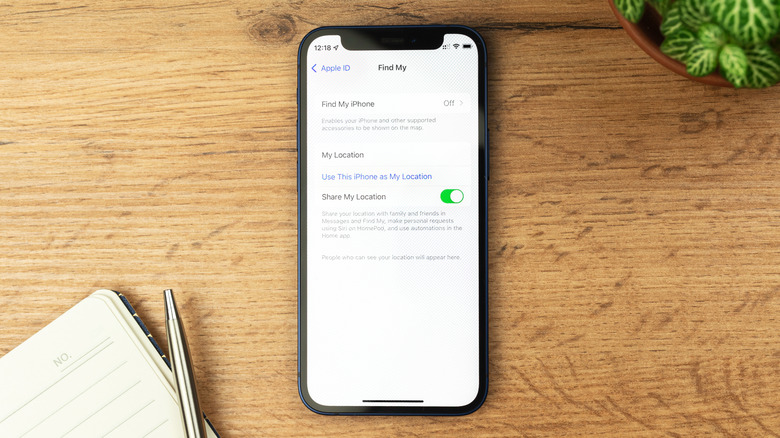
- The Path: Go to Settings > [Your Name] > Find My. From here, toggle off "Find My iPhone."
- The Barrier: If you have "Stolen Device Protection" enabled, this toggle will be grayed out. You must first disable Stolen Device Protection by visiting Settings > Face ID & Passcode. It is highly advised to do this while at a "familiar location" (like your home or office), as Apple’s security protocols impose a mandatory delay for security changes when the device is in an unknown location.
Supporting Data: Why Stolen Device Protection Matters
The implementation of Stolen Device Protection was a direct response to a rising trend where thieves would observe users inputting their passcodes in public spaces. Once they possessed both the phone and the passcode, they could easily turn off "Find My" and "factory reset" the phone in seconds.
By requiring Face ID or Touch ID for changes to sensitive security settings, Apple has effectively created a "time-locked" vault. If a thief tries to change your Apple ID password or disable "Find My" in a public place, they are met with a security delay and an authentication barrier they cannot bypass. This is why the process of turning off "Find My" now feels more rigorous; it is designed to prevent bad actors from doing exactly what you might be trying to do during a legitimate repair.
Official Responses and Best Practices
Apple’s official documentation is clear: Never disable "Find My" if you have lost your device.
Many users mistakenly believe that if they erase their device remotely via iCloud.com, they should also remove it from their account list. This is a critical error. Removing the device from your "Find My" list effectively disables Activation Lock. By keeping the device in your account, you maintain the deterrent that keeps the device worthless to a thief.
Regarding location sharing, many users disable "Find My" because they want to stop sharing their location with a specific contact. This is an unnecessary extreme. If you wish to stop sharing your location with a friend or family member, you can do so granularly within the "People" tab of the Find My app. By selecting the individual and choosing "Stop Sharing My Location," you maintain the security of your device while reclaiming your digital privacy. The system is designed to be discreet, though the contact will eventually notice your name is no longer present in their list.
Implications: The Dangers of Phishing and Scams
The most dangerous implication of "Find My" is the social engineering tactic currently employed by modern thieves. There is a prevalent and sophisticated scam occurring on platforms like Reddit and various messaging services.
After stealing a phone, thieves will often contact the owner via text or email. They will pose as "Apple Support" or "The person who found your phone," claiming they are ready to return the device but that you must "remove it from your account" or "turn off Find My" to unlock it so they can verify the owner.
This is a trap.
If you succumb to these demands, you have effectively handed the device to the thief. By removing the device from your Apple account, you disable the Activation Lock that was the only thing preventing them from wiping and reselling your hardware.
Key Takeaways for Protection:
- Never trust unsolicited messages: Apple will never text or email you asking you to disable "Find My" to recover a lost device.
- Ignore the threats: Thieves often threaten to leak your personal data or claim they are in financial distress. These are psychological tactics designed to induce panic.
- Maintain the Lock: Keep the device in your account. The thief wants you to turn it off because they know that as long as it is on, they possess a useless piece of hardware.
- Erase, Don’t Remove: If you are worried about your data being compromised, use the "Erase This Device" feature via iCloud. This wipes your data but keeps the device "locked" under your control.
Conclusion
"Find My" is more than a convenience; it is the cornerstone of Apple’s commitment to user security. While the necessity of disabling it for repairs or trade-ins is a reality of modern ownership, users must treat the "off" switch with the gravity it deserves. By understanding the distinction between erasing a device and removing it from your account, and by remaining vigilant against the social engineering tactics of those who wish to bypass your security, you ensure that your device remains protected—and yours—no matter the circumstances.