Upgrading to a new iPhone is one of the most exciting consumer experiences in tech. The thrill of a high-resolution display, a vastly improved camera system, and the snappy performance of a new processor is often tempered, however, by the "digital anxiety" of moving your life from one device to another. For years, this process was fraught with peril: missing messages, corrupted app data, or the tedious necessity of manually re-downloading dozens of applications. Fortunately, Apple’s "Quick Start" utility has transformed this migration from a technical headache into a near-magical, automated process.
The Evolution of Data Migration
Historically, transitioning to a new smartphone required tethering the device to a desktop computer via iTunes. This method, while reliable, was restrictive. It required sufficient storage space on the computer, a stable wired connection, and a significant time investment. Many users, intimidated by the complexity, would simply start their new device as "new," essentially wiping away years of digital history.
Apple recognized this barrier to entry and developed Quick Start—a peer-to-peer wireless migration tool. By leveraging local Bluetooth and Wi-Fi Direct technology, Apple effectively removed the need for a middleman, allowing two iPhones to communicate directly. This shift represents a broader philosophy at Apple: minimizing user friction to encourage frequent hardware upgrades.
Chronology of the Migration Process
Understanding the lifecycle of a data transfer is crucial for ensuring nothing is lost during the switch.
1. Preparation (The "Pre-Flight" Check)
Before even unboxing the new device, ensure both handsets are running the latest version of iOS. Mismatched software versions are the leading cause of failed transfers. Furthermore, verify that you have your Apple ID credentials handy and that your Wi-Fi connection is stable.
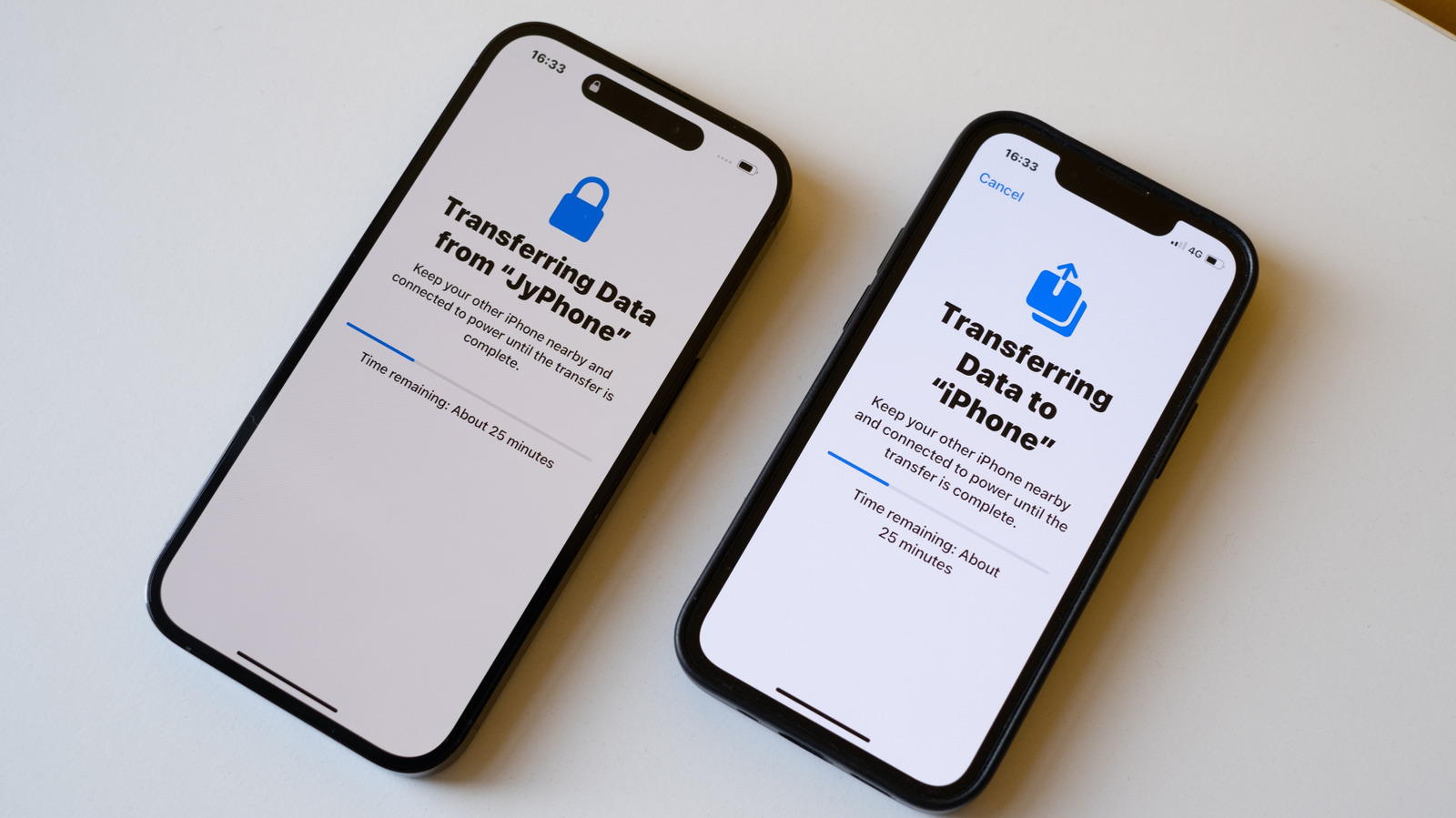
2. The Handshake
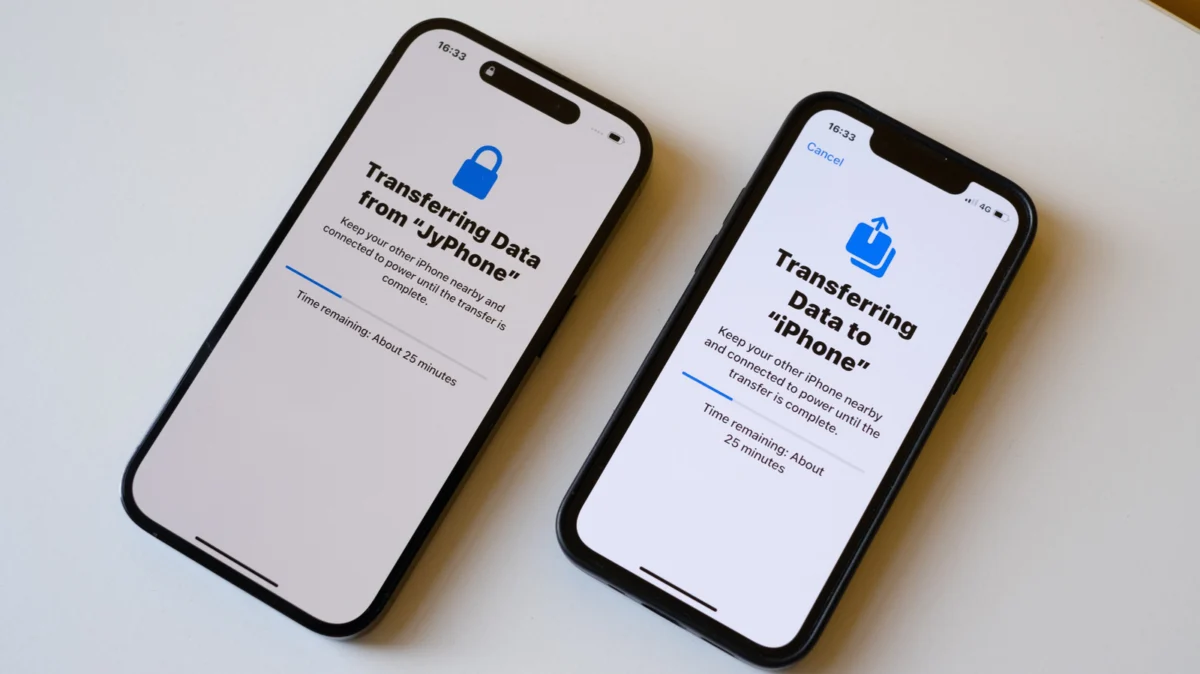
Place the new, unboxed iPhone next to your current, active device. A "Set Up New iPhone" prompt will automatically appear on your old phone. Once you confirm this, an animated blue particle cloud will appear on the new device, which you scan with the camera of your old phone. This creates a secure, encrypted link between the two.
3. Verification and Authentication
After the handshake, you will be prompted to enter your current passcode on the new device. You will then set up Face ID or Touch ID. This is the stage where the phone verifies your identity and prepares to ingest your digital footprint.
4. The Transfer Choice
The system will provide two primary paths:
- Direct Transfer: The phones communicate wirelessly to mirror the old device onto the new one.
- iCloud Restore: The new device pulls your most recent backup from Apple’s servers.
5. Post-Transfer Syncing
Once the transfer progress bar completes, the new device will spend time "optimizing" apps and restoring your background photos. It is important to keep the devices plugged into power during this final stage.
Supporting Data: Wired vs. Wireless
While wireless transfer is the hallmark of the modern iPhone experience, it is not always the optimal choice for power users.
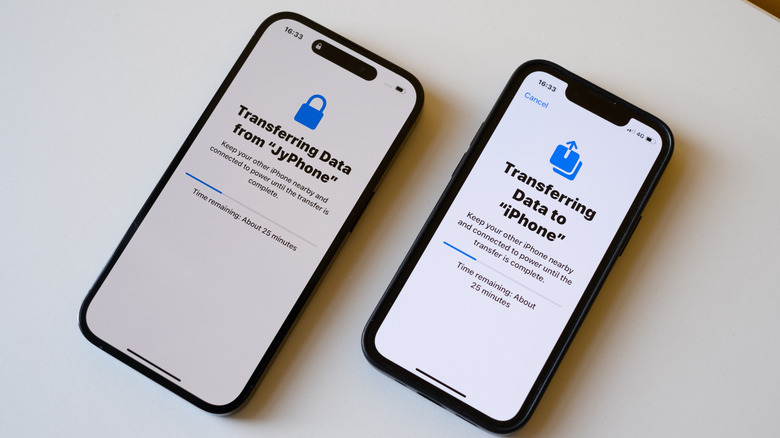
The Wireless Bottleneck
Wireless transfer is highly convenient, but it is bound by the laws of physics and network congestion. If you have 500GB of photos and videos, a wireless transfer can take several hours and is susceptible to interference from other household devices.
The Wired Advantage
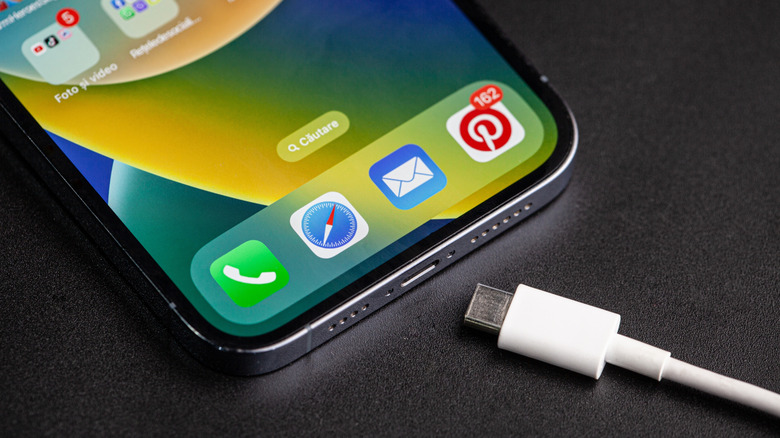
Apple has quietly introduced significant upgrades to the physical data transfer capabilities of the iPhone. With the transition to USB-C on the iPhone 15 Pro and newer models, Apple unlocked 10Gbps data transfer speeds.
For users who move vast amounts of data, a simple USB-C to USB-C cable can turn a three-hour wireless transfer into a thirty-minute task. It is important to note, however, that the cable included in the box with most base-model iPhones is rated for USB 2.0 speeds (480 Mbps). To realize the true potential of high-speed wired migration, one must use a high-bandwidth, Thunderbolt-rated cable.
Troubleshooting: When the Process Stalls
Even the most polished software can encounter friction. Below are common pain points and their resolutions:
Storage Mismatches
A common error occurs when the user attempts to move 256GB of data onto a 128GB device. The system will alert you, but the most efficient way to solve this is to "offload" data. Use the "Manage Storage" setting on your old phone to delete large, unnecessary files, or move photos to a cloud service like Google Photos or an external hard drive before the migration begins.
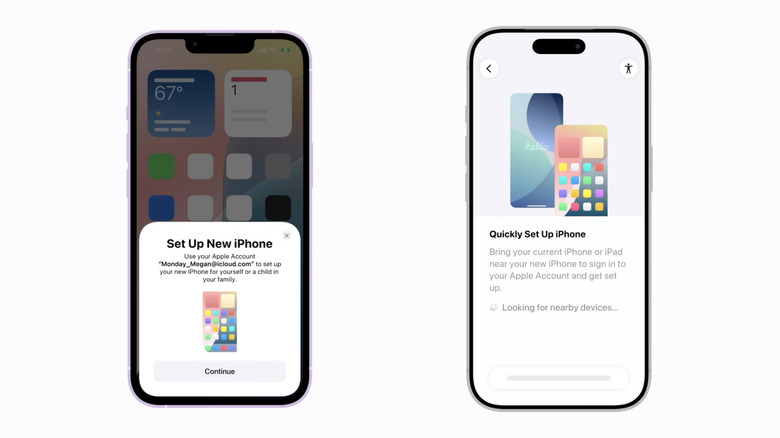
The "Stuck" Progress Bar
If your progress bar freezes for more than an hour, do not panic. The system is likely caught in a loop attempting to verify a specific app or file. Simply restart the new phone; it will reset the setup process, and you can attempt the transfer again.
Corrupted Backups
If the migration fails repeatedly, the culprit may be a corrupted local backup. In this case, perform a fresh backup on the old phone to iCloud immediately before starting the transfer. iCloud backups are generally more robust than local device-to-device transfers because they are stored in a cleaner, server-side environment.
Off-Device Transfers: When the Old Phone is Gone
In the age of trade-in programs, many users ship their old phone back to the manufacturer before receiving their new one. If you find yourself without your old hardware, you must rely on cloud or desktop backups.
The iCloud Route
If you have been regularly backing up to iCloud, the process is streamlined. Simply sign in with your Apple ID during the initial setup of the new device and select "Restore from iCloud Backup."
The Desktop Route (Mac & PC)
For those who prefer local control, the desktop remains the most reliable archive.
- Mac Users: Open the Finder, select your iPhone, and click "Back Up Now." Ensure you select "Encrypt Local Backup" if you want your Health and Keychain data included.
- Windows Users: Apple has transitioned away from the outdated iTunes for Windows. You must now use the Apple Devices app, available via the Microsoft Store. This application provides a modern interface for backing up and restoring your data with the same reliability found on macOS.
Implications for the User Experience
The sophistication of the current migration process has massive implications for the longevity of the iPhone ecosystem. By removing the technical burden of "starting over," Apple has effectively lowered the cost of switching hardware.
This ease of use also reinforces data security. Because Apple’s migration tools use end-to-end encryption, the sensitive data—from banking logins to health metrics—remains protected throughout the transition. The "magical" nature of this process is not merely a marketing claim; it is a vital component of Apple’s retention strategy. When a user knows that moving to a new phone takes twenty minutes rather than four hours, they are significantly more likely to participate in the annual or bi-annual upgrade cycle.
Ultimately, while the technology behind the transfer has grown more complex, the user experience has become simpler. Whether you are a casual user with a handful of apps or a power user with terabytes of data, the current ecosystem ensures that your digital identity remains intact, regardless of the hardware you choose to hold in your hand.