 Suro Senen
In the modern digital era, the laptop has evolved from a simple word-processing tool into a portable powerhouse capable of rendering 4K video, running complex simulations, and pushing the boundaries of AAA gaming. Yet, with this increase in computational density comes a familiar, often frustrating phenomenon: the sudden, aggressive roar of internal cooling fans.
Whether you are a student pulling an all-nighter or a professional rendering architectural models, the "jet engine" sound emanating from your chassis can be a source of significant anxiety. Is your hardware failing? Are you pushing your system to the brink of destruction? Understanding the mechanics of thermal management is essential for any laptop user.
Main Facts: The Physics of Thermal Throttling
At its core, a laptop fan is a simple mechanical solution to a complex thermodynamic problem. As processors (CPUs) and graphics cards (GPUs) perform calculations, they convert electrical energy into heat. If this heat is not dissipated, the silicon components will exceed their thermal limits, leading to data corruption, system instability, or permanent hardware damage.
To prevent this, manufacturers employ thermal sensors that monitor the temperature of internal components in real-time. When a threshold is crossed, the system’s firmware—or Basic Input/Output System (BIOS)—instructs the fans to accelerate. The sound you hear is the result of air being forced through narrow heatsink fins at high velocity. In essence, a loud fan is a sign that your machine is successfully protecting itself from heat-induced failure.

Chronology of Heat: How Noise Escalates
The progression of fan noise typically follows a predictable timeline during a high-intensity task:
- The Idle State: Upon startup, tasks are minimal. The system remains cool, and fans may be completely stationary or spinning at an imperceptible, low-RPM "silent" mode.
- The Initial Load: As you launch a demanding application—such as a modern game like Crimson Desert or a video editing suite—the GPU and CPU usage spike. Power draw increases instantly.
- The Thermal Soak: The initial burst of heat is absorbed by the laptop’s heat pipes and copper plates. The fans remain relatively quiet during this brief window.
- The Threshold Breach: Once the heat pipes reach saturation, the sensors report high temperatures. The system controller triggers a fan speed increase to move the accumulated heat out of the chassis.
- The Steady State: If the workload remains constant, the fans reach a "steady-state" RPM. This is the constant, high-pitched whirr that many users find distracting.
- The Cool-Down: Once the task concludes, the system enters a cooling cycle. Even if you close the application, the fans may continue to spin at high speeds for several minutes until the residual heat is fully purged from the internal components.
Supporting Data: Understanding Decibel Levels
Noise levels in laptops are measured in decibels (dB). For context, a quiet library is approximately 30 dB, while normal conversation hovers around 60 dB.
High-end gaming laptops, such as the ASUS ROG Zephyrus G14, are engineered for performance over acoustic stealth. Under maximum load—often while utilizing "Turbo" or "Performance" profiles—these machines can easily exceed 50 to 55 dB. While this is lower than a vacuum cleaner, it is significantly louder than a standard office laptop, which typically stays under 35 dB.
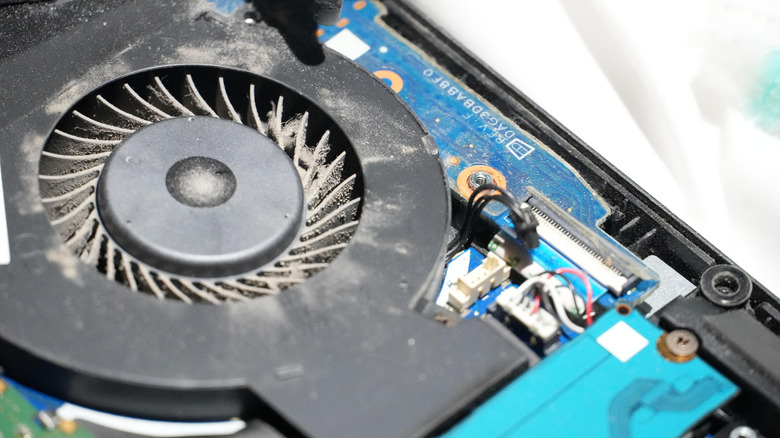
Furthermore, internal cleanliness plays a massive role. A laptop fan’s efficiency is directly tied to the surface area of the intake and exhaust vents. Studies by hardware maintenance firms suggest that a laptop with significant dust buildup can see a 15-20% increase in fan noise because the fans must spin faster to compensate for restricted airflow, effectively creating a "thermal bottleneck."

Official Perspectives and Industry Standards
Leading hardware manufacturers emphasize that "audible fan operation" is a design feature, not a bug. Most technical manuals define fan noise as "normal operation under load."
However, there is a clear distinction in industry guidance regarding "abnormal" sounds. If the noise profile changes from a "whoosh" of air to a "rattle," "grind," or "high-pitched whine," manufacturers advise immediate inspection. These sounds are indicative of:
- Bearing Failure: The mechanical pivot point of the fan is wearing out.
- Obstruction: A foreign object or a loose cable has entered the fan blade radius.
- Structural Damage: If a laptop has been dropped, the fan housing may be misaligned, causing the blades to scrape against the chassis.
Official support channels, including those from Dell, ASUS, and Lenovo, recommend that if a fan makes grinding noises, the system should be powered down immediately to prevent damage to the motherboard’s power delivery circuits.
Implications: How to Mitigate the Noise
If your laptop’s noise is negatively impacting your quality of life, you have several avenues for resolution.

1. Adjusting Software Profiles
Windows users can navigate to Settings > System > Power & battery > Power mode and select "Best power efficiency." This limits the CPU’s boost clock speeds, which generates less heat and, consequently, requires less aggressive cooling. Many gaming laptops also come with dedicated software (like Armoury Crate or Alienware Command Center) that allows users to create custom fan curves, prioritizing silence over raw performance.
2. Managing the Environment
The surface your laptop rests on is critical. Using a laptop on a soft surface like a bed or carpet acts as an insulator, trapping heat and blocking the intake vents. Always use a flat, hard surface. Investing in a cooling pad can also assist by providing an external source of airflow, which allows the laptop’s internal fans to operate at a lower, quieter speed.
3. Capping Performance
For gaming, you do not always need to run at an uncapped frame rate. Using software to cap your frames at 60 FPS significantly reduces the load on your GPU. By limiting the demand on the hardware, you prevent the system from reaching the thermal temperatures that trigger maximum fan speeds.
4. Professional Maintenance
If your laptop is more than two years old and has become significantly louder than it was when new, the thermal paste—the conductive material between your processor and the cooling block—may have dried out. A professional technician can perform a "re-paste," which often results in a dramatic reduction in operating temperatures and fan noise.
Conclusion
While the sound of a roaring laptop fan can be jarring, it is ultimately a testament to the system’s internal safety mechanisms working as intended. By understanding the relationship between workload, heat, and cooling, users can distinguish between the normal, albeit noisy, operation of a high-performance machine and the mechanical distress signals that require professional intervention. With careful environmental management and software optimization, you can reclaim your quiet space without sacrificing your laptop’s longevity.

 Raul Delapena Setiawan
 Laily UPN