
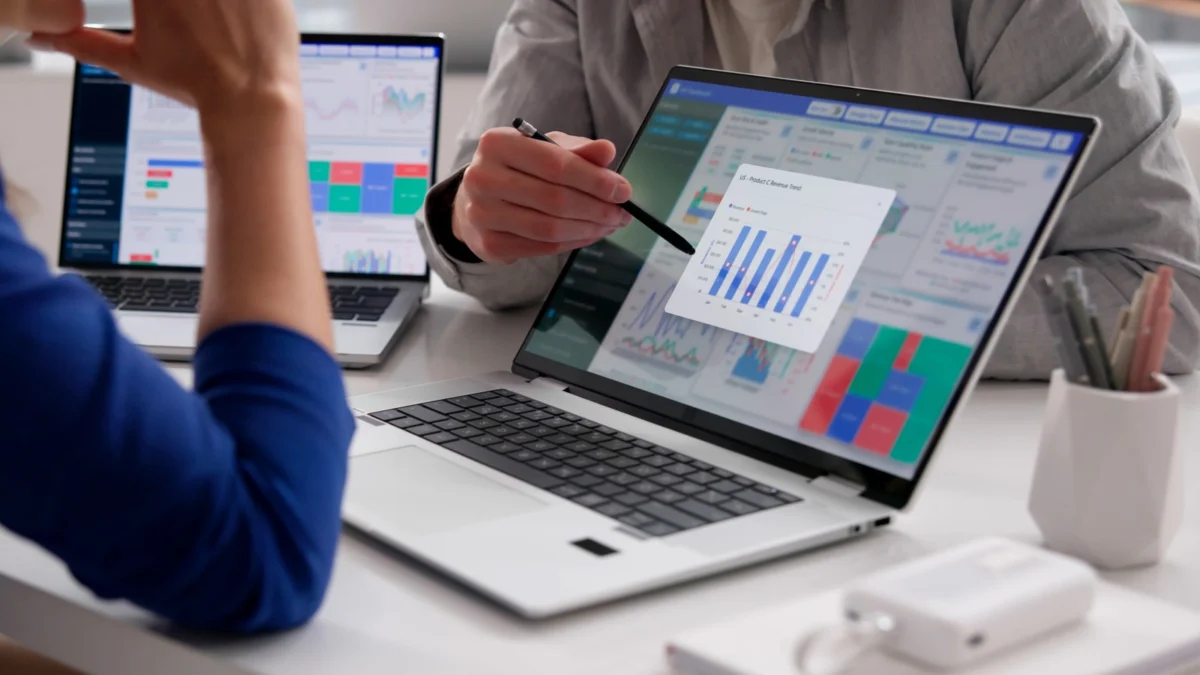
In the modern digital workspace, screen real estate is synonymous with productivity. Whether you are a professional toggling between spreadsheets, a creative designer layering assets in Photoshop, or a gamer seeking an immersive interface, the benefits of a dual-monitor setup are undeniable. However, the cost of high-quality external displays can often be a barrier to entry. Many users remain unaware that a powerful, viable alternative is likely collecting dust in their home office: the secondary laptop.
While the intuitive assumption is that connecting two computers is as simple as plugging in an HDMI cable, the reality is more nuanced. Laptop HDMI ports are designed as "video-out" only, meaning they cannot accept incoming video signals directly. However, through a combination of built-in operating system features, wireless protocols, and clever hardware workarounds, you can repurpose your idle hardware into a highly functional secondary display.
The Core Fundamentals: Why Extend Your Workflow?
Before diving into the technical configurations, it is important to understand the utility of a dual-display ecosystem. Most users find that extending their desktop—rather than mirroring it—drastically improves their workflow. By expanding your digital workspace, you reduce the need for constant "Alt-Tab" switching, allowing for a more cohesive multitasking environment.
Mirroring vs. Extending
- Mirroring: This mode duplicates the primary display onto the secondary screen. It is primarily used for presentations, teaching, or sharing content with someone sitting across from you.
- Extending: This treats the two screens as a single, contiguous workspace. It allows you to drag windows across the gap, keeping reference materials on one screen while performing tasks on the other.
Windows to Windows: Leveraging the Miracast Protocol
For those operating within the Microsoft ecosystem, the process is streamlined by a technology called Miracast. Since Windows 10 and 11 come pre-equipped with wireless casting capabilities, you do not need to install third-party software to turn one laptop into a display for another.
Step-by-Step Configuration
- Preparing the Secondary Laptop: Navigate to Settings > System > Projecting to this PC.
- Feature Installation: If the option is greyed out, click on "Optional features" and select "View features." Search for "Wireless Display" and install it.
- Permissions: Once installed, return to the "Projecting to this PC" menu. Set the dropdown to "Available everywhere on secure networks."
- Initiating the Connection: On your primary machine, press the Windows Key + K. A menu will appear on the right side of the screen listing available wireless displays. Select your secondary laptop from this list.
- Finalizing: You may be prompted to enter a PIN displayed on the secondary screen. Once connected, use Windows Key + P to toggle between "Duplicate" and "Extend."
The Caveat: Because this protocol relies on Wi-Fi connectivity, it is subject to network congestion. While perfect for static office work or browsing, it is not recommended for high-frame-rate gaming, as there will be perceptible input lag.
Apple’s AirPlay: A Seamless Continuity Experience
Apple has long championed ecosystem integration, and for MacBook users with devices manufactured in 2018 or later, the "AirPlay to Mac" feature offers a high-fidelity solution for extending a display wirelessly.
How to Configure AirPlay
- System Requirements: Both machines must be signed into the same Apple ID.
- Configuration: On the target MacBook (the one becoming the screen), navigate to System Settings > General > AirDrop & Continuity. Ensure "AirPlay Receiver" is toggled to "On" and restricted to "Current User."
- Connecting: On your primary MacBook, go to System Settings > Displays. Click the "+" (plus) icon to select the secondary MacBook from the list of available devices.
This method provides a remarkably smooth experience, though, like the Windows alternative, it is best suited for productivity tasks rather than competitive gaming.
Cross-Platform Solutions: Bridging Windows, Mac, and Linux
What if you are pairing a Windows desktop with a MacBook, or utilizing a machine running Linux? In these scenarios, the native OS-level features will not communicate effectively. This is where third-party, open-source solutions like Deskreen become invaluable.
Using Deskreen
Deskreen turns any device with a web browser into a secondary display.
- Installation: Download and install Deskreen on the primary computer.
- Connectivity: Both computers must be on the same local network.
- The Handshake: Deskreen will generate a QR code or a URL. Open this URL in the browser of your secondary laptop.
- Virtualization: To extend the display (rather than just mirror), you will need a "dummy plug"—a physical HDMI emulator that tricks your graphics card into believing a monitor is physically attached. This is a vital hardware addition for anyone wishing to extend a screen across different operating systems.
The Wired Frontier: HDMI Capture Cards
If you demand the lowest possible latency—crucial for video editing or light gaming—a wired connection is superior to Wi-Fi. Since you cannot plug one HDMI port into another, you must use a video capture card.
The Capture Card Workflow
A USB-to-HDMI capture card converts the HDMI signal from your primary laptop into a USB video feed.
- The Connection: Connect the primary laptop’s HDMI output to the capture card’s input. Plug the USB end of the capture card into the secondary laptop.
- Software: Your secondary laptop will recognize the capture card as a standard webcam. Open an application like OBS Studio (Open Broadcaster Software), create a "Video Capture Device" source, and select the card.
- Full Screen: Set the OBS preview to full-screen mode on the secondary laptop. This effectively turns your old machine into a high-performance, low-latency monitor.
This setup is robust enough to connect a PlayStation 5 or Nintendo Switch to a laptop, turning your portable screen into a functional console monitor.
Implications: The Sustainability of Tech Repurposing
The push to use old laptops as second monitors is part of a larger, growing movement toward sustainable computing. Electronic waste (e-waste) is one of the fastest-growing waste streams globally. By extending the lifecycle of a secondary laptop, users not only save money but also reduce the demand for new hardware production, which carries a significant carbon footprint.
Furthermore, this practice fosters technical literacy. Users who troubleshoot display settings, configure network protocols, or experiment with capture cards gain a deeper understanding of how their devices communicate. It shifts the consumer relationship from one of "disposable upgrades" to one of "modular maintenance."
Conclusion: Is This Right for You?
Repurposing an old laptop is an excellent solution for the home office, but it is not without its trade-offs.
- For the Office Worker: Wireless methods like Miracast or AirPlay are sufficient, offering a clean, cable-free environment that maximizes productivity.
- For the Creative/Gamer: A wired capture card setup is the only way to minimize lag to acceptable levels.
- For the Tech Enthusiast: Using Deskreen with a virtual display adapter offers the most customization, allowing for a truly bespoke workstation setup.
If, after attempting these methods, you find the hardware is simply too old or the performance too sluggish, consider a final alternative: converting the laptop into a dedicated smart home hub or a media server. Even when a machine can no longer serve as a high-performance display, its processing power can still be harnessed to automate your home lighting, security, or music streaming.
Ultimately, your old laptop is far more than a collection of obsolete parts. With a little configuration, it remains a powerful tool ready to enhance your digital life.