
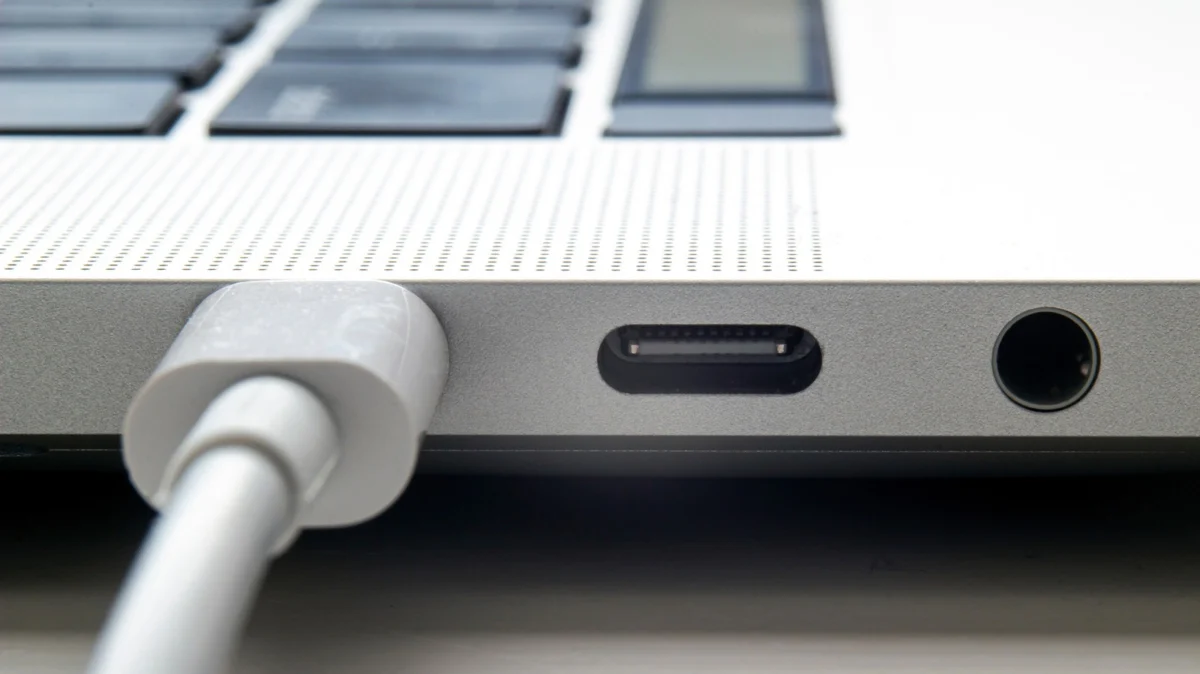
The Universal Serial Bus (USB) standard is the backbone of modern computing. Since its inception, it has evolved from a niche connector into a ubiquitous interface that facilitates everything from simple data transfers to powering complex multi-monitor workstations. Apple, despite its historical preference for proprietary ports—a trend that once saw the company lead the industry toward the original iMac’s "legacy-free" design—has ultimately embraced the standard. With the recent mandate from the European Union forcing a transition to USB-C for mobile devices, the era of the exclusive Apple port is largely behind us.
Yet, even in this era of standardization, the experience of connecting a USB device to a MacBook is not always seamless. When a drive, audio interface, or peripheral fails to mount, it can be a source of significant frustration for both casual users and creative professionals. Understanding the root causes of these connectivity failures—which range from security permissions to physical hardware degradation—is essential for maintaining a functional digital workflow.
The Evolution of USB and the macOS Security Landscape
To understand why a device might not appear on your desktop, one must first recognize that macOS has shifted its philosophy regarding hardware connectivity. In recent years, Apple has prioritized security above all else. This shift explains why many modern Macs now require explicit user permission before allowing a new accessory to communicate with the system.
This "security-first" approach is designed to mitigate the risk of "BadUSB" attacks, where malicious hardware mimics legitimate peripherals to inject code or exfiltrate data. While highly effective, it introduces a friction point for the end-user. If a user accidentally clicks "Don’t Allow" on a system prompt, the device may still receive power (allowing it to charge), but the data bridge will remain severed.
Addressing Permission Conflicts
The most common culprit for "invisible" devices is a rejected security handshake. If you suspect this is the case, the first step is to disconnect the device and reconnect it to trigger the prompt again. To manage these settings manually, navigate to System Settings > Privacy & Security > Accessories. Under this menu, you can toggle the behavior for new devices. Setting this to "Ask for new accessories" is the most secure posture, though users who frequently swap peripherals in trusted environments may opt for "Automatically allow when unlocked."
Diagnostic Procedures: Confirming Hardware Detection
When software permissions are not the issue, the next step is to determine if the operating system acknowledges the hardware at the physical layer. This is where the System Information utility becomes an invaluable tool.
Using System Information
By holding the Option key and clicking the Apple menu, you can access System Information. Within this window, navigate to the Hardware category and select USB (or Thunderbolt/USB4). This screen displays a tree view of the hardware bus. If your device appears in this list, the Mac recognizes the physical connection, but the software layer—perhaps due to a missing driver or a file system error—is failing to mount the volume.
If the device is completely absent from this list, you are dealing with a lower-level hardware failure. This could involve:
- A faulty cable: USB-C cables vary significantly in their data and power delivery capabilities.
- Port contamination: Dust, lint, or debris within the MacBook’s port can prevent a clean electrical contact.
- Power insufficiency: The device may require more voltage than the port is currently outputting.
Power Constraints and the Hub Paradox
A frequent point of confusion for users involves USB hubs and docking stations. These accessories are often the weakest link in the chain. Many modern, high-speed peripherals (like NVMe SSDs) require consistent power delivery. If a hub is not powered by an external wall adapter, it must "steal" power from the MacBook’s port, which may be insufficient to run all connected peripherals simultaneously.
The "Direct Connection" Rule
When troubleshooting, always attempt to bypass the middleman. If your peripheral is connected through a third-party hub or an Apple display, disconnect it and plug it directly into the MacBook’s primary ports. If the device functions when connected directly, you have isolated the failure to the hub’s power budget or its controller firmware. Furthermore, it is important to note that certain peripherals—such as high-end audio interfaces—are notoriously sensitive to "daisy-chaining." Always prioritize a direct connection for devices that require high bandwidth or low latency.
Software, Drivers, and File System Compatibility
If the hardware is detected but the device remains inaccessible, the issue is likely a mismatch in software or file system architecture.
File System Formats
macOS supports a specific set of file systems. If a drive is formatted in a proprietary Windows format that lacks a specific driver, or if it is corrupted, it will not appear in the Finder.
- APFS (Apple File System): The standard for modern macOS.
- ExFAT/FAT32: Cross-platform formats that are generally readable by both Mac and Windows.
- NTFS: Native to Windows. macOS can read these but cannot write to them without third-party software.
Ensure your drive is using a compatible format. If you are using a specialized device (such as a professional capture card or a specialized gaming peripheral), visit the manufacturer’s website to download the latest drivers or proprietary management software. Many modern peripherals require a companion app to initialize the hardware’s specific feature set.
Physical Maintenance and Hardware Health
The physical integrity of your hardware is often overlooked until a failure occurs. Cables that appear intact on the outside may have broken internal shielding or frayed conductors, which can cause intermittent connection drops.
Best Practices for Maintenance:
- Port Cleaning: Use a can of compressed air to clear debris. Avoid using metal objects, which can scratch the delicate pins inside the port.
- Cable Inspection: Look for signs of "browning" or heat damage near the connectors. If a cable shows signs of fraying or exposed wires, discard it immediately. It is a potential fire hazard and a source of short-circuiting that could damage your MacBook’s controller.
- Update Cycles: Always ensure macOS is updated to the latest version. Apple frequently releases firmware updates for the SMC (System Management Controller) and USB drivers that resolve bugs related to power management and device enumeration.
When to Seek Professional Support
There are instances where, despite all troubleshooting efforts, the hardware remains non-responsive. If you have tested multiple cables, multiple ports, and different computers, and the device still fails to register, the issue may be a physical failure of the controller chip inside the device itself.
If the device is detected on other computers but not your Mac, you should contact Apple Support. There is a possibility that your Mac’s logic board is failing to supply the necessary voltage to the USB controller. Apple’s diagnostics (accessible via the Startup Options menu on Apple Silicon Macs) can sometimes detect these logic board failures.
Implications for the Future of Connectivity
The transition to a unified USB-C environment has made hardware compatibility more predictable, yet the complexity of modern "all-in-one" docks has introduced new variables. As we move toward a future defined by Thunderbolt 4 and beyond, the expectation remains that a "plug-and-play" experience should be the standard.
Until that level of perfection is reached, the user must act as the primary technician. By systematically narrowing down the variable—isolating the port, the cable, the hub, the software permissions, and the file system—users can resolve the vast majority of USB connectivity issues without the need for external service. Remember, a methodical approach is the most effective tool in any technician’s arsenal. When in doubt, start with the basics: clean the ports, check the permissions, and always test the simplest configuration possible.