
For years, Nvidia’s Deep Learning Super Sampling (DLSS) was the definition of "set it and forget it" gaming technology. Whether you were rocking a mid-range RTX 3060 or a top-tier flagship like the RTX 4090, the workflow was standardized: launch your game, navigate to the graphics settings, toggle DLSS, and pick your poison between Ultra Performance, Performance, Balanced, or Quality. The algorithm handled the heavy lifting, balancing internal render resolutions against AI-driven reconstruction to ensure your frame rates stayed high without sacrificing visual fidelity.
However, with the quiet rollout of DLSS 4.5, the goalposts have shifted. What was once a transparent process has become a nuanced software ecosystem where the default settings may no longer be the best choice for the discerning gamer. For those willing to look under the hood, DLSS 4.5 offers unprecedented control—but achieving those gains requires manual intervention that Nvidia hasn’t exactly made obvious.
The Evolution of DLSS: From Automation to Customization
To understand why DLSS 4.5 feels different, we must look at how Nvidia has evolved its transformer models. For a long time, the software was monolithic; updates were bundled with drivers, and the "best" version was simply whatever was newest. When DLSS 4 arrived, it brought with it the "Preset K" transformer model, which set a new standard for image reconstruction, effectively rivaling native resolution rendering with TAA (Temporal Anti-Aliasing).
When DLSS 4.5 launched, many users—myself included—expected an immediate, noticeable jump in clarity across all titles. Yet, after updating my drivers and firing up Cyberpunk 2077, the visual delta felt negligible. It wasn’t until I dug deep into the technical documentation that I realized the catch: Nvidia is still defaulting Balanced and Quality modes to the older Preset K.
By default, the software prioritizes legacy compatibility and a specific performance-to-quality ratio. If you aren’t manually overriding these settings, you are essentially running a previous-generation engine in a newer shell. This discovery transforms the gaming experience from a passive one to an active, iterative process of manual optimization.
Chronology: The Hidden Shift in Model Presets
The transition to DLSS 4.5 represents a departure from Nvidia’s "one-size-fits-all" philosophy. Here is how the landscape has changed for users:

- Pre-DLSS 4.5: The user experience was uniform. Quality mode meant the highest possible image reconstruction, while Performance modes prioritized raw frame rates, with the AI model automatically selecting the most efficient path.
- The DLSS 4 Launch: Nvidia introduced Preset K, a highly efficient transformer model that became the industry benchmark for upscaling.
- The DLSS 4.5 Update: Nvidia introduced two new, more sophisticated transformer models: Preset L and Preset M. These models are specifically designed for higher-tier hardware and more complex visual scenarios.
- The "Silent" Default: Despite these advancements, Nvidia opted to keep Preset K as the default for the most popular user settings (Balanced and Quality) to ensure that users on lower-tier hardware don’t encounter unexpected frame rate dips.
This creates a hidden "performance tax." If you are a power user with a high-end rig, you are effectively leaving visual fidelity on the table by relying on the default settings.
The Mechanics of the Override: How to Take Control
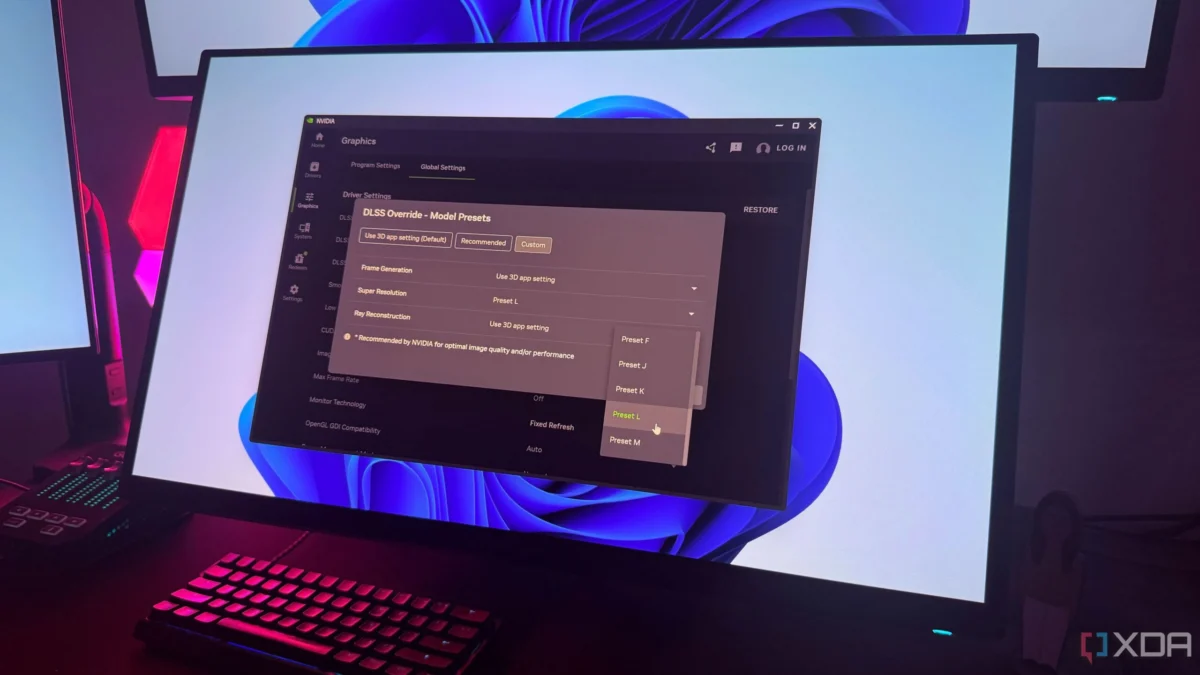
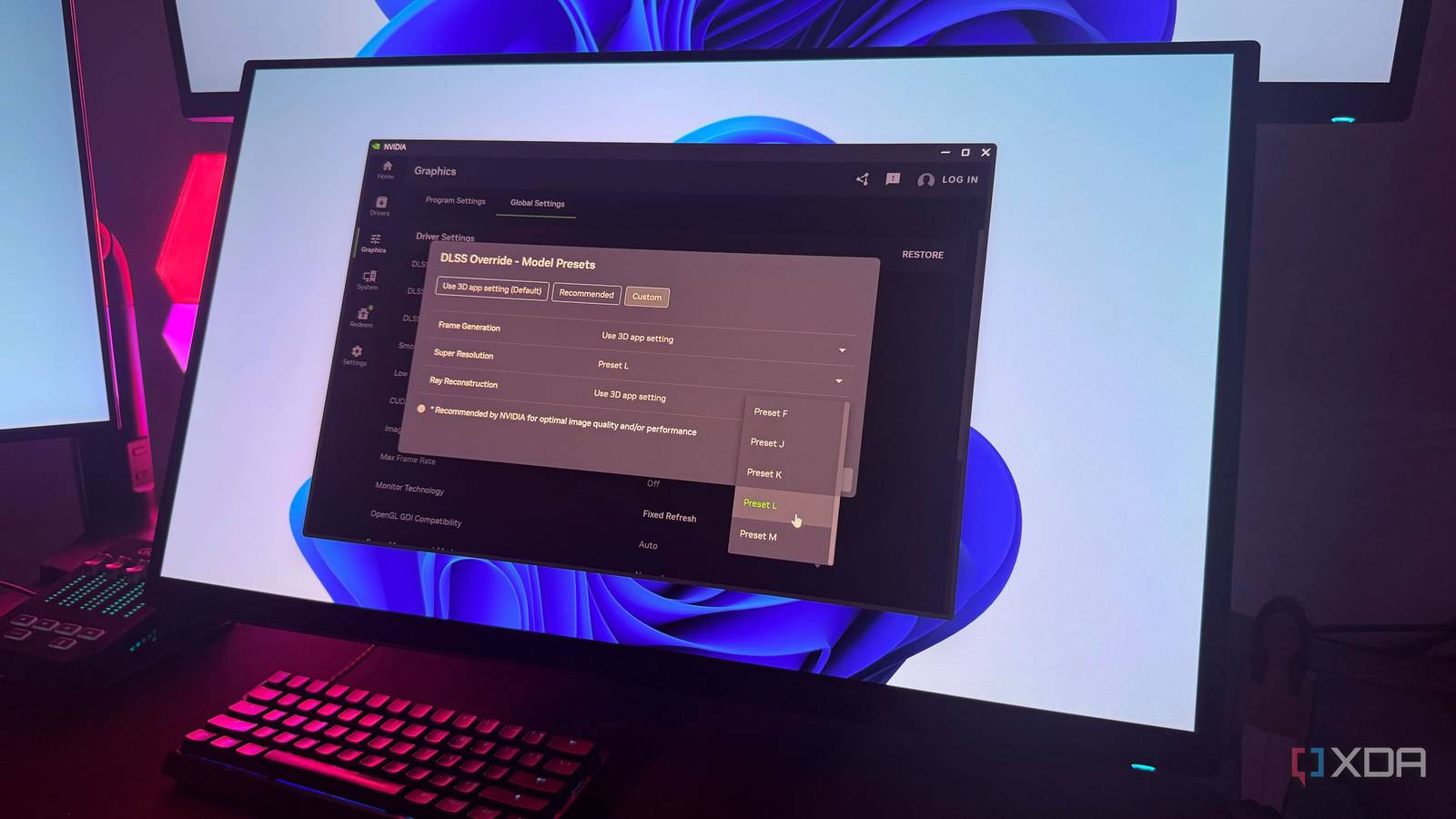
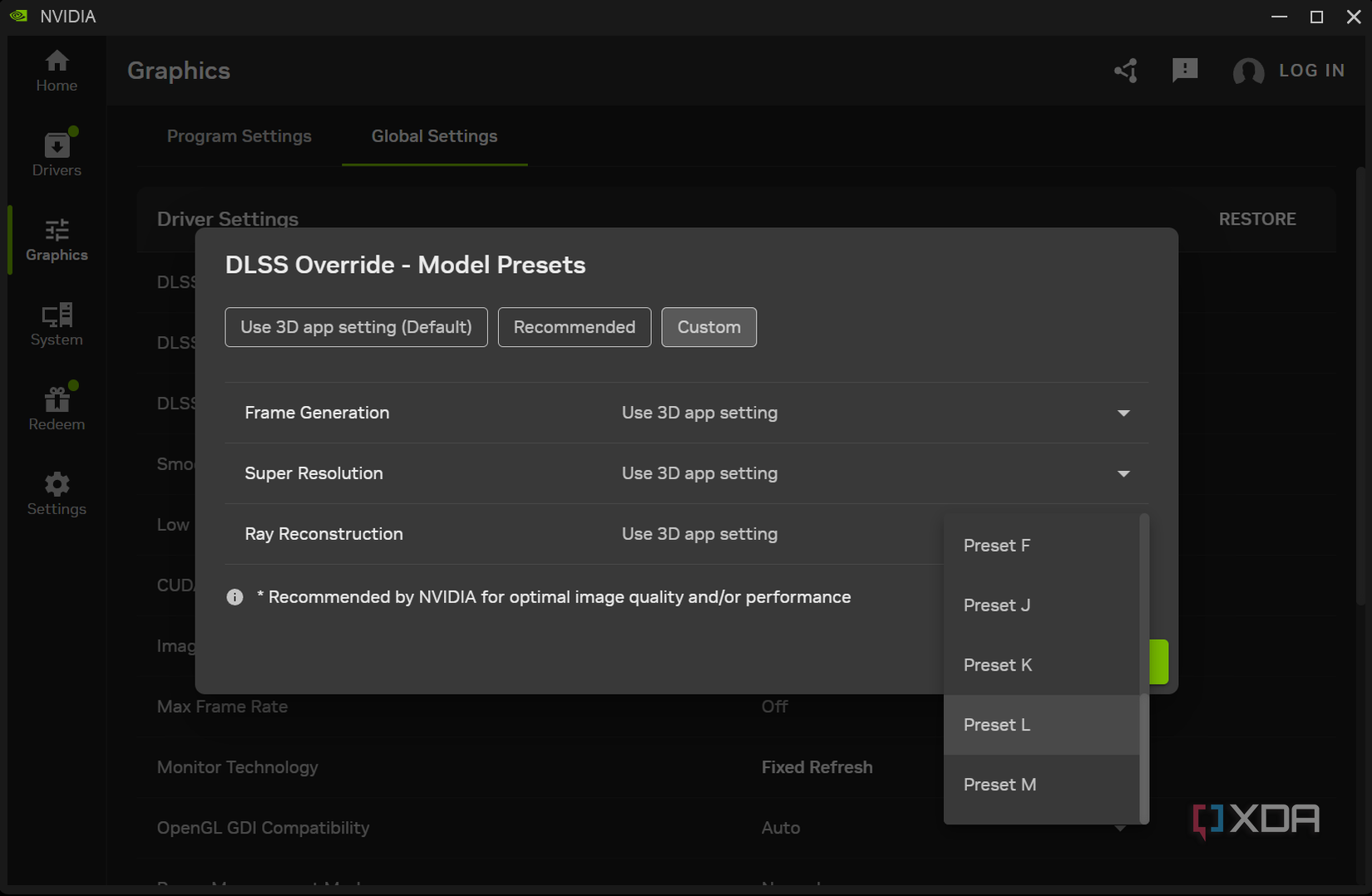
The good news is that the new Nvidia App provides the tools to bypass these defaults. If you want to force your games to utilize the more advanced Preset L or Preset M, you must move beyond the in-game menus.
Step-by-Step Configuration:
- Access the Nvidia App: Open your installed Nvidia utility suite.
- Navigate to Graphics Settings: Head to the "Global Settings" or the specific game profile you wish to tweak.
- Locate DLSS Overrides: Look for the "DLSS Override – Model Presets" toggle.
- Switch to Custom: By selecting "Custom," you gain the ability to manually assign a model preset to your "Super Resolution" scaling.
- Test and Validate: Choose between Preset L and Preset M, then observe the impact in-game.
This shift moves the burden of choice from the game developer to the end-user. While this is a dream for enthusiasts, it undeniably complicates the setup process for the average consumer, turning a simple checkbox into a technical experiment.
Supporting Data: Preset L vs. Preset M
The choice between the new presets is not merely about preference; it is about how the AI reconstructs pixel data.
Preset L (The Fidelity King)
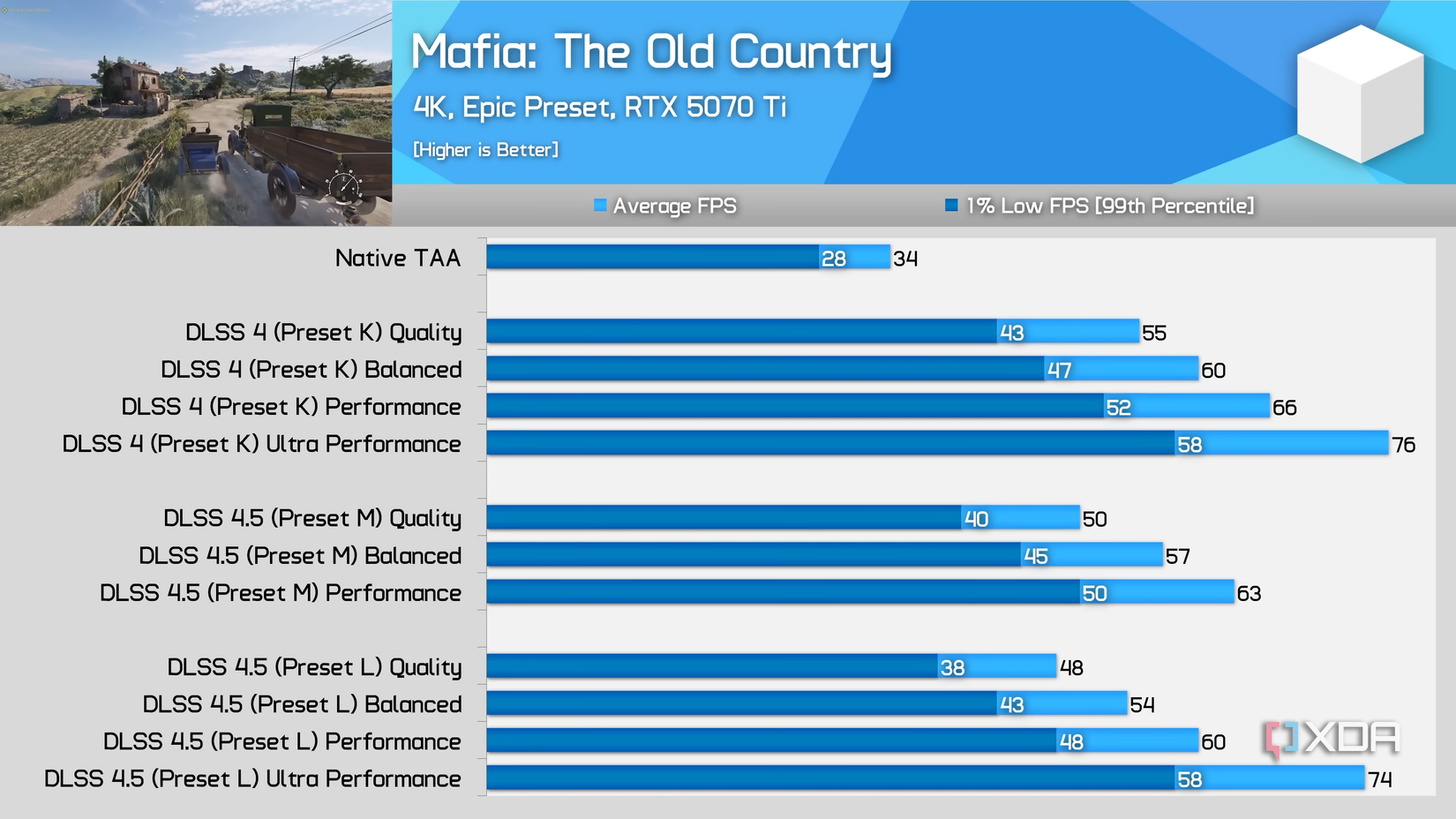
Preset L is arguably the most impressive piece of tech in the 4.5 toolkit. It excels at handling fine details, such as foliage, distant geometry, and shimmering textures—the classic enemies of upscaling. In my testing, when using Preset L on a 4K display with Balanced mode, the image clarity actually surpasses the older Preset K at Quality mode.
The trade-off is a measurable performance hit. On my RTX 4090, I observed a roughly 10% reduction in frame rates compared to the legacy Preset K. However, the visual stability provided by the improved transformer model makes that 10% hit feel like a bargain. It creates a cleaner, more coherent image that feels "native" in a way that previous DLSS versions struggled to achieve.
Preset M (The Throughput Contender)
Preset M occupies a middle ground. It is less taxing on the GPU than Preset L, resulting in frame rate losses closer to the 5% range. However, it comes with a caveat: oversharpening.
In scenes with rapid camera movement, Preset M tends to introduce a granular, processed look. While it performs well in static scenes, the temporal stability—how the image holds together while moving—is noticeably inferior to Preset L. For most users, Preset M is a difficult recommendation unless you are playing on a lower-tier card where every single frame counts toward hitting a specific monitor refresh rate.
Official Responses and Industry Context
Nvidia has been relatively tight-lipped about why these presets are hidden behind manual overrides, but the industry consensus suggests it is a matter of "Hardware-Aware Optimization." By defaulting to Preset K, Nvidia ensures that a user with an older RTX 30-series card doesn’t accidentally trigger a preset that causes stuttering or frame time inconsistencies.
Industry analysts note that this "hidden" feature set is part of a larger trend in PC gaming: the rise of the "Prosumer" settings menu. As AI upscaling becomes the backbone of modern gaming, Nvidia is moving away from making the choices for you, instead providing a tiered system where the most capable hardware is given the tools to push the limits of visual reconstruction.
The Implications for the Future of Gaming
What does this mean for the future? We are entering an era where the GPU is only half the story; the software settings are the other half.
For the average gamer, the default settings are perfectly adequate. If you are playing at 1080p or 1440p on a mainstream card, the performance-to-quality ratio of the default Preset K is likely the optimal configuration. However, for those of us with high-end displays—particularly OLEDs, where the deep blacks and infinite contrast can highlight any upscaling artifacts—the ability to override these presets is a massive win.
The shift toward manual control over DLSS presets marks a turning point. It acknowledges that the "best" setting is no longer a static number, but a dynamic variable that changes based on your monitor resolution, your specific hardware, and your personal tolerance for sharpening artifacts versus raw performance.
Final Thoughts: Should You Override?
If you are a casual gamer, there is no reason to touch these settings. Nvidia’s defaults are safe, tested, and reliable. But if you have spent thousands on a flagship GPU and a high-refresh-rate 4K monitor, you are doing yourself a disservice by not experimenting.
The ability to run a "Balanced" mode with a high-fidelity "Preset L" model often provides a superior visual experience compared to the standard "Quality" mode, while maintaining higher frame rates than native rendering ever could. We have reached a point where the software has become as modular as the hardware it runs on. It is time to stop trusting the defaults and start customizing your pixels.