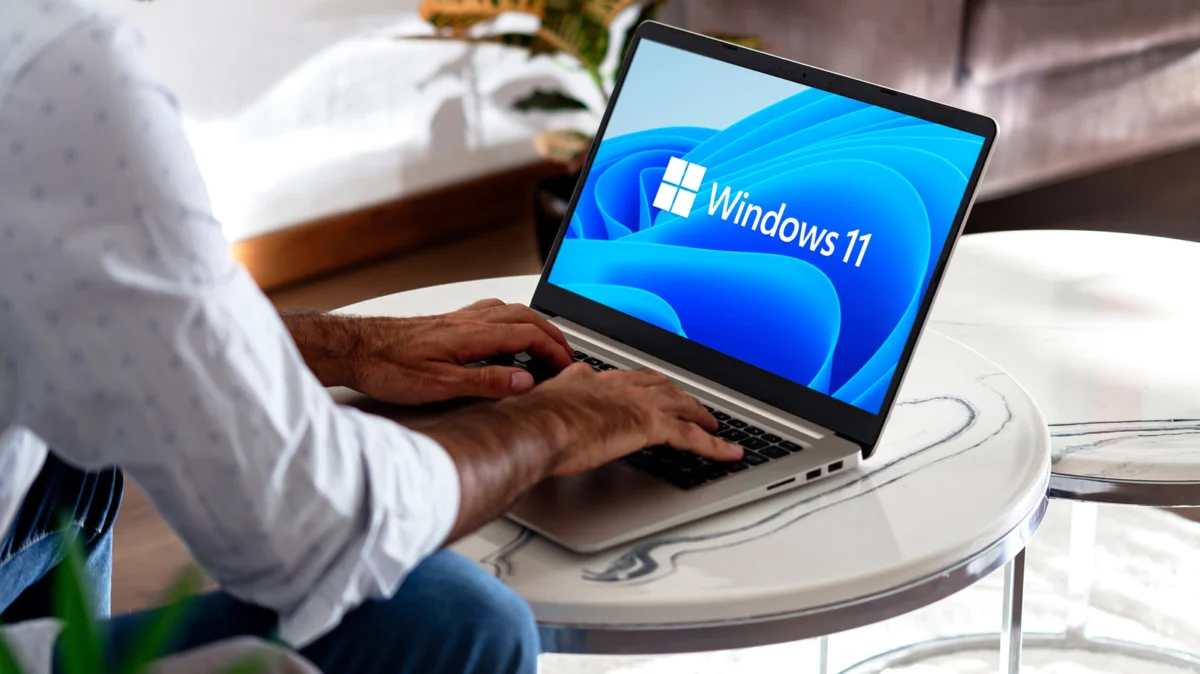
There is a distinct, sinking feeling that every laptop user knows all too well: the moment you realize you have left your charger at home while the battery indicator turns an ominous shade of red. For Windows users, this anxiety is often exacerbated by the nature of the x86 architecture, which, while powerful, inherently demands more energy than the more efficient ARM-based systems currently entering the market.
While Microsoft continues to refine Windows 11, the operating system remains a resource-heavy environment. Whether you are a student, a creative professional, or a mobile worker, your laptop’s endurance is a product of both hardware efficiency and software configuration. By fine-tuning how your machine manages power, you can often reclaim hours of productivity.
Main Facts: The Battery Dilemma
The modern Windows laptop is a complex ecosystem of background processes, visual enhancements, and hardware demands. The primary "battery drainers" are rarely singular; rather, they are a cumulative weight on your power cell.
The core challenge lies in the tension between performance and portability. Windows 11 defaults to a "Balanced" power plan designed to keep the system feeling snappy. However, this often involves keeping the processor at higher clock speeds and allowing background tasks to sync, update, and index files constantly. When you are tethered to an outlet, this is an advantage. When you are mobile, it is a liability.
To maximize battery life, you must move from a "performance-first" mindset to an "efficiency-first" one. This shift involves three pillars: managing hardware power draw, streamlining the software environment, and auditing background resource consumption.
Chronology of Power Management
The evolution of Windows power management has shifted significantly over the last decade. Historically, users relied on the "Power Options" menu in the classic Control Panel, which allowed for granular control over every facet of hardware behavior, from the spinning speed of hard drives to the precise voltage of the CPU.
In the era of Windows 10 and 11, Microsoft moved toward a more simplified, user-friendly interface. The shift from the "Advanced Power Options" to the modern "Power & Battery" settings menu represents a push toward automated, intelligent power management.
- Early Era (Windows 7/8): Users manually toggled between "High Performance" and "Power Saver" plans.
- Transition Era (Windows 10): The introduction of the "Battery Slider" in the system tray allowed for quick, one-click adjustments without navigating deep into menus.
- Modern Era (Windows 11): The integration of "Energy Saver" mode and smarter background process management, aiming to mimic the "low power mode" logic found in mobile operating systems like iOS and Android.
Supporting Data: The Mechanics of Efficiency
To truly extend your battery, you must understand what consumes the most power. Displays, processors, and background data synchronization are the "Big Three" of battery depletion.
1. Managing the Display
The display is arguably the largest single power consumer on any laptop. Modern panels, especially high-refresh-rate or 4K screens, require significant wattage to maintain brightness.
- The Adjustment: Use the Win + A shortcut to access the Action Center and lower your brightness to the lowest comfortable level.
- The Science: Reducing brightness by just 20% can result in a 10–15% increase in battery life, depending on the panel technology.
2. The Power Mode Hierarchy
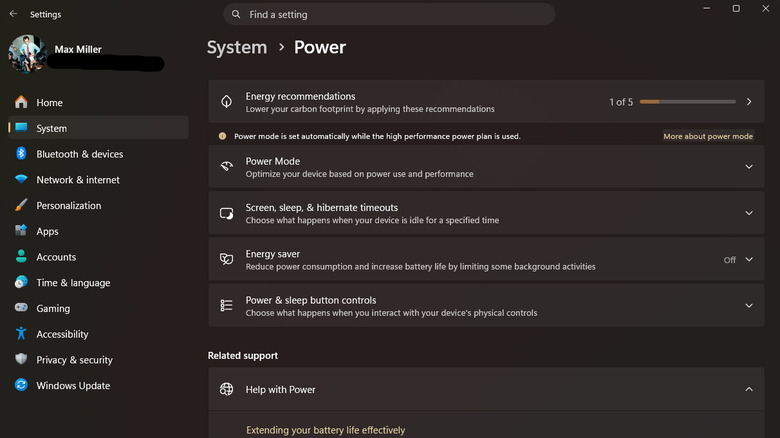
Windows 11 provides a hierarchy of power modes. Navigating to Settings > System > Power & battery, you will find the "Power mode" dropdown.
- Best Power Efficiency: This mode restricts background activity and caps CPU boost frequencies. It is the gold standard for long-haul usage.
- Balanced: The default. It prioritizes speed, which is counterproductive for battery longevity.
- Best Performance: Avoid this entirely when unplugged. It keeps the CPU in a high-voltage state, ready to burst, which drains the battery rapidly even during idle tasks.
3. Visual Flair vs. Longevity
Windows 11’s "Mica" material, transparency effects, and smooth animations are aesthetically pleasing but demand constant GPU cycles.
- The Tweak: Go to Settings > Accessibility > Visual Effects. Turning off "Transparency effects" and "Animation effects" reduces the GPU load, which in turn lowers the power draw of the integrated graphics chip.
Official Responses and Industry Context
Microsoft has acknowledged the criticisms regarding Windows 11’s battery performance, particularly following the initial rollout. The company’s June updates and subsequent feature drops have focused heavily on "TLC" (Tender Loving Care) for system overhead.
Microsoft’s official stance emphasizes the use of "Energy Saver" mode, which the company claims is the most effective way to extend battery life without requiring the user to manually disable individual system services. The feature acts as a "safety net," automatically limiting background tasks, email syncing, and non-essential notifications when the battery hits a specific threshold (e.g., 20%).
Furthermore, Microsoft has collaborated with silicon partners like Intel and AMD to better integrate "Modern Standby." This allows laptops to wake from sleep as quickly as a smartphone, though it has historically been a point of contention due to "ghost draining"—where laptops continue to consume power while in a closed state. Microsoft’s recent patches have sought to resolve these wake-up power spikes.
Implications for the End-User
What does this mean for the average user? It means that your laptop’s longevity is not a static number written on the box. It is a dynamic variable that you can influence through intentional settings.
Auditing Background Processes
The "hidden" battery killer is the background process. Even if your screen is off, an app that is constantly syncing—like a cloud storage client, a messaging app, or a web browser with dozens of tabs—can keep the CPU from entering its "C-state" (a low-power idle state).
- Task Manager Hygiene: Use Ctrl + Shift + Esc. Monitor the "CPU" and "Power Usage" columns. If a process is consistently showing "High" or "Very High" power usage, it is a prime candidate for termination.
- Browser Management: Browsers are the most power-hungry applications on the modern desktop. Use features like Sleeping Tabs (Edge) or Memory Saver (Chrome). These features essentially "freeze" inactive tabs, preventing them from stealing CPU cycles from your active work.
Advanced Optimization: The "Nuclear" Option
For those who are tech-savvy, the "Processor Power Management" setting remains a powerful tool. By accessing the legacy Control Panel (type "Power Options" in Start), you can edit your active plan. Under Processor power management > Maximum processor state, capping your CPU at 99% (instead of 100%) can prevent the CPU from triggering its aggressive "Turbo Boost" mode. This effectively keeps the laptop cool and significantly reduces power spikes, resulting in a cooler, quieter, and longer-lasting machine.
Conclusion: Finding Your Balance
Achieving the "best" battery life is a game of compromise. If you need to render a video or run a complex simulation, you will need that performance. But for word processing, web browsing, or video calls, you have the power to force your Windows laptop to be more efficient.
By combining the "Energy Saver" mode, reducing screen brightness, disabling unnecessary visual effects, and pruning your background processes, you can transform your laptop from a device that barely reaches lunch into one that carries you through the entire workday. The goal is not to turn your laptop into a low-powered terminal, but to ensure that its power is reserved for the tasks that truly matter.