In the modern digital workspace, the MacBook has long been the gold standard for performance and reliability. However, even the most robust machines can begin to exhibit signs of lethargy over time. Whether it’s the dreaded "spinning beach ball," delayed input response, or applications that take an eternity to launch, a sluggish Mac can significantly hamper productivity.
Contrary to common misconceptions, a slow computer does not automatically signal that you are due for an expensive hardware upgrade or a disruptive factory reset. Often, the culprits are far more mundane: fragmented storage, excessive background processes, or memory-hungry software that has spiraled out of control. Before you reach for third-party "cleanup" utilities—which often do more harm than good—it is essential to understand how to diagnose and address the root causes using the tools built directly into macOS.
The Anatomy of a Slowdown: Identifying the Root Cause
Before attempting any "fix," it is vital to understand that macOS is a highly optimized operating system designed to manage resources dynamically. When it slows down, it is usually because the system is fighting to allocate limited resources—CPU cycles, RAM, or storage bandwidth—to competing processes.
The First Step: The Universal Restart
It may sound like the cliché advice of every IT department, but a simple restart is the most effective way to clear temporary caches and terminate "zombie" processes that may have hung in the background. Navigate to the Apple menu > Restart and allow the system to clear its volatile memory. If the performance issues persist after a clean boot, you have successfully ruled out a temporary glitch and can proceed to deeper diagnostics.

Analyzing System Strain: The Data-Driven Approach
To fix a problem, you must first quantify it. macOS provides two powerful, built-in tools that act as the diagnostic dashboard for your machine: Storage Settings and Activity Monitor.
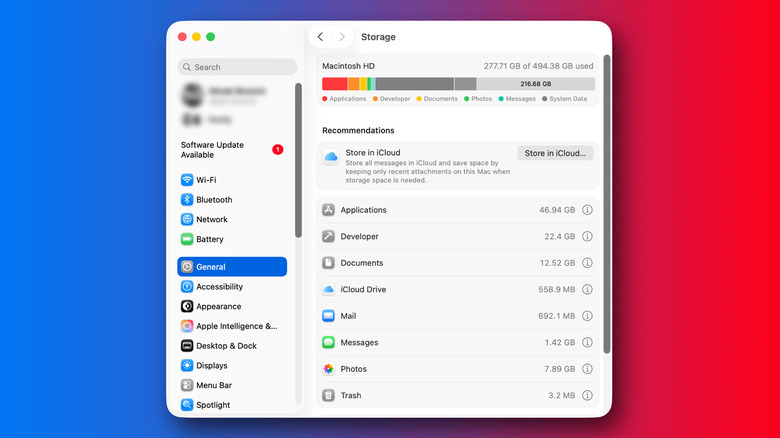
1. Storage: The Foundation of Performance
Operating systems require a certain amount of "breathing room" on the startup disk to manage swap files—the temporary files created when your RAM is full. If your drive is nearly at capacity, your Mac will struggle to perform basic read/write operations.
- Action: Navigate to System Settings > General > Storage.
- Analysis: Review the color-coded bar representing your disk space. macOS provides intelligent recommendations, such as moving photos to iCloud or automatically emptying the Trash.
- Pro Tip: If you are chronically short on space, consider offloading large media libraries to an external portable SSD. Keeping at least 10–15% of your total storage capacity free is a general rule of thumb for maintaining system agility.
2. Activity Monitor: Pinpointing the Culprits
If storage isn’t the issue, the problem likely lies in the CPU or Memory management. Access the Activity Monitor via Spotlight search (Command + Space).
- The CPU Tab: This displays which processes are consuming your processor’s capacity. If you notice a process consistently taking up 80-90% of the CPU, that is your "bottleneck." You can select it and click the "X" button in the toolbar to force-quit the application.
- The Memory Tab: This is perhaps the most important metric. Look at the Memory Pressure graph at the bottom.
- Green: Your Mac is managing memory efficiently.
- Yellow/Red: Your system is struggling to keep up with the demands of open applications. If the pressure is in the red, it means the system is relying heavily on the SSD as "virtual memory," which is significantly slower than physical RAM. Identify the memory-hungry culprits and close them immediately.
Optimizing Background Activity and Startup Items
A significant percentage of performance degradation is caused by "bloatware"—apps that have invited themselves to start at boot and refuse to stop running in the background.

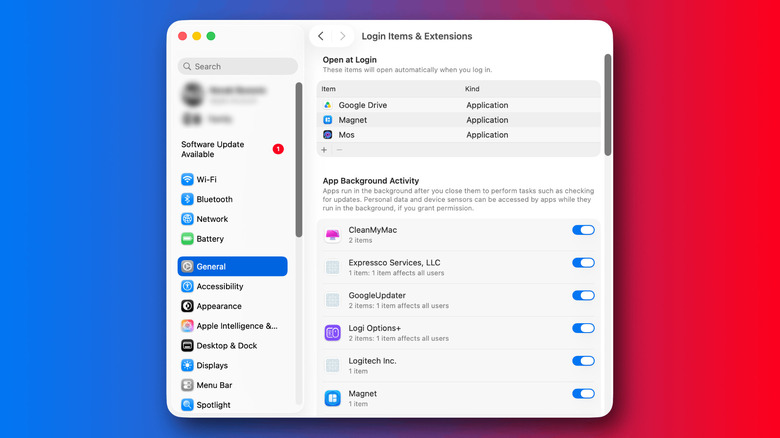
Managing Login Items
Many applications, from cloud storage sync tools to messaging apps, add themselves to your startup list. Over time, this list grows, causing your Mac to feel sluggish for several minutes every time you log in.
- Go to: System Settings > General > Login Items & Extensions.
- The Fix: Review the "Open at Login" list. Be ruthless. Only keep essential utilities here. For everything else, manually launch the app only when you need it.
App Background Activity
Even if an app isn’t open, it may be syncing data, checking for updates, or indexing files. This "background noise" can consume precious cycles. Review the "App Background Activity" section in the same settings menu. Disable permissions for apps that don’t need to be constantly "on" while you are working.
Power Modes and Software Integrity
Apple has introduced sophisticated power management features that allow users to dictate how their machine prioritizes battery life versus raw performance.
Power Management
If you are on a MacBook, check System Settings > Battery.
- Automatic: The recommended setting for most users, balancing energy efficiency and performance.
- Low Power Mode: Excellent for travel, but it throttles your CPU. Ensure this isn’t toggled on when you are performing intensive tasks like video editing or compiling code.
- High Power Mode: Available on select MacBook Pro models, this allows the fans to spin at higher speeds to maintain sustained performance under heavy thermal loads. Note that this is only useful for high-intensity work; it does not make your web browser faster.
The Importance of Software Updates
While it is tempting to delay macOS updates to avoid potential bugs, they are crucial for performance. Apple frequently includes "under-the-hood" optimizations and driver updates in these packages. If an application is behaving poorly, an update may resolve an incompatibility issue that was causing the software to hog system resources.
Advanced Troubleshooting: Safe Mode and Disk Utility
If you have optimized your settings and cleaned up your background processes but the Mac remains slow, it is time to look at the system level.
Safe Mode
Safe Mode is a diagnostic environment that starts your Mac without loading third-party startup items, fonts, or kernel extensions. It also performs a basic check of your startup disk. If your Mac feels significantly faster in Safe Mode, you have confirmed that a third-party application or driver is the root cause. From there, you can systematically uninstall recent applications to find the offender.
Disk Utility First Aid
Disk errors can occasionally cause the system to hang while it attempts to read corrupted sectors. The Disk Utility app (found in Applications > Utilities) includes a "First Aid" function. Running this allows the system to verify the file system structure and repair minor errors. While this is not a general "speed-up" tool, it is a vital step in ensuring your system’s foundation is stable.
Implications: The Psychology of Performance
The quest for a faster machine often leads users down a rabbit hole of third-party "cleaners" and "booster" apps. It is critical to understand that these apps are rarely necessary. macOS is designed to manage its own cache and system files. Often, these third-party utilities create more problems by interfering with the system’s native management processes or by installing their own background services that consume even more resources.
By following the steps outlined above, you are not just "fixing" a slow computer; you are reclaiming control over your workflow. Maintaining a clean digital environment is a form of digital hygiene. When you remove unnecessary startup items, monitor your memory pressure, and keep your software current, you extend the functional lifespan of your hardware.
If, after all these steps, your Mac still fails to perform adequately, it may be time to consider whether your current workload has simply outgrown your machine’s specifications. However, by performing these diagnostics first, you ensure that any decision to upgrade is based on evidence rather than frustration. Your MacBook is a high-performance tool—with a little maintenance, it can continue to serve you effectively for years to come.