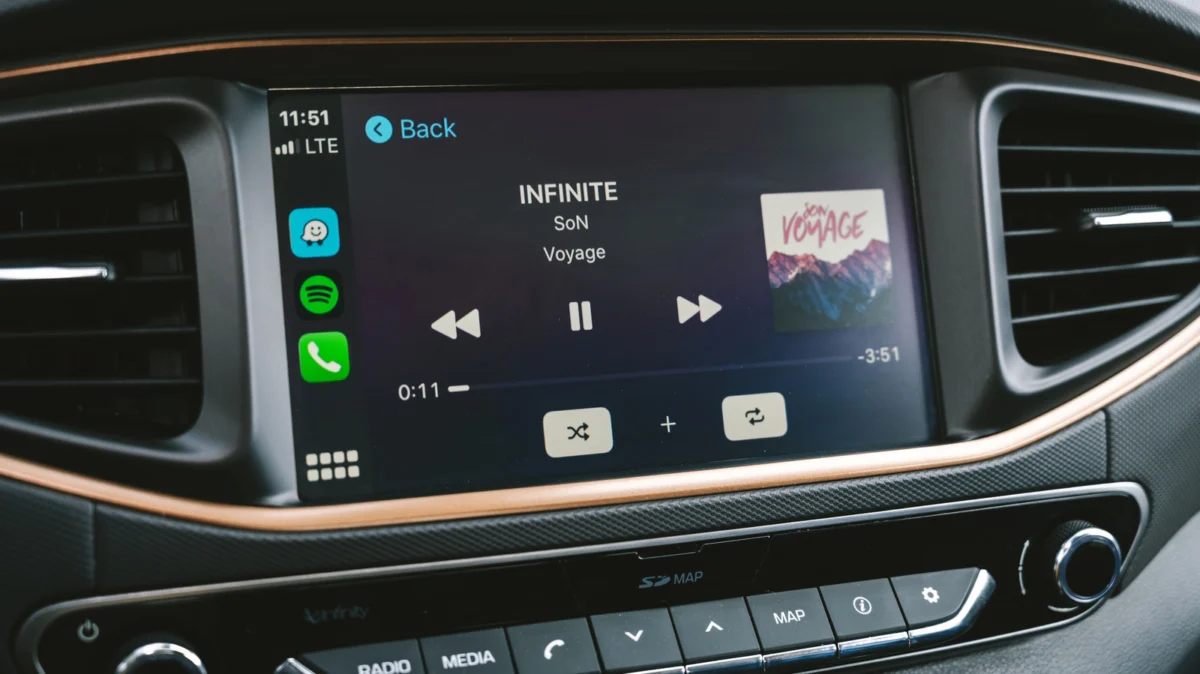
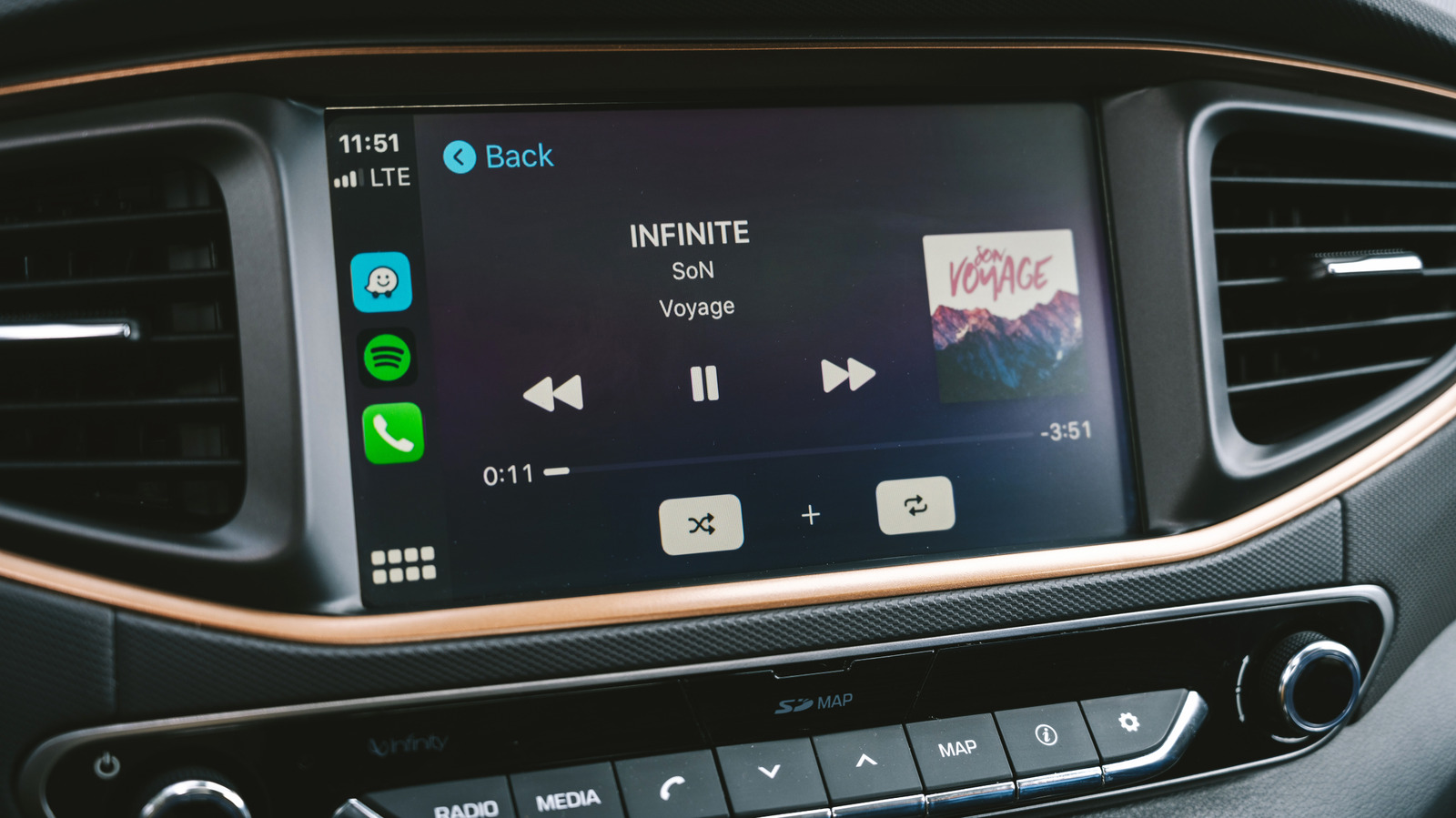
For millions of drivers, Apple CarPlay has become the standard for in-car entertainment, providing a seamless bridge between the digital life on our iPhones and the physical experience of the road. Whether you are navigating via Apple Maps, catching up on podcasts, or listening to high-fidelity music, the convenience is undeniable. However, a common frustration persists: the audio often sounds "flat," "thin," or lacking the dynamic range expected from a modern premium sound system.
While many assume that a lackluster audio experience is the fault of their vehicle’s factory-installed speakers, the truth is often buried in the digital handshake between your iPhone and your car’s head unit. By understanding the underlying mechanics of how CarPlay processes sound, you can unlock a significantly richer, more detailed listening experience without spending a dime on hardware upgrades.
The Foundation: Why Your Car Audio Sounds "Off"
The primary reason for poor audio quality in a CarPlay environment is the trade-off between convenience and data fidelity. When you connect your iPhone, the device acts as a digital source, but the transmission protocol—and the source file itself—dictate the final output.
The Wired vs. Wireless Dilemma
The convenience of wireless CarPlay is its greatest strength, but it is also its greatest weakness regarding audio quality. When you connect wirelessly, your iPhone must encode the audio signal into the AAC-LC (Advanced Audio Coding) codec to transmit it over a high-speed Wi-Fi connection. This process, by definition, is "lossy," meaning that in order to maintain a stable, low-latency connection, the system strips away portions of the audio data that it deems less essential to the human ear.
In contrast, a wired USB connection allows for a more robust data pipe. When using a cable, Apple CarPlay can utilize Linear Pulse Code Modulation (LPCM), which handles uncompressed audio data. This allows your high-fidelity, lossless ALAC (Apple Lossless Audio Codec) files to be transmitted to your vehicle’s digital-to-analog converter (DAC) with significantly higher integrity. If you are an audiophile who demands the full dynamic range of a recording, the physical cable remains your best friend.
Chronology of an Audio Signal: From Server to Speaker
To understand why your audio might sound underwhelming, it is helpful to trace the lifecycle of a song as it moves from the cloud to your car’s cabin.
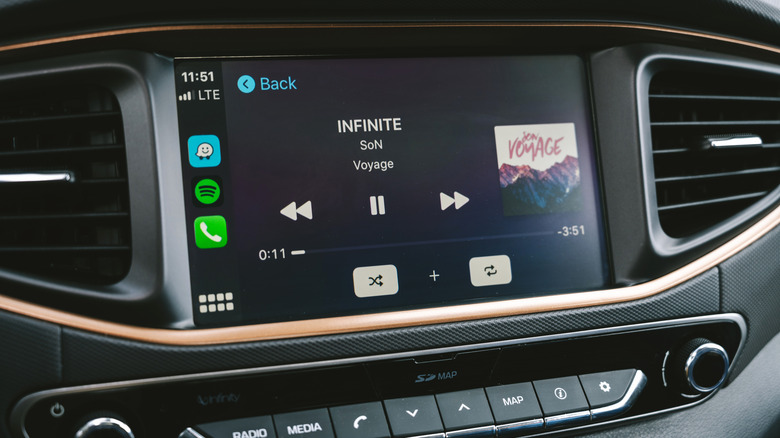
- The Source: Your streaming service (Apple Music, Spotify, Tidal) pulls a file from the cloud. If you are streaming over a cellular connection, the app often dynamically adjusts the bitrate to prevent buffering, leading to inconsistent quality.
- The Processing: Your iPhone processes the signal. If you have "Sound Check" or custom EQ settings enabled, the phone modifies the digital signal before it ever leaves the Lightning or USB-C port.
- The Transmission: The signal is sent via Bluetooth/Wi-Fi (wireless) or USB (wired). Wireless transmission incurs a compression penalty.
- The Decoding: Your car’s head unit receives the digital signal and converts it to analog.
- The Output: Your car’s amplifier boosts the signal and sends it to the speakers, where the acoustics of the cabin—affected by road noise and seat materials—alter the final frequency response.
By optimizing each step of this chain, you can drastically improve your listening experience.
Supporting Data and Technical Nuances
The difference between lossy and lossless audio is not merely subjective; it is measurable. Lossless audio, particularly 24-bit/48kHz files, contains a vastly higher density of information than a standard 256kbps AAC stream. When playing through a high-quality factory system—such as those found in luxury vehicles—the lack of high-frequency detail and the "smearing" of the soundstage in lossy files becomes audible to the trained ear.
The Impact of Streaming Fluctuations
Cellular networks are rarely stable. When you stream music while driving, your phone is constantly switching between cell towers. Each handoff can cause a micro-drop in data throughput. While music apps are designed to buffer, they often respond to poor signal strength by dropping the audio quality to a lower bitrate to ensure the music doesn’t stop. This leads to an "in-and-out" quality experience that can be maddening for long commutes.
Strategies for Superior Audio
1. Prioritize Offline Downloads
The most effective way to guarantee audio quality is to eliminate the variables of cellular streaming entirely. By downloading your playlists in the highest possible quality—Lossless or Hi-Res Lossless in Apple Music, or "Very High" quality (Ogg Vorbis or FLAC) in Spotify—you ensure that the source file is pristine.
Pro Tip: Go to your music app settings and ensure "Download in Lossless" is toggled on. If you have previously downloaded music, delete those files and re-download them to ensure you are getting the higher-fidelity versions.
2. Audit Your EQ Settings
It is a common mistake to leave "Headphone EQ" settings active while driving. An equalizer setting designed to boost the bass on a pair of AirPods will often cause distortion or muddy, bloated frequencies when played through a car’s integrated subwoofer.
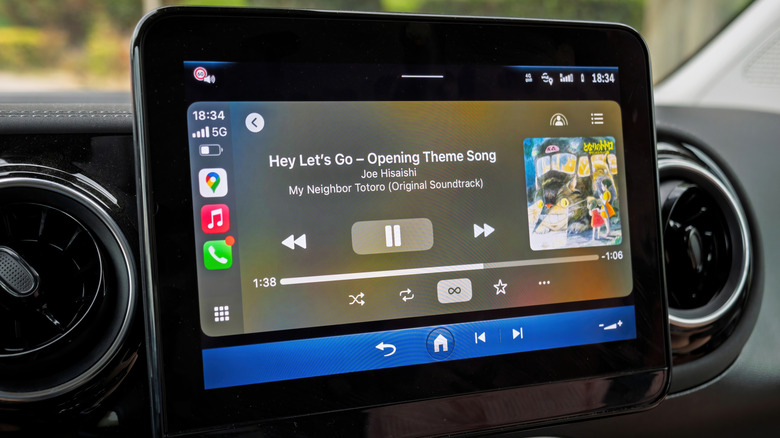
- Action: Navigate to Settings > Music > EQ and set it to "Off" initially. Listen to a familiar track. If it sounds thin, make subtle adjustments. Remember that car cabins are inherently bass-heavy due to their small size; you rarely need to boost the lower frequencies in your phone’s software.
3. Manage "Sound Check"
Apple’s "Sound Check" feature is designed to normalize the volume across all your tracks so that you don’t have to adjust the volume knob between songs. However, normalization often involves limiting the dynamic range, which can make a song sound "flat." If you notice your music lacks punch, try toggling Sound Check off.
Addressing Technical Anomalies: The "Ducking" Bug
One of the most persistent and frustrating issues reported by CarPlay users across various manufacturers—including Mazda, Toyota, and Ford—is the "audio ducking" bug. This occurs when the system lowers the volume to play a navigation prompt or a Siri request, but fails to return the music volume to its original level.
If you find your audio suddenly sounds muffled or quiet:
- The Steering Wheel Reset: Tap the voice command button on your steering wheel to initiate a Siri prompt, then immediately tap it again to cancel. This forces the system to re-handshake the audio channels and often resolves the volume imbalance immediately.
- The Hard Reset: If the issue persists, the communication between your iPhone and the car’s head unit may be corrupted. Go to Settings > General > CarPlay, select your vehicle, and choose "Forget This Car." Re-pairing the device as if it were new often clears out cached errors that accumulate over time.
Implications for the Future of In-Car Audio
As vehicle manufacturers move toward deeper integration with mobile operating systems, the distinction between "car audio" and "smartphone audio" is blurring. Future iterations of CarPlay are expected to support more advanced audio codecs, potentially allowing for high-resolution audio over wireless connections. However, until such technology becomes the industry standard, the physical cable remains the gold standard for audio purists.
The implications for the average user are clear: you don’t need a new set of speakers to hear a difference. By downloading your music, choosing a wired connection, and auditing your iPhone’s internal processing settings, you can unlock the full potential of the sound system you already own.
The final word on car audio remains the same as it has always been: the output can only be as good as the input. Give your car the best data, and it will reward you with a listening experience that transforms your daily drive from a chore into a high-fidelity performance.