
Is your once-snappy computer starting to show its age? If your PC was manufactured more than five to seven years ago, you have likely felt the creeping frustration of sluggish boot times, stuttering applications, and the dreaded "not responding" cursor. While the tech industry is quick to suggest expensive hardware upgrades—like swapping an aging mechanical hard drive for a lightning-fast NVMe SSD or maxing out your RAM—these aren’t always the only paths to a faster machine.
In many cases, the bottleneck isn’t the hardware itself, but the accumulation of "digital clutter" and thermal inefficiency that chokes performance over time. By optimizing your software environment and performing essential physical maintenance, you can reclaim lost speed without spending a dime.
The Core Philosophy: Resource Management
The fundamental goal of reviving an older PC is to liberate system resources. Every Windows machine runs a complex web of background processes, visual flourishes, and automated services, many of which provide little tangible value to the average user. When system resources are finite—as they are on aging hardware—every background task is a thief stealing power from the applications you are actually using.
1. Stripping Back Non-Critical Features
Modern versions of Windows are designed to look beautiful, but those animations, shadows, and transparency effects (often collectively referred to as "Fluent Design") demand GPU and CPU cycles.

- Visual Optimization: Navigate to System Properties > Advanced System Settings > Performance Settings and choose "Adjust for best performance." This immediately disables non-essential animations, significantly reducing the load on your system’s graphical resources.
- Service Pruning: Windows runs dozens of background services that most users never trigger. Services like "Connected User Experiences and Telemetry" or "Print Spooler" (if you never print) can be disabled, freeing up precious RAM and CPU overhead.
- Taming Search Indexing: Windows Search indexing is a notorious resource hog. While it makes file searching faster, it constantly monitors your disk activity. If you find your disk usage at 100% for no apparent reason, consider disabling the Windows Search service or using a lightweight, third-party indexing tool like Everything.
2. The Privacy and Performance Nexus
Privacy-conscious users often discover that the settings designed to "improve user experience" are actually performance killers. Constant diagnostic data collection and telemetry submission to Microsoft consume both network bandwidth and CPU cycles. By disabling these diagnostic reporting features in the Privacy & Security settings, you not only reclaim a small sliver of system performance but also enhance your data footprint security.
The Physical Reality: Thermal Throttling and Maintenance
Even the most optimized software cannot overcome a physical heat wall. Dust is the silent assassin of computer performance.

Dust: The Invisible Performance Killer
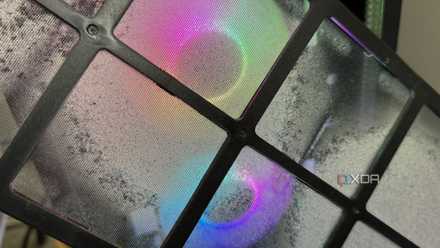
When your computer’s cooling fans become clogged with dust, they lose the ability to pull cool air across your CPU and GPU heatsinks. As internal temperatures rise, the system triggers a protective mechanism known as Thermal Throttling. To prevent physical damage, the processor will automatically down-clock its speed, effectively cutting your performance in half—or worse—until the temperature returns to a safe range.
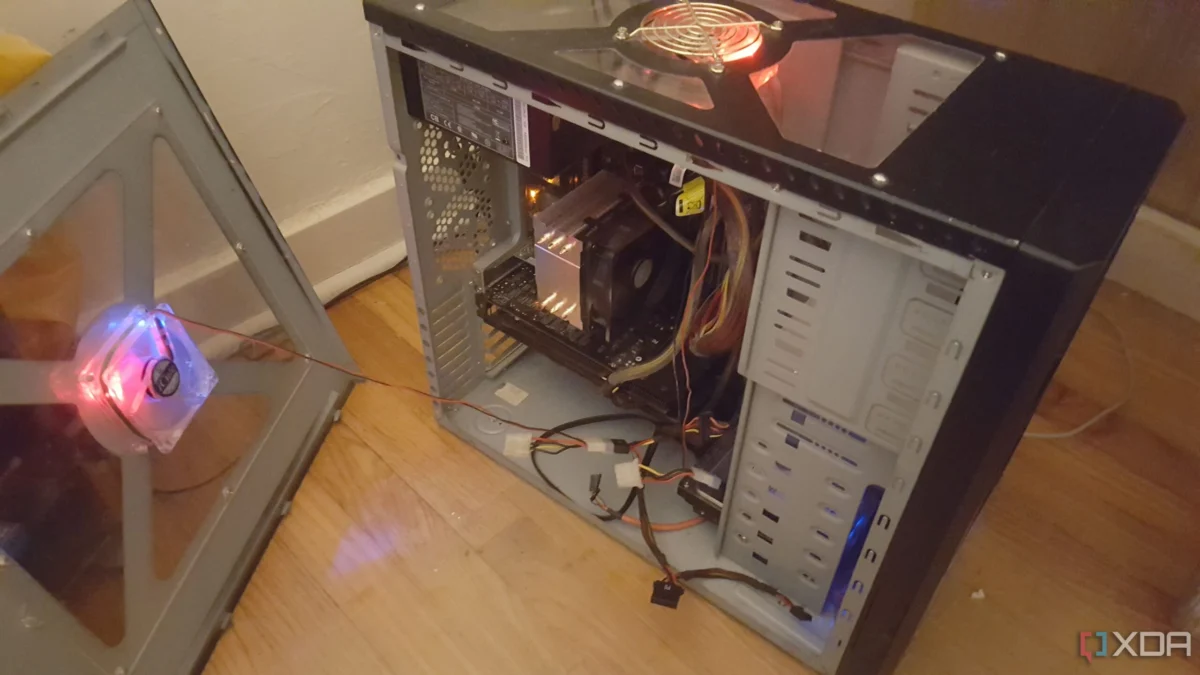
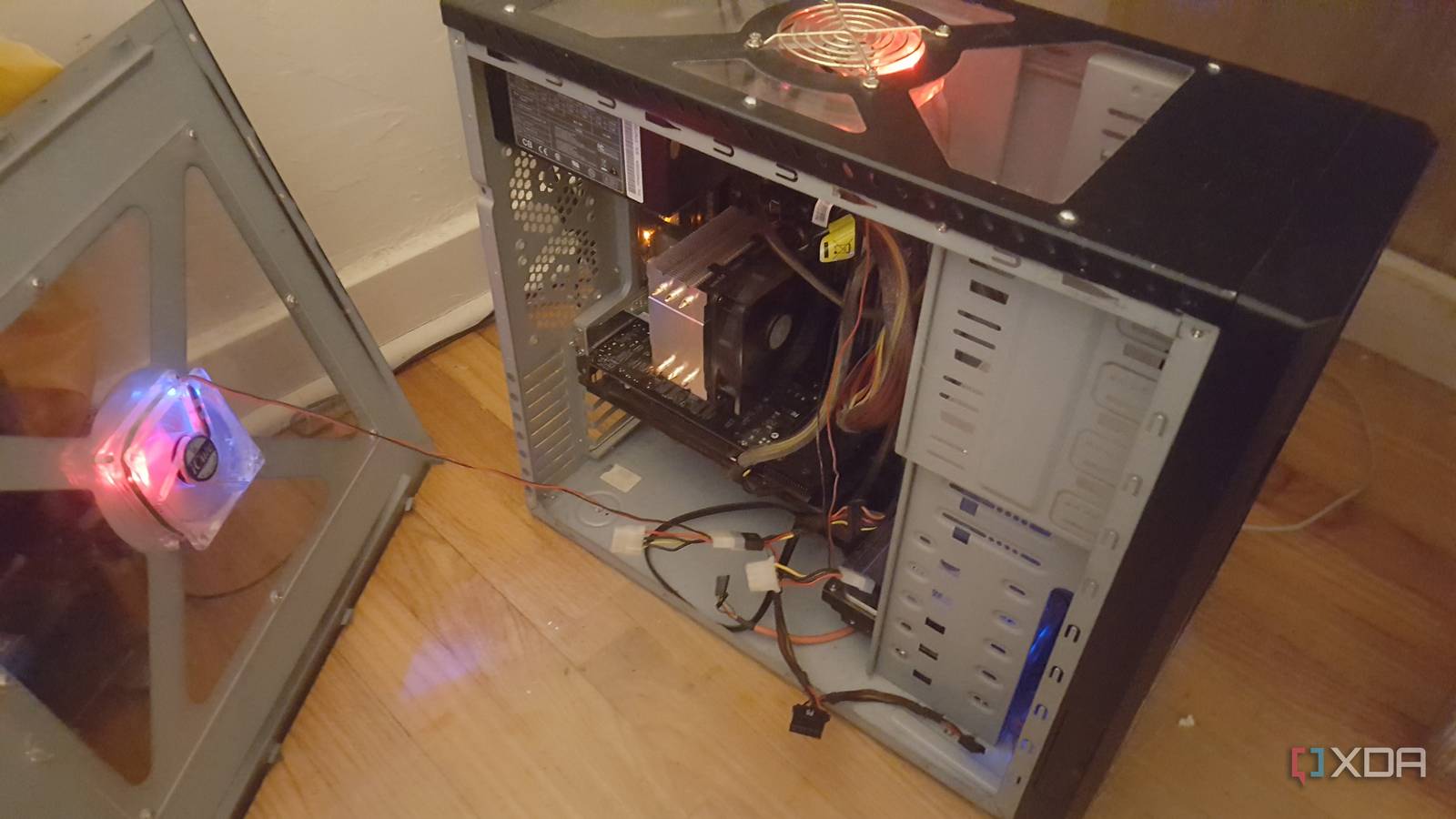
- The Deep Clean: If you have not cleaned your PC in the last year, it is time. For desktops, this involves using compressed air to clear fans, intake filters, and heatsink fins. For laptops, which are more densely packed, the risk of overheating is higher. Ensure your laptop is placed on a hard, flat surface rather than a blanket or lap, which blocks intake vents and exacerbates the heating issue.
Storage Health: Providing Room to Breathe
Storage drives, both HDDs and modern SSDs, are notorious for slowing down when they reach capacity.

The 85% Rule
Whether you are running an older mechanical hard drive or a modern SSD, performance degradation becomes exponential once you cross the 90% full threshold. SSDs, in particular, require "free space" to perform background maintenance tasks like wear leveling and garbage collection. If the drive is nearly full, these background processes struggle, leading to sluggish file read/write speeds.
- Strategic Cleanup: Aim to keep your drive under 85% capacity. Use the native Disk Cleanup utility to remove temporary files, update logs, and leftover Windows installation files.
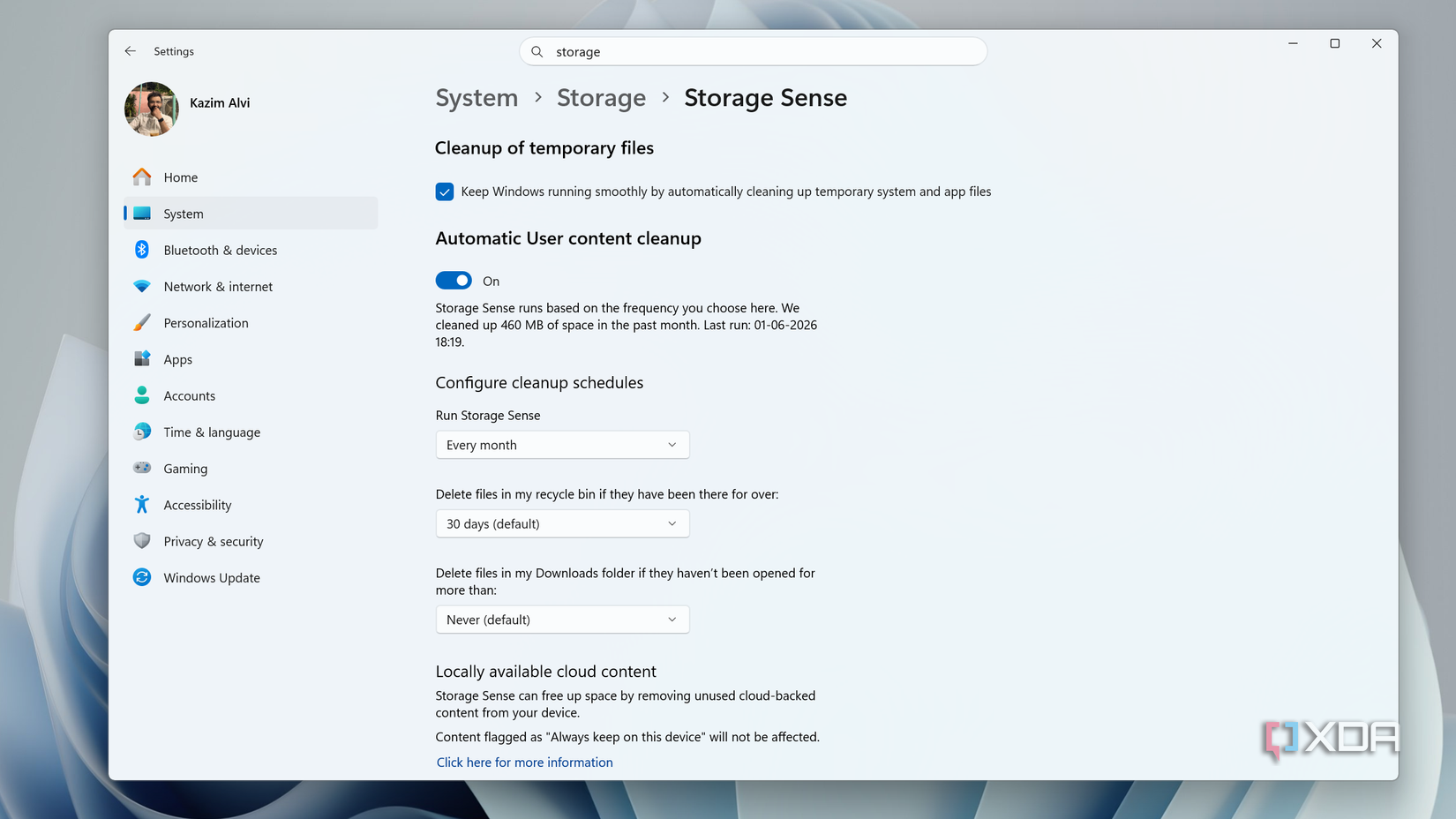
- Storage Sense: Enable "Storage Sense" in Windows 11 to automate the deletion of junk files. This "set it and forget it" approach ensures your drive remains optimized without constant manual intervention.
The Startup Bottleneck
Many users unknowingly sabotage their boot times by allowing every installed application to launch the moment the system starts. Messaging apps, game launchers, cloud storage clients, and peripheral management software all vie for the same CPU cycles during the critical boot window.
Curating the Startup Menu
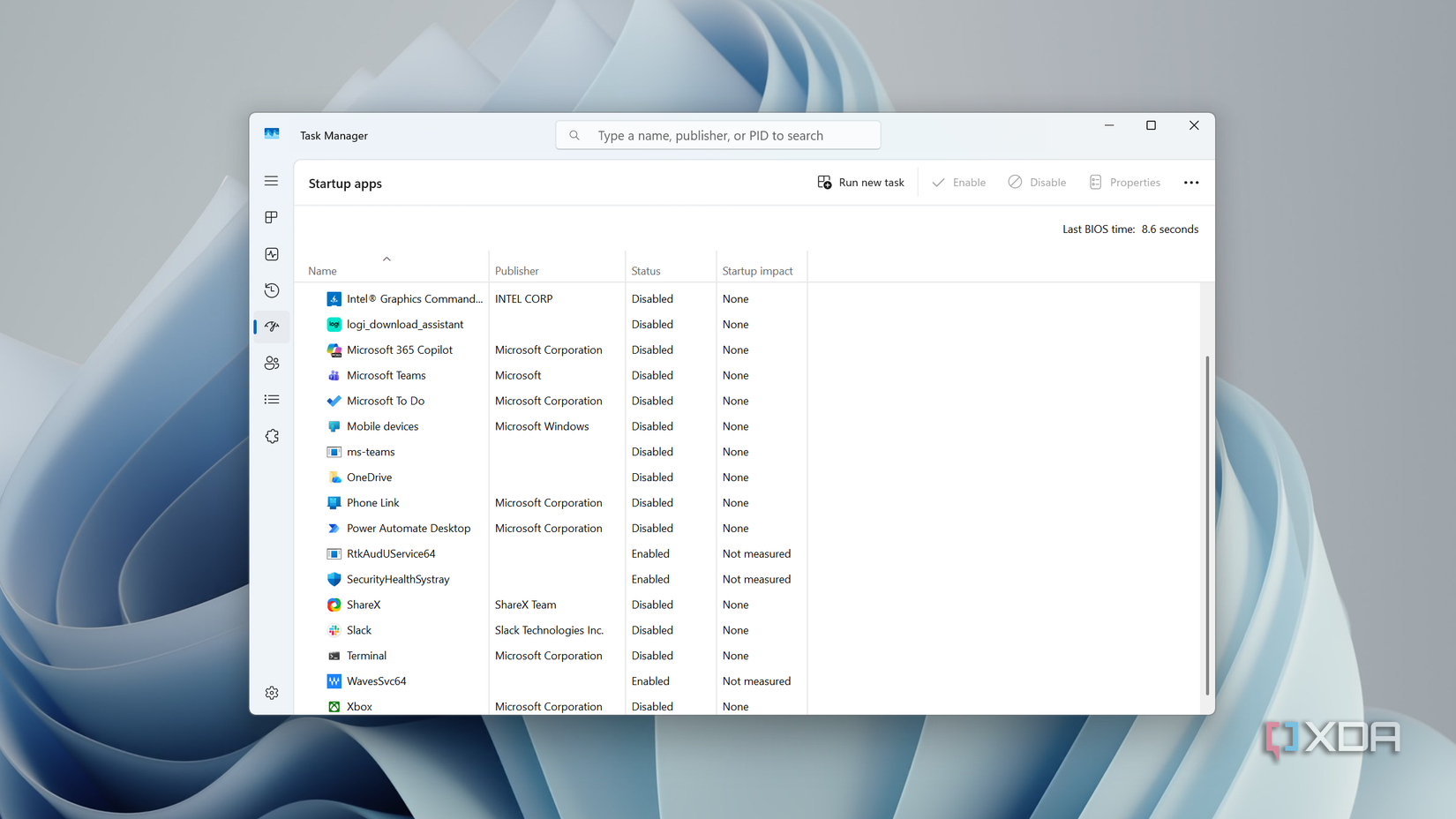
Open the Task Manager and navigate to the Startup Apps tab. You will likely find a list of programs that have no business running in the background.
- The Audit: Ask yourself: Do I need this app to open the second I log in? For most, the answer is no. Keep only essential drivers and security software (like your antivirus). Disable browsers, Spotify, or gaming clients like Steam or Epic Games. You can always launch them manually when you are ready to use them.
The Power of the "Fresh Start"
Perhaps the most overlooked, yet most effective, habit is the simple act of shutting down your computer. In an era of "Sleep" and "Hibernate" modes, many users leave their PCs running for weeks at a time.
Why "Sleep" isn’t "Off"
While convenient, putting a computer to sleep keeps the current session alive in the RAM. Over time, memory leaks—where applications fail to release the memory they claimed—can lead to "system bloat." When you shut down your computer completely, you wipe the slate clean, clearing the RAM and forcing the OS to reload fresh, optimized processes.
It is a small, daily ritual that significantly improves long-term system stability and hardware longevity.
Conclusion: When is an Upgrade Actually Needed?
There is a point of diminishing returns. If you have optimized your software, cleaned your hardware, and managed your storage, but your machine still struggles to perform basic web browsing or document editing, you have reached the physical limit of your architecture.
Hardware upgrades—such as moving from 8GB to 16GB of RAM or replacing a failing HDD with a modern SSD—remain the gold standard for truly revitalizing an aging system. However, given the current volatility in hardware pricing, it is fiscally responsible to exhaust these software-based optimizations first.
Your PC likely has more life in it than you think. By adopting a proactive maintenance mindset, you can bridge the gap between "obsolete" and "functional," saving money while reducing electronic waste. Treat your computer as a precision instrument, and it will continue to serve you well for years to come.