
 Ali Ikhwan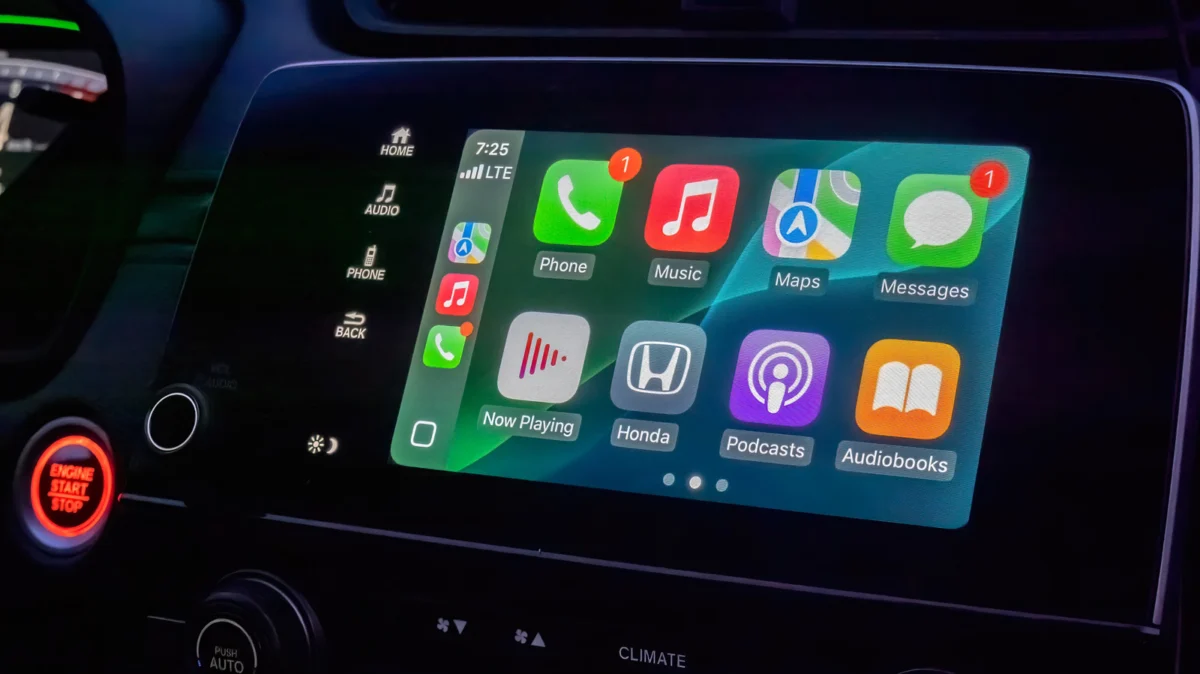
Apple CarPlay has fundamentally transformed the automotive experience, shifting the focus from clunky, manufacturer-specific infotainment systems to a seamless extension of the iPhone. For many, it is the primary bridge between their digital lives and their commute. However, while CarPlay is exceptionally intuitive out of the box, it is far from a "one size fits all" experience. By diving into the settings, users can significantly enhance the ergonomics, aesthetic appeal, and functionality of their vehicle’s dashboard.
Whether you are using a wired connection or the convenience of a wireless setup, fine-tuning your CarPlay interface is a quality-of-life upgrade that pays dividends in safety and ease of use. As Siri receives major intelligence updates in recent iterations of iOS, the hands-free experience is becoming more reliable than ever, allowing you to focus on the road while maintaining total control over your digital environment.
The Evolution of the In-Car Experience: A Brief Chronology
The journey of Apple CarPlay began in 2014, when Apple announced "iOS in the Car." Since then, the platform has evolved from a simple projection of navigation and music controls into a sophisticated dashboard environment.
- 2014-2016 (The Foundation): CarPlay launched with basic functionality, focusing on Maps, Phone, and Music. It was largely a static interface that mimicked the layout of an iPhone home screen.
- 2017-2019 (Stability and Expansion): Apple opened the platform to third-party navigation apps like Google Maps and Waze, a major milestone that broke the monopoly of Apple Maps.
- 2020-2022 (The Dashboard Revolution): The introduction of the "Dashboard" view allowed users to see maps, media controls, and calendar events simultaneously, moving away from the single-app-at-a-time constraint.
- 2023-2025 (Advanced Personalization and Widgets): With the arrival of iOS 26 and the subsequent updates, Apple introduced robust widget support and deeper aesthetic customization. The modern era of CarPlay is defined by granular control over the UI, allowing users to tailor their display to their specific driving habits.
Optimizing the Visual Interface: Aesthetics and Readability
CarPlay’s default user interface relies on high-contrast, bold text and large, touch-friendly icons. While this design is optimized for safety, it may not suit every driver’s preference or every vehicle’s screen hardware.
Mastering Display Modes
One of the most immediate changes a user can make is adjusting the display mode. By default, CarPlay utilizes a dark mode to prevent glare and eye strain during nighttime driving. However, if you find the dark mode difficult to read during bright daylight hours, you can manually override it.
Navigate to Settings > Appearance within the CarPlay interface. Here, you can toggle between Always Light, Always Dark, or Automatic. Setting this to "Automatic" is highly recommended, as it allows the system to communicate with your vehicle’s ambient light sensors, switching the display mode in real-time as you enter a tunnel or as the sun sets.
Beyond the Wallpaper
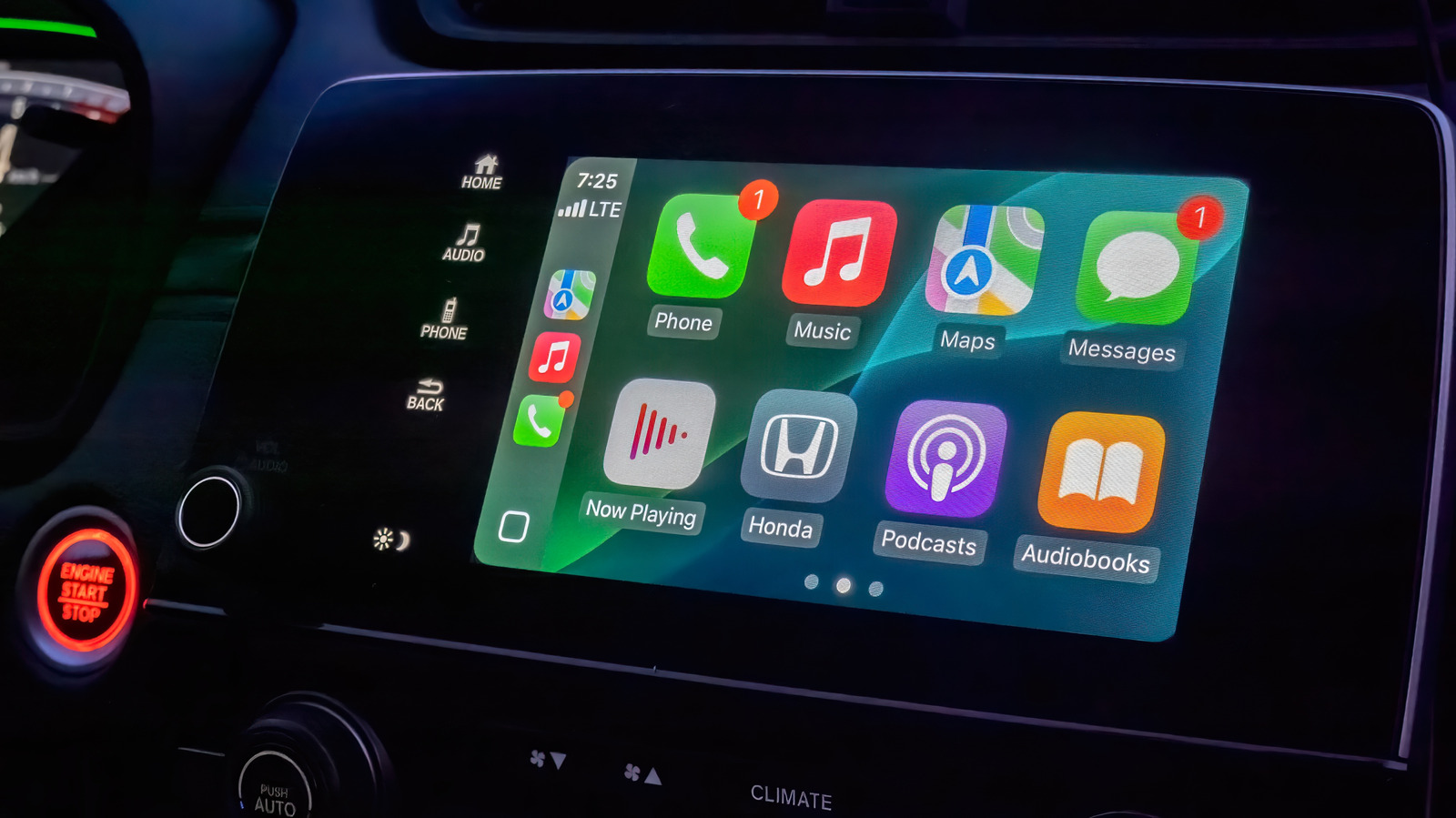
While Apple does not currently allow users to upload personal photos from their iCloud gallery as wallpapers—a decision likely made to maintain a consistent UI and prevent distraction—the system offers a variety of curated, abstract backgrounds. Accessing Settings > Wallpaper allows you to cycle through these options. Choosing a wallpaper with higher contrast can improve visibility on screens with lower peak brightness.
Iconography and Accessibility
For those who prefer a specific look, the Settings > Customize Icons menu is an essential stop. Apple has introduced various icon packs that align with the "Liquid Glass" design philosophy, which emphasizes depth and fluidity. Additionally, if you find the default text size too small for a quick glance, the Accessibility submenu provides options to scale text. This is a vital feature for drivers who want to minimize the time their eyes spend off the road.
Strategic Layout: Rearranging Apps and Widgets
The most effective way to improve your CarPlay experience is to treat your car’s screen as a secondary, highly focused home screen. Unlike the aesthetic settings, which are managed on the dashboard, app management must be done directly on your iPhone.
Curating Your App Drawer
Navigate to Settings > General > CarPlay on your iPhone, select your vehicle, and tap Apps. This is the control center for your dashboard.
- Prioritize Functionality: Use the "three-line" handles to drag your most essential apps—such as Spotify, Waze, or Audible—to the top of the list. These will appear on the first page of your CarPlay display.
- Decluttering: Remove apps you never use while driving. This reduces the cognitive load when you are looking for a specific tool. Note that core system apps like "Phone" or "Maps" cannot be deleted, but they can be moved to the final page to keep your primary screen clean.
The Power of Widgets
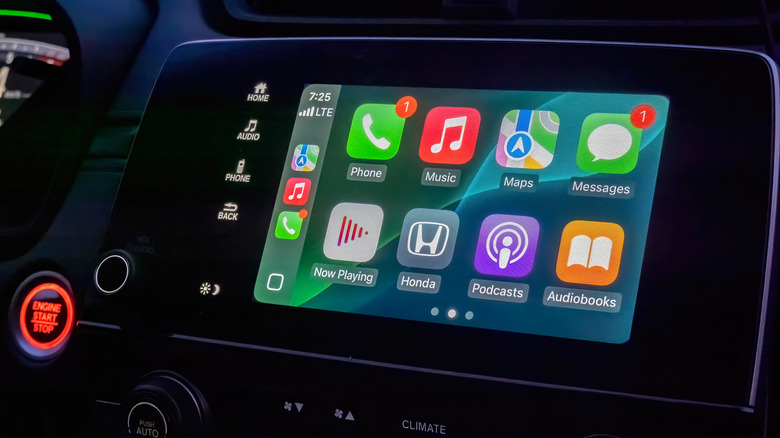
The introduction of widgets in iOS 26 was a watershed moment for CarPlay. Widgets are not merely icons; they are dynamic, information-dense modules that provide real-time updates.
To customize these, return to the CarPlay settings on your iPhone and tap Widgets. Ensure the "Show Widgets" toggle is active. You can then add specific widgets to your dashboard stacks. For example, a "Calendar" widget can display your next appointment, while the "Media" widget provides instant playback controls.
Pro Tip: Group your widgets based on your routine. If you commute in the morning, place your "Calendar" and "Weather" widgets in the top-most stack. If you are on a long road trip, prioritize the "Navigation" and "Audio" widgets. This prevents the need to swipe through multiple pages, keeping your focus on the road ahead.
Official Perspectives and Safety Implications
Apple has consistently emphasized that CarPlay is designed to be an "eyes-free" experience. Every update, including the recent integration of Siri’s intelligence, is vetted through rigorous safety testing. Apple’s official documentation suggests that by utilizing Siri for text messaging, navigation commands, and media selection, drivers can keep their hands on the wheel and their attention on the road.
"Our goal with CarPlay is to provide a seamless digital extension of the driver’s environment without compromising safety," an Apple spokesperson noted in a recent developer briefing. "By allowing users to customize their interface, we are ensuring that the information most relevant to them is always within immediate reach, reducing the time required to interact with the screen."
Data and Privacy
It is important to note that all customization data, such as your app order and widget preferences, is synced via iCloud. This means that if you switch between multiple vehicles that support CarPlay, your preferred layout will automatically follow you, ensuring a consistent user experience regardless of the car you are driving.
Implications for the Future of Automotive Tech
The ability to personalize the CarPlay interface is more than just a cosmetic upgrade; it reflects a broader shift in the automotive industry. As vehicles become "software-defined," the infotainment screen is becoming the most important piece of hardware in the cabin.
The move toward widgets and granular icon customization suggests that Apple intends for CarPlay to remain a central hub for the next decade of automotive development. As self-driving features and advanced driver-assistance systems (ADAS) become more common, the role of the dashboard will shift from pure entertainment to a status display for the vehicle’s "intelligence."
Final Recommendations
To get the most out of your setup, perform a "Dashboard Audit" every few months. Delete apps you no longer use, reorganize your widgets to reflect your current seasonal needs (e.g., adding traffic or weather alerts in winter), and test different display modes to see which offers the best visibility in your specific vehicle. By taking these small, deliberate steps, you ensure that your Apple CarPlay experience is as unique as your driving style, ultimately leading to a more comfortable, efficient, and safer journey.


 Asep Darmawan
 Laily UPN