
 Reynand Wu
In an era where our homes are increasingly defined by the strength and reliability of our internet connections, the humble Wi-Fi router often sits forgotten in a corner, collecting dust. While modern Wi-Fi 6 and Wi-Fi 7 hardware is significantly more robust than the equipment of a decade ago—boasting quad-core processors and gigabytes of RAM—the fundamental architecture of a router remains surprisingly fragile.
If you have ever found yourself frustrated by a sudden drop in speed, a stuttering video call, or a "ghost" device that refuses to connect, you aren’t alone. The common refrain from tech support—“Have you tried turning it off and on again?”—is often dismissed as a cliché. However, as it turns out, this simple act of power cycling your router is not just a troubleshooting trope; it is a critical maintenance practice that every home user should perform at least once a month.
The Architecture of "Router Bloat"
To understand why a reboot is necessary, one must view a router as what it truly is: a specialized computer. Just like your smartphone or laptop, a router runs an operating system and manages a complex array of background processes.
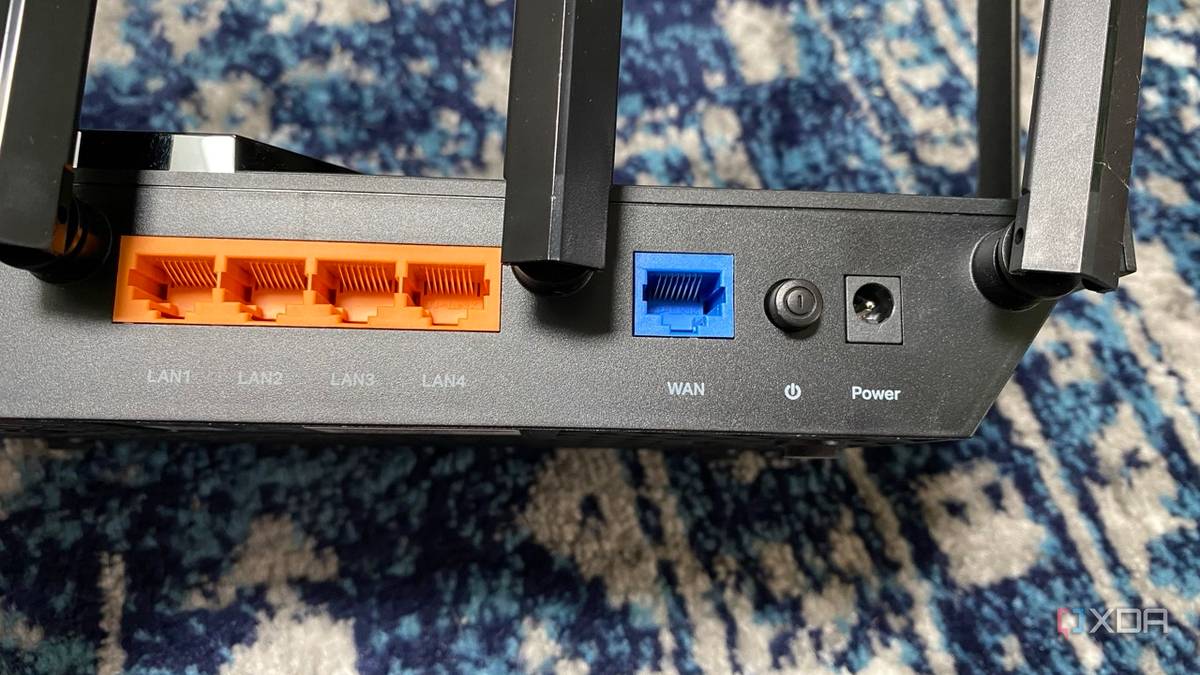
Every time you stream a 4K video, check your emails, or allow your smart light bulbs to communicate with their servers, your router handles dozens, if not hundreds, of concurrent data streams. Each of these connections requires the router to store information in its Dynamic Host Configuration Protocol (DHCP) table and manage traffic flow via its Network Address Translation (NAT) table.
Over time, this constant traffic leads to "router bloat." Inactive devices may leave behind "ghost" connections, and minor memory leaks can accumulate within the router’s firmware. Because these devices are designed to stay powered on indefinitely, they rarely have the opportunity to clear their temporary caches or flush out corrupted logs. A monthly reboot acts as a digital "spring cleaning," clearing out these memory leaks and resetting the internal tables that manage your network traffic.
The Chronology of Network Degradation
The decline of a home network is rarely an overnight event. It is a slow, creeping process that often goes unnoticed until it becomes an acute issue.

- The Initial State (Days 1–7): Post-reboot, your router is operating at peak efficiency. The DHCP and NAT tables are clean, and the processor is handling traffic with minimal latency.
- The Accumulation Phase (Days 8–20): As devices cycle on and off the network, the router begins to track an increasing number of connections. In a modern "smart home," this involves dozens of devices, from security cameras to thermostats, each pinging the router periodically.
- The Latency Creep (Days 21–30): This is when users begin to notice "micro-stutters." Web pages may take an extra second to resolve, or a gaming session might experience a sudden latency spike. The router is now working harder to parse its bloated logs, and DHCP conflicts may begin to manifest as devices struggle to renew their IP addresses.
- The Threshold of Failure (Day 30+): Without intervention, the accumulation of cache files and unresolved conflicts can lead to the "sluggish" performance that prompts users to reset their devices.
Supporting Data: Why Your Environment Matters
One of the most compelling reasons to reboot is the dynamic nature of your Wi-Fi environment. When a router boots up, it performs a scan of the radio frequency (RF) spectrum to identify the most efficient channel and bandwidth to use.
Weeks or months after you initially set up your router, the landscape of your neighborhood likely looks very different. A new neighbor may have installed their own router, or a change in your home’s layout could be causing new interference. Because routers do not constantly re-scan the environment—and often choose a channel once during the initial boot—they can become "stuck" on a congested frequency.
By rebooting your router, you force it to re-evaluate the local environment. It will scan for the least congested channels on both the 2.4GHz and 5GHz (and 6GHz, if applicable) bands, potentially finding a "cleaner" lane for your data to travel. Tools like NetSpot or various Wi-Fi analyzer apps can demonstrate this by showing how crowded your specific spectrum has become. A simple power cycle effectively tells your router to "look around again" and adjust its strategy based on current real-world data rather than outdated configurations.

Security Implications: The "Gatekeeper" Effect
Beyond performance, there is a vital security component to this routine. Routers are the primary target for malicious actors looking to compromise a local network. While a reboot is not a replacement for strong WPA3 encryption or robust firmware updates, it serves as a secondary line of defense.
Malware that manages to infiltrate a router often resides in its volatile memory (RAM). Because this memory is cleared during a power cycle, a simple reboot can flush out unauthorized code or temporary scripts that have been injected into the router’s operating system.
Government cybersecurity agencies, including the FBI, have previously advised users to reboot their routers as a standard hygiene practice to disrupt potential botnet infections. While this won’t stop a sophisticated, persistent attacker, it is a significant deterrent against opportunistic malware that relies on uptime to maintain a foothold in your home network.

Official Perspectives and Best Practices
Industry experts and network engineers agree: the "set it and forget it" mentality is a recipe for network instability.
"Most consumer-grade routers are not designed to run for months on end without clearing their internal states," notes one industry analyst. "The hardware is capable, but the firmware often lacks the sophisticated garbage collection mechanisms found in high-end enterprise servers."
How to Manage Your Router Effectively
To maintain an optimal network, consider these professional recommendations:

- The Monthly Routine: Set a calendar reminder to power cycle your router once a month. This involves unplugging the power cable, waiting at least 30 seconds (to ensure all capacitors have discharged), and plugging it back in.
- Scheduled Reboots: If your router supports it, check the administrative settings for an "Auto-Reboot" or "Scheduled Restart" feature. You can configure this to happen during low-traffic hours, such as 3:00 AM on a Tuesday, ensuring you never experience an interruption during the day.
- Firmware Updates: Always check for firmware updates during your monthly reboot. Manufacturers frequently release patches that fix security vulnerabilities and improve performance stability.
- Static IP Assignments: If you have devices that frequently "disappear" from the network, consider assigning them static IPs within your router’s DHCP settings. This reduces the frequency of DHCP handshake errors that contribute to network bloat.
Conclusion: The Case for Consistency
While the idea of rebooting a router may feel like a primitive solution for a high-tech problem, the reality is that home networking remains a complex, messy, and highly dynamic environment. The router acts as the conductor of your digital orchestra; if that conductor becomes overwhelmed, tired, or misinformed about the current "state of the stage," the entire performance suffers.
By adopting a monthly reboot schedule, you are not just fixing a slow connection; you are ensuring that your router remains a responsive, efficient, and secure gateway for your home. In the landscape of modern technology, sometimes the most advanced solution is the most straightforward one. Take the time to clear the cache, refresh the channels, and give your network a fresh start—your devices will thank you for it.


 Ammar Sabilarrohman
 Jia Lissa