
 Lina Irawan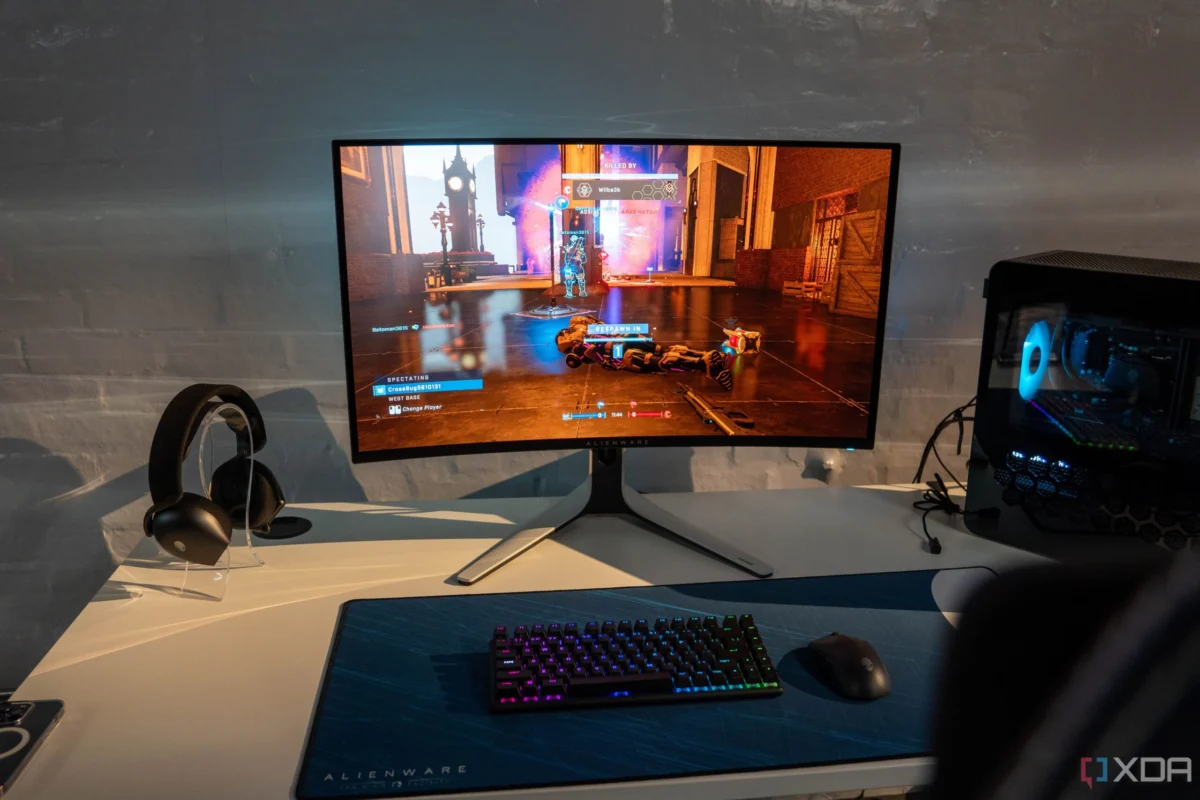
In the high-stakes world of PC gaming, Nvidia’s Deep Learning Super Sampling (DLSS) has become a transformative force. It is the magic bullet that allows users to push 4K resolution on hardware that would otherwise choke, bridging the gap between hardware limitations and visual fidelity. However, as I recently discovered while troubleshooting frame rates on my own high-end rig, there is a common misconception among enthusiasts: that DLSS is a universal "on" switch for higher performance.
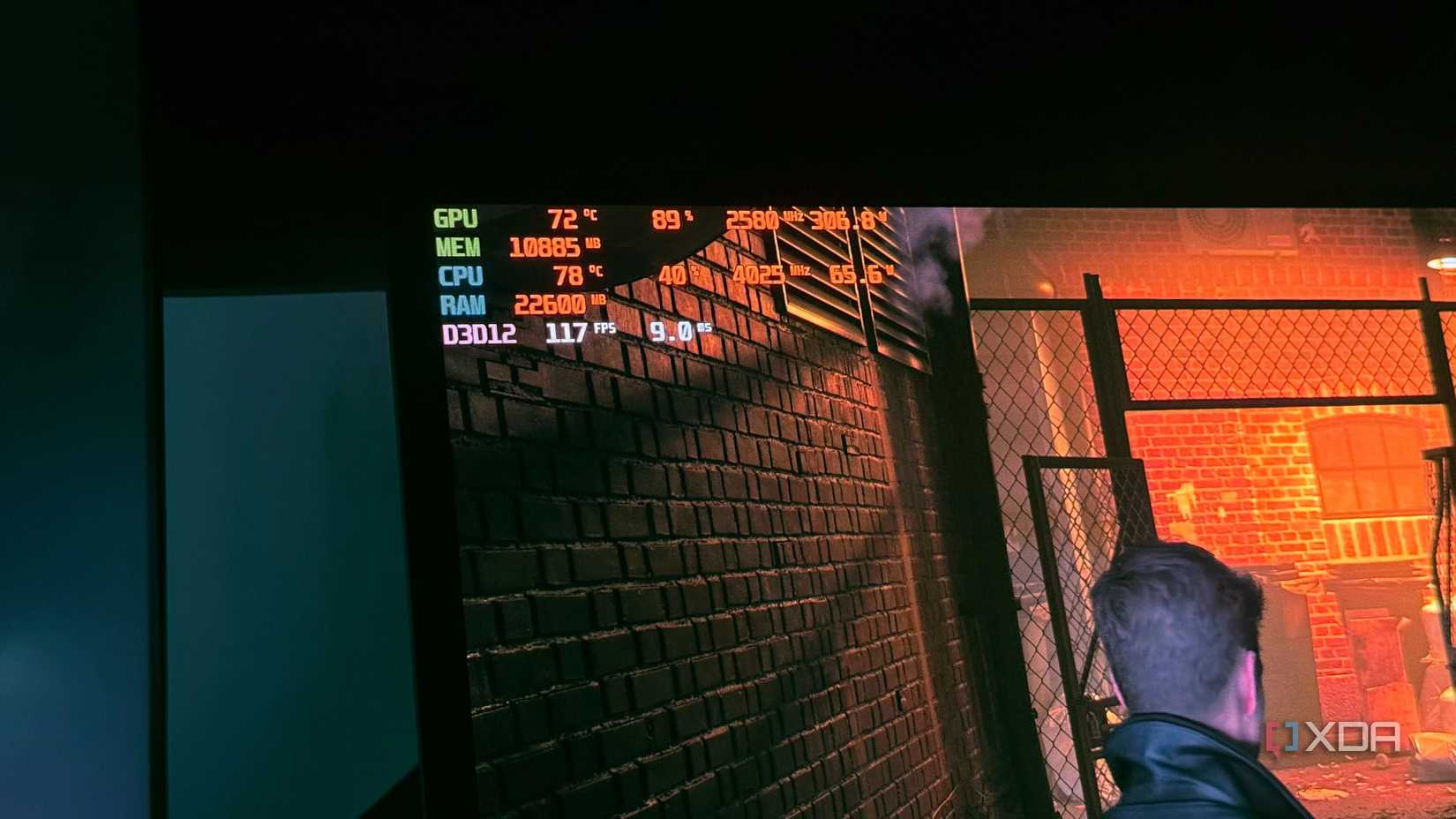
As someone who has covered the tech industry for nearly a decade—from the inner workings of macOS to the bleeding edge of gaming hardware—I have learned that performance metrics like GPU usage are often misinterpreted. When I recently fired up Battlefield 6 on my 1440p/360Hz OLED monitor, I expected the usual performance uplift from DLSS. Instead, I was met with stagnant frame rates. A quick check with MSI Afterburner revealed the smoking gun: my RTX 4090 was idling at roughly 80% usage. The performance wasn’t being limited by the graphics card; it was being throttled by something else entirely.
The Mechanics of the Bottleneck: Why DLSS Sometimes Fails
Understanding GPU-Bound vs. CPU-Bound Scenarios
To understand why DLSS fails to boost frame rates in certain scenarios, we must first define what the graphics card actually does. At 4K resolution, the sheer pixel count is astronomical. The GPU is tasked with shading, lighting, and ray-tracing millions of pixels per frame, keeping the silicon pinned at 95–99% utilization. This is a "GPU-bound" scenario. When you enable DLSS, you are lowering the internal render resolution, effectively giving the GPU "breathing room" to process more frames per second.

However, at 1440p—or even 1080p—the workload shifts. While the GPU is still doing the heavy lifting, the processor (CPU) becomes a critical factor. The CPU is responsible for game logic, physics, draw calls, and preparing the data for the GPU to render. If the CPU cannot prepare frames fast enough to keep the GPU fully fed, the GPU will sit and wait, resulting in lower utilization.
In my testing with Battlefield 6, my RTX 4090 was sitting at 85% usage. Enabling DLSS at this stage only exacerbated the problem. By further reducing the internal render resolution, I was lowering the demand on the GPU, but the CPU was already at its limit. The bottleneck shifted even further toward the processor, rendering the upscaling process ineffective.
Chronology of a Performance Mystery
From 4K Bliss to 1440p Frustration
My journey to this realization wasn’t instantaneous. It began with a comparison of my dual-monitor setup: a standard 4K display for immersive, cinematic AAA gaming, and a high-refresh-rate 1440p OLED for competitive shooters.

- The 4K Experience: When playing graphically demanding titles like Assassin’s Creed: Shadows or Black Myth: Wukong at 4K, the RTX 4090 is constantly pushed to its absolute limit. In these instances, DLSS is a miracle, consistently delivering a 30–50% performance uplift.
- The 1440p Discrepancy: Transitioning to the 1440p display, I expected a similar scaling. However, in titles like Battlefield 6, the "Performance" toggle for DLSS felt like it did nothing.
- The Diagnostic Phase: Using MSI Afterburner to overlay real-time stats, I observed that GPU usage dropped significantly below the 95% threshold.
- The Conclusion: It became clear that at 1440p, my Ryzen 5900X was becoming the limiting factor. Because DLSS Quality at 1440p renders internally at 960p, the GPU workload becomes trivial, yet the CPU continues to struggle with the same amount of game logic, physics, and draw calls.
Supporting Data: The Math Behind the Upscaling
How Resolution Impacts CPU Demand
The relationship between resolution and CPU usage is often counter-intuitive to casual gamers. Many assume that lowering resolution always improves performance, but this only holds true if the GPU is the bottleneck.
When you set DLSS to "Quality" mode at 4K, the game renders at 1440p internally. This is still a high enough load that the GPU remains the primary bottleneck, and thus, you see a performance gain. However, when you set DLSS to "Quality" mode at 1440p, the internal resolution drops to 960p.
At 960p, the GPU is essentially coasting. If the CPU is already struggling to push 120 FPS due to the game’s engine or complexity, dropping the resolution to 960p will not magically increase that FPS count. The CPU will continue to output at the same rate, and the GPU will simply have even more idle time, waiting for the next command. This is why reviewers use 1080p as the standard for CPU benchmarking—it removes the GPU as a variable to see how much work the processor can handle.
Implications for Modern Gaming
Frame Generation as a Workaround
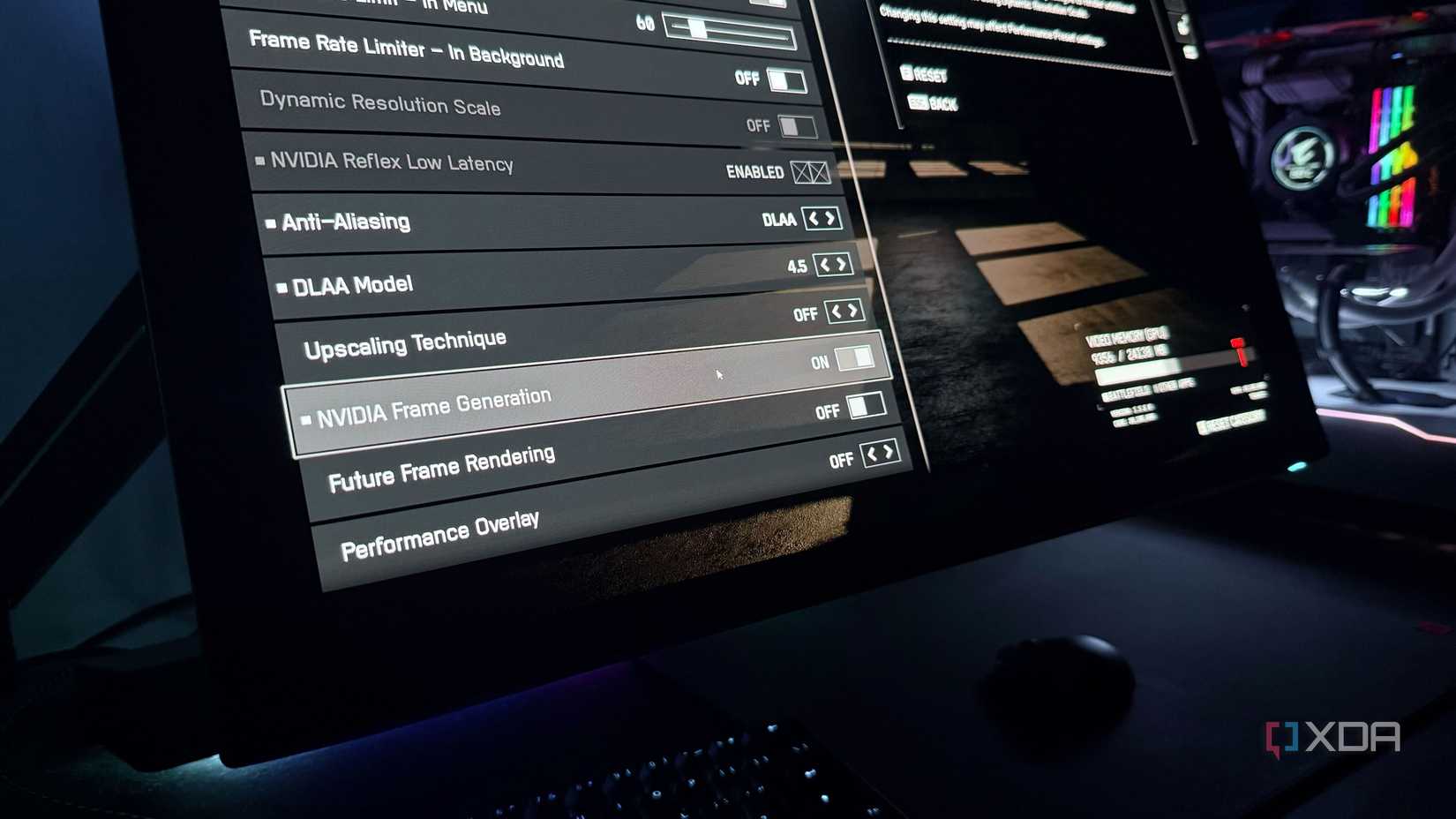
While traditional upscaling (DLSS Super Resolution) failed to help in my CPU-bound scenario, I found that DLSS Frame Generation (FG) offered a different, albeit nuanced, solution.
Frame Generation works by utilizing AI to synthesize intermediate frames between those rendered by the GPU. Crucially, this happens entirely on the GPU. By inserting these AI-generated frames, you can effectively "bypass" the CPU bottleneck to see a smoother output.
However, there is a catch:
- Latency: Frame Generation adds a layer of input latency because it relies on previous frames to calculate the next one.
- Artifacting: While impressive, AI-generated frames can occasionally produce visual artifacts during fast camera movements.
- Competitive Viability: In titles like Battlefield 6 or Call of Duty: Warzone, the added latency is often unacceptable for competitive play. It is a feature best reserved for slower-paced, single-player cinematic titles.
The Case for DLAA: When More is Better
Why Quality Should Sometimes Trump Frame Rates
If your GPU usage is low, trying to "fix" performance by using upscaling is often a losing battle. You are effectively reducing image quality without gaining any tangible frame rate benefit.
This is where Deep Learning Anti-Aliasing (DLAA) enters the conversation. DLAA uses the same AI engine as DLSS, but instead of upscaling from a lower resolution, it runs at native resolution to provide superior anti-aliasing. If your GPU has the headroom—as mine did at 1440p—using DLAA provides a noticeably sharper, more stable image than standard TAA (Temporal Anti-Aliasing).
Instead of chasing frame rates that the CPU cannot deliver, it is often better to lean into the graphical fidelity that the GPU can provide. If the game is capped by the CPU, increase the settings, enable ray tracing, or turn on DLAA. Make the GPU work for its keep.
Final Thoughts: Balancing the Ecosystem
Knowing Your Hardware’s Limits
The lesson here is simple: performance is a balancing act between the CPU and the GPU. Modern technologies like DLSS and Frame Generation are incredible tools, but they are not magic buttons that solve all performance woes.
Gamers should prioritize understanding their specific hardware limitations. If you are playing at lower resolutions and noticing sub-optimal GPU utilization, upgrading your GPU will yield diminishing returns. In such cases, a CPU upgrade—perhaps to a chip with a large 3D V-Cache like the 9800X3D—would offer a much more significant performance leap than any software-based upscaling solution.
As we move toward more demanding game engines and increasingly complex physics simulations, the importance of a balanced system has never been higher. Don’t just look at the FPS counter; look at your usage, understand your bottleneck, and choose the settings that provide the best experience, not just the highest number.


 Sagoh
Sagoh
 Raul Delapena Setiawan