
Apple Music has solidified its position as a titan in the digital streaming landscape. By offering a vast library of lossless audio, spatial audio experiences, and deep integration with the Apple ecosystem, it has become the primary soundscape for millions of users worldwide. However, as the modern listener moves fluidly between a MacBook at the office, an iPhone during the commute, and a Windows PC or smart TV at home, the frustration of a fragmented library is a common pain point.
If you have ever opened your Apple Music app on a new device only to find your carefully curated playlists and favorite albums missing, you are not alone. Fortunately, the solution is not a technical labyrinth, but a simple toggle switch known as "Sync Library." This guide explores the mechanics behind this feature, how to troubleshoot common synchronization hurdles, and the broader implications of cloud-based music management in the 21st century.
The Core Mechanism: Understanding ‘Sync Library’
At its heart, Apple Music’s "Sync Library" is a cloud-based service that acts as a central nervous system for your music collection. When enabled, your music library—including songs you have added from the Apple Music catalog, albums you have purchased, and even your own uploaded tracks—is indexed and mirrored across your devices.
It is important to distinguish this from simple playlist syncing. Sync Library goes deeper; it monitors the metadata of your files, ensuring that play counts, skip patterns, and newly added tracks are reflected globally. When you enable this feature, Apple does not necessarily upload every single file from your local storage to their servers; rather, it identifies the tracks in your library, matches them against the massive Apple Music catalog, and makes them available for streaming or download on your other authorized devices.
A Chronology of Integration: From iTunes to the Cloud
The journey to seamless music synchronization has been a long one.
- The iTunes Era (2001–2015): In the early days, syncing required a physical connection. Users were tethered to their computers via Lightning or 30-pin cables. If you wanted your library on your iPod, you had to perform a manual "sync" through iTunes.
- iTunes Match (2011): This was a pivotal shift. Apple introduced a service that allowed users to upload their personal library to the cloud. It was the first time a user’s collection became "device agnostic."
- The Launch of Apple Music (2015): With the launch of the streaming service, the "iCloud Music Library" (later rebranded as "Sync Library") became a standard feature. It allowed streaming subscribers to merge their existing local collections with the massive catalog available on the platform.
- The Present Day: Today, the ecosystem has expanded beyond Apple hardware. With dedicated apps for Windows, Android, and various smart TV platforms, the "Sync Library" feature has become the essential bridge that allows the Apple Music experience to remain consistent regardless of the underlying operating system.
Troubleshooting: How to Enable and Maintain Sync
If your music is failing to appear, the solution usually lies in a standard set of verification steps.
Step 1: Account Consistency
The most frequent culprit is the use of disparate Apple Accounts. You must be signed in with the same Apple ID on every device. If you are uncertain, navigate to the "Home" tab in your Apple Music app and select your profile icon. Ensure the email address matches your primary account across all hardware.
Step 2: Enabling Sync Library
Once you have confirmed account consistency, you must toggle the synchronization settings:
- iPhone/iPad: Navigate to Settings > Apps > Music. Locate the Sync Library toggle and ensure it is switched to "On."
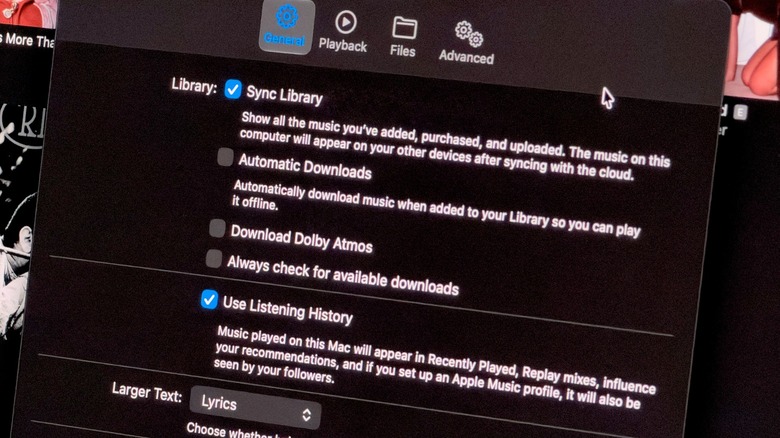
- macOS: Open the Music app. From the menu bar, select Music > Settings (or Preferences). Within the General tab, check the box labeled Sync Library.
- Windows: Within the Apple Music app, click the three-dot menu to access Settings. From there, you can locate the synchronization options to ensure your library is enabled for cloud updates.
- Android: On Android, the feature is typically enabled by default. Because the app is designed specifically for streaming, it constantly pulls from your cloud library upon login.
Step 3: Troubleshooting Persistent Issues
If the sync remains stalled, you can force a refresh:
- Manual Refresh (macOS/Windows): In the desktop app, navigate to the File menu, then Library, and select Update Cloud Library. This triggers a manual handshake between your local database and the Apple servers.
- Toggle the Switch: Sometimes the sync process encounters a "stuck" state. Turning Sync Library off, waiting 30 seconds, and turning it back on forces the application to re-index your entire collection.
- Check Power and Connectivity: Syncing large libraries is data-intensive. Ensure you are not in "Low Power Mode," which often throttles background data usage, and ensure you have a stable Wi-Fi connection.
Supporting Data: Why Large Libraries Take Time
It is a common misconception that "syncing" happens instantaneously. When you first enable Sync Library, Apple’s servers must perform a process called "matching." If you have a library of 10,000 songs, the service is not just moving data; it is comparing your files against their database to see if a higher-quality version exists on their servers. This verification process can take several hours depending on your internet bandwidth and the size of your collection. During this time, it is vital to keep the Music app active and open in the foreground to prevent the operating system from suspending the background process.
Official Stance and Implications
Apple has maintained a consistent stance: the goal of the Apple Music ecosystem is to provide a "frictionless" experience. However, this relies on a stable connection to the Apple ID ecosystem.
The broader implication here is the shift from "ownership" to "access." By relying on Sync Library, you are essentially offloading the maintenance of your music collection to Apple’s cloud servers. While this provides unparalleled convenience, it also necessitates a stable subscription. If you cancel your Apple Music subscription, the "Sync Library" feature is disabled, and your access to the cloud-matched tracks is revoked. For those with significant personal libraries that exist outside of the streaming catalog, this means that backups must be handled locally on a Mac or PC to ensure long-term preservation of your music files.
Beyond Syncing: Enhancing the Experience
Once your library is successfully synced, you have opened the door to higher-fidelity listening. With your library unified, you can now delve into more advanced settings, such as enabling Lossless Audio or Dolby Atmos for spatial audio. These features, found under the "Audio Quality" section of your settings, are the natural next step for an audiophile who has successfully integrated their collection.
In conclusion, while the technology behind syncing can seem complex, it is designed to be a "set it and forget it" feature. By ensuring your account credentials are uniform and your sync toggles are active, you can ensure that the soundtrack of your life follows you, uninterrupted, from your desk to your living room and everywhere in between.