 Asro
Asro
Every Windows user eventually encounters the dreaded "Not Responding" status. Whether you are a creative professional mid-render or a casual user with dozens of browser tabs open, the frustration of a frozen application is a universal computing hurdle. For those transitioning from the macOS ecosystem, where the "Force Quit" command is a familiar safety net, the Windows approach—which relies on a deeper, more granular management of system processes—can feel opaque.
Understanding how to effectively terminate unresponsive software is not just a troubleshooting skill; it is a fundamental aspect of maintaining system stability and productivity. This guide explores the hierarchy of closing applications, from the polite "request" to the "hard kill," and how to manage your system’s resources like a power user.
The Hierarchy of Termination: Why Apps Freeze
To understand how to kill a process, one must first understand how Windows handles software. When you click the standard "X" in the top-right corner of a window, you are sending a WM_CLOSE message to the application. This is a polite request. The application receives this signal, checks for unsaved work, closes active handles, and terminates gracefully.
A "freeze" occurs when the application’s main thread—the part responsible for responding to user input and window messages—becomes blocked. Because the application is no longer processing the operating system’s messages, it cannot receive your "close" request. At this point, the application is effectively an island, disconnected from the OS control loop. This is where "Force Quitting" (technically, terminating a process) becomes necessary.
The Standard Protocol: Closing Apps Gently
Before resorting to "brute force," it is essential to exhaust standard methods. These methods ensure that the application has the opportunity to flush data to the disk, preventing file corruption.

The Standard Window Close
Clicking the X icon remains the primary method for most users. However, it is a common misconception that this always terminates the process. Many modern applications—particularly those designed for persistent communication or background synchronization, such as Discord, Slack, Spotify, or Telegram—are programmed to minimize to the System Tray (near the clock) rather than exit entirely.
The Keyboard Shortcut: Alt + F4
For keyboard enthusiasts, Alt + F4 is the gold standard for closing an active window. It replicates the "X" button command precisely. While efficient, it requires precision. If you accidentally click on your desktop or a background window before hitting the shortcut, you may end up closing the wrong program.
System Tray Management
If an app refuses to close, check the system tray. Clicking the small upward-facing arrow in the bottom-right of your taskbar reveals hidden icons. Right-clicking these icons often provides a "Quit" or "Exit" option that is more effective than the standard window close, as it forces the app to initiate its own shutdown sequence properly.
The Power User’s Toolkit: Forcefully Terminating Processes
When the UI becomes unresponsive, the standard methods fail. This is when you must interface directly with the Windows Task Manager.
Utilizing the Task Manager
The Task Manager is the nerve center of Windows. The most efficient way to access it is the keyboard shortcut Ctrl + Shift + Esc. This bypasses the intermediate "Security Options" screen and takes you directly to the interface.

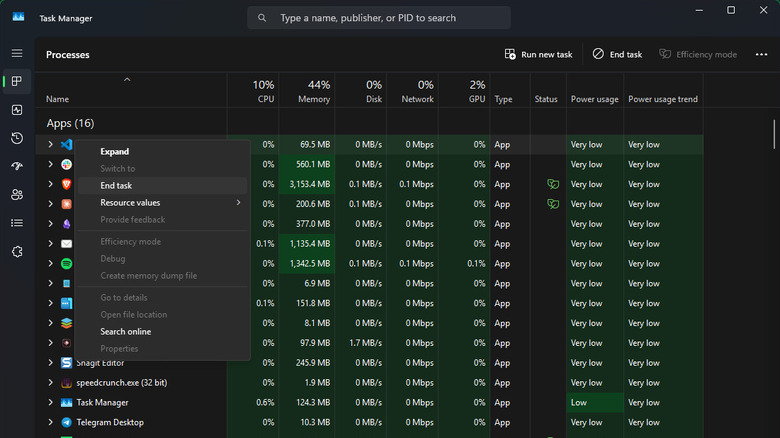
- Navigating the Interface: Use the Processes tab to see every active execution. The list is categorized into "Apps," "Background processes," and "Windows processes."
- Sorting by Resource Usage: If your PC is sluggish, click the Memory or CPU headers. This allows you to identify the culprit immediately. A frozen app often consumes 100% of a specific thread or a massive amount of RAM.
- The "End Task" Command: Once you have identified the unresponsive process, right-click and select End task. This instructs the Windows Kernel to revoke the process’s access to CPU time and memory, effectively killing it instantly.
The Danger of Ending System Processes
A critical warning for all users: avoid tampering with items under "Windows processes." Specifically, the Windows Explorer process (explorer.exe) manages the taskbar, the start menu, and the file system interface. Terminating this will cause your desktop icons and taskbar to disappear. While not permanent—you can restart it by selecting "Run new task" in Task Manager and typing explorer.exe—it is an unnecessary disruption.
Advanced Troubleshooting: When Task Manager Isn’t Enough
For power users who require faster intervention or who encounter apps that refuse to die even via Task Manager, several advanced strategies exist.
Enabling the "End Task" Right-Click Menu
Windows 11 introduced a hidden feature that allows for rapid termination without opening the full Task Manager window.
- How to enable it: Open Settings (Win + I), navigate to System > Advanced, and look for the "End Task" toggle.
- The Result: Once enabled, right-clicking any app icon on the taskbar presents an "End Task" option. This is significantly faster than launching the Task Manager, though it should be used with caution, as it provides no confirmation prompt.
Utilizing the "Details" Tab for Process Trees
If a single application spawns multiple sub-processes, killing the main window might not suffice. In the Task Manager, navigate to the Details tab. Right-clicking a process and selecting End process tree will terminate the main process and every single child process spawned by it. This is highly effective for complex applications like web browsers or game launchers that may have orphaned processes still running in the background.
Third-Party Solutions: SuperF4
For those who prefer a more aggressive approach, the open-source utility SuperF4 is a staple in the IT community. Unlike the default Windows behavior, SuperF4 does not ask the app to close; it tells the kernel to kill the process instantly. By using Ctrl + Alt + F4, users can terminate any application immediately, regardless of its state. It even includes a "Win + F4" mode that turns your mouse cursor into a "kill switch"—simply click on any window to terminate it instantly.
Implications of Frequent Freezes
While knowing how to kill an app is vital, the need to do so frequently is a symptom of a deeper issue.
- Data Integrity: Frequent force-quitting can lead to corrupted configuration files and lost work. Always ensure your apps are set to "Auto-save" where possible.
- System Health: Persistent freezing often points to memory leaks, outdated drivers, or conflicts between software. If a specific application freezes regularly, it is often a sign that a reinstallation or an update is overdue.
- Hardware Bottlenecks: Sometimes, the "freeze" is actually the hardware struggling to keep up. If you are constantly killing processes, monitor your disk usage. An aging hard drive (HDD) often causes system-wide hangs that mimic unresponsive applications.
Official Responses and Best Practices
Microsoft continues to refine the Windows experience to make these interventions more intuitive. The integration of the "End Task" feature in the taskbar is a direct response to user feedback regarding the clunkiness of the old Task Manager.
Best Practices for Stability:
- Keep Software Updated: Developers frequently release patches for memory leaks that cause freezes.
- Monitor Startup Apps: Use the Task Manager’s "Startup" tab to disable unnecessary programs that consume resources upon boot.
- The Reboot Philosophy: As cliché as it sounds, a weekly reboot is the most effective way to clear the RAM, reset the system state, and prevent the "zombie processes" that often lead to system instability.
In conclusion, while the "Force Quit" equivalent in Windows may be more complex than its Mac counterpart, it provides a much deeper level of control over the operating system. By mastering the Task Manager, utilizing keyboard shortcuts, and understanding the nuances of process management, you can regain control of your digital workspace, ensuring that a single unresponsive window never derails your workflow again.


 Suro Senen
 Jia Lissa