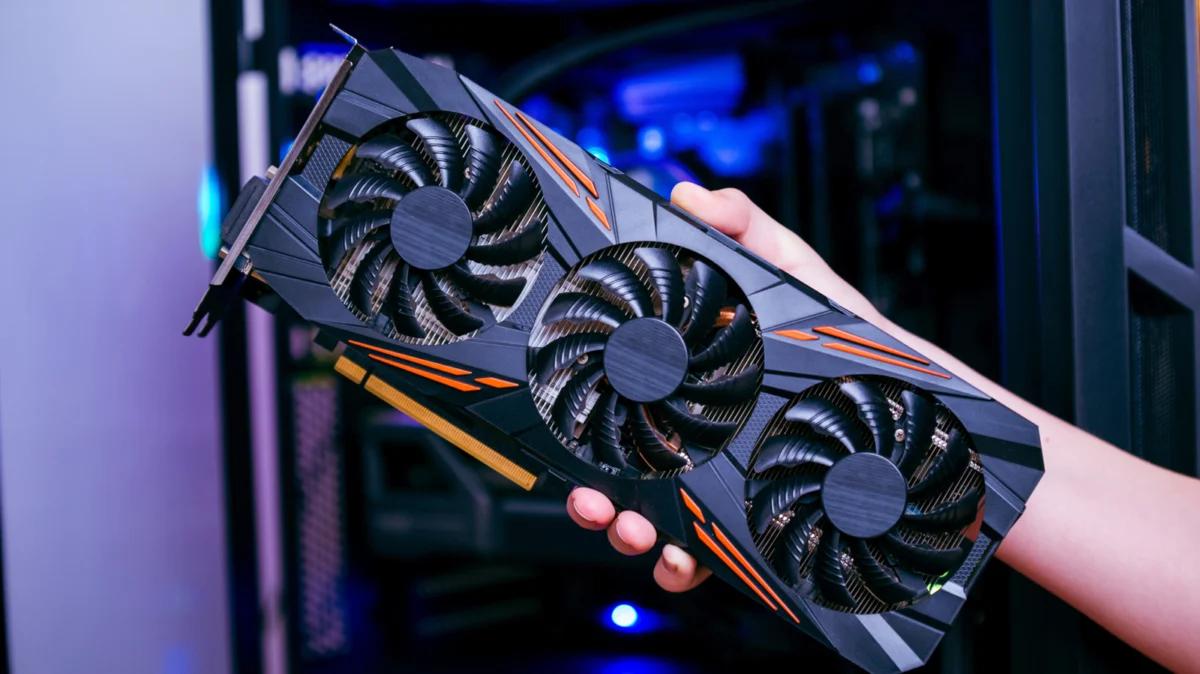
In the modern digital ecosystem, the relationship between hardware and software is governed by a critical, often overlooked mediator: the device driver. While operating systems and applications receive regular, automated patches, graphics processing unit (GPU) drivers—the software that allows your computer’s operating system to communicate effectively with your graphics card—often sit in a precarious middle ground. Keeping these drivers current is not merely a suggestion; it is the cornerstone of system stability, security, and peak performance.
Whether you are a professional video editor requiring rendering stability, a data scientist leveraging GPU acceleration, or a gamer looking to squeeze every frame out of a new release, understanding how to manage your GPU drivers is a fundamental digital literacy skill. Despite its importance, the process can be fragmented and confusing for the average user. This guide provides a comprehensive deep dive into why these updates matter, how to execute them, and how to troubleshoot when things go wrong.
The Core Importance of GPU Drivers: Why Updates Matter
At its simplest level, a driver acts as a translator. Your OS sends high-level commands, and the driver converts these into specific machine-level instructions that your hardware understands. Because graphics cards are among the most complex pieces of hardware in a PC, their drivers are under constant refinement.
Performance Optimization and Feature Delivery
Graphics manufacturers like NVIDIA, AMD, and Intel release updates for two primary reasons. First, they provide performance optimizations for new software. When a major AAA game launches, it is rarely optimized perfectly for every existing architecture. Developers work closely with GPU manufacturers to release "Day Zero" drivers that provide specific code paths to improve frame rates and reduce stuttering.
Second, drivers introduce new features. NVIDIA, for instance, frequently updates its software to improve DLSS (Deep Learning Super Sampling) performance or refine broadcast features. AMD’s Adrenalin software often adds new image-sharpening technologies or frame-generation tools that can breathe new life into older hardware.
Security and Stability
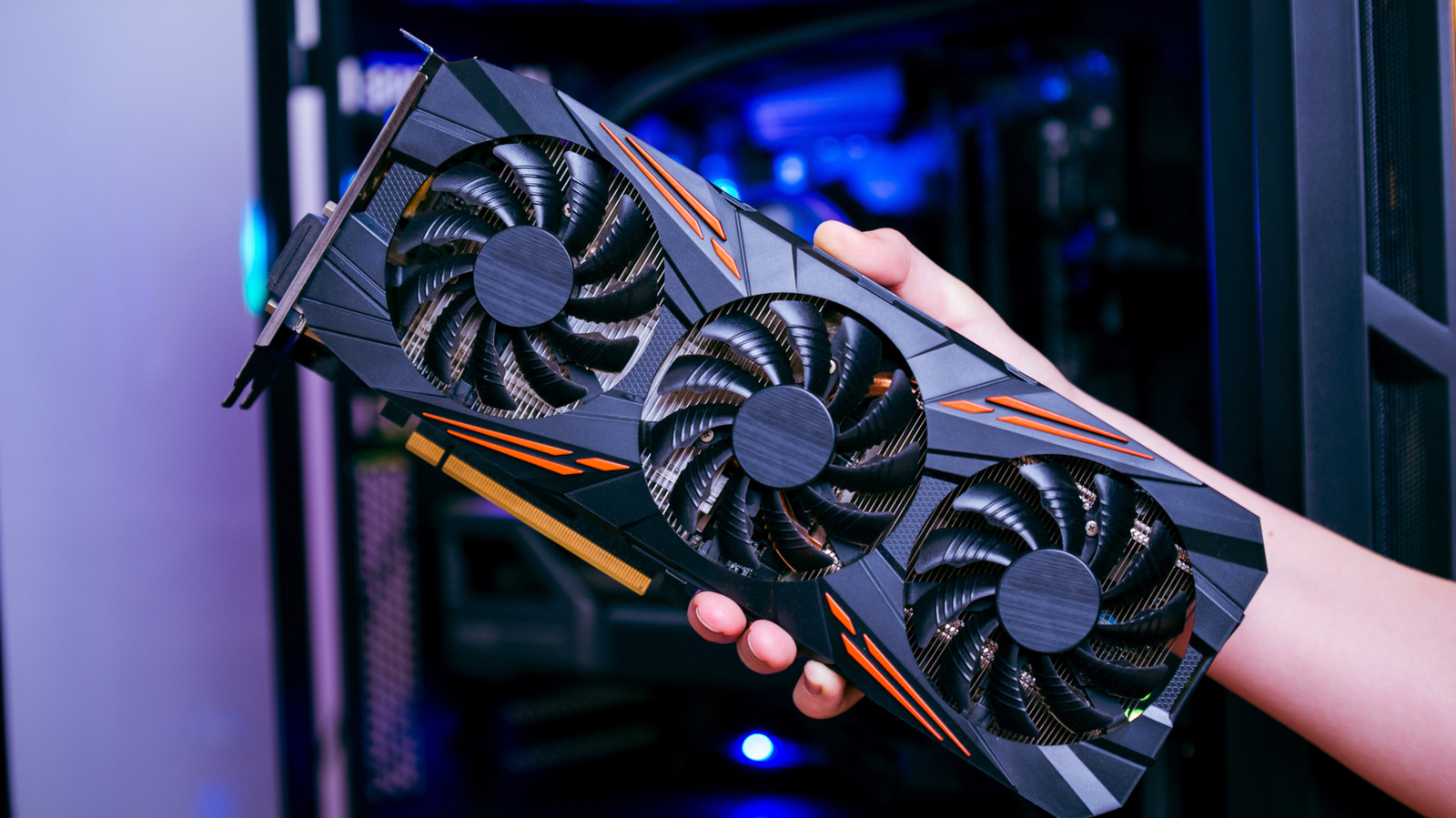
Beyond features, drivers are frequently patched to close security vulnerabilities. Malicious actors have historically targeted graphics drivers to gain kernel-level access to machines. Furthermore, drivers are the primary suspect when a system experiences "Blue Screen of Death" (BSOD) errors or random application crashes. A stable driver ensures that the memory management and power delivery of your GPU are handled according to the manufacturer’s specifications.
Chronology: The Evolution of the Update Process
The way we update drivers has shifted significantly over the last decade. In the early days of Windows, users were forced to manually download executable files from manufacturer forums or CD-ROMs bundled with hardware.
- The Manual Era (Pre-2010): Users were responsible for visiting vendor websites, identifying their hardware model, and manually installing packages. This was prone to user error and incompatibility.
- The Integrated Era (2010–2015): Windows Update began taking a larger role, attempting to serve basic drivers automatically. While convenient, these were often "WHQL-certified" (Windows Hardware Quality Labs) versions that were frequently months behind the latest gaming-ready drivers.
- The Companion App Era (2015–Present): Manufacturers shifted toward a "services-first" model. Tools like NVIDIA GeForce Experience (now the NVIDIA App) and AMD Software: Adrenalin Edition were introduced. These apps provided a telemetry-driven approach, automatically notifying users of updates, optimizing game settings, and recording gameplay.
Identifying Your Hardware and Default Windows Methods
Before attempting an update, you must identify the "heart" of your graphics system.
Using Device Manager
If you are unsure of your GPU model, Windows 11 provides a built-in audit tool:
- Right-click the Start button and select Device Manager.
- Locate the Display adapters category and click the arrow to expand it.
- Your GPU will be listed here (e.g., NVIDIA GeForce RTX 4090, AMD Radeon RX 7900 XTX, or Intel Arc A770).
The Windows Update Limitations
You can trigger an update by going to Settings > Windows Update > Check for updates. While this is the most "official" path, it is frequently criticized by power users. Windows Update tends to prioritize system stability over performance. Consequently, it often serves older, more "proven" drivers rather than the cutting-edge versions that contain the latest gaming optimizations. If you are experiencing poor performance in a new application, Windows Update is rarely the solution.
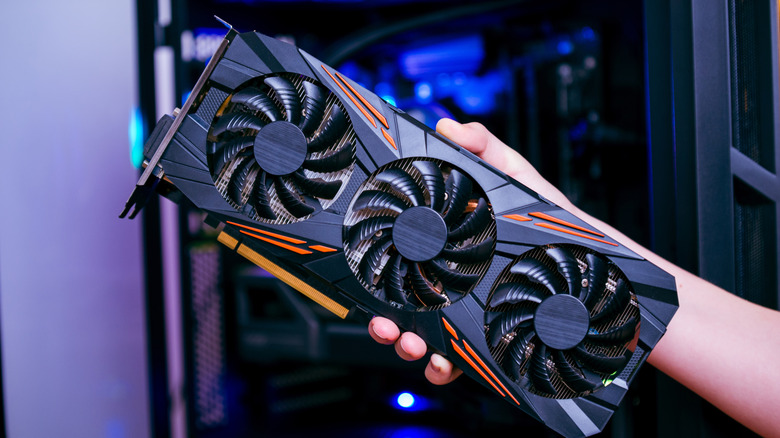
Leveraging Companion Software: The Gold Standard
For the vast majority of users, the manufacturer-provided companion software is the most effective way to maintain drivers. These utilities provide a seamless interface that handles the download, verification, and installation process.
NVIDIA App
NVIDIA has recently consolidated its software ecosystem into the streamlined "NVIDIA App." To update:
- Launch the app and navigate to the Drivers tab.
- The software will automatically ping NVIDIA’s servers to check for a version mismatch.
- If a newer "Game Ready" or "Studio" driver is found, a Download button will appear.
- Once downloaded, clicking Install will initiate the process.
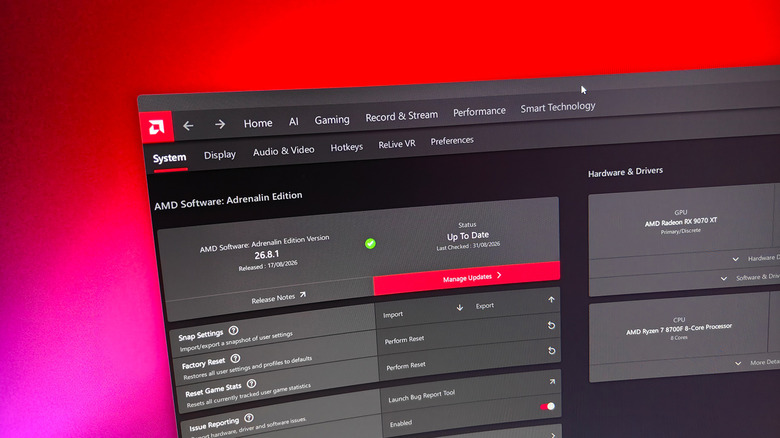
AMD Software: Adrenalin Edition
AMD’s approach is highly modular. To check for updates:
- Open the Adrenalin software.
- Click the Settings (gear icon) in the top right.
- Select the System tab, then Check for Updates.
- The AMD Install Manager will handle the deployment. It is important to note that AMD often provides "Optional" updates (Beta drivers) alongside "Recommended" (WHQL) ones.
Intel Graphics Software
Intel has made significant strides with its Arc series of GPUs. The Intel Graphics Command Center or the Intel Driver & Support Assistant utility provides a simple "Install All" button for any pending updates. Intel’s software is particularly good at managing the hybrid nature of laptops that use both integrated and discrete graphics.
Manual Installation: The Power User’s Route
In specific scenarios—such as a clean install after a corrupted update or when moving to a new version of Windows—manual installation is the safest bet.
- Visit the Source: Go directly to the official support portal (e.g., nvidia.com/en-us/geforce/drivers, amd.com/en/support).
- Product Selection: Use the search parameters to specify your series and exact model.
- Download and Execute: Run the installer. You will often be presented with the option for an "Express" or "Custom" installation. A Custom (Clean) Install is recommended if you are experiencing persistent bugs, as it wipes old configuration files that might be causing conflicts.
Implications: When Updates Go Wrong
While we emphasize the importance of updates, it is a technical reality that "newer" does not always mean "better."
The Risk of Regression
Occasionally, a driver update introduces regressions—bugs that cause games to crash, software to stutter, or display flickers to occur. In these instances, the best course of action is to Roll Back.
- In Device Manager, right-click your GPU, select Properties, go to the Driver tab, and click Roll Back Driver.
Windows Update Intervention
Recognizing the frequency of problematic drivers, Microsoft has begun implementing features in Windows 11 that automatically detect when a driver update causes a system crash and revert the system to the previous known-good version. This safety net reduces the risk of "bricking" your display output, but users should still exercise caution by reading patch notes on manufacturer forums before installing major updates.
Final Best Practices
To maintain a healthy GPU environment, consider the following checklist:
- Create a Restore Point: Before running a major driver update, manually create a Windows Restore Point. This allows you to revert your entire system state if the driver installation fails.
- Keep Software Clean: Do not keep multiple GPU monitoring/updating tools running simultaneously. If you have an NVIDIA card, you do not need third-party apps that attempt to manage driver versions, as they can cause conflicts.
- Read the Notes: Before hitting "Install," take ten seconds to read the release notes. If you see "Known Issues" listed that pertain to a piece of software you use daily, it may be wiser to wait a few days for a hotfix.
By treating your GPU drivers with the same priority as your operating system updates, you ensure that your hardware remains an asset rather than a bottleneck. While the process can feel like a chore, the resulting stability and performance are the hallmarks of a well-maintained, high-performance PC.