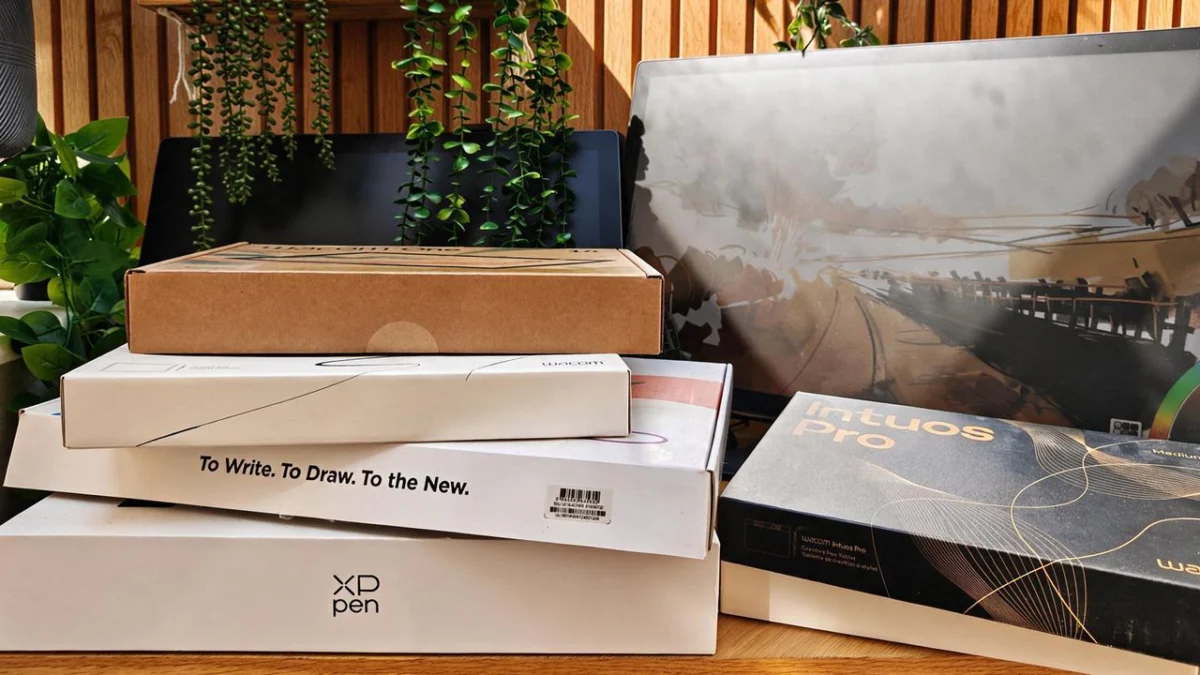
I’ve spent years testing drawing tablets—from the hulking, professional-grade displays that anchor major studio desks to the portable, budget-friendly pads designed for coffee-shop sketching. I’ve lived with tablets that arrive with spec sheets so dense they look like engineering manuals, and I’ve seen countless artists fall into the same traps I once did.
Every time a new model launches, the digital art community enters a predictable cycle. The same questions surface on forums and social media: "How many pressure levels does it have?" "Is Wacom still the king?" "Should I drain my savings for the 27-inch model?"
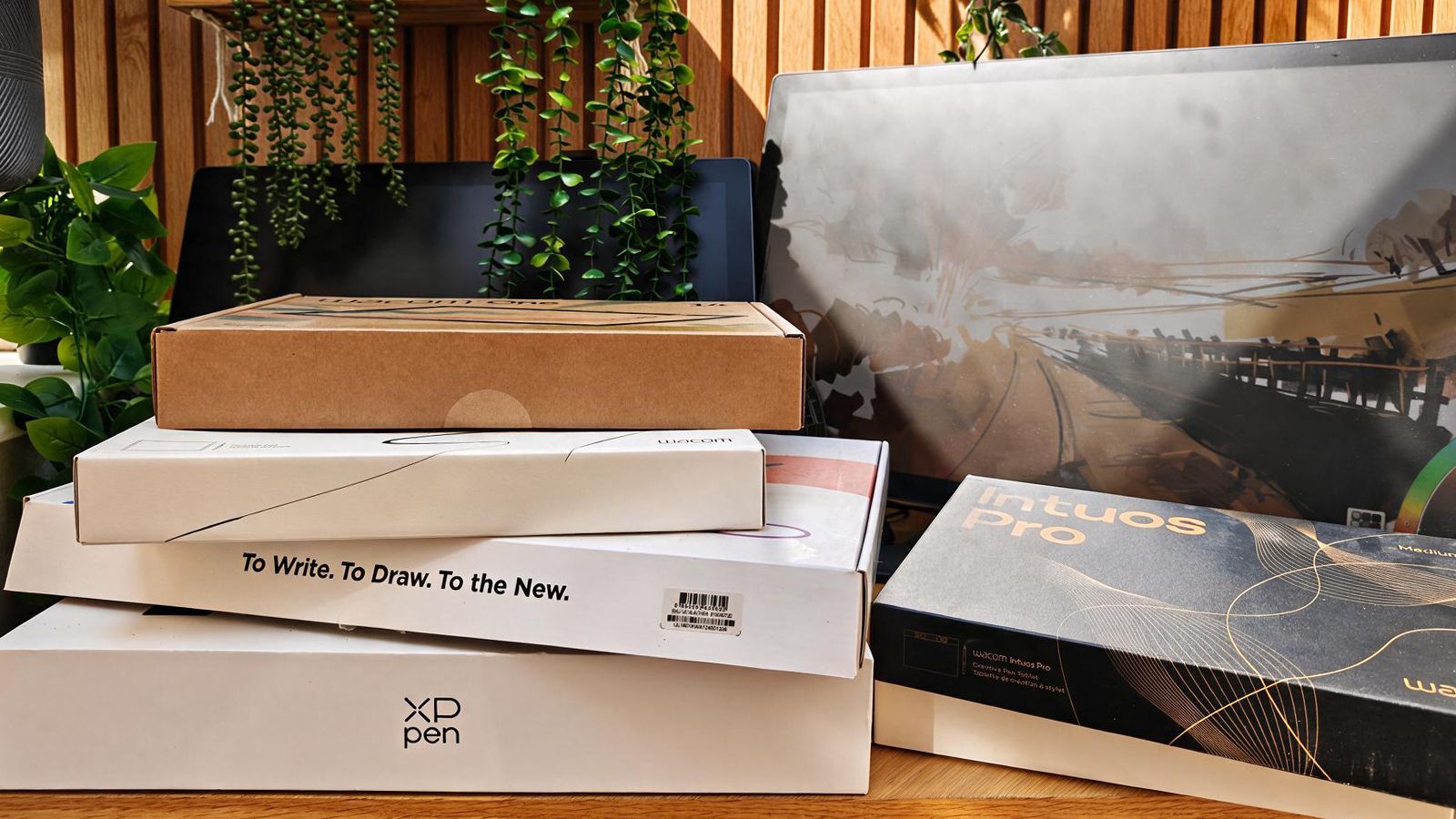
The truth? Most of the time, the answer is a resounding "no." Manufacturers love to dazzle us with acronyms—sRGB, Adobe RGB, DCI-P3, LPI, and those ever-increasing pressure sensitivity numbers. But after years of real-world testing, I’ve learned that the best tablet isn’t the one with the biggest numbers on the box. It’s the one that integrates seamlessly into your specific workflow, fits your physical desk space, and—most importantly—is the one you’ll actually reach for when inspiration strikes.
Here are the seven most common mistakes artists make when shopping for their next—or first—drawing tablet, and how to avoid them.
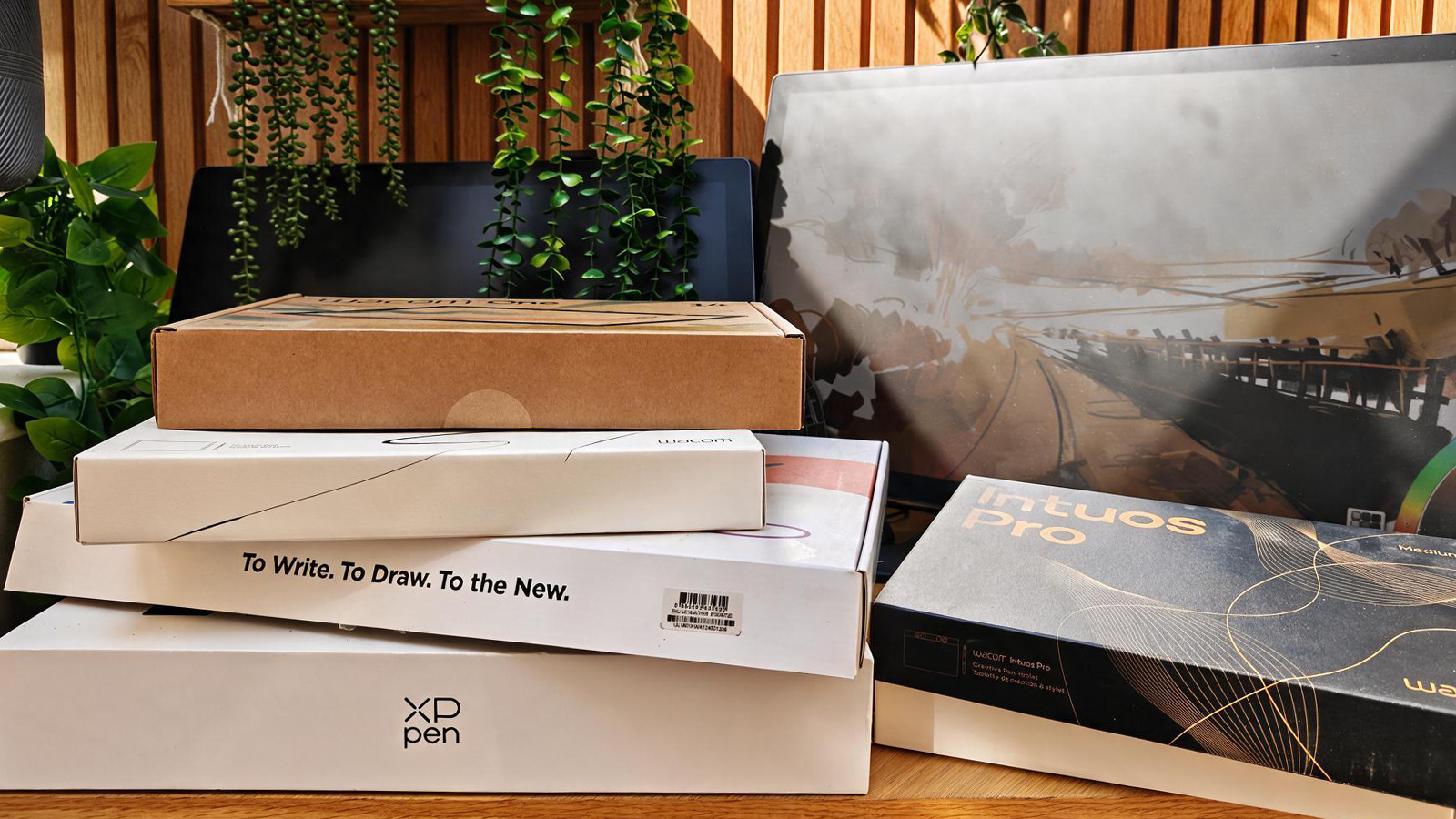
01. The "Bigger is Better" Fallacy
If you have the budget, the siren song of the 24-inch or 27-inch pen display is difficult to ignore. It is easy to assume that more screen real estate equates to better art, but this is a common trap.
A massive display looks impressive in a studio, but it requires significant desk depth and can be physically overwhelming. If your screen is too large, you may find yourself forced to move your entire arm to navigate the UI or reach your tools, which can lead to fatigue over long sessions. For many digital illustrators, a medium-sized tablet is the "Goldilocks" zone—it offers enough active space for expressive, sweeping strokes while keeping your workspace manageable and your workflow efficient. Before you buy, measure your desk and consider your posture. Often, a 16-inch display offers a more natural, ergonomic flow than a 24-inch behemoth.
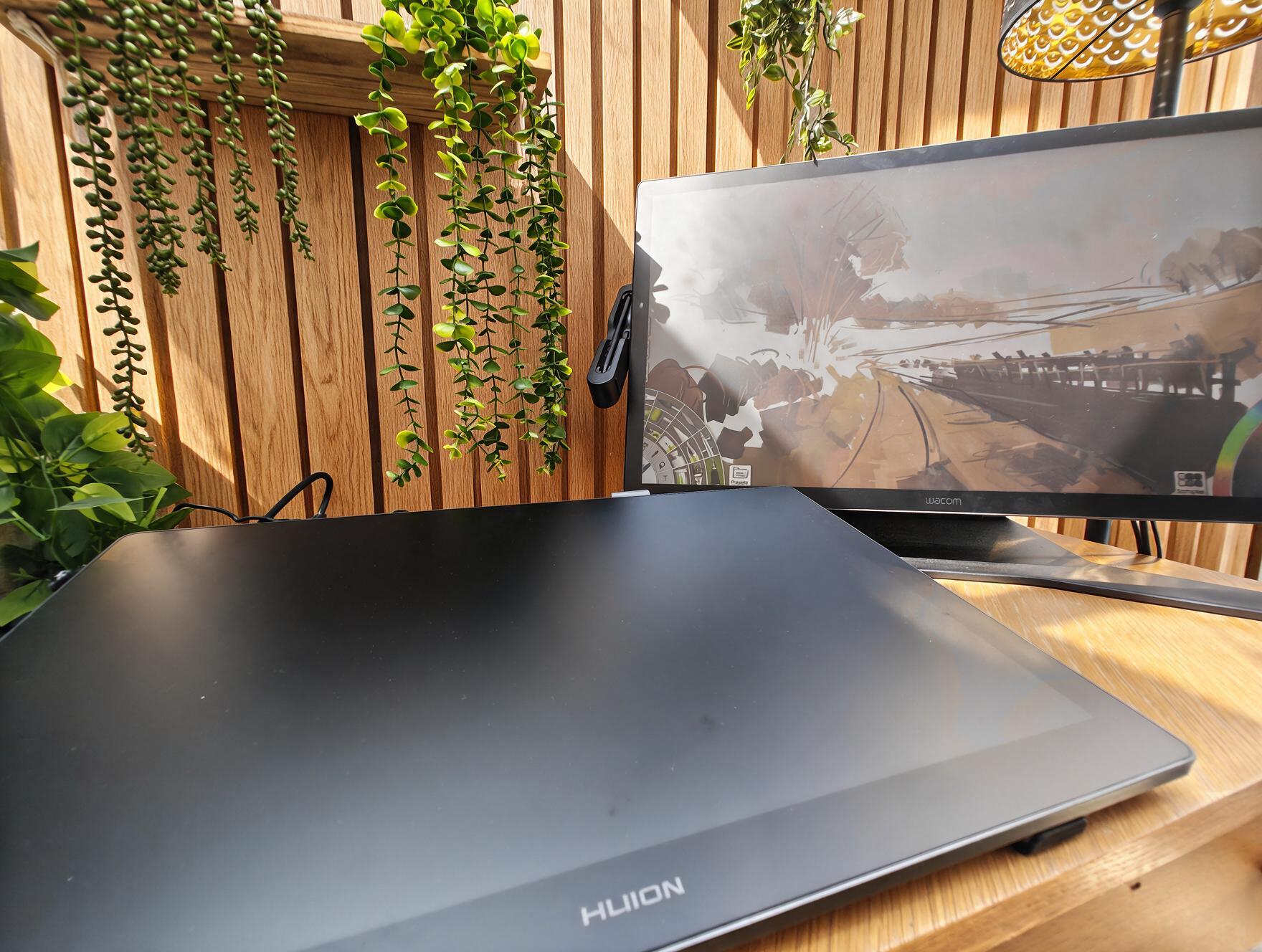
02. Obsessing Over Pressure Sensitivity
We live in an era of marketing inflation, where brands compete to boast the highest "levels" of pressure sensitivity. When a manufacturer announces a new tablet with 16,384 levels of pressure, the community often treats previous generations—even those with a perfectly capable 8,192 levels—as obsolete.
This is largely marketing noise. Once you pass a certain threshold, the difference in "levels" becomes indistinguishable to the human hand. What truly matters is the pen feel—the initial activation force, the tilt sensitivity, and the consistency of the stroke. While budget brands like Huion and XPPen have pushed 16K levels as a marquee feature, established players like Wacom and Xencelabs have remained at 8K because their driver optimization is superior. Instead of counting pressure levels, look for LPI (Lines Per Inch), which dictates tracking resolution. A tablet with 5,080 LPI from a reputable brand will outperform a "high-spec" cheap tablet every time.
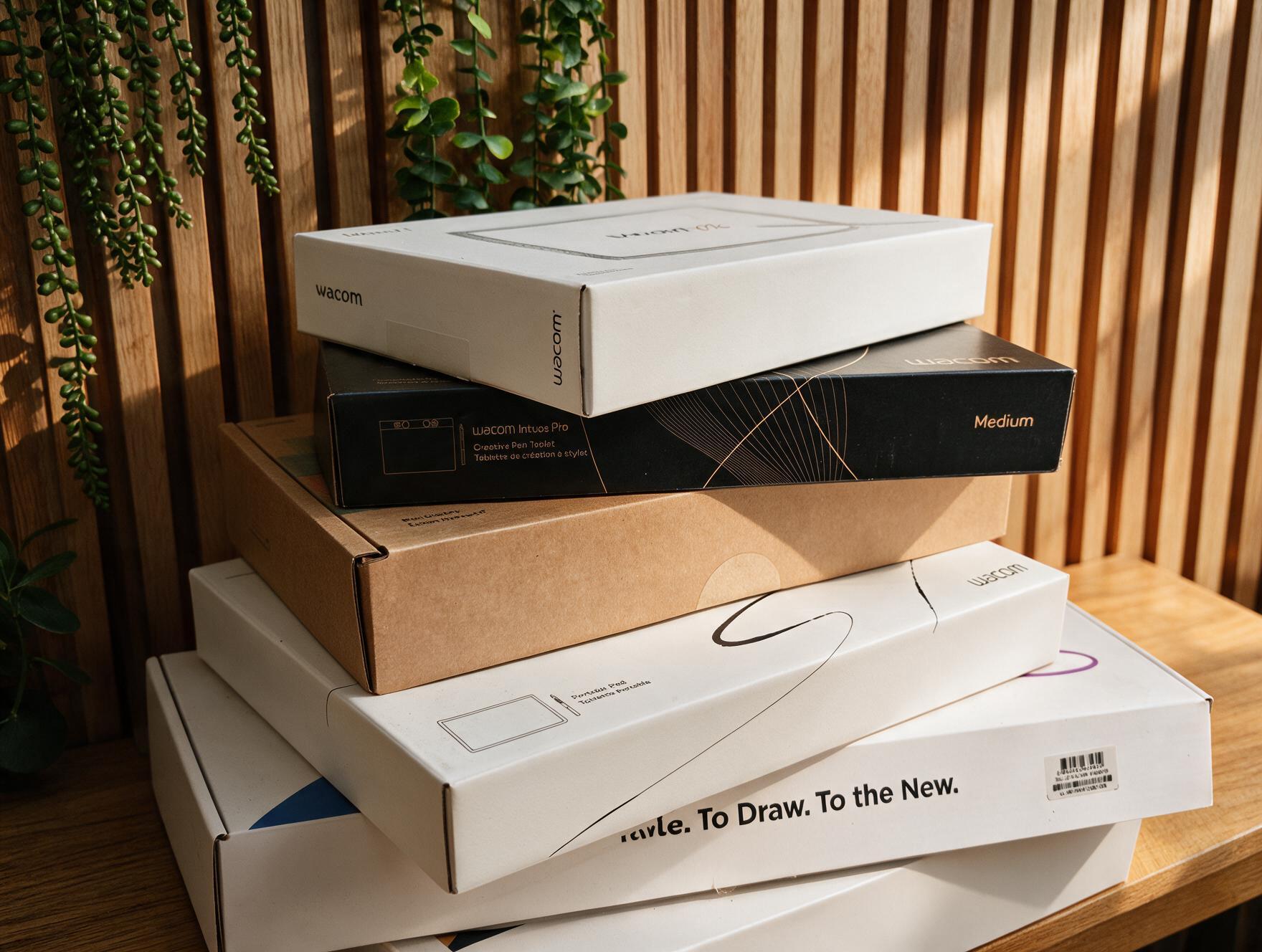
03. Forgetting to Verify Software Compatibility
It sounds like a basic requirement, yet I frequently hear from artists who bought a feature-rich tablet only to find it fighting their primary software. A drawing tablet is only as good as its driver stability.
If your shortcuts don’t map correctly to Photoshop, if the pen calibration drifts in Clip Studio Paint, or if the pressure curve requires daily tinkering, the tablet becomes a glorified paperweight. Before purchasing, verify that the tablet is officially supported by your software suite. Furthermore, check the manufacturer’s history of driver updates. The "big" brands—Wacom, XPPen, Huion, and Xencelabs—generally provide excellent ongoing software support. If you are using a niche application, prioritize brands with a proven track record of broad compatibility.
04. Overspending on Your First Setup
The "Gear Acquisition Syndrome" is real, especially for beginners. It is easy to think that if you buy the most expensive, professional-grade hardware, your art will automatically improve.
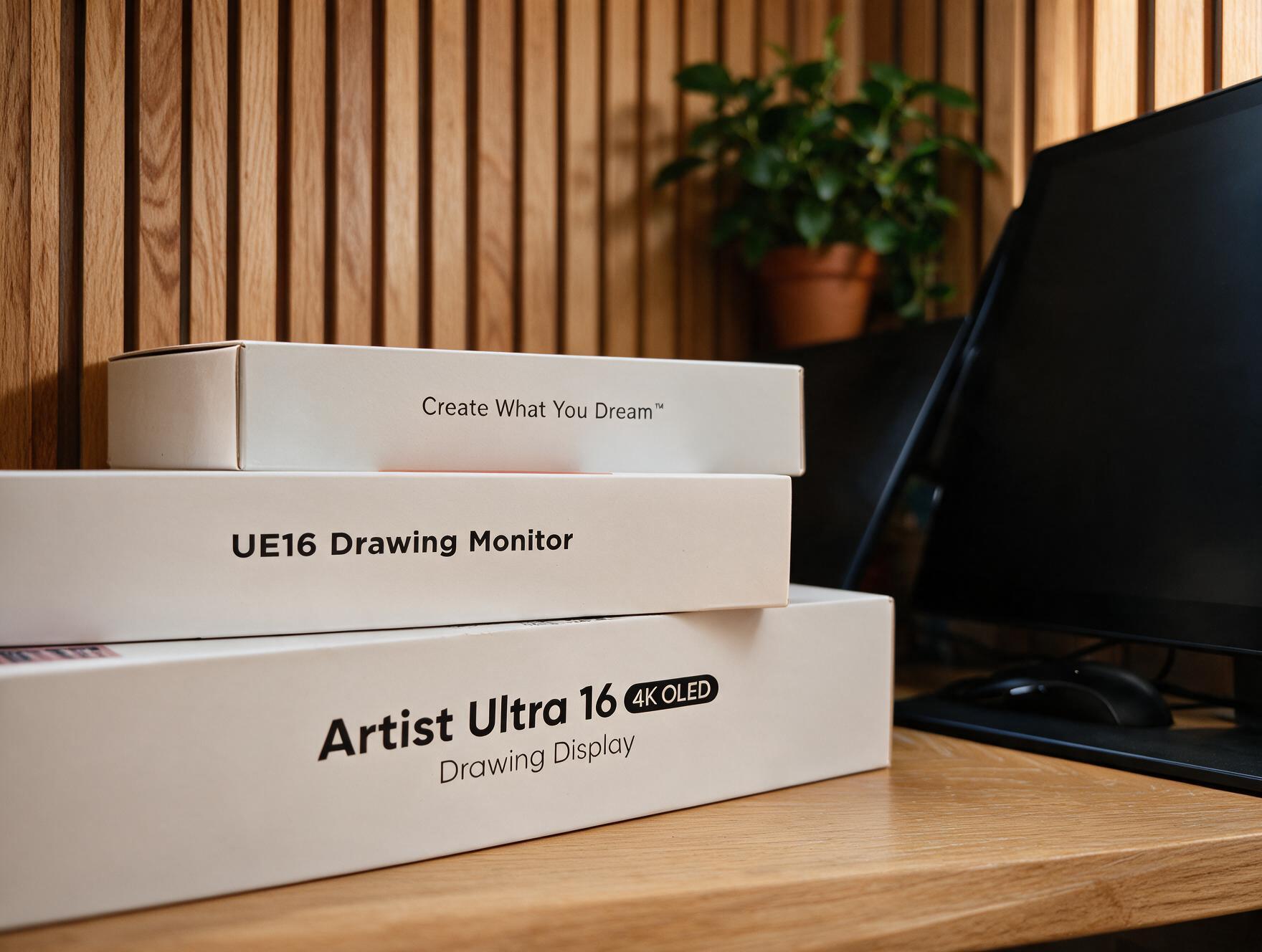
If you are just starting your journey in digital art, you do not need the top-of-the-line Cintiq. You need a device that is reliable and comfortable. The goal is to lower the barrier to entry, not to make yourself nervous about the financial investment every time you sit down to draw. Today’s entry-level market is exceptional; devices like the Ugee 16 offer fantastic value, providing a high-quality display and a solid stylus for a fraction of the cost of "pro" models. Buy something that encourages practice, and save the major upgrade for when you’ve outgrown your current tool.
05. The Brand Loyalty Trap
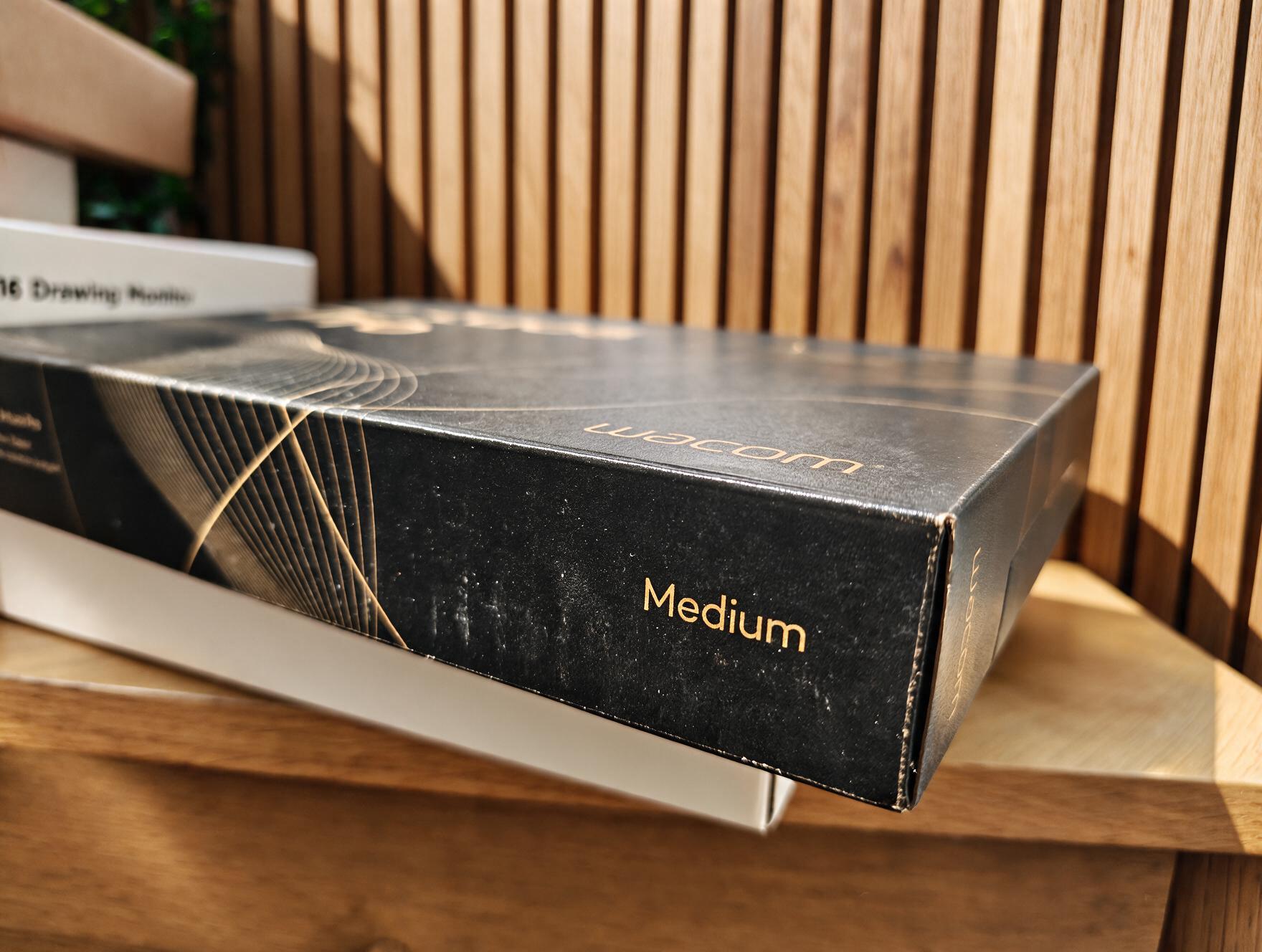
Wacom has long held the status of the "Apple of the drawing world." They have earned this reputation through decades of hardware consistency, industry-leading ergonomics, and reliable drivers. However, the gap between Wacom and the rest of the market has narrowed significantly in the last five years.
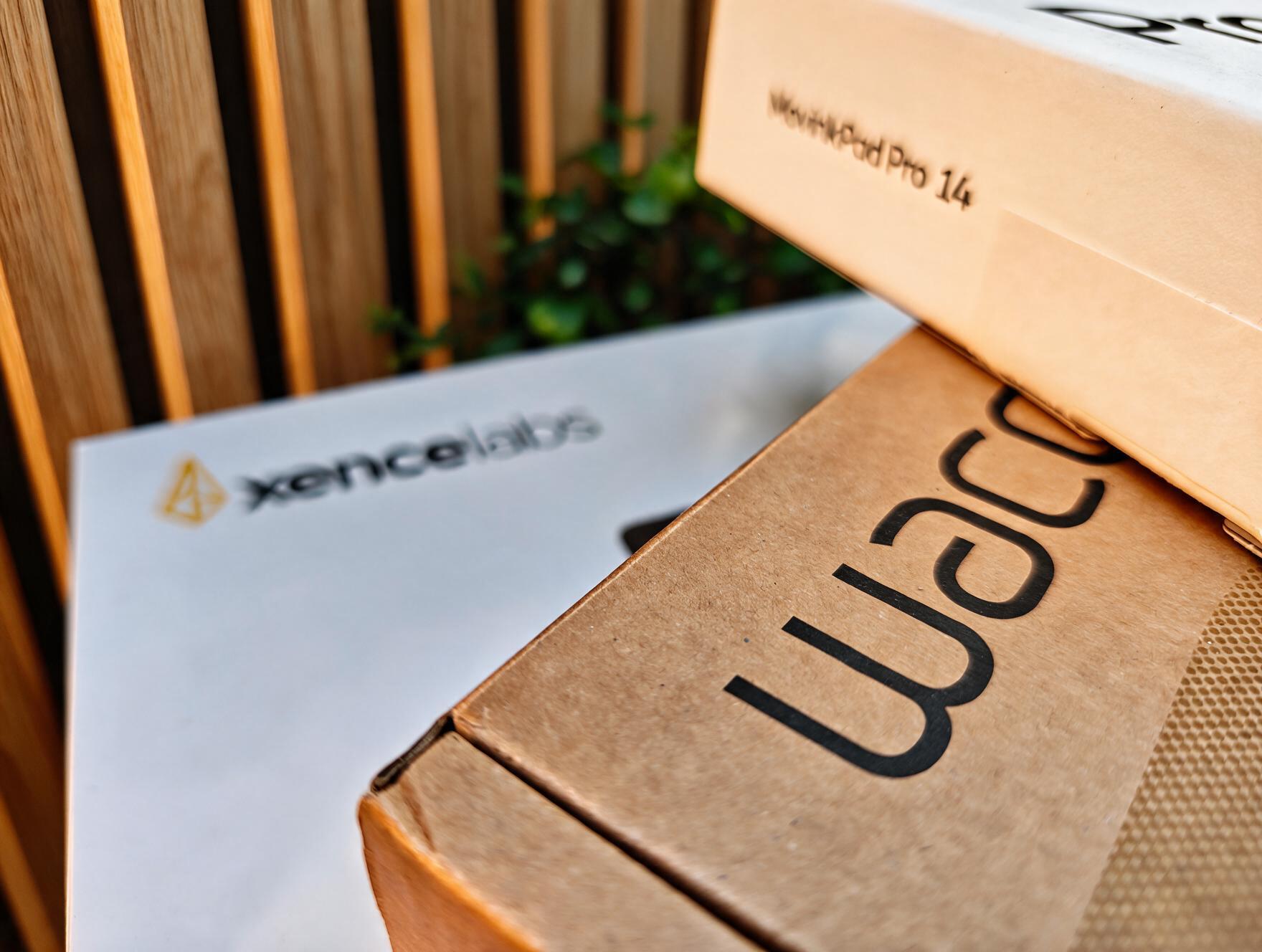
Agile brands like XPPen, Huion, and Xencelabs have been taking risks that the industry leaders were slow to adopt. For example, when XPPen launched the Magic Drawing Pad—a standalone Android-based device—it offered a form factor and portability that Wacom took three years to match with the MovinkPad Pro 14. There is nothing wrong with choosing a Wacom, but do not assume the logo automatically guarantees the "best" experience for your specific needs. Research the hardware—not just the brand reputation.
06. Prioritizing Specs Over Ergonomics
This is perhaps the most critical oversight. You will spend hundreds, perhaps thousands, of hours physically interacting with your tablet. You can have a 4K resolution, 100% Adobe RGB coverage, and a 16K pressure-sensitive pen, but if the tablet has a poor stand, uncomfortable edges, or awkward shortcut placement, your productivity will plummet.
Ergonomics are the "silent" specs that define long-term usage. Does the stylus have a comfortable grip? Are the Quick Keys placed where your hand naturally rests? Is the display surface textured to mimic paper, or is it slippery glass? Wacom continues to lead here—their recent design choices, such as placing Quick Keys at the top of the Intuos Pro for easy access, demonstrate a deep understanding of the artist’s physical needs. Never sacrifice comfort for raw technical performance.
07. The "Researcher’s Block"
I am often guilty of this myself. Creative professionals love gear. We love the idea that the "perfect" tool is just one review away from changing our lives. But I have seen many artists spend more time watching YouTube reviews of tablets than actually drawing.
The reality is that you can produce gallery-quality work on a $100 graphics tablet or a $3,000 professional pen display. The tool does not make the artist; the artist makes the tool work. Once you have identified your needs—whether you need a screen or a standard graphics tablet, and whether you require on-body shortcuts or a remote—make a decision and stick to it. The best tablet is the one that gets out of the way of your creativity, allowing you to open your software and start working without friction.
Recommended Professional & Entry-Level Picks
Based on years of testing, I have curated a list of devices that balance price, longevity, and performance:
- XPPen Deco Pro LW: An outstanding graphics tablet that hits all the professional baselines (5,080 LPI) and features a beautiful ergonomic curve for wrist comfort.
- Wacom Intuos Pro (2025): My top pick for a traditional graphics tablet. The redesigned layout of the Quick Keys and the Wacom Pro Pen 3 make this the gold standard for ergonomics.
- Xencelabs Pen Tablet Medium Bundle: An excellent "outsider" choice. Xencelabs offers build quality that rivals Wacom at a more accessible price point, and their bundle includes both slim and wide pens, allowing artists to experiment with different grips.
- Ugee UE16: A shining example of budget-conscious engineering. It prioritizes the fundamentals—a responsive, battery-free pen and a laminated display—making it perfect for those stepping into the world of pen displays for the first time.
- XPPen Artist Ultra 16 4K OLED: A powerhouse for those who need color accuracy. The 4K OLED display is superb, and the pen tracking is among the best in the mid-range category.
- Huion Kamvas 22 (Gen 3): This tablet ignores the "16K pressure" gimmick and focuses on what matters: a 90Hz refresh rate, etched glass for a paper-like feel, and factory-calibrated color.
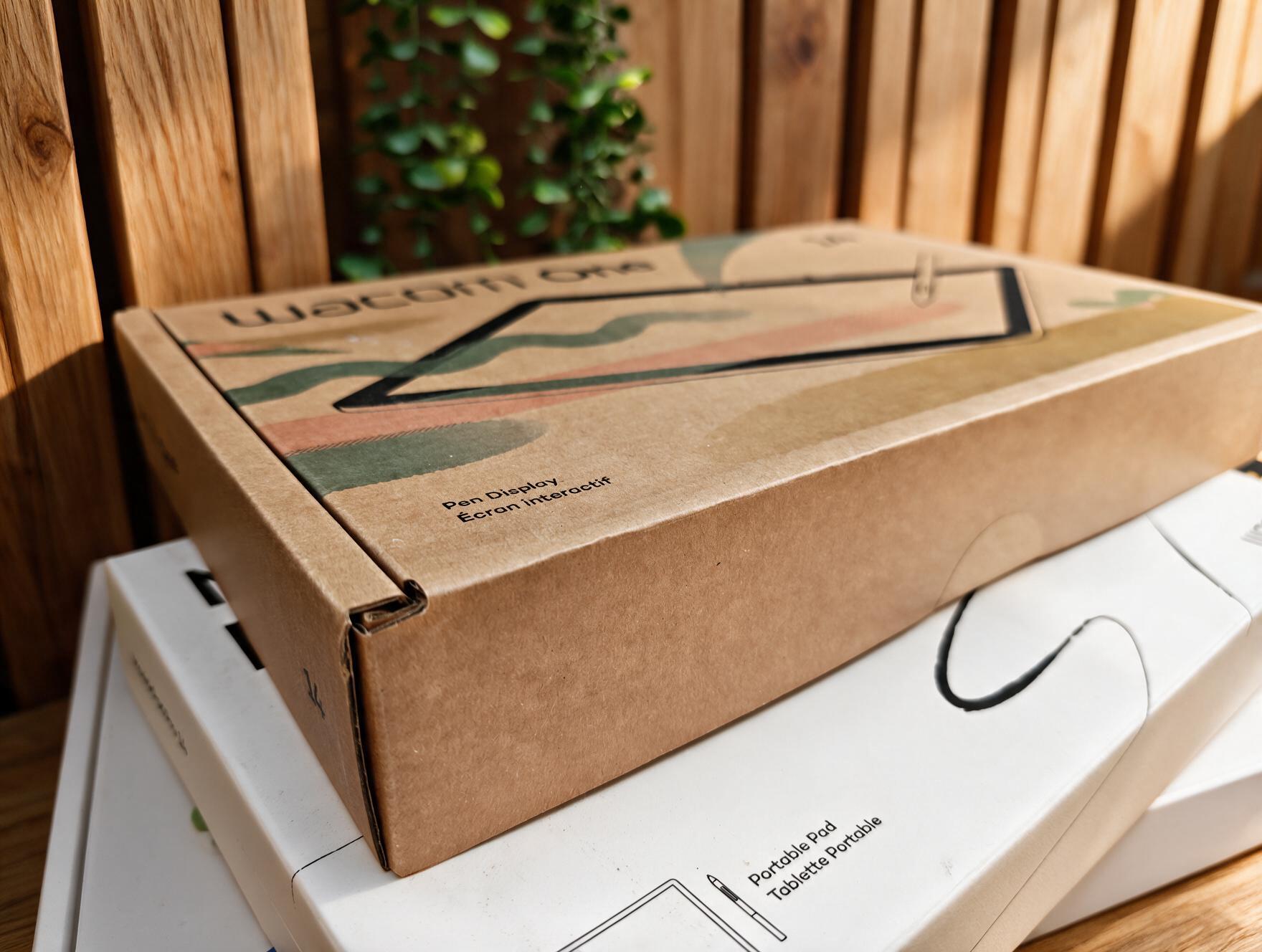
- Wacom MovinkPad Pro 14: For those who demand portability, this is the current king of standalone Android drawing devices, solving the "tethered to a computer" problem with a stunning 3K OLED screen.
- Wacom Cintiq 24 Touch: For the traditionalist who wants a large, expansive workspace with the legendary Wacom reliability, this remains the definitive studio display.
Final Thoughts
Choosing a tablet shouldn’t be a source of anxiety. It is an investment in your craft, but it is not a life sentence. As the industry continues to evolve, the distinction between "pro" and "budget" is blurring. By focusing on your own physical comfort, your software compatibility, and your actual desk space rather than the marketing buzzwords on the box, you’ll find a device that doesn’t just look good on a desk—it will help you make your best art.