

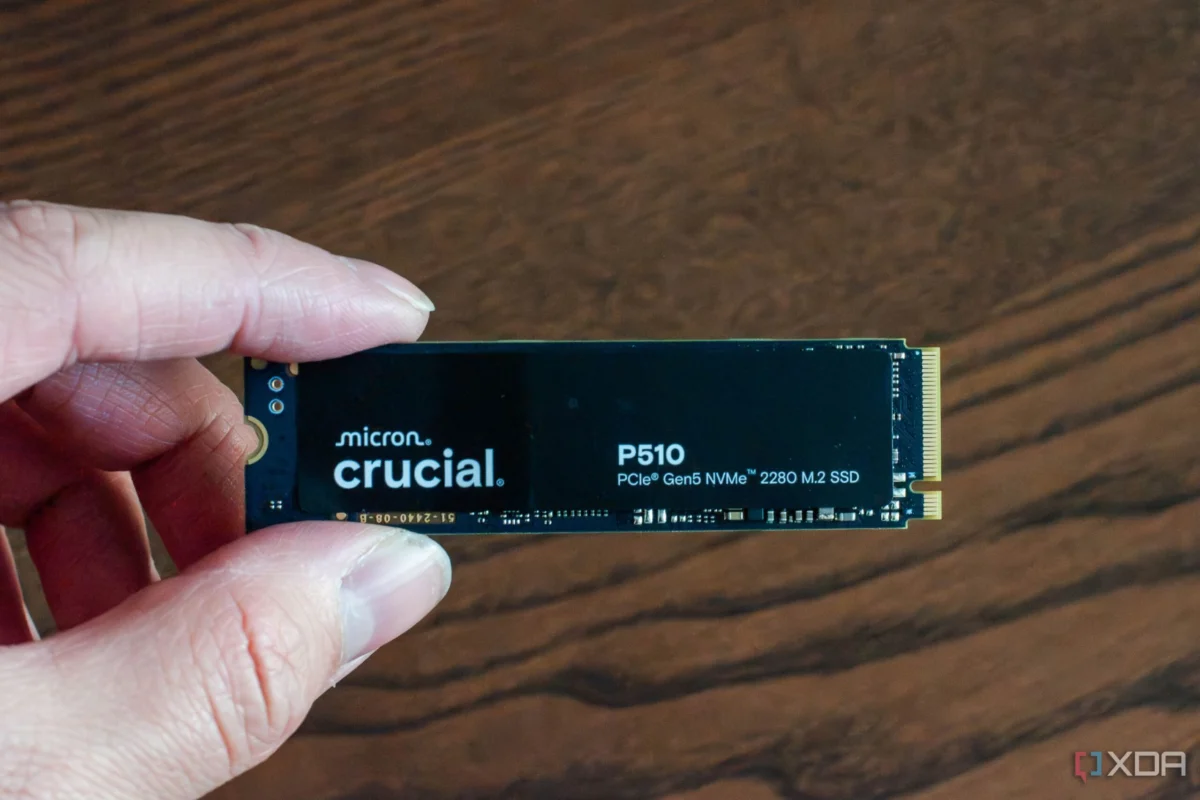
For many PC enthusiasts, the M.2 NVMe SSD has been the "silent hero" of the desktop build. It is the component that survives motherboard swaps, GPU upgrades, and the endless, cyclical churn of Windows updates. Yet, after four or five years of faithful service, a familiar pattern often emerges: boot times begin to creep upward, game assets hitch during open-world traversal, and file transfers that once zipped along at gigabytes per second now crawl at double-digit megabytes.
The instinctive reaction is often one of premature burial. We assume the NAND flash has reached the end of its life, the controller is failing, or that the drive has simply succumbed to the inevitable decay of high-speed electronics. Many users find themselves browsing for the latest PCIe Gen 5 drives, convinced that their current storage is headed for the scrap heap. However, the truth is often much simpler—and much more fixable. Your SSD is likely not failing; it is being strangled by its own environment.
The Reality of SSD Longevity: It’s Not the Hardware, It’s the Logic
Solid-state storage does not degrade linearly like a mechanical hard drive. In a traditional HDD, physical wear on the platters leads to inevitable, permanent failure. In an SSD, the hardware is remarkably resilient. If you run a diagnostic check via tools like CrystalDiskInfo and find that your drive’s "Health Status" is still high—often with 80% to 90% of its TBW (Total Bytes Written) rating remaining—the physical silicone is likely in pristine condition.
If the hardware is healthy, why is the performance tanking? The answer lies in how SSDs manage data. Because SSDs must erase entire blocks of data before they can write new information, the way they organize their internal "bookshelves" becomes critical as they fill up. Over years of heavy use, the controller loses its ability to work efficiently, leading to the performance bottlenecks many mistake for hardware degradation.
The Silent Killers: Why Performance Erodes Over Time
1. The 90% Capacity Wall
The most common culprit for SSD sluggishness is simply running out of room. NAND flash memory functions in a way that requires "clean" blocks to write data quickly. When your drive exceeds 80% to 90% capacity, you hit the "Capacity Wall."
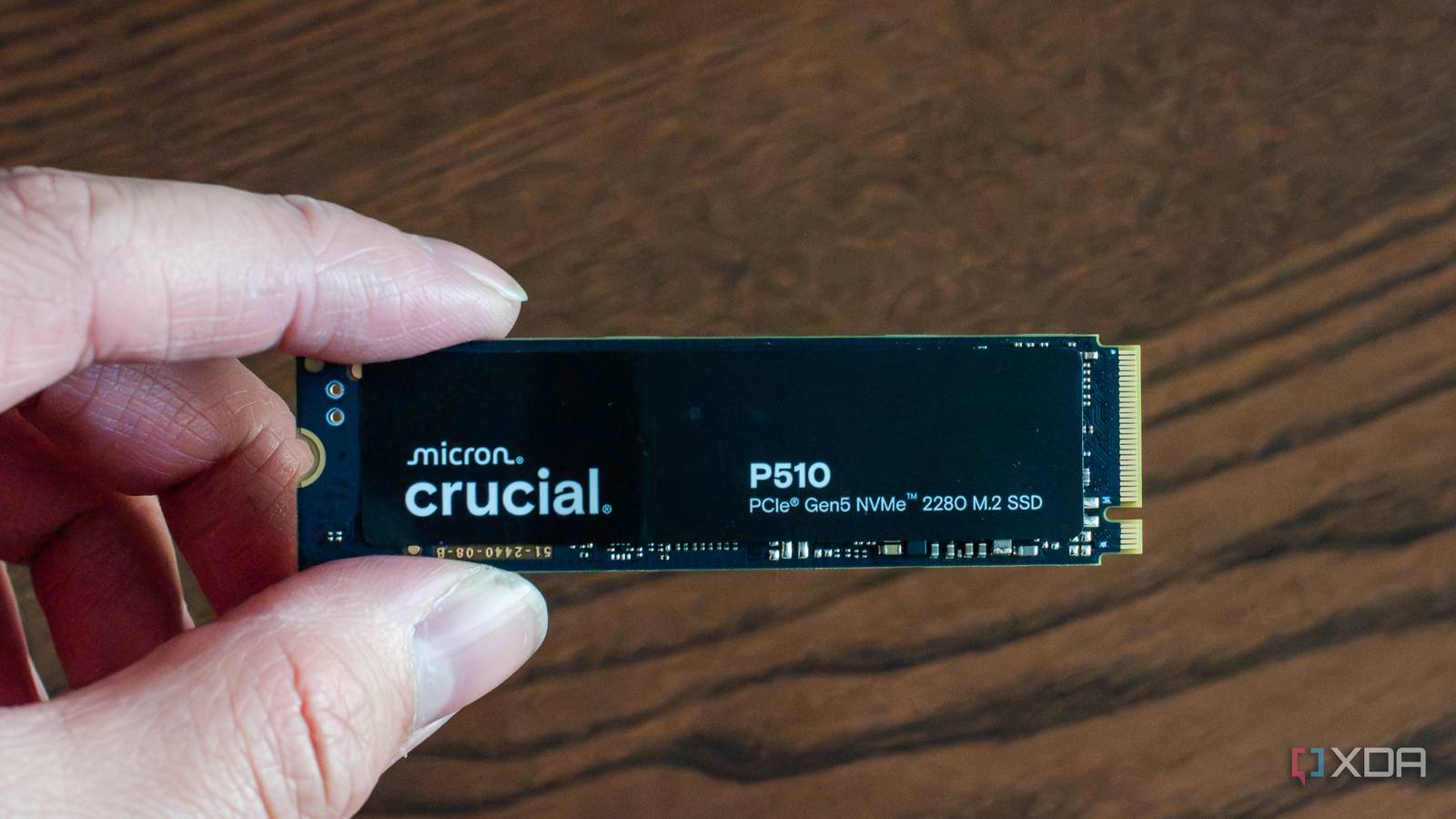
At this point, the controller can no longer find empty blocks to write to directly. It is forced to perform a process called "Write Amplification." It must read an entire block, modify the data, erase the old block, and write the new data back. This multi-step process turns an instantaneous operation into a slow, mechanical-feeling chore. The drive is spending more time managing its internal housekeeping than actually serving your files.
2. SLC Cache Exhaustion
To provide the blazing-fast speeds marketed on the box, most consumer-grade TLC and QLC SSDs use a portion of their flash as an "SLC Cache." This cache acts as a high-speed buffer for incoming data. When a drive is new and empty, this cache is dynamic and expansive.
As you fill your drive with years of accumulated files, games, and media, the space available for this cache shrinks. Once the cache is full, the drive is forced to write directly to the slower, native TLC or QLC flash memory. If you’ve ever noticed a file transfer start at 2GB/s only to plummet to 100MB/s after a few seconds, you are witnessing the exhaustion of the SLC cache.
3. Windows TRIM Neglect
The TRIM command is an OS-level instruction that tells the SSD which data blocks are no longer in use, allowing the drive to wipe them internally during idle time. Over years of registry tweaks, OS migrations, and third-party optimization software, the scheduled Windows TRIM command can become corrupted or disabled entirely. Without TRIM, the drive doesn’t know which files have been deleted, meaning it carries around "dead weight" until it is forced to clear those blocks during an active write, severely crippling performance.
Restoring Your Speeds: A Step-by-Step Recovery
If you are experiencing these symptoms, you do not need to reach for your wallet just yet. By following a few diagnostic and maintenance steps, you can often restore your drive to its factory-fresh performance.

Phase 1: The Diagnostic Audit
Before making changes, you must verify the drive’s health. Download a tool like CrystalDiskInfo. This software reads the S.M.A.R.T. data directly from your drive’s controller. Check the "Health Status" and the "Total Bytes Written." If the health is above 80%, the drive is physically sound. If you see "Caution" or "Bad" status, it is time to back up your data immediately, as the drive is indeed failing.
Phase 2: Enforcing the 15% Rule
Storage management is often neglected until it is too late. The most effective way to restore speed is to enforce an over-provisioning buffer. Aim to keep your drive utilization below 85%.
- Audit your files: Delete that 100GB game you haven’t touched in two years.
- Clear Downloads: The "Downloads" folder is the most common place for "digital hoarding."
- Move media: Offload large, static files (photos, videos, installers) to a secondary HDD or an external storage solution.
Phase 3: Forcing the TRIM Command
If you suspect your SSD’s internal cleanup process has stalled, you can trigger a manual optimization.
- Open the Windows Start menu and type "Defragment and Optimize Drives."
- Select your primary SSD from the list.
- Click "Optimize."
This forces Windows to send a comprehensive TRIM sequence to the drive, effectively telling the controller to clear out all the unused blocks it has been holding onto.
Phase 4: The Thermal Audit
SSDs are heat-sensitive components. If your controller exceeds 75°C, it will engage in "thermal throttling" to prevent permanent damage, slashing your read/write speeds to keep the temperature in check.
- Monitor: Use HWiNFO64 while running a benchmark like CrystalDiskMark.
- Remediate: If temperatures are hitting the limit, check your motherboard’s M.2 heatsink. If it is loose or the thermal pad has dried out or crumbled, replacing the pad—a $5 fix—can restore full performance.
Implications for the Future of PC Maintenance
The narrative that "older hardware is obsolete hardware" is a marketing tactic that ignores the reality of modern storage architecture. An SSD does not have a "soul" that gets tired; it has a file system that gets cluttered.
By understanding the relationship between capacity, cache, and OS-level commands, users can extend the life of their components by years. This not only keeps more money in your pocket but also reduces e-waste, contributing to a more sustainable approach to PC building.
Conclusion: Stop Buying, Start Optimizing
When your system feels sluggish, the urge to upgrade is powerful, but it is often unnecessary. In the vast majority of cases, a five-year-old SSD is more than capable of keeping up with modern gaming and productivity demands. It is simply a matter of housekeeping.
Don’t let the marketing charts for the latest Gen 5 drives trick you into abandoning hardware that has years of life left in it. Spend 20 minutes pruning your file structure, force a manual TRIM cycle, and check your thermals. By doing so, you can keep your trusted drive running at full throttle for another half-decade, saving both your cash and the headache of a full system migration. Your PC is not failing; it’s just waiting for a bit of maintenance.











No comments yet. Be the first to join the conversation!