 Jia Lissa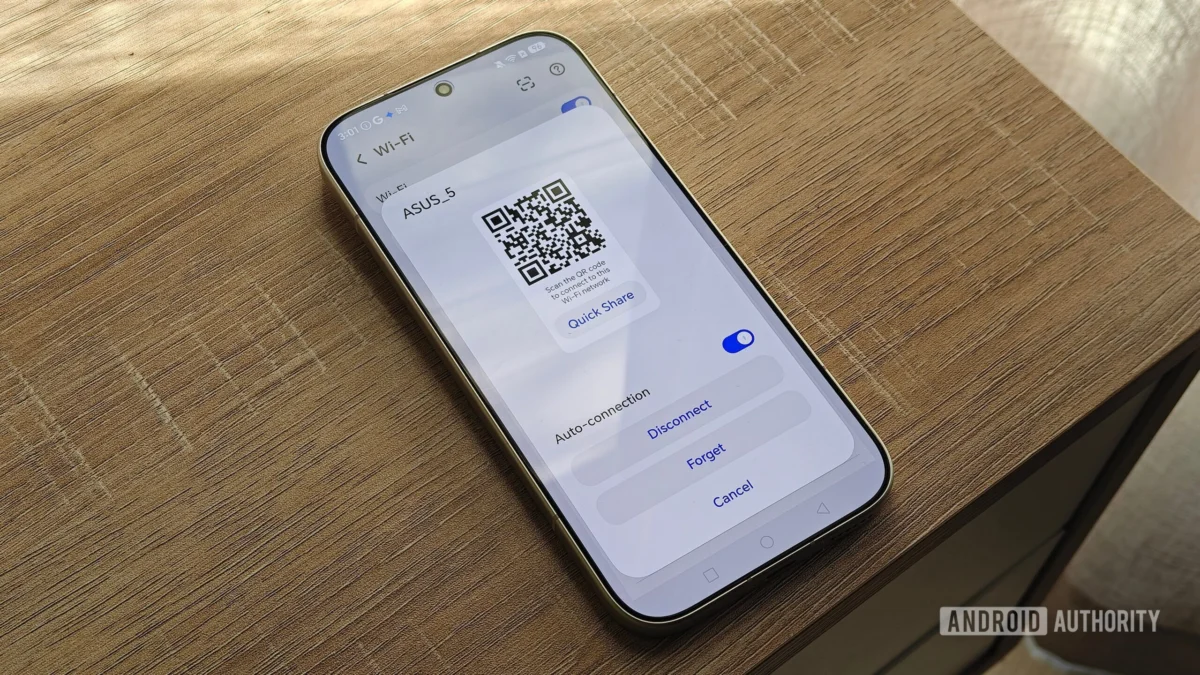
For the average user, an Android smartphone is a window into the digital world—a tool for communication, entertainment, and productivity. However, beneath the polished exterior of modern Android interfaces lies a labyrinth of settings, menus, and hidden shortcuts that many users never explore. Because the Android ecosystem is fragmented across various manufacturers—each applying its own "skin" or UI overlay—these powerful optimization tools are often buried under layers of sub-menus, leaving their true potential untapped.
As someone who has covered the evolution of mobile technology for years, I have seen these features migrate from niche developer tools to sophisticated utilities. Yet, even today, they remain "hidden gems" that can fundamentally transform your device experience. By mastering these seven features, you can reclaim your privacy, optimize your data usage, and streamline your daily interactions with your smartphone.
1. The Privacy Dashboard: Your Digital Security Oversight
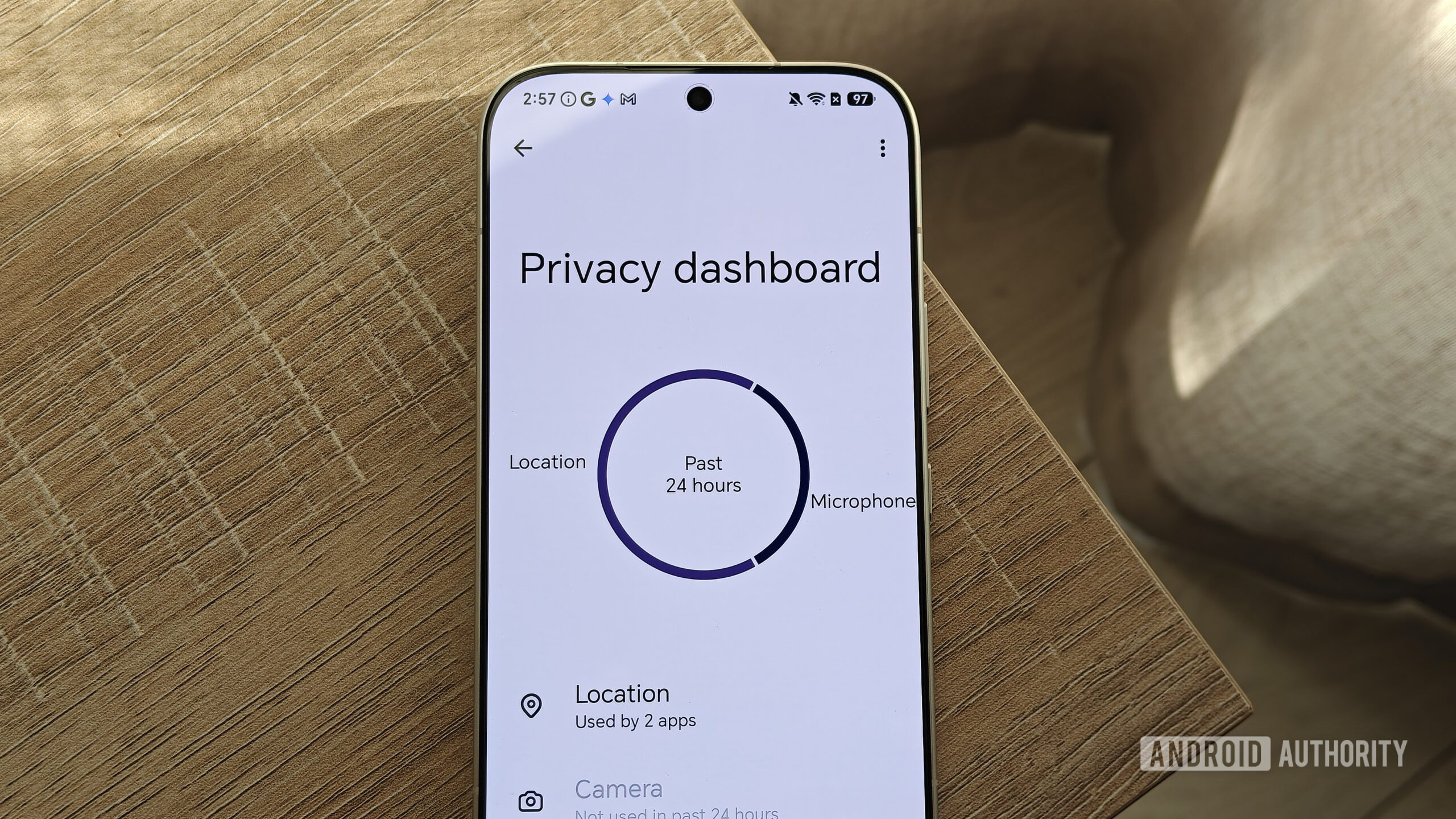
In an era where data is the most valuable currency, understanding what your apps are doing behind the scenes is paramount. While most users are familiar with basic app permission requests, Android’s Privacy Dashboard serves as a centralized, high-level control center that turns complex logs into actionable intelligence.
The Mechanics of Transparency
The Privacy Dashboard provides a clear, 24-hour visual representation of which apps have accessed sensitive hardware—such as your camera, microphone, or location. By navigating to Settings > Security & Privacy > Privacy Dashboard, users are presented with a concise chart. This allows you to identify "rogue" apps that may be pulling data without a legitimate reason.
Practical Implications
I have personally used this feature to audit my own device, discovering that social media applications were accessing my contacts list despite me never granting active permission for that specific feature. For users concerned about the "always-listening" nature of modern apps, this dashboard is the first line of defense.
Note: On Samsung’s One UI, this is found under "Permissions used in the last 24 hours," though it lacks the graphical chart found in stock Android. Despite the variation in presentation, the utility remains the same: it is the ultimate tool for digital hygiene.
2. Wi-Fi Sharing via QR Codes
We have all been there: a friend comes over, and you spend five minutes digging through a router sticker or a password manager to share your Wi-Fi credentials. This antiquated process is not only tedious but also poses a security risk if your password is written down or shared in plain text.
The Evolution of Connectivity
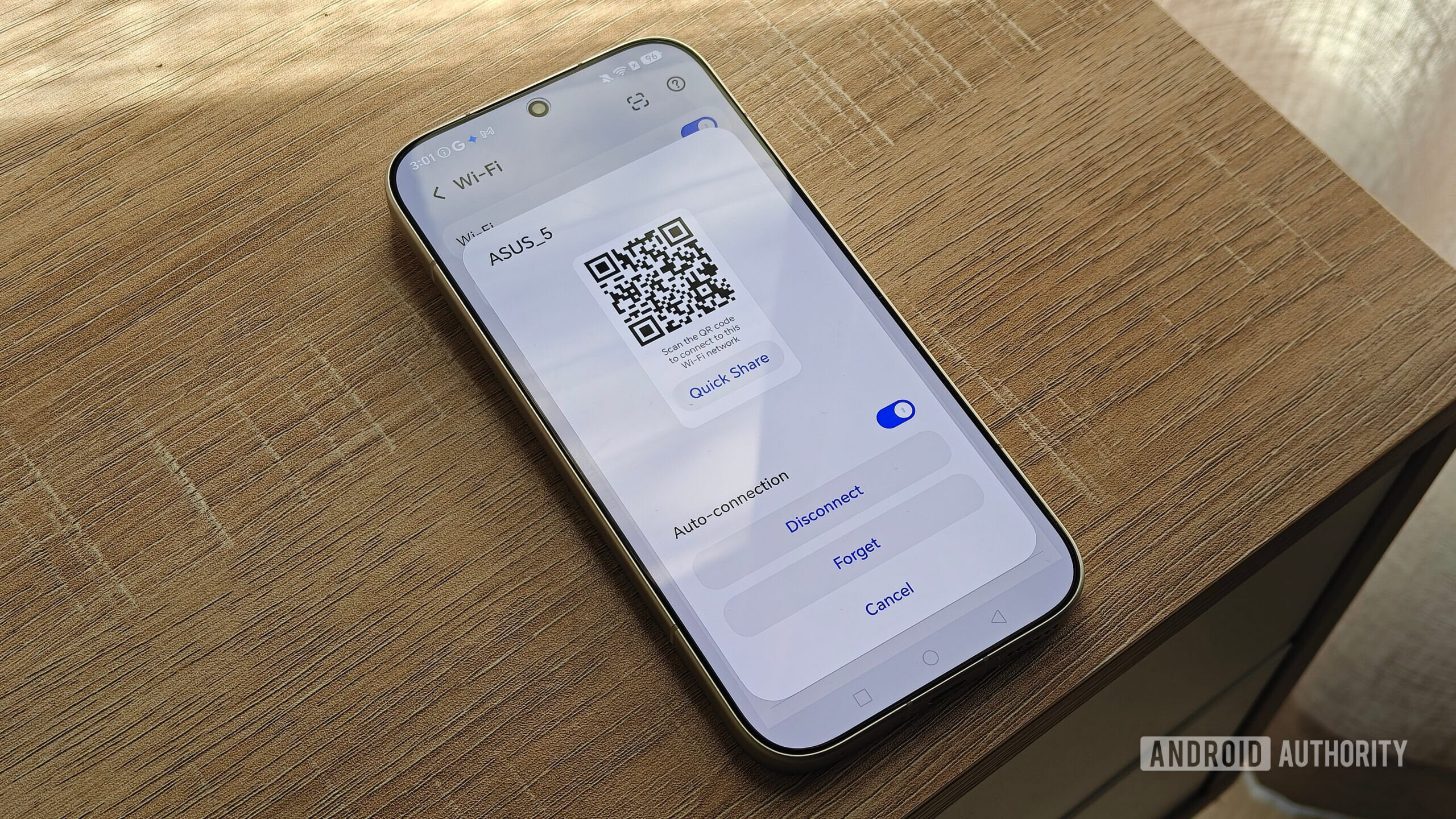
Android’s built-in QR code generator simplifies this entirely. By accessing your current network’s settings, you can generate a unique QR code that allows guests to connect instantly simply by scanning it with their own camera.
- For Samsung users: Navigate to Settings > Connections > Wi-Fi, tap the cog icon next to your network, and select "QR code" at the bottom.
- The Benefit: This removes the need for physical password sharing and adds a layer of convenience that is invaluable in social settings or office environments.
3. Mastering Metered Connections
For power users who often use their phones as mobile hotspots—whether for work or during travel—data management is a constant concern. A common pitfall is that when you connect a secondary device to your phone’s hotspot, the connected device often treats the connection as a standard, "unlimited" Wi-Fi network. This can lead to background processes, such as massive OS updates or high-definition cloud syncs, that drain your entire mobile data bundle in minutes.
Setting Boundaries
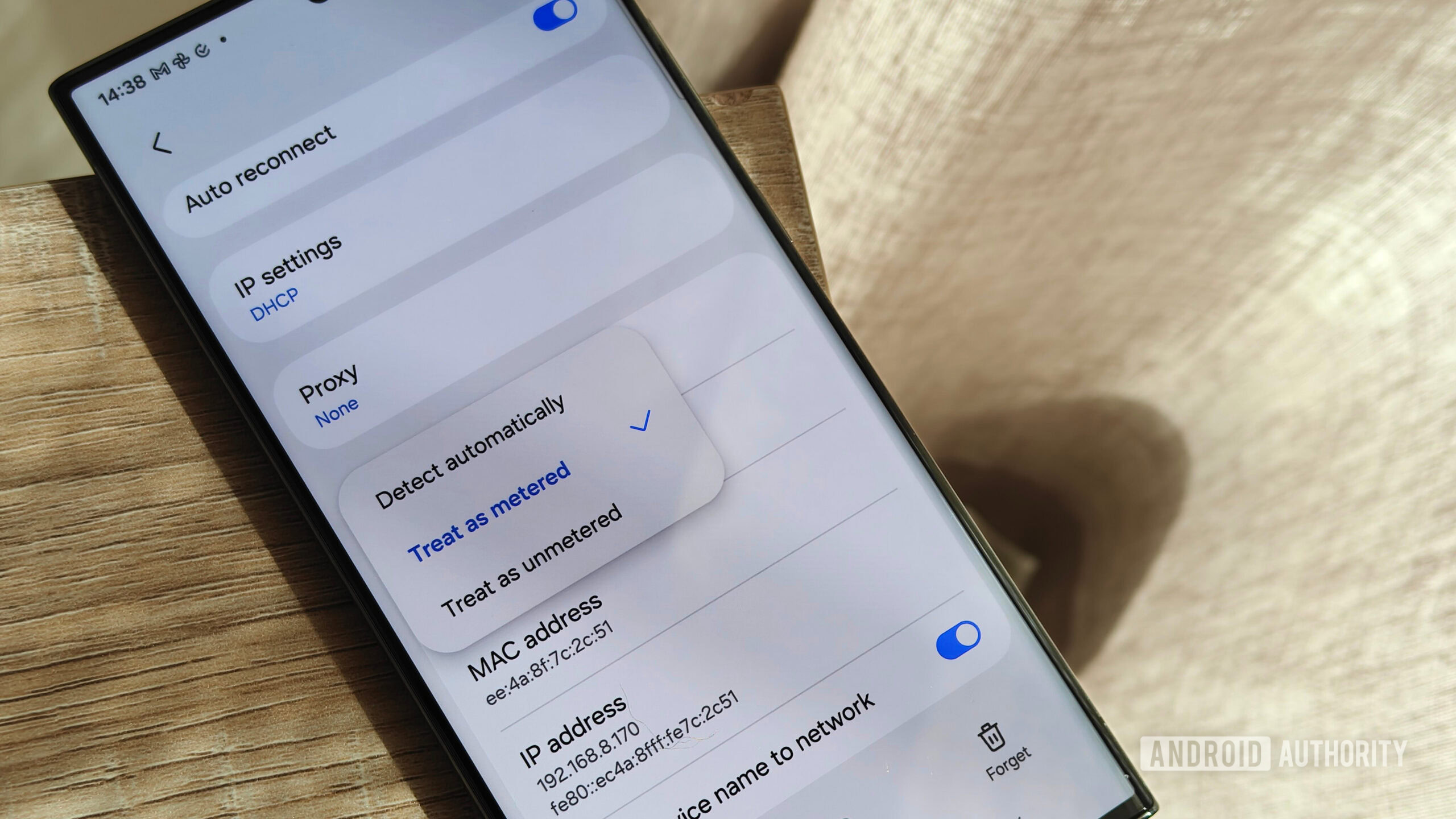
By marking a connection as "Metered," you instruct your device to behave as if it is on a restricted mobile network. This forces apps to pause background data syncing and prevents automatic downloads. To set this on most Android devices, go to your Wi-Fi network settings, look for the "View more" or advanced dropdown, and toggle "Metered network" to "Treat as metered." This small configuration can save you from costly data overage fees and ensures your hotspot bandwidth is reserved for what actually matters.
4. Quick Settings: The Shortcut Power-User Hack
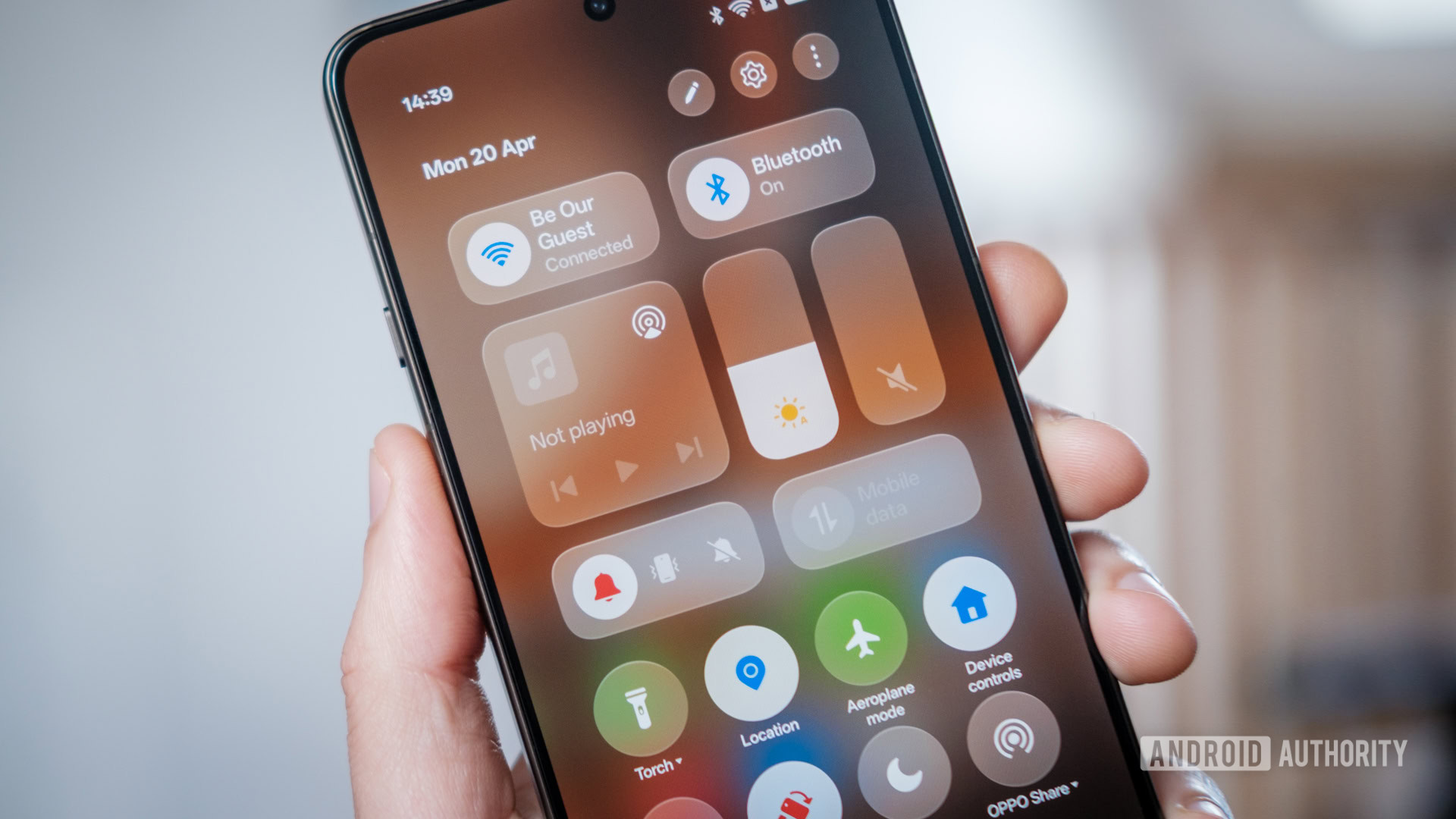
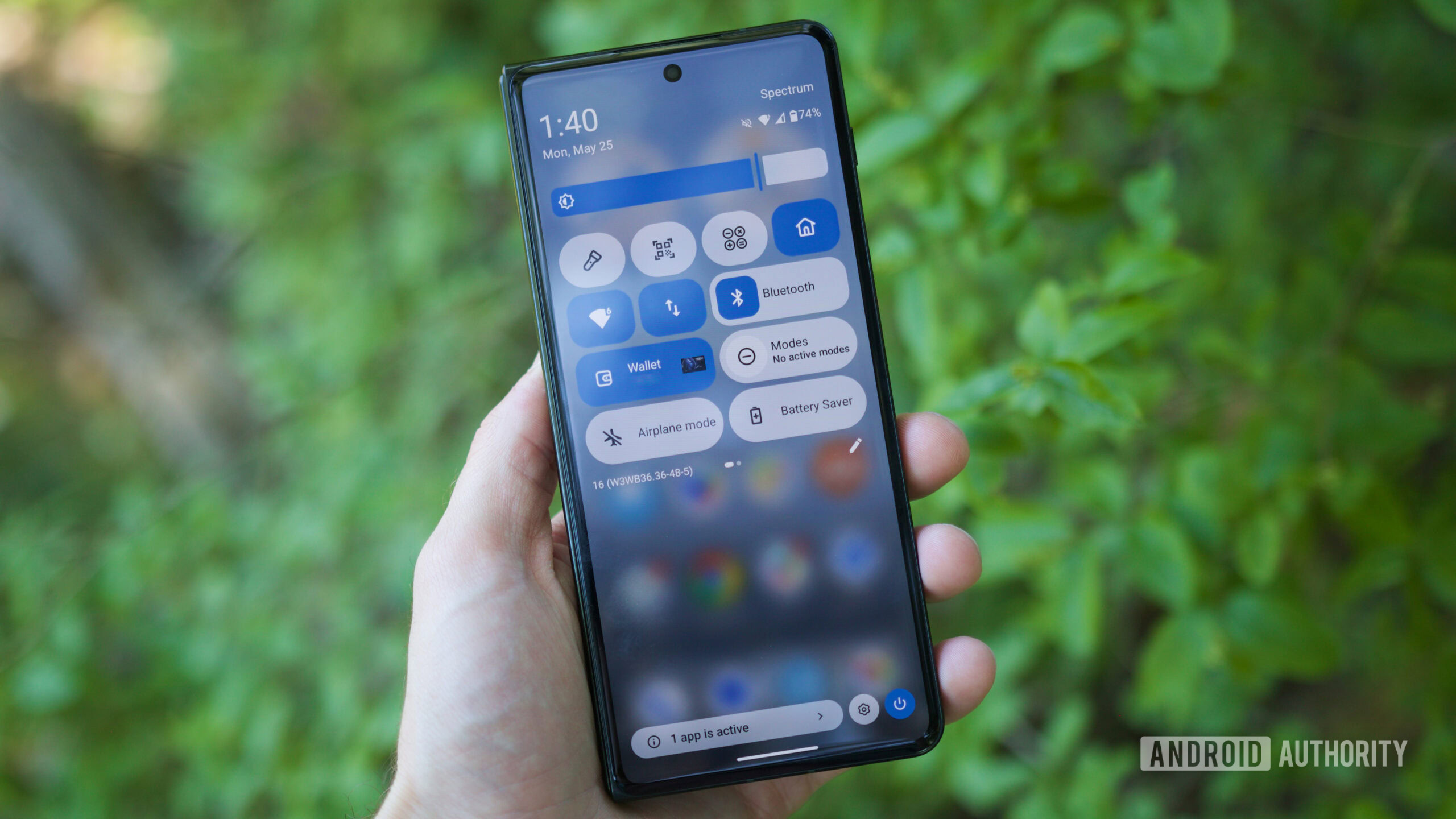
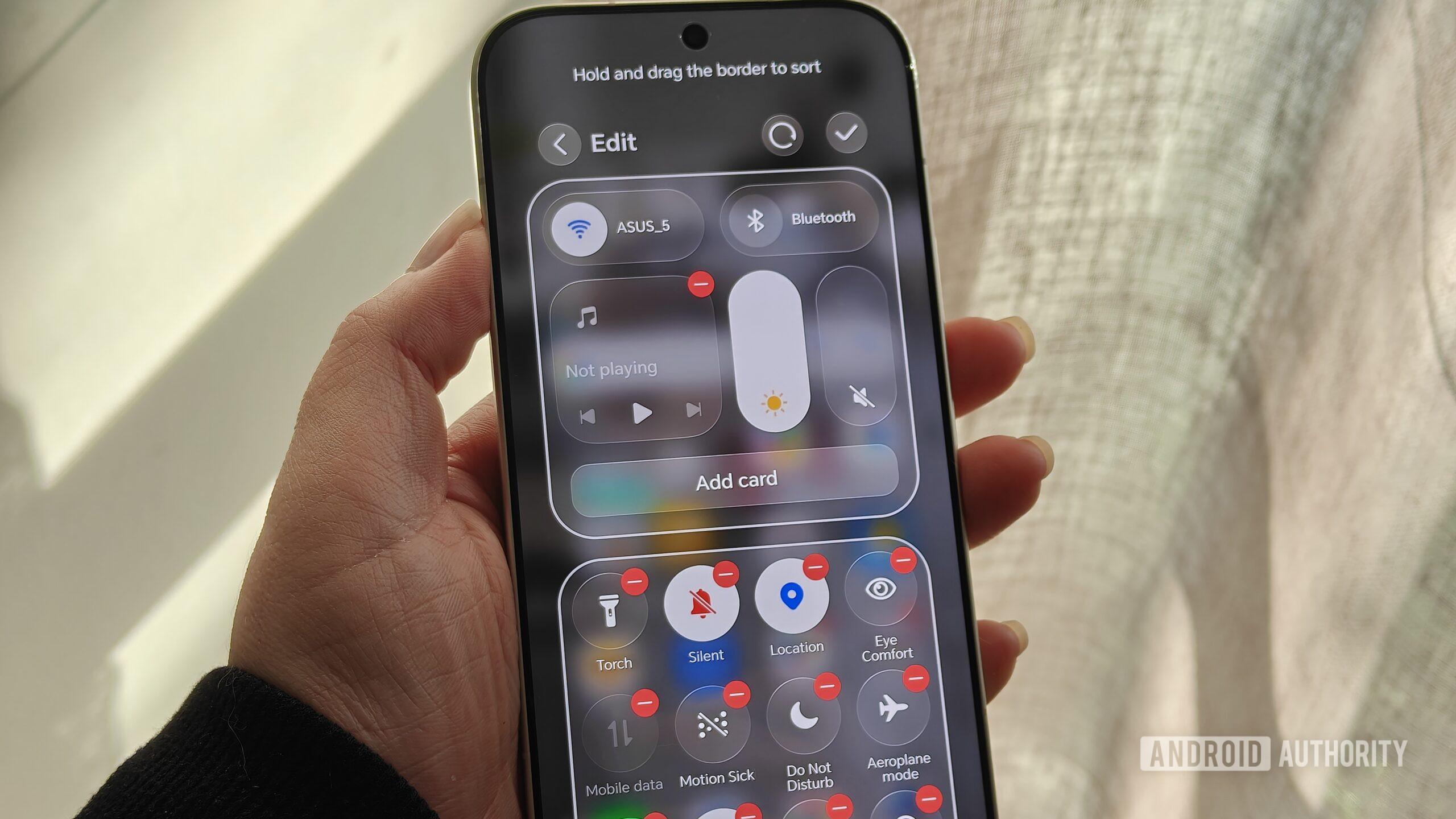
The Quick Settings panel—the grid of icons you see when you swipe down from the top of your screen—is widely used for toggling Bluetooth or Wi-Fi. However, many users fail to realize that these icons are not just switches; they are gateways.
Beyond the Toggle
If you long-press any icon in the Quick Settings panel, the system will instantly jump to the full settings menu for that feature. For instance, long-pressing the "Do Not Disturb" icon takes you directly to the scheduling and exception settings. Similarly, holding the "Eye Comfort" or "Dark Mode" icon opens the detailed customization page for display warmth. This trick allows you to bypass the cumbersome process of navigating through the main Settings app, effectively turning your notification shade into a command center.
5. Reclaiming the Power Button
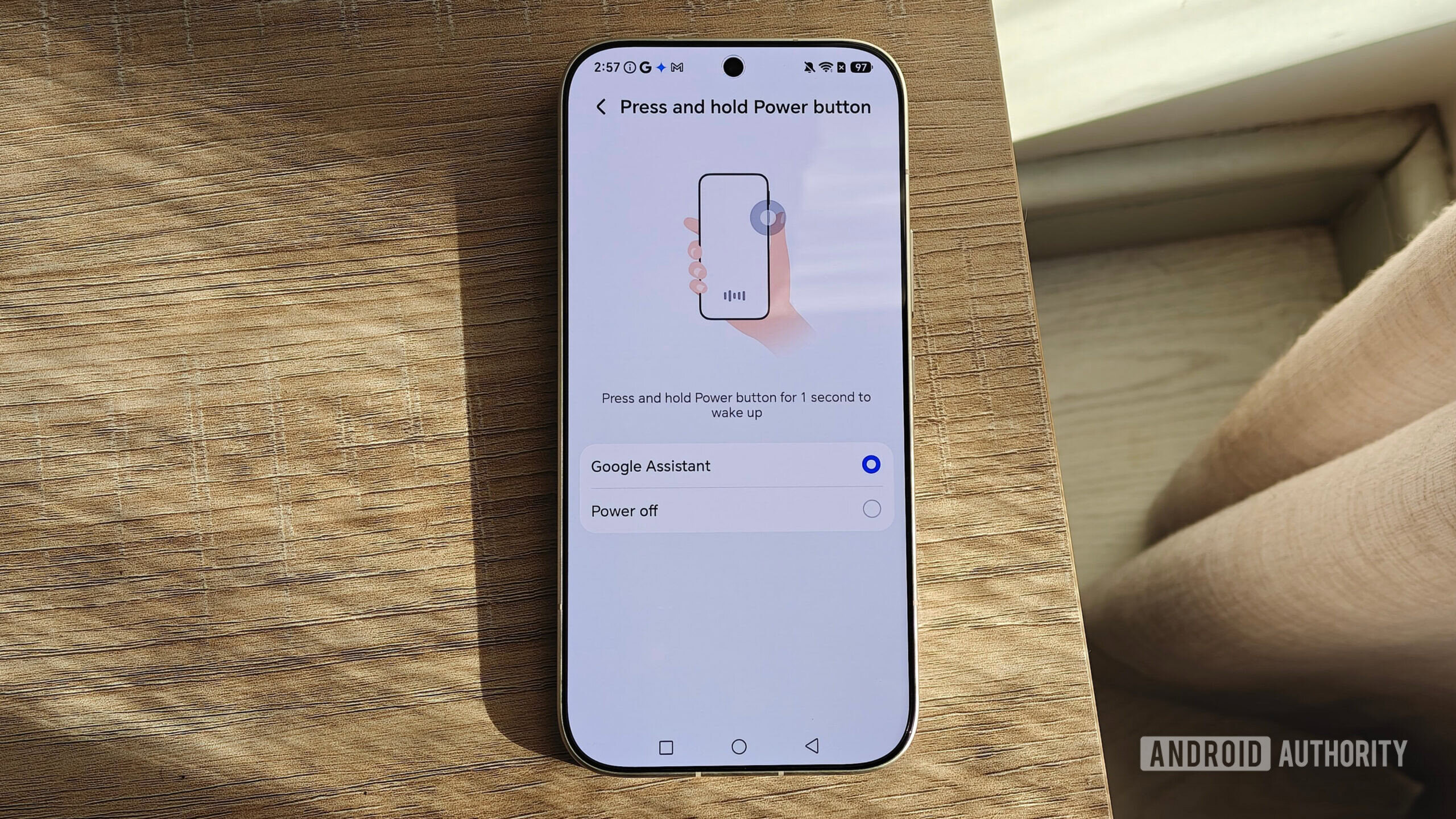
In recent years, smartphone manufacturers have increasingly hijacked the power button to trigger AI assistants like Google Gemini or Bixby. While voice-activated AI has its place, many long-time users find the "long-press for AI" feature intrusive, especially when they simply want to access the power-off or restart menu.
Customization is Key
Fortunately, Android allows you to reclaim your hardware. Whether you are using a flagship Samsung S-series device or an HONOR handset, you can usually reconfigure the button’s behavior.
- On Samsung: Navigate to Settings > Advanced features > Side button.
- On other devices: Look under Accessibility > Shortcuts & Gestures.
By switching the "Press and hold" function back to the "Power menu," you restore the tactile, reliable control over your device’s power state that has been standard for decades.
6. Curating Your Quick Settings Panel
The default Quick Settings panel is often cluttered with features you never use, from "Nearby Share" to "Screen Recording." By customizing this panel, you can ensure that your most important tools are always one swipe away.
Optimization Workflow
To optimize your panel, tap the pencil icon located at the bottom or corner of your Quick Settings shade. Here, you can drag and drop your most essential tiles to the top. Furthermore, keep an eye out for tiles added by third-party apps. Many productivity tools, such as task managers or smart home controllers (e.g., Home Assistant or TickTick), offer dedicated tiles that allow you to add tasks or toggle lights without ever opening the app. This is the definition of "at-a-glance" efficiency.
7. Notification Channels: Granular Control
The notification explosion is one of the most significant contributors to digital fatigue. While we want to receive alerts for urgent matters, we are often bombarded by promotional clutter from the same apps.
The Solution: Notification Channels
Introduced in Android 8.0, Notification Channels allow you to categorize alerts on an app-by-app basis. For example, if you use a food delivery app, you can keep "Order Updates" enabled while permanently disabling "Promotions & Marketing."
To configure this, head to Settings > Apps > [App Name] > Notifications. On many devices, you will see a list of categories. In Samsung’s One UI, you may first need to enable "Manage notification categories for each app" in Settings > Notifications > Advanced settings. Once active, this feature is the single most effective way to curate your digital environment, ensuring your phone only alerts you for information that is actually relevant.
Conclusion: The Path to Mastery
The Android operating system is a powerful, highly customizable ecosystem, but it does not always do a great job of highlighting its best features. Because of the diversity of hardware and the layers of manufacturer skins, users are often left to fend for themselves.
The seven features outlined above represent the difference between a "passive" user and a "power" user. By taking the time to explore the Privacy Dashboard, manage your notification channels, and customize your hardware shortcuts, you aren’t just using your phone—you are optimizing it to serve your specific needs. As we move further into an era of increasingly complex mobile interfaces, these hidden gems remain the most effective tools for ensuring that your technology works for you, not the other way around.
Take control of your device today; you might be surprised at how much more capable your phone becomes once you pull back the curtain on its hidden settings.

 Sagoh
Sagoh
 Raul Delapena Setiawan